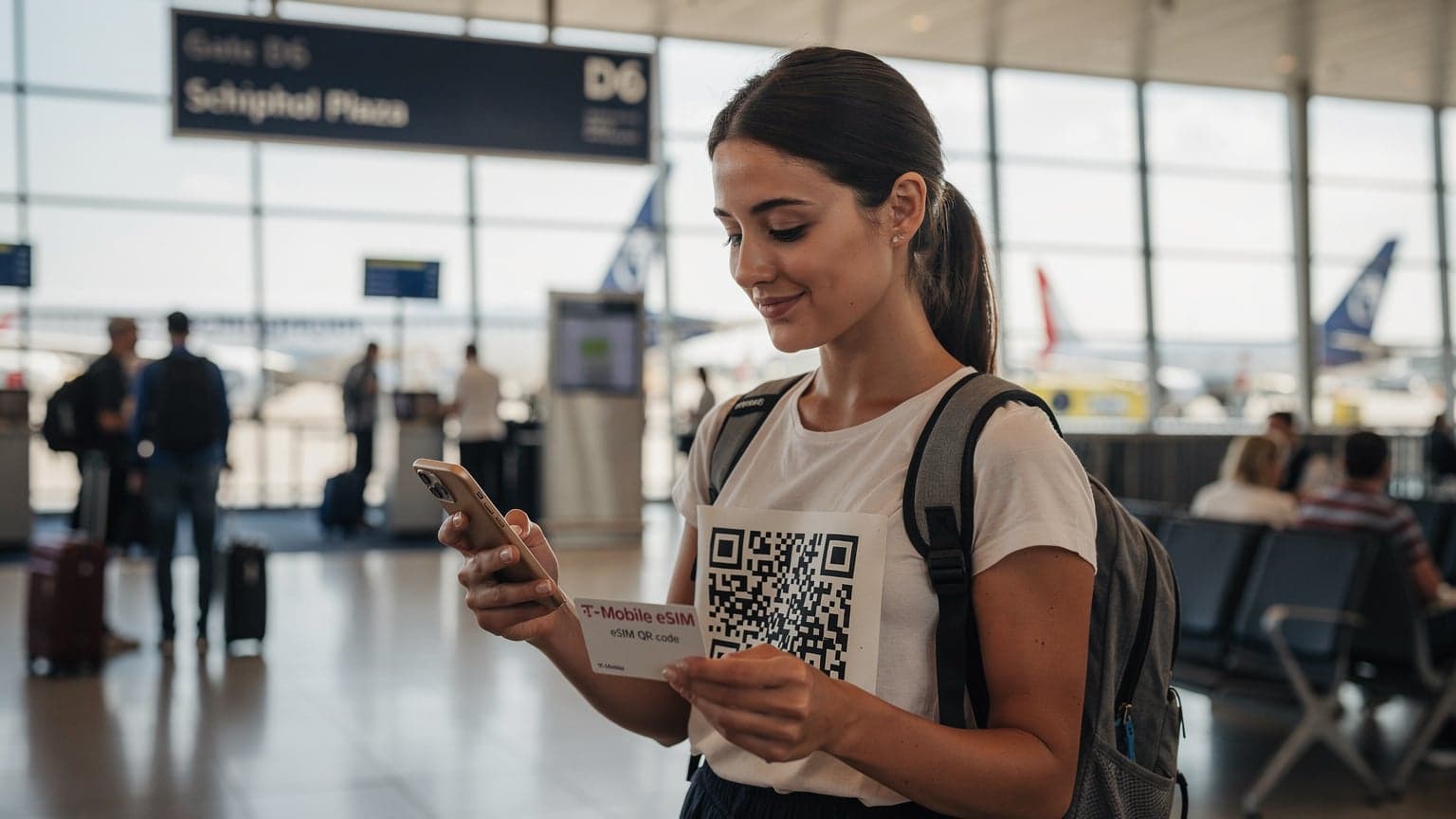
iPhone eSIM Abroad: Your Essential Guide to Seamless Global Connectivity in 2026
It's 2026, and the world feels smaller and more connected than ever. If you're an iPhone user who loves to travel, you've probably already discovered the magic of the eSIM. Remember those days of wrestling with tiny SIM cards at airport kiosks, hoping you picked the right local carrier? Forget them. Your iPhone, with its powerful eSIM technology, is now your passport to staying connected no matter where you roam. But how do you really get the most out of this tech on your international trips? This guide will cover everything you need to know, from the basics to smart data usage, so you can stay connected, productive, and entertained wherever your wanderlust takes you.
Understanding the Power of eSIM on Your iPhone
Before we jump into international travel specifics, let's quickly review what an eSIM is and why it's such a game-changer for iPhone users. An eSIM, or embedded SIM, is a digital SIM. It lets you activate a cellular plan from a carrier without needing a physical nano-SIM card. Most modern iPhones, starting with the iPhone XS/XR series, support eSIM technology. By 2026, it's pretty much a standard feature you can count on.
For travelers, the biggest perk is being able to store multiple eSIM profiles on one device. This means you can keep your home country's number active while also activating a local or regional data plan for your destination. No more swapping cards, no more worrying about losing your main SIM, and definitely no more outrageous roaming charges.
Why eSIM is Your Best Travel Companion in 2026
- Instant Activation: Buy and activate a data plan from anywhere in the world, often in minutes, right from your iPhone.
- Multiple Profiles: Keep several eSIMs on your device, making it easy to switch plans for different countries or regions.
- Enhanced Security: There's no physical card to lose or steal, which adds an extra layer of security to your phone service.
- Cost Savings: Get access to competitive local data rates, helping you avoid expensive international roaming fees from your home carrier.
- Environmental Friendliness: Less plastic waste from physical SIM cards means a greener planet.
Preparing Your iPhone for International eSIM Use
A little planning goes a long way. Before you even pack your suitcase, make sure your iPhone is ready for its global adventure.
1. Check Your iPhone's Compatibility
While most iPhones released since late 2018 support eSIM, it's always smart to double-check. Go to Settings > General > About. If you see "Add Cellular Plan" or "Digital SIM" listed, your device is good to go. Also, confirm your iPhone is unlocked. A locked phone will only work with the carrier it's tied to, which severely limits your eSIM options when you're abroad.
2. Update Your iPhone's Software
Always make sure your iPhone is running the latest version of iOS. Apple frequently releases updates that improve eSIM functionality, security, and compatibility with various carriers worldwide. A smooth software experience usually means a smooth connection.
3. Understand Your Home Carrier's Roaming Options
Before you leave, decide what you want to do with your home number. Do you need to receive calls and texts? Many carriers offer international roaming packages. While these are usually more expensive than a dedicated eSIM, they might work for light usage or for keeping your main number active for important calls. You can often set your home eSIM to "Voice & SMS only" and use a travel eSIM for all your data needs, which can be a perfect balance.
Choosing and Activating Your Travel eSIM
This is where things get really cool. By 2026, the market for travel eSIM providers is huge, offering tons of choices to fit every traveler's needs.
1. Research eSIM Providers
Many global eSIM providers focus specifically on travelers. Companies like Cellesim Travel eSIM specialize in offering regional and global data plans that are easy to buy and activate. When picking a provider, think about:
- Destination Coverage: Does the eSIM cover the specific countries you'll be visiting?
- Data Volume: How much data do you think you'll need? Plans range from a few GB to unlimited options.
- Validity Period: How long is the plan good for (e.g., 7 days, 30 days)?
- Price: Compare costs per GB across different providers.
- Customer Support: Is there reliable support in case you run into problems?
For example, Cellesim Travel eSIM often provides excellent coverage across popular tourist spots in Europe, Asia, and North America, with various data packages designed for short trips or longer stays, ensuring you're never without a connection.
2. Purchasing Your eSIM Plan
Most eSIM purchases happen online through the provider's website or their app. The process is usually pretty simple:
- Pick your destination and the data plan you want.
- Finish the purchase.
- You'll get an email with a QR code or manual activation details.
3. Activating Your eSIM on Your iPhone
You can activate your eSIM either before you leave home (which is what I recommend) or once you arrive at your destination. Just make sure you have a Wi-Fi connection for activation.
Using a QR Code (Most Common Method):
- Go to
Settings > Cellular > Add Cellular Plan. - Tap
Use QR Code. - Scan the QR code your eSIM provider (like Cellesim Travel eSIM) sent you.
- Follow the on-screen instructions to name your new plan (e.g., "Travel Data," "France eSIM").
Using Manual Activation:
- Go to
Settings > Cellular > Add Cellular Plan. - Tap
Enter Details Manually. - Input the SM-DP+ Address, Activation Code, and Confirmation Code provided by your eSIM provider.
- Follow the on-screen instructions to name your new plan.
Managing Your Cellular Plans Abroad
Once your travel eSIM is active, handling your different cellular plans on your iPhone is super easy and flexible.
1. Setting Your Default Line and Data Line
Go to Settings > Cellular. You'll see all your active cellular plans here. You can:
- Set Default Voice Line: Choose which number (your home number or travel eSIM number, if it has one) you want to use for calls and texts by default.
- Set Cellular Data: This is key. Select your newly activated travel eSIM (e.g., Cellesim Travel eSIM) as your main line for Cellular Data. This makes sure you're using the data from your purchased plan and not racking up roaming charges on your home plan.
- Allow Cellular Data Switching: You can turn this feature on or off. If it's on, your iPhone will automatically switch to your default voice line for data if your chosen data line has no service. For most travelers, it's best to turn this off to prevent accidental roaming charges.
2. Disabling Your Home Carrier's Data Roaming
Even if you've set your travel eSIM as the primary for data, it's a smart move to explicitly turn off data roaming for your home carrier. Go to Settings > Cellular > [Your Home Carrier Name] > Data Roaming and toggle it OFF. This gives you an extra layer of protection against unexpected fees.
3. Monitoring Data Usage
Keep an eye on how much data you're using. Most eSIM providers, including Cellesim Travel eSIM, let you check your remaining data through their app or website. You can also monitor general usage on your iPhone via Settings > Cellular, though this tracks overall usage and might not precisely match your travel eSIM's allowance.
Tips for Optimizing Your eSIM Experience
To really get the most out of global connectivity, consider these expert tips:
- Download Offline Maps: Before you leave Wi-Fi, download maps for your destination using apps like Google Maps or Apple Maps. This saves data and ensures you can navigate even if you temporarily lose signal.
- Utilize Wi-Fi When Available: Connect to secure Wi-Fi networks in hotels, cafes, and public places whenever possible to save your eSIM data.
- Disable Background App Refresh: Go to
Settings > General > Background App Refreshand turn it off for apps that don't need constant updates. - Manage Photo and Video Uploads: Set iCloud Photos and other cloud services to upload only when connected to Wi-Fi.
- Consider a Regional Plan: If you're traveling across several countries in one region (like Europe), a regional eSIM plan (often offered by providers like Cellesim Travel eSIM) can be more affordable and easier than buying individual country plans.
- Keep Your QR Code Handy: If you ever need to reinstall your eSIM (say, after a factory reset), having the original QR code or activation details easily accessible will save you a lot of trouble.
Troubleshooting Common eSIM Issues
While eSIM technology is generally reliable, you might occasionally hit a minor snag. Here’s how to troubleshoot:
- No Service: Make sure your travel eSIM is selected as the cellular data line. Check if airplane mode is off. Try restarting your iPhone.
- Slow Data Speeds: This could be because of network congestion in your location or limitations of the local network. Check if your data plan has a speed cap.
- Activation Problems: Double-check that you've entered the manual details correctly if you're not using a QR code. Ensure you have a stable Wi-Fi connection during activation.
- Contact Customer Support: If nothing else works, reach out to the customer support of your eSIM provider (e.g., Cellesim Travel eSIM). They can often diagnose and fix issues remotely.
The Future of iPhone eSIM Travel in 2026 and Beyond
By 2026, eSIM isn't just a cool new feature; it's an essential tool for anyone traveling internationally. We can expect even better integration, more competitive pricing, and maybe even more dynamic plans that automatically adjust to your travel patterns. The convenience and flexibility it offers are unmatched, transforming what used to be a stressful part of travel into a smooth experience.
Embracing your iPhone's eSIM capabilities means truly freeing yourself on your international adventures. With this guide, you're now ready to explore the world with confidence, knowing you'll always be connected, whether you're sharing stunning photos, finding your way through busy cities, or just staying in touch with loved ones back home. Happy travels!