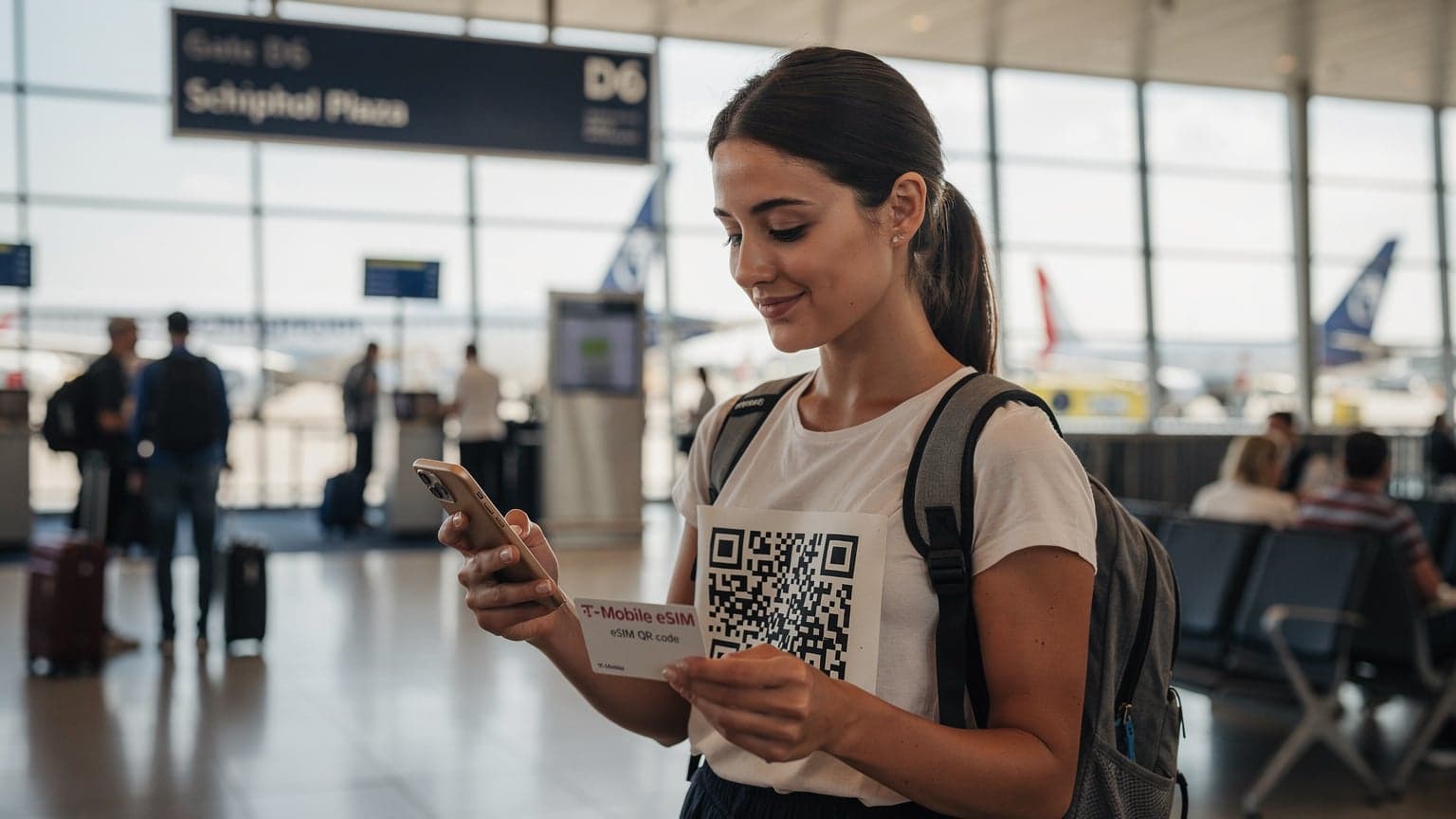
eSIM for Laptops: How It Works for Family Travel
Remember the days of frantically searching for Wi-Fi passwords or buying expensive local SIM cards in every country, only to have them not fit your child's tablet? Those days are, thankfully, becoming a distant memory, especially now that eSIM technology is making its way into our family's most essential devices, beyond just our phones. For the diligent family travel planner, this is a game-changer.
An eSIM, or embedded SIM, is essentially a digital SIM card that's built directly into your laptop or PC. Instead of swapping out tiny plastic cards, you simply download a digital profile from a carrier. This means your devices, including the kids' iPads or even a Nintendo Switch with compatible hardware, can connect to a local network almost instantly. Think of it as having a global data plan built right into your hardware, ready to activate with a few taps. It’s particularly fantastic when you’re trying to keep two kids streaming Disney+ in the back of a rental car through Tuscany, or when you absolutely need to finalize that hotel booking confirmation while waiting for boarding at JFK.
What is eSIM and Why It Matters for Your PC
At its core, an eSIM replaces the physical SIM card slot. For laptops, this means you gain cellular connectivity directly, without needing a Wi-Fi hotspot or tethering your phone. It's a built-in cellular modem that gets its "identity" digitally. This is huge for family travel. No more juggling separate hotspots for each device, no more draining your phone's battery just to give the kids internet access on their tablets. Your laptop becomes its own independent internet hub, which is incredibly useful for remote schoolwork, checking flight changes, or even just letting the kids play Roblox online without monopolizing your phone's data.
The convenience factor alone is worth it. Imagine landing in Paris, opening your laptop at Charles de Gaulle, and connecting to a local data plan within minutes to find your Airbnb directions or confirm your airport transfer. No more desperately searching for airport Wi-Fi, which, let's be honest, is often slow, insecure, and requires endless login portals. With an eSIM, you're connected from the moment you power on your device, making those crucial first hours in a new country significantly less stressful.
Compatibility: Is Your Laptop eSIM Ready in 2026?
Not every laptop or PC is eSIM-compatible, but the good news is that by 2026, many newer models from major manufacturers like Dell, HP, Lenovo, and Microsoft Surface already come with eSIM support built-in. Look for "LTE Advanced," "5G," or "eSIM" in the specifications. Often, it's the premium or business-oriented models that have this feature, but it's becoming more mainstream. Always double-check your device's specs before you leave. I made that mistake once, assuming my "new" laptop would have it, only to find out it was a year too old for the tech. Live and learn, right?
For families, this means you might already have a device capable of this. If not, consider it a key feature for your next laptop upgrade. Having a dedicated connection for your laptop can free up your phone's eSIM for AT&T eSIM activation: seamless setup for family travel abroad 2026, ensuring everyone has their own reliable stream of data.
Why Your Family Needs Laptop eSIM on Vacation
As a seasoned family travel planner, I’ve learned that connectivity isn't just a convenience, it's a necessity. It’s the difference between a smooth trip and one filled with "Are we there yet?" on repeat. And when you're traveling with kids, especially ones who are glued to their screens for entertainment or even remote learning, having reliable data on their larger devices, like laptops or tablets, is paramount.

No More Expensive Hotel Wi-Fi or Dodgy Public Networks
Let's be real, hotel Wi-Fi can be a nightmare. It's often slow, unreliable, and sometimes even costs an exorbitant daily fee for each device. When you're trying to do a video call with grandma, or the kids are trying to watch Disney+, a sluggish connection can bring everything to a halt. Not to mention the security concerns with public Wi-Fi networks, which is a big no-no for accessing sensitive information or letting your kids browse freely.
With an eSIM in your laptop, you bypass all of that. You get your own secure, high-speed connection, wherever you are. This means you can confidently handle banking, work emails, or just let the kids stream their favorite shows without worrying about buffering or security breaches. It's a small price to pay for peace of mind.
Keeping the Kids Entertained and Connected
This is where the rubber meets the road for parents. My kids, bless their hearts, consider their iPads and even the Nintendo Switch indispensable travel companions. Whether it's for YouTube Kids, Prodigy Math, or just chatting with friends on Roblox, they need data. And two kids streaming Disney+ simultaneously will chew through a phone's tethered data like nobody's business.
An eSIM-enabled laptop or PC can act as a personal hotspot for all your family's devices. This way, the kids can connect their tablets or Switches to the laptop's dedicated eSIM data, preserving your phone's battery and data allowance. Plus, with a stable connection, pre-loading apps before the flight becomes a non-issue, and those crucial connectivity inside theme parks or on cruise ships suddenly seem less daunting. I’ve used this exact setup to keep my kids occupied during a particularly long layover in Dubai, and it was a lifesaver.
Seamless Remote Work and Learning on the Go
For many families, travel no longer means completely unplugging. Remote work and online schooling are increasingly common. An eSIM in your laptop ensures you can take that important video call from a cafe in Rome or that your child can submit their homework from a hotel in Kyoto without missing a beat. The reliability of a direct cellular connection far surpasses what you'd typically find through public Wi-Fi.
It also means you don't have to scramble for a quiet corner to hot-spot your phone every time someone needs to connect. The laptop handles its own data, making for a much smoother workflow for both parents and kids. This freedom truly enables the "digital nomad" lifestyle, even if you're just a "digital family" on a two-week vacation.
Choosing the Right eSIM Data Plan for Multiple Devices
Selecting an eSIM plan when you’re thinking beyond just your phone can feel like a daunting task. You're not just buying data for yourself, you're ensuring the connectivity of an entire mini-ecosystem of devices, from your personal laptop to the kids' tablets and even portable gaming systems. It’s all about finding that sweet spot of enough data without overpaying.
Assessing Your Family's Data Needs: Streaming, Gaming, and More
This is the critical first step. How much data do you actually need? Consider everyone's usage habits:
- Streaming: Two kids streaming Disney+ in HD for 2-3 hours a day can easily consume 4-6 GB. Multiply that by your trip duration.
- Gaming: Online gaming on a Nintendo Switch or PC uses less data than streaming video, but can still add up, especially with updates.
- Video Calls: If you're working remotely, a few hours of video calls can eat 1-2 GB per day.
- Browsing & Social Media: General browsing, checking emails, and light social media are relatively low data consumers.
- Navigation & Maps: Using apps like Google Maps offline is a great way to save data, but live updates will require some.
A good rule of thumb for a family of four, with two moderate-to-heavy streaming kids and one working parent, is to budget at least 5-10 GB per person per week. If you're traveling for Winter Sun 2026: eSIM Guide for Seamless Tropical Connectivity and plan on spending a lot of time by the pool with devices, err on the higher side. It's always better to have a bit more than to run out mid-trip.
Single-Country vs. Regional vs. Global eSIM Plans
Cellesim offers a range of plans, and choosing the right scope is crucial:
- Single-Country Plans: Best if you're staying in one place, like a two-week trip to France. These often offer the best value per gigabyte.
- Regional Plans: Ideal for multi-country trips, such as hopping between European cities. A single plan covers multiple countries, simplifying management.
- Global Plans: While more expensive per GB, these are fantastic for extensive trips across continents, providing coverage in dozens of countries.
For a family exploring Europe for the summer, a regional Europe plan is usually the most cost-effective and convenient. I once tried buying individual country eSIMs for a whirlwind tour and spent more time managing activations than enjoying the sights. Lesson learned: simplify!
| Plan Type | Best For | Typical Data Cost (per GB) | Pros | Cons |
|---|---|---|---|---|
| Single Country | Extended stay in one country (e.g., 2 weeks in Italy) | $1.50 - $3.00 | Best value per GB, strong local coverage | Requires new eSIM for each country |
| Regional (e.g., Europe) | Multi-country tours within a region (e.g., European road trip) | $2.50 - $5.00 | One eSIM for multiple countries, convenient | Slightly higher cost per GB than single country |
| Global | Round-the-world trips, frequent international business travel | $4.00 - $8.00 | Broadest coverage, ultimate convenience | Highest cost per GB, may have speed variations |
Data-Only vs. Data, Calls, and Texts
Most eSIMs for laptops will be data-only, which is perfectly fine. For calls and texts, your family can rely on Wi-Fi calling apps like WhatsApp or FaceTime, which work seamlessly over the laptop's eSIM data connection. This saves money, as data-only plans are generally more affordable.
However, if you're looking for a comprehensive family plan that covers phones too, some providers offer eSIMs that include local numbers. For a detailed comparison, you might want to check out "Nomad eSIM vs. Cellesim: A Deep Dive for Global Connectivity 2026" to see how different providers stack up for various family needs.
Setting Up eSIM on Your Laptop: A Parent's Guide
Getting an eSIM activated on your laptop is surprisingly straightforward, especially compared to the old days of trying to find a paperclip to open a tiny SIM tray in a dimly lit train station. The process is designed to be user-friendly, which is a blessing when you're multitasking between airport security and keeping track of a runaway toddler.
Step-by-Step Activation for Windows and macOS
Here's a general guide for activating an eSIM on most modern Windows and macOS laptops. Always refer to your device manufacturer's instructions, but this will get you most of the way there.
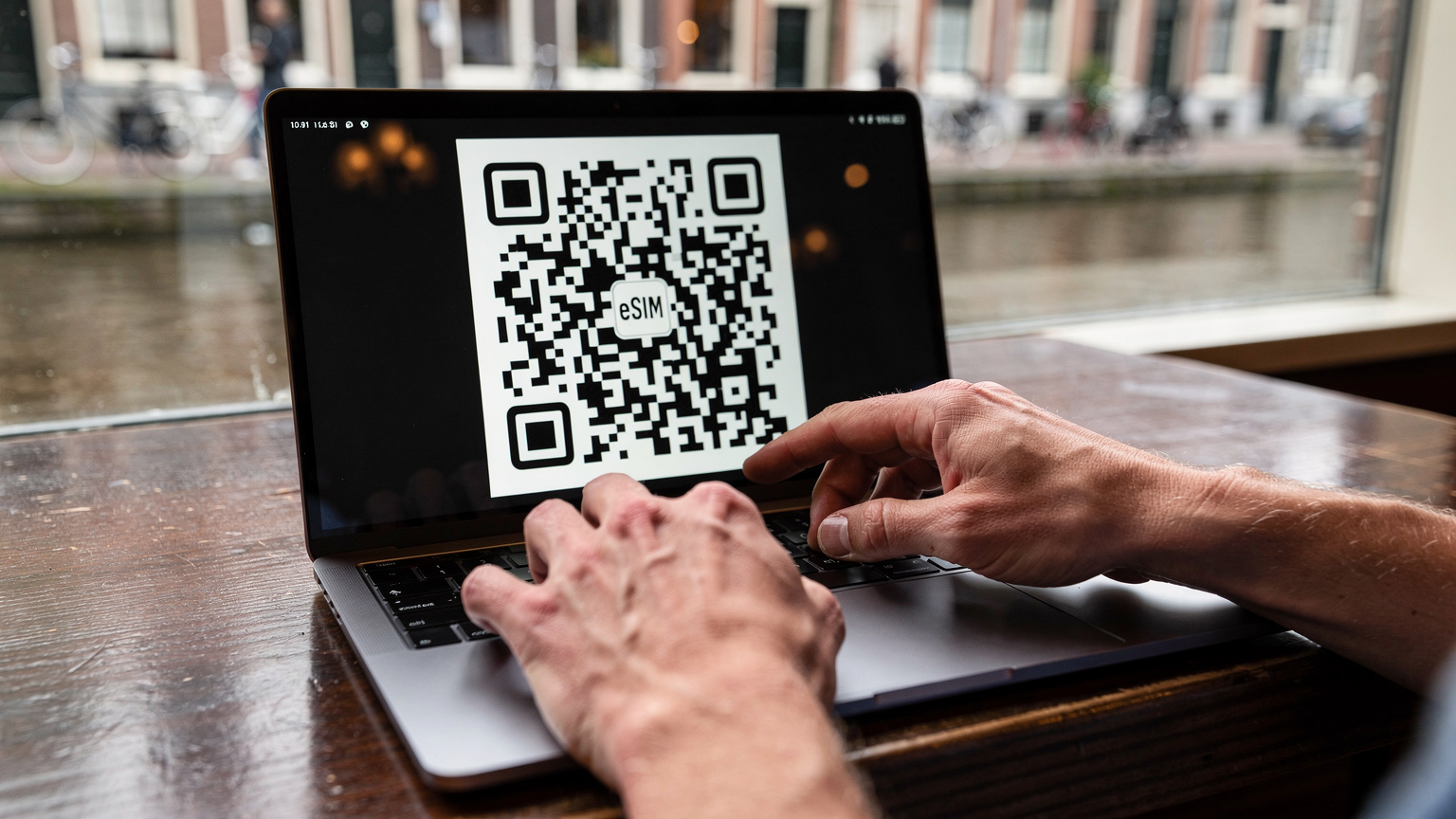
- Purchase Your eSIM Plan: Head over to Cellesim and choose the plan that best fits your family's data needs and travel destination. You'll usually receive a QR code or an activation code via email.
- Access Network Settings (Windows): Go to Settings > Network & Internet > Cellular. Look for an option like "Manage eSIM profiles" or "Add an eSIM." (For macOS, the process is similar, usually found under System Settings > Network > Cellular).
- Scan or Enter Code: If you received a QR code, choose the option to "Scan a QR code" and use your laptop's webcam. If you have an activation code, select "Enter an activation code manually."
- Confirm and Activate: Follow the on-screen prompts to confirm the plan details and activate the eSIM. Your laptop should then connect to the cellular network.
- Set as Preferred Connection (Optional but Recommended): In your cellular settings, you can usually set the eSIM as the preferred connection when available, ensuring your laptop automatically uses it over less reliable Wi-Fi networks.
It's generally a smooth process, but having the kids distracted with a pre-loaded movie on their tablets always helps during setup. Trust me, I speak from experience.
Preparing Your Device Before You Depart
Pre-trip planning is my secret weapon for stress-free travel. Here are a few things to do before you even leave home:
- Update Your OS: Ensure your laptop's operating system is fully updated. Sometimes, eSIM functionality relies on the latest drivers and software.
- Download Essential Apps: Make sure all necessary apps, especially those for remote learning or work, are downloaded and updated. This includes offline maps like Google Maps' downloadable regions, Netflix downloads, and Disney+ offline content for the kids' devices.
- Charge Everything: This sounds obvious, but you'd be surprised how often it's overlooked. A fully charged laptop and power bank are invaluable.
- Understand Your Data Plan: Know your data limits and validity period. If you're using a free eSIM trial 2026, be extra mindful of its limitations.
- Test Connectivity: If possible, purchase and activate a small eSIM plan before you leave home to ensure everything is working correctly. This is less about saving money and more about avoiding a frantic troubleshooting session in a foreign country.
Managing Data and Screen Time with eSIM-Enabled Laptops
Having abundant data for all devices is wonderful, but as parents, we also need to maintain some semblance of control, especially over screen time and data usage. eSIM-enabled laptops can actually help with this, offering more granular control than a free-for-all Wi-Fi connection.
Parental Control Features That Work with eSIM
Many operating systems, like Windows, offer robust parental control features that extend to cellular data usage. You can:
- Set Data Limits: Windows allows you to set monthly data limits for specific eSIM profiles. This is fantastic for preventing unexpected overages, especially if your kids are streaming. You can allocate, say, 10GB for "kid streaming" and 20GB for "parent work."
- Monitor Usage: Track which apps and users are consuming the most data. This insight can help you adjust plans or discuss responsible usage with your children.
- Schedule Screen Time: While not directly tied to eSIM, combining OS-level screen time controls (like Microsoft Family Safety or Apple Screen Time) with reliable eSIM data ensures that when devices are "on," they're actually usable within the set boundaries.
These features give you peace of mind that you won't return home to a massive data bill or kids who've spent every waking moment glued to their screens. It’s about balance, even when you’re on vacation.
Optimizing Data Usage for Family Travel
To stretch your eSIM data further, consider these tips:
- Download Offline Content: Before you leave, download movies, TV shows, and games onto all devices. Many streaming apps, like Disney+ and Netflix, allow this.
- Use Wi-Fi When Available: If your hotel offers decent (and free) Wi-Fi, use it for large downloads or updates. Then, switch back to eSIM for day-to-day browsing and security.
- Compress Data: Some browsers and apps have data compression features that can reduce consumption.
- Turn Off Background App Refresh: This is a major data hog. Limit which apps can refresh in the background, especially on the kids' devices.
- Manage Hotspot Usage: If your laptop is acting as a hotspot, monitor how many devices are connected and what they're doing. Two kids streaming Disney+ will quickly deplete your data plan sized for 2 kids streaming Disney+!
Always have a backup plan. I always keep a small "emergency" eSIM plan on my phone, even if the laptop is the primary hotspot. You never know when you'll need that extra connection, especially if you're trying to figure out how to find your eSIM number or troubleshoot a connectivity issue.
Troubleshooting Common eSIM Issues on PCs and Laptops
Even with the best planning, sometimes things go sideways. An eSIM might not activate, or you might experience slow speeds. As the designated family tech support, knowing a few troubleshooting steps can save you a lot of headache (and prevent unnecessary meltdowns from the younger travelers).
Connectivity Problems in Theme Parks and Cruise Ships
Ah, the unique challenges of connectivity inside theme parks or on cruise ships. These environments can be tricky:
- Theme Parks: Large crowds and dense infrastructure can sometimes interfere with cellular signals. If your laptop's eSIM is struggling, try moving to a less congested area or restarting the cellular connection. Remember, major theme parks like Disneyland or Universal Studios often have their own Wi-Fi, but it's usually oversaturated. Having an eSIM as backup or primary can be a lifesaver for navigating apps like My Disney Experience.
- Cruise Ships: On a cruise, your laptop's eSIM will likely only work when the ship is near shore in a country covered by your plan. Out in the open sea, you'll rely on the ship's satellite internet (which is notoriously expensive and slow). It's crucial to understand these limitations beforehand. Pre-downloading content is your best friend on a cruise, and for shore excursions, your eSIM will kick back in.

What to Do When Your eSIM Won't Connect
Don't panic! Most issues are easily resolved:
- Check Your Plan Status: Log into your Cellesim account (or the provider's app) to ensure your eSIM plan is active and you have data remaining.
- Toggle Cellular Off/On: A simple restart of the cellular connection often fixes minor glitches. Go to your laptop's network settings and turn cellular data off, wait 10 seconds, then turn it back on.
- Restart Your Laptop: The classic fix-all. Sometimes a full system restart is all it takes for the eSIM profile to properly register.
- Verify APN Settings: In rare cases, you might need to manually input or verify the Access Point Name (APN) settings. Your eSIM provider's support page will have this information.
- Check for OS Updates: Ensure your laptop's operating system is up to date, as new updates can sometimes resolve connectivity bugs.
- Contact Support: If all else fails, reach out to Cellesim's customer support. They can often diagnose issues remotely and provide specific guidance.
Remember, patience is key. And a fully charged iPad with YouTube Kids running offline is a good distraction for the little ones while you troubleshoot.
Future of eSIM in Family Travel Tech
The pace of technological advancement is relentless, and eSIM is no exception. For families, this means even more seamless and integrated connectivity solutions are on the horizon. We’re moving towards a world where connectivity is truly invisible, always there when you need it.
Integrated eSIM Across All Family Devices
Imagine a future where a single family eSIM plan could be managed from one central account, distributing data to everyone's phone, laptop, tablet, smartwatch, and even the kids' handheld gaming devices, all from a single dashboard. This level of integration would simplify data management immensely.
We’re already seeing companies like T-Mobile eSIM QR Code: Your Global Connectivity Gateway 2026 pushing multi-device connectivity, but eSIM is poised to make it universal across brands and operating systems. This means less friction for parents trying to set up screen time controls or allocate data for homework vs. gaming.
Enhanced Security and Parental Controls
As eSIM technology matures, we can expect even more sophisticated parental control features directly integrated into the cellular connection itself. Think AI-powered content filtering that adapts to local regulations, real-time location tracking for all connected devices (even if Wi-Fi is off), and dynamic data allocation based on activity type. This would be a dream for parents concerned about online safety and responsible usage while traveling.
The ability to manage these settings remotely, even from your phone, would add an extra layer of peace of mind, allowing you to focus on enjoying the autumn festivals with your family, knowing their devices are safe and managed, thanks to dedicated eSIM-based controls.
Final Thoughts on eSIM for Your Family's Laptops
As someone who has navigated countless family trips across over 30 countries, I can confidently say that eSIM technology for laptops and PCs is a transformative tool for parents. It removes so many of the headaches associated with staying connected abroad, from battling sluggish hotel Wi-Fi to rationing precious phone data.
The ability to provide reliable, secure internet to your entire family’s suite of devices, whether it’s for work, remote schooling, or simply keeping two kids streaming Disney+ without interruption, is invaluable. It’s not just about convenience, it’s about enabling richer, less stressful travel experiences. By planning ahead, understanding your data needs, and leveraging the power of eSIM, you can ensure your family stays connected, entertained, and productive, no matter where your adventures take you in 2026 and beyond.
Frequently Asked Questions
Can I use one eSIM data plan for both my laptop and my children's tablets?
Yes, many eSIM-enabled laptops can act as a personal hotspot, allowing you to share its cellular data connection with other Wi-Fi-only devices like tablets or smartphones. This effectively lets you use one eSIM plan to connect multiple devices, perfect for family travel.
How much data do I need for my family's laptops and tablets on a trip?
For a family with two children who stream moderately (e.g., Disney+ for a few hours daily) and one parent working remotely, a good starting point is 5-10 GB per person per week. This can vary greatly, so always assess specific usage, especially for high-data activities like HD video streaming or large downloads.
Will my laptop's eSIM work on a cruise ship?
A laptop's eSIM will typically only work when the cruise ship is close to shore and within range of a land-based cellular network covered by your eSIM plan. In open waters, you will rely on the ship's more expensive satellite internet, so pre-downloading content for offline viewing is highly recommended for sea days.
How can I set parental controls on an eSIM-enabled laptop?
Modern operating systems like Windows offer built-in parental control features that can manage data usage, set screen time limits, and filter content. You can often allocate specific data allowances to different user profiles or applications, giving you granular control over your children's online activity on the eSIM connection.
Is eSIM connectivity inside theme parks reliable for laptops?
Connectivity inside theme parks can be variable due to high user density and physical structures. While eSIM provides a dedicated cellular connection, signal strength can fluctuate. It's generally more reliable than public Wi-Fi, but always be prepared for occasional drops, and use offline maps or pre-downloaded entertainment as a backup.