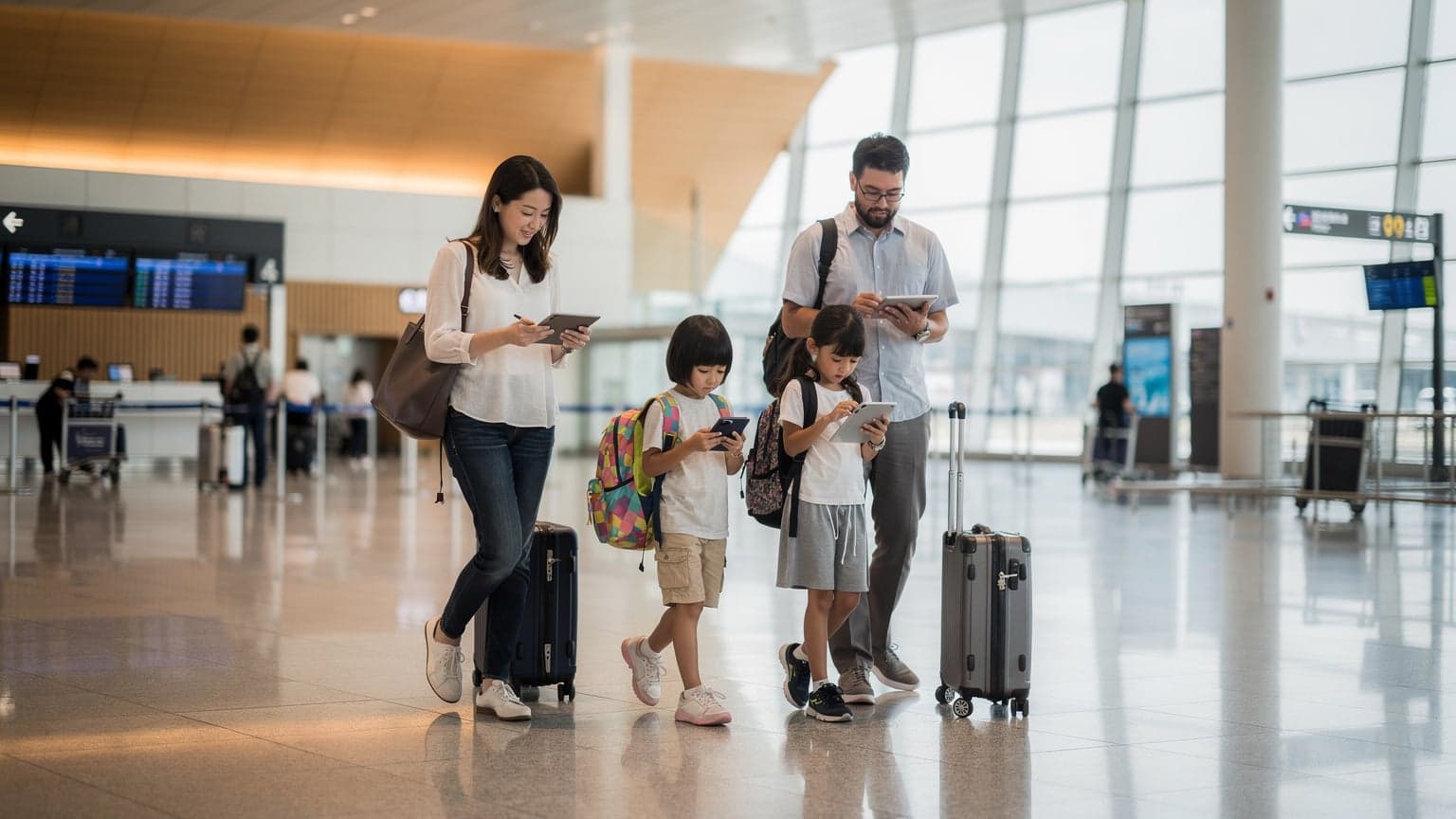
Activating an eSIM on your iPhone 15 for international travel is actually pretty easy. You can usually get it done in just a few minutes, either by scanning a QR code or typing in some details. This guide will walk you through setting it all up, managing what your kids can do online, and fixing common problems, so your family stays connected no matter where you go.
eSIM Explained for the Family Planner
I’ve dragged two kids, three iPads, and a mountain of chargers through 30 countries. From that experience, I can tell you that staying connected isn't just nice to have when you’re traveling abroad with family; it's essential. The iPhone 15, especially the US models that only use eSIMs, might seem like a hassle if you’re used to swapping physical SIM cards. But honestly, it’s a huge benefit for family trips. Think of an eSIM as a digital SIM card already built into your phone. No more fumbling with tiny pins in a cramped airplane seat, and no more losing that minuscule chip.
For parents like us, this means we can buy a local data plan for our destination before we even leave home. Activate it with a quick QR code, and you're online the second you land. This completely avoids the stress of trying to find a SIM card vendor at a strange airport, usually while trying to manage tired kids and luggage. It's a massive win for your peace of mind.
The best part is how flexible eSIMs are. Your iPhone 15 can hold several eSIMs at once, and you can switch between them with just a few taps. This is perfect for trips that cover multiple countries, or if you want to keep your home number active for calls while using a separate data plan for local internet. Imagine landing in Japan, instantly activating your Cellesim data plan, and having Google Maps ready to guide you on the Yamanote line, all while Grandma can still text your primary number. It truly makes the whole process smoother.
Why the iPhone 15 is a Travel Ally for Parents
Beyond the eSIM, the iPhone 15 has a few features that make it especially good for family travel. Its strong battery life helps you get through those long days of sightseeing, and the better camera means you can snap every (often blurry) memory without needing extra gear. Even better, its deep integration with iOS means you get powerful parental controls for data usage, which we'll talk about soon. This helps you keep an eye on what the kids are doing, even if they're using your phone's hotspot.
"I've compared the big carriers' international options against eSIMs for years, and for sheer flexibility and cost-effectiveness, eSIMs win every time. Especially when you're managing multiple devices, the ability to control data at a granular level is invaluable."
Pre-Trip Checklist for the iPhone 15 eSIM
Good preparation makes for a smooth family trip, and your digital connection is no different. Before you even think about packing, set aside an hour or two to get your iPhone 15 ready for its eSIM. Being proactive here will save you so many headaches later on.
Purchasing Your eSIM Data Plan
First, research eSIM options for your destination. Cellesim usually has good plans for most popular travel spots. When you're choosing a plan, think about how much data your family will actually need. If you have two kids who will definitely be streaming Disney+ or playing Roblox on their iPads, you'll need a lot more data than a solo traveler. I typically budget at least 5-10GB per child per week, especially if their entertainment relies entirely on the eSIM. For a family of four, with some light adult browsing and heavy kid streaming, a 30GB plan for two weeks is a decent starting point. But always get more data than you think you need. It’s much better to have too much than to run out when you desperately need to find the nearest public restroom in a foreign city.
| Destination Region | Recommended Family Data (2 weeks, 2 kids) | Example Activities Covered |
|---|---|---|
| Europe (Multi-country) | 40-50 GB | Daily navigation, Disney+ streaming (2 hours/day per child), social media, video calls, game updates. |
| Asia (Japan/Thailand) | 50-60 GB | Extensive navigation (transit apps), YouTube Kids, video calls with family, uploading photos/videos, online gaming. |
| USA (Road Trip) | 60-80 GB | GPS navigation, multiple device hotspots, Netflix/Hulu streaming, music, constant social media updates from different locales. |
Pre-loading Apps for Offline Use
Before any long flight or car ride, I always make sure to pre-load apps. This doesn't just save data; it also guarantees entertainment when Wi-Fi is hard to find, like on a transatlantic flight. Download movies and shows from Netflix or Disney+ to your kids' iPads. Make sure their favorite games, like Toca Boca or Minecraft, are updated and any in-app purchases are done. For navigation, download offline maps on Google Maps or Apple Maps for your destination city. This is a real lifesaver when you suddenly lose signal in a subway station or a remote village. Believe me, nothing creates panic faster than lost signal and lost children.
Unlocking Your iPhone 15
Make sure your iPhone 15 is unlocked before you travel. If you bought your phone through a carrier, it might be locked to their network. Many carriers automatically unlock phones after a certain time or if you ask them, but it’s really important to confirm this before you leave. An unlocked phone is a must for using any third-party eSIM, including ones from Cellesim. Contact your carrier’s customer service well in advance to avoid any last-minute surprises. This is especially important if you're thinking about a T-Mobile free eSIM trial when you get back home.
Activating Your eSIM on iPhone 15, Step-by-Step
Getting an eSIM set up on your iPhone 15 is surprisingly easy, way simpler than the old days of trying to cut a micro-SIM. Apple has really made it user-friendly.
Method 1: QR Code Activation (The Easiest Way)
Most eSIM providers, including Cellesim, will email you a QR code or show it in their app after you buy a plan. This is by far the simplest way to activate it.
- Open Settings: Go to 'Settings' on your iPhone.
- Navigate to Cellular: Tap 'Cellular' or 'Mobile Data'.
- Add eSIM: Tap 'Add eSIM'. You'll see an option to 'Use QR Code'.
- Scan QR Code: Point your iPhone camera at the QR code Cellesim provided. Your phone will recognize the eSIM plan.
- Confirm and Label: Follow the on-screen prompts to confirm the plan and give it a name. I suggest clearly labeling it, like 'Cellesim France Data' or 'Japan Travel eSIM', especially if you plan to keep multiple eSIMs on your phone.
- Set Default Line: Choose which line you want to use for calls, texts, and data. When traveling, I usually set my Cellesim eSIM as the main data line and my home line as secondary for calls/texts.
Method 2: Manual Entry
If you can't scan a QR code for some reason (maybe you're activating it from your child's iPad using a shared hotspot, or your main phone screen is cracked, it happens!), manual entry is your backup.
- Follow Steps 1-3 Above: Go to 'Settings' > 'Cellular' > 'Add eSIM'.
- Choose 'Enter Details Manually': Instead of scanning, pick this option.
- Input SM-DP+ Address and Activation Code: Your eSIM provider will give you these details. Type them in carefully.
- Confirm and Label: Just like with the QR code method, confirm the plan and give it a clear label.
- Set Default Line: Configure your preferred lines for calls, texts, and data.
Initial Connection and Signal Check
Once activated, your iPhone 15 should connect to the local network automatically. Watch the signal bars in your status bar. If you don't see a connection right away, don't worry. Sometimes it takes a minute or two for the network to register. Try turning Airplane Mode on and off, or restarting your phone. If you're still having issues, check your cellular settings to make sure the new eSIM is enabled for data. Remember, you can always check Cellesim's FAQ for quick answers to common activation problems.
Managing Multiple eSIMs and Parental Controls
This is where the iPhone 15 really shines for anyone planning a family trip. Being able to handle multiple eSIMs and use strong parental controls right from your device settings is a huge advantage.
Switching Between eSIMs
If you're traveling through several countries, say hopping from France to Italy on a European adventure, you might have different eSIMs for each. Switching between them is simple:
- Go to Settings: Tap 'Cellular' or 'Mobile Data'.
- Select Data Plan: Under 'Cellular Plans', you'll see all your activated eSIMs. Tap the one you want to use for data.
- Turn On This Line: Make sure 'Turn On This Line' is toggled on for your chosen eSIM.
- Set as Primary Data: Under 'Cellular Data', select the eSIM you want to use for internet.
I often keep a low-data global eSIM active as a backup, in addition to specific country eSIMs. This gives me peace of mind in case a local plan runs out or has unexpected coverage issues.
Implementing Parental Controls on eSIM Data
This is super important for avoiding huge data bills, especially with kids who love streaming. iOS has excellent built-in controls:
- Screen Time: Find this in 'Settings' > 'Screen Time'. You can set daily limits for specific apps (like YouTube Kids or Roblox) on your kids' devices, or even for categories such as 'Entertainment'.
- Content & Privacy Restrictions: Inside Screen Time, go to 'Content & Privacy Restrictions'. Here, you can stop kids from changing cellular data settings, restrict apps, and even limit what web content they can see. This is key to preventing them from accidentally turning off your Cellesim data plan or going to inappropriate sites.
- App Limits: Use this feature to set time limits for how long an app can be used. For example, I let my kids have 2 hours of Disney+ per day. Once they hit their limit, the app becomes unavailable, which encourages them to look around (or, let's be honest, complain).
- Data Monitoring: While it's not a hard control, regularly check your iPhone's 'Cellular' settings to see which apps are using the most data. This helps you spot data hogs and adjust your plan or controls accordingly.
Remember, parental controls only work well if you set them up before your trip. It's much harder to fix a data problem when you’re stuck in line at the Eiffel Tower.
Troubleshooting Common eSIM Headaches Abroad
Even with the best plans, sometimes things go wrong. Here's how to deal with common eSIM problems you might hit while traveling.
No Service or Poor Signal
This is probably the most frequent complaint. Before you panic, try these steps:
- Check eSIM Status: Go to 'Settings' > 'Cellular' and make sure your Cellesim eSIM is active and 'Turn On This Line' is enabled.
- Toggle Airplane Mode: Turn Airplane Mode on for 30 seconds, then off. This often makes your phone re-scan for networks.
- Restart iPhone: A simple restart can fix many temporary network glitches.
- Manual Network Selection: Sometimes, your phone struggles to pick the best network. Go to 'Settings' > 'Cellular' > (Your eSIM) > 'Network Selection' and turn off 'Automatic'. Wait for available networks to show up, then try picking a recommended local carrier (often listed in your eSIM provider's instructions).
- Check APN Settings: Rarely, an eSIM might need manual APN (Access Point Name) settings. These are specific to your provider. If Cellesim gives them to you, enter them under 'Settings' > 'Cellular' > (Your eSIM) > 'Cellular Data Network'.
Data Not Working, But Calls/Texts Are
This is a tricky one because it means you have some connection, but not full. Usually, it points to a data-specific setting.
- Ensure Cellular Data is On: In 'Settings' > 'Cellular', confirm 'Cellular Data' is toggled on.
- Select Correct Cellular Data Line: Under 'Cellular Data', make sure your Cellesim eSIM is chosen for internet use, not your home line.
- Check Data Roaming: For some eSIMs, data roaming needs to be turned on. Go to 'Settings' > 'Cellular' > (Your eSIM) > 'Data Roaming' and make sure it's on.
eSIM Showing as 'No Service' After Landing
This is that classic moment when you just got off a 12-hour flight and your kids immediately ask for YouTube. Your eSIM often won't activate until you are actually in the country it's meant for. Give it a minute or two once you've landed and turned off airplane mode. If it still doesn't connect, go through the 'No Service or Poor Signal' steps above. Also, check that your Cellesim plan's validity period has actually started. Sometimes, plans are set to begin on a specific date you chose.
Data Strategies for the Digitally Savvy Family
Managing data for a whole family, especially one with device-loving kids, needs a smart plan. It's not just about having data, but using it wisely.
Hotspotting for Kid Devices
Your iPhone 15 can work as a personal hotspot, sharing its Cellesim data connection with your kids' iPads, Nintendo Switches, or other phones. This is a lifesaver. Instead of buying individual eSIMs for every device (which can get expensive), you can connect everything to your iPhone's hotspot. Just be aware of how much data they're using. Two kids streaming Disney+ in 1080p can burn through several gigabytes in an hour. I always set a 'Personal Hotspot Password' and keep an eye on how many devices are connected.
When hotspotting, make sure your iPhone is plugged into a portable charger. Hotspotting drains the battery fast, and you don't want your main navigation and communication device dying halfway through the day.
Understanding Data Usage Patterns
Different apps use data at wildly different rates. Streaming video is the biggest culprit, followed by video calls and large game updates. Social media, web browsing, and messaging are generally lighter. Before your trip, watch your family's typical data usage at home. Use your iPhone's 'Cellular' settings to get a baseline. This helps you pick the right eSIM for Japan or wherever your journey takes you.
| Activity | Estimated Data Usage (per hour) | Family Impact |
|---|---|---|
| HD Video Streaming (e.g., Disney+) | 1-3 GB | High. Two kids streaming simultaneously can drain a plan quickly. |
| Standard Video Streaming (e.g., YouTube Kids) | 0.5-1.5 GB | Moderate to High. Still significant, especially over long periods. |
| Online Gaming (e.g., Roblox, Switch Online) | 50-150 MB | Low. Actual gameplay uses less data than updates/downloads. |
| Video Calls (e.g., FaceTime, WhatsApp) | 300-500 MB | Moderate. Important for connecting with family back home. |
| Social Media Browsing (scrolling, light video) | 100-200 MB | Low. Mostly parents, but can add up if kids are on TikTok. |
| Map Navigation (e.g., Google Maps) | 5-20 MB | Very Low. Essential and efficient, especially with offline maps. |
Leveraging Wi-Fi Whenever Possible
Even if you have a generous eSIM data plan, always connect to secure Wi-Fi whenever it’s available. Hotels, cafes, and even some public transport systems offer free Wi-Fi. Use these opportunities to download big files, update apps, or let the kids stream as much as they want without touching your Cellesim data. Just be careful with public, unsecured networks, especially for anything sensitive. I always use a VPN on public Wi-Fi (that's a topic for another day, but I highly recommend it).
Connectivity in Unusual Locales: Theme Parks and Cruises
Traveling with kids often means visits to theme parks or taking a cruise. These places come with their own unique challenges for staying connected.
Theme Parks: A Data Black Hole?
Theme parks like Disneyland Paris or Universal Studios Japan are famous for spotty cell service. Thousands of people in a small area can easily overload local cell towers. This is where a strong eSIM plan with good carrier partnerships (like Cellesim's) really makes a difference. You'll need consistent data for checking wait times on park apps (like My Disney Experience), finding family members, and, of course, uploading those important selfies. Even if the park has Wi-Fi, it's often slow and unreliable because so many people are using it. I always make sure my phone's eSIM is set to prioritize a strong 5G signal if one is available. Also, downloading park maps beforehand can save you when your signal drops.
Cruise Ships: The Satellite Data Trap
Cruise ships are a completely different animal. Once you're out at sea, your regular eSIM will probably lose signal. Cruise lines offer their own satellite internet packages, which are usually incredibly expensive and surprisingly slow. Unless you absolutely need to work or connect with family every day, I suggest enjoying a digital detox while on the ship. For emergencies, most ships have satellite phones. When you're docked in port, however, your Cellesim eSIM will reconnect to local towers, giving you reliable and affordable data. This is when I let the kids catch up on their Disney+ downloads or FaceTime Grandma. Just remember to turn off your eSIM data when the ship leaves port to avoid accidental roaming charges, especially if your plan has a 'cruise ship' option (which can be pricey).

When to Consider a Physical SIM Alongside Your eSIM
While US iPhone 15 models are eSIM-only, international versions still have a slot for a physical SIM. If you have one of these, or an older iPhone, there are times when a physical SIM might be a good addition to your eSIM plan.
Dual SIM Benefits
Having both a physical SIM and an eSIM (which is called Dual SIM functionality) gives you maximum flexibility. You could use your physical SIM for your home number, keeping it active for calls and texts, and use an eSIM purely for all your travel data. This is especially helpful if your home carrier has strict international roaming rules or if you use a lot of data. It clearly separates your personal and travel data.
Local Physical SIM Options
In some specific situations, a local physical SIM might offer a better deal than an eSIM, though this is becoming less common. For instance, in very remote areas, a super-local carrier might only offer physical SIMs. Or, if you're staying for a long time (say, several months) and need a local phone number for banking or official reasons, a physical SIM from a major local carrier might be necessary. However, for most shorter or medium-length trips, Cellesim's eSIMs are usually more convenient and budget-friendly.
Future-Proofing Your Family Travel Tech
Technology moves fast, and staying up to date ensures your family travel plans stay smooth. The eSIM is just the beginning.
The Evolution of eSIM Technology
eSIM technology is constantly getting better. We're seeing more carriers offering eSIMs, wider international coverage, and more flexible data plans. As a tech performance editor, I'm always testing new developments. The activation and management will only get easier, making it even simpler for parents to keep their families connected without spending a fortune or struggling with tiny hardware. Features like real-time data monitoring and automatic top-ups are becoming standard, giving you even more control.
Integrating with Other Smart Devices
Beyond phones and iPads, eSIM technology is making its way into smartwatches and other wearable devices. Imagine your Apple Watch having its own independent data connection through an eSIM, letting you stay connected even if your iPhone runs out of battery or you leave it at the hotel. This level of connectivity offers extra peace of mind, especially when you're trying to keep track of everyone in a busy market or theme park.
The Role of Offline Solutions
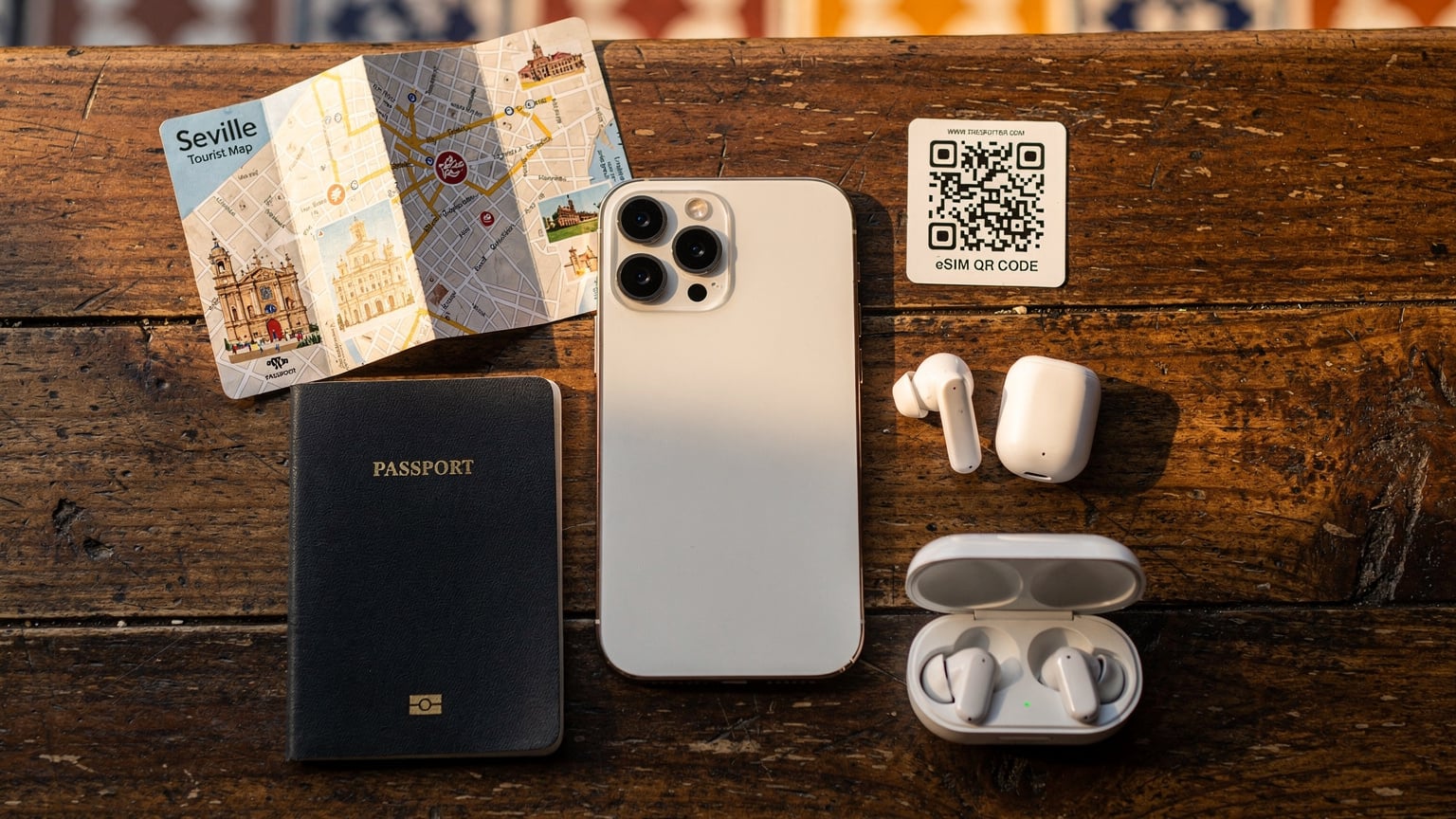
Despite all the tech progress, offline solutions will always be really important for family travel. Downloading movies, music, and maps, as I mentioned earlier, is absolutely essential. But also think about physical guidebooks, travel journals, and even old-fashioned board games for entertainment. Sometimes, the best connection is a strong family connection, away from screens (even if just for a little while). Making sure your kids have lots of offline entertainment options means you won't rely as much on constant streaming, which means less data used and fewer arguments about who gets to watch what.
Ultimately, the iPhone 15 with its eSIM capabilities is an incredibly powerful tool for today's traveling family. With a bit of planning and understanding, you can use it to keep everyone connected, entertained, and safe, allowing you to focus on making unforgettable memories.
Frequently Asked Questions
Can I use multiple eSIMs on my iPhone 15 at the same time?
Yes, your iPhone 15 can store multiple eSIMs, but only one can be actively used for cellular data at any given time. You can easily switch between activated eSIMs in your phone's cellular settings. This is ideal for multi-country travel, allowing you to activate different regional plans as you move.
How much data should I buy for my family on a two-week trip?
For a family of four, with two kids who might be streaming video, I recommend starting with a plan of at least 30-50GB for two weeks. This allows for daily navigation, moderate social media use, and a few hours of streaming per child. Always check your family's typical data usage at home to get a more precise estimate.
Will my parental controls still work when using an eSIM abroad?
Yes, all iOS parental control features, like Screen Time and Content & Privacy Restrictions, will continue to function normally with an eSIM. These controls are tied to your device's operating system, not the cellular connection itself. You can still manage app limits and prevent changes to cellular settings.
What if my iPhone 15 eSIM isn't connecting after I land?
First, ensure 'Turn On This Line' is enabled for your eSIM in Settings > Cellular. Then, try toggling Airplane Mode on and off, or restarting your iPhone. If the issue persists, manually select a network from the available options in your cellular settings, or confirm your Cellesim plan's validity period has started.
Can I use my iPhone 15 as a hotspot for my kids' iPads with an eSIM?
Absolutely. Your iPhone 15's eSIM data plan can be shared via Personal Hotspot with other devices, including iPads and Nintendo Switches. Just be aware that hotspotting consumes battery quickly and kids streaming can use a lot of data, so monitor usage and keep a portable charger handy.
Is a physical SIM ever better than an eSIM for family travel?
For most international family travel, eSIMs offer superior convenience and flexibility. However, if you have an international iPhone model with a physical SIM slot, using a local physical SIM might be beneficial for very long stays (months) where a local number is needed, or in extremely remote areas where local carriers might only offer physical options.