eSIM for the Family Traveler: Why It's a Game-Changer
Let's be honest, family travel isn't always beautiful sunsets and perfectly behaved children. Most of the time, it's a careful balancing act of keeping everyone fed, happy, and, most importantly, connected. For years, dealing with international data for my crew, which includes two energetic kids (ages 9 and 11), was a huge pain point in our travel planning. Remember those days of messing with tiny SIM cards at the airport, praying you wouldn't drop one into a grimy floor vent? Or the pure panic when your hotel's Wi-Fi was as reliable as a toddler's promise?
eSIM technology, especially since the iPhone 15 went all in, has been a genuine relief. It means I can buy data plans for our destination before we even leave home. This way, the kids' iPads are ready for their essential pre-flight Disney+ marathon, and my phone is set for crucial navigation the second we land. No more searching for local SIM shops after a red-eye flight, trying to figure out a new data package in a foreign language. It's about having that digital lifeline for everything, whether it's looking up bus schedules on Google Maps or keeping up with our family WhatsApp group. (And yes, sometimes it's about enabling a quick FaceTime with Grandma to help with homesickness.)
This shift to eSIM is particularly great for families because it's so flexible. You can activate a dedicated data plan for your main travel phone, and then, this is key, share that data with other devices or even install secondary eSIMs for your kids' cellular-enabled devices. Imagine landing in Rome, and instead of searching for a physical SIM, your phone already has a solid Cellesim plan ready to go. You can immediately call that important taxi or check the Colosseum's opening hours. It's not just convenient, it's peace of mind, which, as any traveling parent will tell you, is priceless.
The End of Physical SIM Cards for US iPhone 15 Users
For those of us in the US, the iPhone 15 series broke tradition: no physical SIM card slot. This means if you bought your iPhone 15 in the States, you're using eSIMs exclusively. While it might sound intimidating at first, it's actually a smoother process. Think of it as a digital SIM built right into your phone. This makes switching carriers or activating international plans super easy, often with just a few taps or a QR code scan. For families, it means one less tiny, easily lost item to worry about.
Connectivity Challenges in Theme Parks and Cruise Ships, Solved
Anyone who's been to a crowded theme park like Disneyland Paris or on a cruise with a tween knows that getting a signal can be a nightmare. Huge crowds at theme parks often overwhelm cell towers, and cruise ships are, well, in the middle of the ocean. My kids' iPads, loaded with games like Roblox and Minecraft, need constant updates and often online play. Without a reliable connection, meltdowns are a very real possibility.
With a good eSIM plan, you don't have to rely on patchy park Wi-Fi or expensive satellite internet on a ship. Many eSIM providers, including Cellesim, offer plans specifically for these high-demand areas or provide global coverage that even reaches maritime zones (always check plan specifics, of course!). This means important apps like the Disney Genie+ app work smoothly, and, perhaps more importantly, the kids can still access their downloaded content or stream a show if they're taking a break in the stroller.
Understanding Your iPhone 15 and eSIM Basics
Before we get into the details of setting it up, let's quickly cover what an eSIM is and why your iPhone 15 uses it. An eSIM, or embedded Subscriber Identity Module, is basically a digital version of a physical SIM card. It's built directly into your phone's hardware, so you never have to physically insert or swap anything. This digital format offers huge flexibility, especially for travelers who often switch between local networks.
What is an eSIM and How Does it Work with iPhone 15?
Your iPhone 15 can store several eSIM profiles at once, though only two can be active at any given time (one primary and one secondary). This is fantastic for travel because you can keep your home number active for calls and texts (often using Wi-Fi calling if it's available) while using a Cellesim data plan for all your internet needs abroad. It's like having two phone lines without the fuss of two physical cards, or having to manage call forwarding. The iPhone 15 also supports dual eSIM, meaning you can have two separate phone numbers and data plans running at the same time, which is perfect for balancing work and personal lines, or having a dedicated travel data line.
Checking Your iPhone 15's eSIM Compatibility and Status
If you bought your iPhone 15 in the US, it's automatically eSIM-only. For models purchased in other regions, there might still be a physical SIM slot along with eSIM capability. To check, just go to Settings > General > About. Scroll down, and you'll see a section for 'Digital SIM' or 'eSIMs'. If you see a 'No SIM Restrictions' message, you're all set to use any carrier's eSIM.
Choosing the Right eSIM Plan for Your Family Adventure
This is where the real planning magic happens. Choosing an eSIM plan isn't just about picking the cheapest option; it's about predicting your family's data needs and making sure you have constant connectivity. My golden rule: always over-estimate your data usage when kids are involved. A 10GB plan that sounds generous for one person might vanish faster than a plate of croissants at a Parisian breakfast buffet when shared across multiple devices.
Estimating Data Needs for Multiple Devices and Streaming
Let's talk numbers. My two kids, given the chance, could easily use 5-7GB of data each per day, especially if they're streaming Disney+ or YouTube Kids while we're traveling. Add my own navigation, social media, and communication, and a family of four can easily burn through 20-30GB in a week. Always factor in: offline content. Before any long flight or train ride, I make sure their tablets are loaded with downloaded movies, TV shows, and games. This dramatically cuts down on in-air data consumption, saving our precious eSIM data for when we actually need it on the ground.
| Activity | Estimated Data Usage (per hour) | Family Impact (2 kids, 1 adult) |
|---|---|---|
| Streaming Disney+ (Standard Def) | 0.7 GB | 2.1 GB/hr (3 simultaneous streams) |
| YouTube Kids (Standard Def) | 0.5 GB | 1.5 GB/hr |
| Video Calls (FaceTime/WhatsApp) | 0.3 GB | 0.3 GB/hr |
| Social Media Browsing | 0.1 - 0.2 GB | 0.3 - 0.6 GB/hr |
| Google Maps Navigation | 0.05 GB | 0.05 GB/hr |
| Online Gaming (Roblox/Minecraft) | 0.15 - 0.3 GB | 0.3 - 0.6 GB/hr |
Local vs. Regional vs. Global eSIM Plans
Cellesim offers various plans designed for different travel styles:
- Local Plans: Perfect if you're staying in one country, like exploring the historical sights of Italy with a TIM eSIM. These often give you the most data for your money.
- Regional Plans: Great for multi-country trips within a continent, such as a European tour. A single eSIM can cover several countries, so you don't need to switch plans at every border. This is my preferred choice for backpacking through Europe with the kids.
- Global Plans: If your trip spans multiple continents, a global plan offers unmatched convenience. While usually a bit pricier per GB, the simplicity can be worth it for complicated itineraries.
When comparing options, look beyond just the gigabytes. Check the validity period, network coverage, and if the plan includes hotspot capabilities, which is crucial for sharing data with the kids' devices. Sometimes, a slightly more expensive plan with hotspot is actually more cost-effective than buying separate plans.
Evaluating eSIM Providers: Speed, Coverage, and Customer Support
When picking an eSIM provider, especially for family travel, reliability is key. I've learned the hard way that a cheap plan with terrible coverage is no bargain when you're trying to navigate unfamiliar streets with a hangry toddler. Here's what to look at:
- Network Coverage: Research the local networks the eSIM provider uses in your destination. Cellesim partners with top-tier local carriers to ensure strong coverage, even in less populated areas.
- Speed: Will it be fast enough for those critical video calls or for the kids to stream their shows without buffering? Most providers offer 4G/LTE, and more and more, 5G, but make sure to verify.
- Customer Support: This is huge. If you hit a snag mid-trip, you want quick, knowledgeable support. Check reviews for providers' customer service reputation.
- Transparent Pricing: No hidden fees. Make sure the price you see is the price you pay, including any taxes or activation fees.
For a closer look at alternatives to other providers and why Cellesim might be a better fit for your family's needs, you might want to read this comparison: Nomad eSIM Alternatives: Ditching the Digital Roam for Cellesim in 2026?
Step-by-Step eSIM Activation on iPhone 15
Activating an eSIM on your iPhone 15 is surprisingly easy and often takes just a few minutes. The process usually involves scanning a QR code or entering a manual activation code provided by your eSIM carrier. Before you start, make sure you have a stable Wi-Fi connection. This is crucial because your phone needs internet access to download the eSIM profile.
Pre-Activation Checklist for Smooth Setup
- Stable Wi-Fi Connection: Absolutely essential. Do this before you leave your home country or while connected to reliable airport or hotel Wi-Fi.
- iPhone Charged: A low battery during activation is just asking for stress.
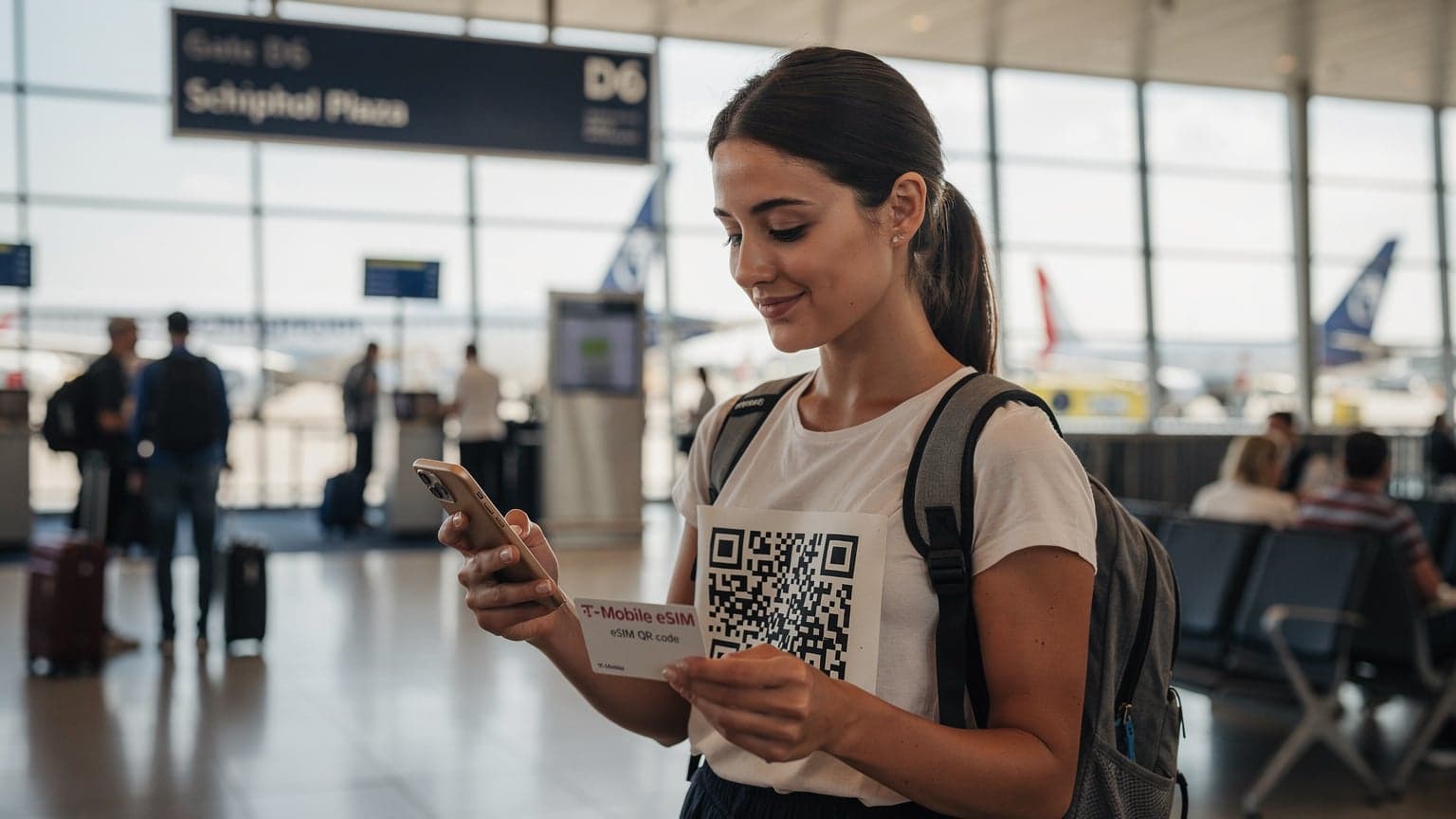
- eSIM Activation Details: Have your QR code or manual activation details from Cellesim ready, either printed or on another device.
- iPhone Unlocked: Make sure your iPhone is unlocked from your home carrier; otherwise, the foreign eSIM won't work. (Most iPhones bought outright are unlocked, but double-check if you're on a payment plan.)
- Backup Your Device: This is a good habit before any major phone changes, just in case.
Using the QR Code Method: The Easiest Way
This is the most common and usually the easiest way to activate your Cellesim eSIM:
- Go to Settings: Tap the 'Settings' app on your iPhone.
- Navigate to Cellular/Mobile Data: Tap 'Cellular' (or 'Mobile Data' in some regions).
- Add eSIM: Tap 'Add eSIM'.
- Scan QR Code: Select 'Use QR Code'. Your iPhone's camera will open. Position your phone to scan the QR code Cellesim provided.
- Confirm Activation: Follow the on-screen instructions to confirm and activate your eSIM. You'll likely be asked to label the new plan (e.g., 'Travel Europe Data'), which is very helpful for staying organized.
Manual Activation: When a QR Code Isn't an Option
If you can't scan a QR code (maybe you don't have a second device, or the code isn't working), you can manually enter the details:
- Go to Settings > Cellular/Mobile Data: Just like with the QR method.
- Add eSIM: Tap 'Add eSIM'.
- Enter Details Manually: Select 'Enter Details Manually' at the bottom.
- Input Information: You'll need to enter the 'SM-DP+ Address', 'Activation Code', and sometimes a 'Confirmation Code', all provided by Cellesim.
- Confirm Activation: Follow the remaining on-screen instructions to finish the setup.
Managing eSIMs and Data Settings for Peace of Mind
Once your eSIM is active, the next step is to set it up correctly to avoid unexpected charges and make sure your family's data usage is optimized. A little planning here saves a lot of headaches (and money).
Labeling and Prioritizing Your eSIM Plans
In Settings > Cellular/Mobile Data, you'll see your active eSIMs. I always label mine clearly, for example, 'US Home Plan' and 'France Data' or 'Europe Travel Cellesim'. You can also choose which line is your primary for calls, messages, and cellular data. For travel, I set my Cellesim plan as the primary for data, and my home plan for calls (often using Wi-Fi Calling to avoid roaming charges).
Data Roaming and Data Saver Settings
This is extremely important. For your home plan, make sure Data Roaming is OFF unless you've specifically bought an international roaming package from your home carrier. For your Cellesim travel eSIM, Data Roaming should be ON for it to work properly in your destination. Also, consider enabling Low Data Mode (found within each Cellular Plan's settings) for both your and your kids' devices. This helps reduce background data usage, making your plan last longer. For instance, knowing when you're using a Turkey eSIM versus your home plan is crucial to avoid bill shock.
Hotspot Sharing with the Kids' iPads and Devices
This is the best part for family connectivity. My Cellesim plan often includes hotspot features, allowing me to share my data with my kids' iPads or even a Nintendo Switch for online play (yes, that happens!).
- Enable Personal Hotspot: Go to Settings > Personal Hotspot and toggle it on.
- Set a Strong Password: Make sure you have a secure Wi-Fi password.
- Connect Devices: On the kids' devices, find your iPhone's hotspot network in their Wi-Fi settings and connect using the password.
Keep an eye on data usage when hotspotting, as it can drain your plan quickly. I often set a timer for their hotspot usage, especially for streaming, to manage consumption.
Parental Controls and Screen Time with eSIM Activated
Connectivity for the kids is a mixed blessing. While it keeps them busy during long waits, it also opens up a world of potential distractions. Luckily, Apple's Screen Time features work perfectly with eSIMs, letting you keep some digital control even when you're thousands of miles from home.
Setting Screen Time Limits and Content Restrictions
Before we even get on the plane, I make sure my kids' iPads and iPhones have updated Screen Time limits. This means setting daily time limits for apps like YouTube, Roblox, and Safari, and enforcing downtime during specific hours (like dinner or bedtime). Even when connected via an eSIM, these restrictions hold. You can also set content restrictions to prevent access to inappropriate websites or app downloads, which is incredibly important when they're using public Wi-Fi or a shared hotspot.
Parent TipRemember to pre-load kid-friendly maps apps like Citymapper or HERE WeGo with offline maps of your destination. This uses zero data and can be a fun way for kids to 'navigate' as a co-pilot, even if your data plan is temporarily strained.
Managing App Access and In-App Purchases on the Go
One of the biggest fears for any traveling parent is a surprise bill from endless in-app purchases. Through Screen Time, you can disable in-app purchases completely or require your password for every purchase. This is a non-negotiable step for me. Plus, you can specify which apps are always allowed, making sure essential apps like FaceTime (to call family) or educational games are accessible even during downtime.
Troubleshooting Common eSIM Headaches on the Road
Even with the best planning, travel can throw curveballs. Knowing how to quickly fix common eSIM problems can save you from a full-blown parental meltdown, especially when you're trying to find your way to that gelato shop everyone's been promised.
No Service or Weak Signal: What to Check
This is probably the most frequent issue. Here's a quick checklist:
- Restart Your iPhone: The classic fix, but often effective.
- Check Data Roaming: For your Cellesim plan, make sure Data Roaming is ON (Settings > Cellular/Mobile Data > [Your eSIM Plan] > Data Roaming).
- Network Selection: Sometimes, your phone struggles to pick the best network. Go to Settings > Cellular/Mobile Data > [Your eSIM Plan] > Network Selection and try switching from 'Automatic' to manually selecting an available partner network.
- Airplane Mode Toggle: Turn Airplane Mode on for 30 seconds, then off. This often forces a reconnection.
- APN Settings: Rarely needed for Cellesim, but if all else fails, check the APN settings provided by your eSIM provider against what's on your phone (Settings > Cellular/Mobile Data > [Your eSIM Plan] > Cellular Data Network).
Data Not Working After Activation
If you've activated, but no data is flowing:
- Is it the Primary Data Line? In Settings > Cellular/Mobile Data, make sure your Cellesim eSIM is selected under 'Cellular Data'.
- Check Data Cap: Have you run out of data? Log into your Cellesim account to check your remaining balance. If you need a top-up, it's usually just a few taps away.
- Carrier Restrictions: Some older iPhones might have carrier restrictions that prevent eSIMs from foreign providers. This is less common with iPhone 15, but always worth considering if you're using a hand-me-down from a different country.
eSIM Profile Won't Install
If you're stuck at the installation stage:
- Strong Wi-Fi: To reiterate, you need a strong, stable Wi-Fi connection. Try a different Wi-Fi network if possible.
- QR Code Clarity: Make sure the QR code isn't blurry, creased, or blocked. Try scanning it in good light.
- Manual Entry: If the QR fails, try the manual entry method with the provided details.
- Contact Cellesim Support: If nothing else works, Cellesim's support team is there to help guide you through the process. A quick chat can often resolve these issues quickly. You can find answers to many common questions on our FAQ page.
eSIM Best Practices for Stress-Free Family Travel
Planning is indeed my love language, especially when traveling with kids. A little proactive effort with your eSIM strategy can make a huge difference to your trip's overall enjoyment, minimizing those 'are we there yet?' moments and maximizing 'look at this!' discoveries.
Purchasing and Activating eSIMs Before You Depart
This is my number one rule. Buy your Cellesim data plan a week or two before your trip. This gives you plenty of time to get the QR code and troubleshoot any activation issues while you're still comfortably at home, with reliable internet. Trying to activate an eSIM in a noisy airport terminal with tired kids is asking for trouble. Activate it while you're still connected to your home Wi-Fi. This way, the moment you land, your data is live.
Monitoring Data Usage and Topping Up on the Fly
Keep an eye on your data usage. Most eSIM providers, including Cellesim, have an easy-to-use app or web portal where you can track your consumption in real-time. Set reminders for yourself to check it every few days. If you're running low, topping up a Cellesim plan is usually very easy and can be done from anywhere with an internet connection (even if it's via a café's Wi-Fi if your data has run out). Don't wait until you're completely out of data, especially if you're relying on it for navigation or emergency contacts.
Leveraging Offline Features to Conserve Data
This goes back to my earlier point: pre-load, pre-load, pre-load. Download movies and TV shows from streaming services like Disney+, Netflix, or Max to the kids' devices before you leave. Download offline maps for Google Maps or Apple Maps of your destination. Games that don't need constant internet access are also winners. This not only saves your precious eSIM data but also provides entertainment during those inevitable dead zones, like long flights, subway rides, or in areas with spotty connectivity. We've used this strategy successfully on countless trips, from navigating the bustling streets of Istanbul with a Turkcell eSIM to finding our way through the narrow alleys of a Greek island.
Considering an eSIM for Other Devices: Laptops/PCs
While this guide focuses on the iPhone 15, it's worth noting that eSIM technology isn't just for phones. Many modern laptops and PCs now come with eSIM compatibility. If you're traveling with a work laptop or a tablet that supports eSIMs, consider getting a separate data plan for it. This can be more efficient than relying solely on your phone's hotspot, especially for sustained work or more intensive tasks. For more on this, check out eSIM for PCs & Laptops: Getting Online Anywhere on a Budget in 2026. Having independent data for a laptop means you aren't draining your phone's battery or monopolizing its data allowance, which can be a lifesaver when you need your phone for navigation or to wrangle the kids.
Frequently Asked Questions
Can I use my home phone number for calls and texts while using a Cellesim eSIM for data on my iPhone 15?
Yes, absolutely. Your iPhone 15 supports Dual eSIM, allowing you to keep your primary home number active for calls and texts (often via Wi-Fi calling) while using your Cellesim eSIM exclusively for mobile data. You can easily prioritize which line handles data in your iPhone's Cellular settings.
How much data should I buy for a family of four, including two kids who stream videos?
For a family of four with two kids streaming, a conservative estimate would be 20-30 GB per week. Kids can easily consume 5-7 GB daily each for streaming, while adults use additional data for navigation, social media, and communication. Always err on the side of more data, or plan to use Wi-Fi and offline content heavily.
Will parental controls and Screen Time settings still work on my kids' devices if they're using my iPhone 15's hotspot or their own eSIM?
Yes, Apple's built-in Screen Time features are device-specific and will continue to function regardless of how the device connects to the internet, whether it's via your iPhone's hotspot, local Wi-Fi, or their own dedicated eSIM. These controls manage app usage, content restrictions, and downtime.
What should I do if my Cellesim eSIM isn't connecting after activation?
First, restart your iPhone. Then, ensure 'Data Roaming' is enabled for your Cellesim plan in Settings > Cellular/Mobile Data. Check that your Cellesim plan is selected as the primary for Cellular Data. If issues persist, try toggling Airplane Mode on and off, or manually selecting a network operator from the available list. Contacting Cellesim support with your order details is the next step if these don't resolve the issue.
Is it better to buy a local eSIM for each country or a regional eSIM for a multi-country family trip?
For multi-country family trips, a regional eSIM plan is generally more convenient. It eliminates the need to activate a new plan at each border, simplifying connectivity across several countries with a single purchase. Local plans might offer slightly more data for less if you're staying in one country for an extended period, but the ease of a regional plan often outweighs the marginal cost difference for family travel.
Can I purchase and activate a Cellesim eSIM while already abroad?
Yes, you can purchase a Cellesim eSIM at any time, even when you're already traveling. However, you will need a stable Wi-Fi connection to download and activate the eSIM profile onto your iPhone 15. It's always recommended to activate before you depart or immediately upon arrival in a place with reliable Wi-Fi.