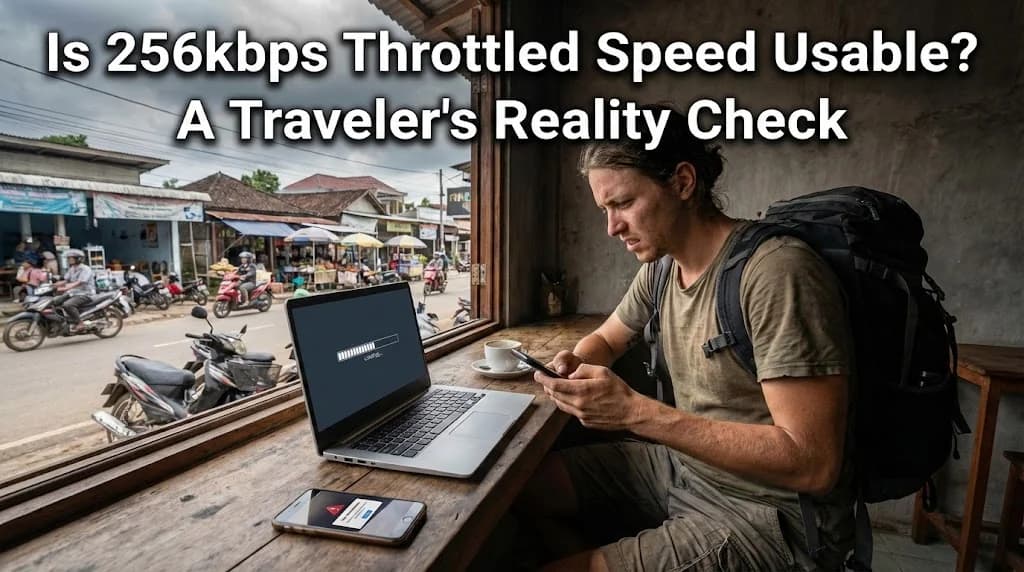
For any traveler, staying connected is no longer a luxury, but a necessity. From navigating unfamiliar streets to checking flight updates and sharing moments with family, reliable mobile data underpins much of the modern travel experience. However, a common frustration arises when mobile plans, often marketed as "unlimited," drastically reduce speeds to 256kbps after a certain data threshold. This practice, known as throttling, raises a critical question for those exploring new destinations: Is 256kbps throttled speed actually usable? This article delves into the reality of relying on such speeds abroad, offering a practical guide for travelers.
- What 256kbps Throttled Speed Means for a Traveler
- The Real-World Impact: What You Can (and Can't) Do at 256kbps
- Why Carriers Offer Throttled "Unlimited" Plans
- Comparing Connectivity: Throttled Data vs. Full-Speed eSIMs
- Avoiding the 256kbps Trap: What to Look For Before You Buy
- The Cellesim Difference: Reliable, High-Speed Connectivity for Travel
- Maximizing Your Data Experience Abroad
- Frequently Asked Questions
Connect Instantly with a Cellesim eSIM
Say goodbye to slow, throttled speeds. Get full-speed data in 200+ countries. Join 50,000+ happy customers who choose Cellesim.
View All eSIM PlansWhat 256kbps Throttled Speed Means for a Traveler
To understand the implications of 256kbps, it helps to put it into perspective. "Kbps" stands for kilobits per second, a measure of data transfer speed. For context, 1 Mbps (megabit per second) is 1,000 kbps. So, 256kbps is roughly a quarter of a single megabit per second. Most modern broadband connections and unthrottled mobile data plans offer speeds in the tens or even hundreds of Mbps.
When a carrier throttles your speed to 256kbps, it means your device will struggle to perform tasks that require significant bandwidth. While this speed might seem low, it is not entirely useless. The key lies in understanding its limitations and adjusting your expectations when you are traveling and relying on this reduced speed.
Many "unlimited" plans come with a fair usage policy that triggers throttling after a certain data consumption. Always read the fine print.
The Real-World Impact: What You Can (and Can't) Do at 256kbps
For a traveler, the usability of 256kbps heavily depends on the task at hand. Here's a realistic breakdown:
Usable Activities:
- Text Messaging (WhatsApp, iMessage): Sending and receiving text-based messages, even with small images, is generally feasible. Basic communication platforms should function adequately.
- Email: Sending and receiving emails without large attachments works. Checking your inbox and managing basic correspondence should not be an issue.
- Light Web Browsing: Accessing simple, text-heavy websites with minimal images will work, albeit slowly. Think checking weather forecasts, reading news articles, or basic search engine queries.
- Maps and Navigation: Offline maps are excellent, but even online maps for basic route planning can load eventually, especially if you have pre-loaded parts of your journey. Turn-by-turn navigation might suffer from delayed updates.
Challenging or Unusable Activities:
- Streaming Video/Audio: Services like Netflix, YouTube, Spotify, or even live radio will buffer extensively or fail to load. High-definition streaming is completely out of the question.
- Video Calls (FaceTime, Zoom): Video calls will be severely degraded, with frequent freezing, pixelation, and audio dropouts. Voice-only calls might be possible but still prone to interruptions.
- Social Media with Multimedia: Scrolling through image-heavy feeds on Instagram, Facebook, or TikTok will be slow and frustrating. Loading images and videos will take a long time or fail.
- Large File Downloads/Uploads: Downloading app updates, cloud syncing photos, or uploading content will be extremely slow, potentially taking hours for even moderately sized files.
- Gaming: Online gaming is entirely unfeasible due to high latency and low bandwidth.
Why Carriers Offer Throttled "Unlimited" Plans
The concept of "unlimited" data is highly appealing to consumers, especially travelers who want to avoid worrying about data caps. However, truly unlimited, high-speed data at a fixed low price is unsustainable for network operators. Throttling is a common mechanism used by carriers for several reasons:
- Network Management: By slowing down heavy data users, carriers can prevent network congestion and ensure a baseline quality of service for all users. This is particularly relevant in densely populated areas or during peak times.
- Pricing Strategy: Throttling allows carriers to offer seemingly attractive "unlimited" plans at a lower price point than genuine high-speed unlimited options. It's a way to cater to budget-conscious customers while still controlling network resources.
- Fair Usage Policies: These policies are designed to prevent abuse of the network by a small percentage of users who might consume excessive amounts of data, impacting others. Throttling serves as an enforcement mechanism.
- International Roaming Agreements: When you use your home SIM abroad, roaming charges for carriers can be high. Offering throttled speeds for "unlimited" roaming can help them manage these costs while still providing a service. This is often the case with international day passes, which can quickly become expensive, as explored in our article International Day Pass vs. eSIM: The Real Cost of Staying Connected Abroad.
Comparing Connectivity: Throttled Data vs. Full-Speed eSIMs
When planning your data strategy for international travel, it's crucial to compare throttled options with alternatives like local SIM cards, international roaming, and modern eSIMs. Each comes with its own trade-offs in terms of speed, cost, and convenience.
| Option | Typical Speed | Cost (per GB) | Setup for Traveler |
|---|---|---|---|
| Cellesim eSIM | Full 4G/5G | Low (from $4.50) | Instant, Digital |
| Throttled Roaming | 256kbps (after cap) | High (often hidden) | Automatic (home SIM) |
| Local Physical SIM | Full 4G/5G | Low-Moderate | Store visit, swap physical SIM |
| Standard Roaming | Full 4G/5G | Very High | Automatic (home SIM) |
While local physical SIM cards offer full speed, they require a visit to a local store and swapping out your primary SIM, which can be inconvenient upon arrival. Traditional roaming is convenient but prohibitively expensive for anything beyond emergency use. Throttled roaming plans might seem affordable initially but quickly become frustrating when speeds drop to 256kbps.
This is where solutions like Cellesim eSIMs provide a clear advantage. Cellesim offers dedicated eSIMs for Italy and Indonesia, among 200+ other countries, providing consistent, full-speed data without throttling or hidden fair usage policies. You can compare our approach with other options in our guide on eSIM vs. Pocket Wi-Fi vs. Roaming: The Ultimate Speed & Cost Comparison.
Avoiding the 256kbps Trap: What to Look For Before You Buy
The best way to manage data speeds abroad is to make informed decisions before you travel. Here's how to avoid unknowingly purchasing a throttled plan:
- Read the Fine Print: Always scrutinise the terms and conditions, especially for "unlimited" plans. Look for phrases like "fair usage policy," "speed restrictions apply," "data cap before throttling," or specific mentions of 2G/3G speeds after a certain allowance.
- Check Data Allowances: Many plans that advertise "unlimited data" actually offer a set amount of high-speed data (e.g., 5GB, 10GB) before throttling to 256kbps or even slower. Ensure the high-speed allowance meets your estimated needs. Use our Smart Data Calculator to estimate your data usage.
- Look for Speed Guarantees: Reputable eSIM providers like Cellesim clearly state the expected network speeds (4G/5G) and do not implement throttling on their standard plans. If a provider is vague about speeds, it is a red flag.
- Understand Roaming Policies: If using your home provider, specifically inquire about their international roaming policies. Some offer day passes that include a certain amount of high-speed data before throttling, while others have flat-rate, high-speed allowances.
- Consult Reviews: Traveler reviews on independent platforms can often highlight real-world experiences with data speeds and throttling policies of various providers.
The Cellesim Difference: Reliable, High-Speed Connectivity for Travel
At Cellesim, we understand that consistent, fast connectivity is essential for a seamless travel experience. We distinguish ourselves from plans that rely on restrictive throttling:
- Guaranteed High Speeds: Cellesim eSIM plans are designed to provide access to the fastest available network speeds (4G/LTE and 5G where available) in your destination country. We do not impose hidden speed caps or throttle your data after a certain usage threshold on our advertised plans. For a deeper dive into network performance, see our eSIM Speed Test in 20 Global Cities.
- Transparent Data Allowances: Our plans clearly state the amount of high-speed data you are purchasing. There are no surprises; what you buy is what you get, at full speed.
- Extensive Global Coverage: With connectivity in 200+ countries, Cellesim ensures you can stay connected almost anywhere your travels take you.
- Easy Activation and Management: Installing a Cellesim eSIM is a quick, digital process, eliminating the need to search for local SIM card vendors or deal with physical SIM swaps.
- Dedicated Support: Our customer support team is available via email at [email protected] to assist you with any questions or issues, ensuring peace of mind during your trip.
Choosing a Cellesim eSIM means opting for transparency and performance over the uncertainty of throttled "unlimited" plans. We believe your travel connectivity should enhance, not hinder, your journey.
Maximizing Your Data Experience Abroad
Even with a full-speed eSIM, smart data usage can enhance your travel experience and ensure you never unexpectedly run out of data:
- Utilise Wi-Fi: Whenever available, connect to secure Wi-Fi networks in hotels, cafes, or public spaces to save your mobile data for when you truly need it.
- Download Offline Content: Download movies, music, podcasts, and e-books before you travel or when connected to Wi-Fi. This significantly reduces data consumption on the go.
- Adjust App Settings: Configure apps to limit background data usage, disable auto-playing videos, and reduce streaming quality when on mobile data. Many apps have settings to conserve data.
- Monitor Your Usage: Regularly check your data consumption through your phone settings or the Cellesim portal. This helps you stay within your plan's limits and avoid any unexpected depletion.
- Consider a Regional Plan: If you are traveling to multiple countries within a region (e.g., Europe, Asia), a regional eSIM plan from Cellesim can be more cost-effective and convenient than purchasing individual country plans.
By combining a reliable, full-speed eSIM from Cellesim with smart data management practices, you can enjoy seamless connectivity throughout your international adventures, free from the frustrations of 256kbps throttled speeds.
Ready for Seamless, High-Speed Travel Connectivity?
Don't let throttled speeds ruin your trip. Choose Cellesim for reliable, full-speed data in 200+ countries. Set up in minutes, connect instantly.
Start Your Connected JourneyTrusted by 50,000+ travelers worldwide. 24/7 Support.
Frequently Asked Questions
Is 256kbps enough for basic communication while travelling?
Yes, 256kbps is generally sufficient for sending and receiving text messages on apps like WhatsApp, checking emails without large attachments, and light, text-heavy web browsing. However, it will be noticeably slow for loading images or anything multimedia-rich.
Can I use GPS navigation with 256kbps throttled speed?
You can use GPS navigation, especially if you have pre-downloaded offline maps. Online map loading will be slow, and real-time traffic updates or complex route recalculations might experience significant delays or fail to load completely.
What activities are impossible or very difficult at 256kbps?
Streaming video or music, making video calls, playing online games, and uploading/downloading large files are impractical or impossible at 256kbps. Even browsing image-heavy social media feeds will be frustratingly slow.
How can I avoid getting throttled speeds with my travel data?
Always read the terms and conditions of any "unlimited" plan carefully, looking for fair usage policies or specific speed restrictions after a certain data cap. Choose eSIM providers like Cellesim that offer clear, high-speed data allowances without hidden throttling.
Why do some "unlimited" data plans throttle speed to 256kbps?
Carriers throttle speeds to manage network congestion, offer more affordable "unlimited" plans, and enforce fair usage policies. This helps them balance network capacity with user demand and pricing strategies, particularly for international roaming.
Does Cellesim throttle data speeds on its eSIM plans?
No, Cellesim does not throttle data speeds on its standard eSIM plans. Our plans provide access to the fastest available 4G/LTE and 5G networks in your destination country, ensuring consistent high-speed connectivity up to your purchased data allowance.