
Why Your PC Needs an eSIM Abroad, The Wi-Fi Struggle is Real
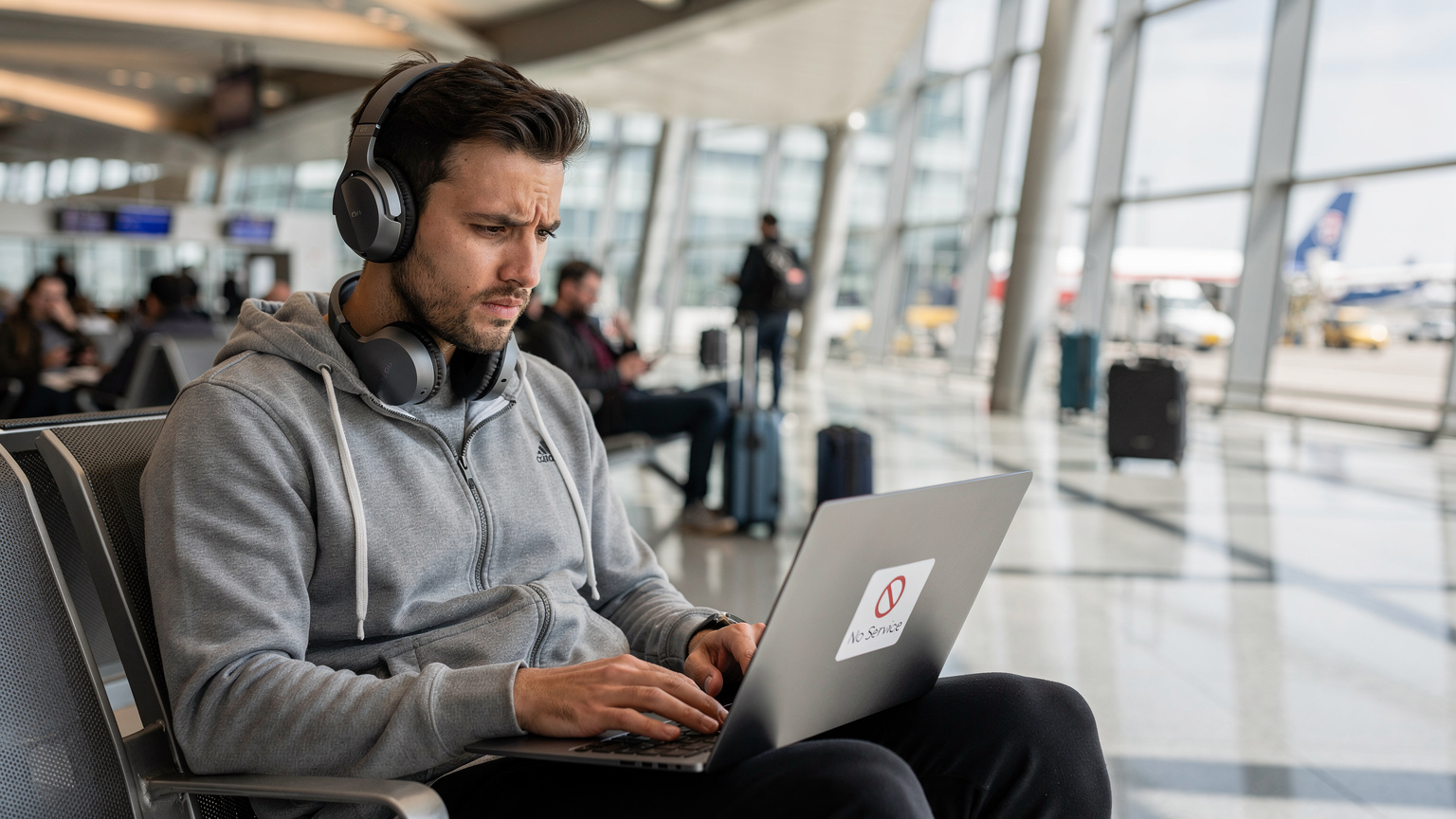
Listen, I've been living on the road for four years, jumping between Chiang Mai, Lisbon, and now Medellín. That dreamy image of working from a cafe terrace? It shatters pretty fast when you're trying to upload a 2GB video file on a Wi-Fi connection that crawls at 5 Mbps, shared with 30 other digital nomads. Or even worse, you're mid-presentation on a critical client call, and the cafe's Wi-Fi decides to completely bail. It's a total nightmare, and it's exactly what pushed me to find a better way to keep my laptop online.
For a long time, the only options for laptop internet abroad were relying on unreliable hotel or cafe Wi-Fi, buying a local SIM for your phone and tethering, or lugging around a portable Wi-Fi hotspot. Each came with its own set of headaches. Hotel Wi-Fi is often throttled, public Wi-Fi is a security risk waiting to happen, and tethering your phone sucks its battery dry faster than you can say "power outlet." Plus, some critical apps, like banking apps in Brazil (I'm looking at you, Nubank) or accessing government services in India (Aadhaar), absolutely demand a local SIM in your phone. This isn't just any SIM, it has to be tied to a local number, which makes using your main phone's local SIM for tethering a tricky balancing act. That's where an eSIM for your PC steps in, giving your main work machine its own dedicated connection.
The Pain Points of Traditional Laptop Connectivity
- Unreliable Public Wi-Fi: From the "free Wi-Fi" at Terminal 2 of Suvarnabhumi Airport to that cafe on Calle 10 in El Poblado, Medellín, public networks are a total gamble. You might get lucky, you might get a connection that drops every five minutes, or you might hit a captive portal that just refuses to load.
- Security Concerns: Connecting to open, unsecured Wi-Fi networks is a recipe for disaster. I've heard too many horror stories in my WhatsApp groups about compromised devices and stolen data. A VPN helps, but it's not a magic bullet, and it adds another layer of complication.
- Phone Battery Drain from Tethering: If your phone is your lifeline, tethering it for hours to your laptop will absolutely kill its battery. You end up constantly hunting for outlets, and then what if you need to make an urgent call or find directions? Your phone is suddenly dead.
- Cumbersome Portable Hotspots: It's just another device to charge, another device to carry, and another device to possibly lose or break. And if it uses its own physical SIM, you're back to the old struggle of finding and activating local plastic SIMs.
The eSIM Advantage for Your Laptop
An eSIM in your PC gives you a direct, dedicated cellular data connection, cutting out all those frustrations. You get a stable, secure internet connection, often at speeds similar to your phone, without draining its battery or adding more gear to your bag. For someone who relies on high-bandwidth tasks like live streaming or video editing, this isn't a nice-to-have, it's essential. I've found it invaluable for uploading edits from my spot at Selina Co-Working in El Poblado, where the fiber is great, but also for working from my AirBnB in Laureles, where the Wi-Fi can be pretty hit or miss depending on the building's ancient wiring.
Checking If Your Laptop is eSIM-Ready, The Hardware Question
Not every laptop supports eSIM, so your first move is to check your hardware. It's usually the newer models, especially those marketed for business or as "always connected" PCs, that come with the necessary embedded SIM capabilities. You're looking for a laptop with an integrated cellular modem. If your laptop has a physical SIM card slot, chances are it either supports eSIM or at least has the modem needed to use a physical SIM.
Identifying eSIM-Compatible Laptops
Most eSIM-compatible laptops will clearly state "eSIM support" or "LTE/5G connectivity" in their specs. Keep an eye out for models with:
- Qualcomm Snapdragon Compute Platforms: Many Windows laptops running on Snapdragon processors (like the Surface Pro X or various Lenovo and HP models) are built for always-on connectivity and eSIM.
- Intel Modems: Intel's newer cellular modems, often paired with their Core processors, also bring eSIM capabilities to more Windows machines.
- Windows on ARM devices: These are almost always eSIM-enabled.
If you're still not sure, the quickest way to check is through your laptop's settings.
How to Check for eSIM Support on Windows
This check is super fast, takes less than a minute. If you don't see these options, your laptop likely doesn't have an eSIM-compatible modem.
- Open Settings: Click the Start button, then the gear icon to open 'Settings'.
- Navigate to Network & Internet: On the left-hand menu, select 'Network & Internet'.
- Check for Cellular Options: Look for a 'Cellular' section. If it's there, click on it.
- Look for eSIM: Inside the 'Cellular' settings, you should see an option like 'Manage eSIM profiles' or 'eSIM settings'. If you see this, congrats, your laptop is eSIM-ready.
Mac Laptops and eSIM, The Current Landscape
As of 2026, Apple still hasn't added eSIM directly to their MacBook lineup. While iPhones and iPads have had eSIM for years, MacBooks still rely on Wi-Fi or tethering from an iOS device. This is a real bummer for many of us, but I still carry my iPad Pro with an eSIM for those times I need a dedicated cellular connection for a quick work burst without draining my phone. Hopefully, Apple catches up soon, it would be a huge win for Mac users on the go.
How to Buy and Activate an eSIM for Your PC, Getting Connected
Once you've confirmed your laptop can handle eSIM, getting connected is surprisingly simple. It's pretty similar to setting up an eSIM on your phone, just with a few tweaks in the Windows interface.
Choosing the Right eSIM Provider for Laptop Data
Not every eSIM provider specifically markets plans for PCs, but most general travel eSIM providers will work perfectly fine. The main thing is to find providers with plenty of data, solid coverage where you're going, and flexible validity periods. For instance, if I'm spending a month in Argentina, I'd want a plan that gives me at least 20-30GB for the month, especially if I'm on video calls and uploading files daily. Argentina's data can get expensive if you're not careful. This is where a provider like Cellesim really shines, offering various regional and country-specific plans. You can often find a multi-country plan, like the South America eSIM Guide 2026, if you're bouncing between countries like Colombia, Ecuador, and Peru, which saves you the hassle of buying a new plan for each border crossing.
| Provider | Key Feature for PC Users | Coverage | Typical Data Plans (example) |
|---|---|---|---|
| Cellesim | Global coverage, diverse regional packs, 24/7 support. | 100+ countries | 10 GB for 30 days, 20 GB for 60 days (regional) |
| Airalo | Local and regional plans, good app for management. | 190+ countries | 5 GB for 30 days (local) |
| Nomad | Competitive pricing for larger data bundles. | 100+ countries | 15 GB for 30 days, 30 GB for 60 days |
Step-by-Step Activation on Windows
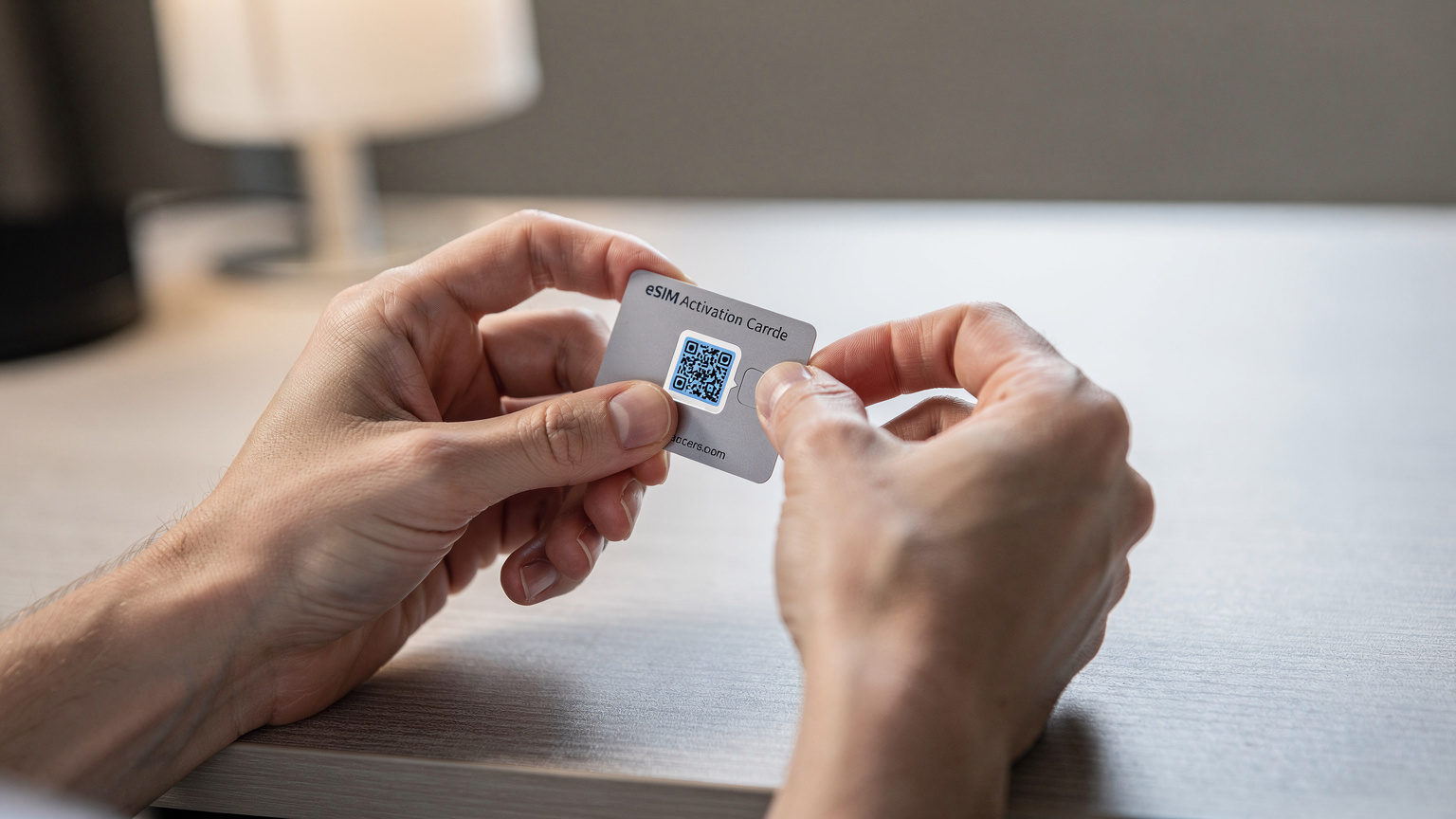
Activation usually means scanning a QR code or typing in details manually. I always go for the QR code method, it cuts down on typos.
- Purchase Your eSIM Plan: Go to your chosen eSIM provider's website or app (like Cellesim) and pick a data plan for your destination. Finish the purchase.
- Receive Activation Information: You'll typically get an email with a QR code and/or manual activation details. Keep this handy. If you're using a phone to scan, make sure your laptop screen is visible or use another device.
- Open Windows Cellular Settings: On your laptop, go to 'Settings' > 'Network & Internet' > 'Cellular'.
- Add an eSIM Profile: Click on 'Manage eSIM profiles' or 'Add an eSIM profile'.
- Scan QR Code or Enter Manually: If you have a QR code, choose 'Use a QR code from your service provider' and use your laptop's webcam to scan it. If you have manual details, select 'Enter an activation code manually' and type in the information provided (SM-DP+ Address, Activation Code, etc.).
- Connect and Configure: Once the profile is added, it should show up in your 'Cellular' settings. Select it and click 'Connect'. You might need to set it as your default cellular connection.
- Test Your Connection: Open a browser and try loading a website to confirm you're online.
Important Considerations Before Activating
- Data Roaming: Double-check that data roaming is turned on for your eSIM profile in your Windows settings. This is essential for it to work outside your home country.
- APN Settings: Rarely, you might need to manually enter Access Point Name (APN) settings. Your eSIM provider will usually give you these if they're needed. You can find this under 'Advanced options' in the cellular settings.
- Payment and Renewal: Keep an eye on your data usage and when your plan expires. Most providers let you top up or buy new plans directly through their app or website.
eSIM for PC vs. Other Connectivity Options, What Actually Works
I've used them all, from pocket Wi-Fi devices to the most abysmal hostel Wi-Fi you can imagine. And while each has its place, eSIM for PC really offers a level of convenience and reliability that's tough to beat for someone who travels a lot or lives as a digital nomad.
Phone Tethering, The Convenient but Flawed Option
Tethering your laptop to your phone's data connection is the most common workaround. It's easy, you already have your phone, and it works in a pinch. But the problems are obvious. Battery drain is a huge one, especially if you're on calls or streaming. Plus, using your phone's data often means you're paying higher rates if you're relying on a home plan's roaming, or you've bought a local SIM for your phone that might not have enough data for heavy laptop use. And for those specific banking apps that demand a local SIM, you'll still need that physical card in your phone, which limits your options if you're already running a dual eSIM setup on your phone.
Portable Wi-Fi Hotspots, Another Gadget to Manage
I carried a Huawei pocket Wi-Fi for years. It was definitely better than public Wi-Fi, but it was still another device to charge, another device to connect to, and often, it meant dealing with physical SIM cards. If you're trying to keep your tech minimal, adding a dedicated hotspot isn't ideal. They're also often locked to certain networks or regions, making global travel a pain. I remember struggling to find a compatible SIM for my hotspot in rural Japan, which forced me to rely on eSIM for my phone in Japan for everything.
Public Wi-Fi, The Last Resort
We've all been there, desperate for a connection. Cafe Wi-Fi, airport Wi-Fi, hotel Wi-Fi. It's free, sometimes fast, but almost always unreliable and a security risk. I've spent far too many hours in the food court of the Premium Plaza mall in Medellín, simply because their connection was more stable than my apartment's at the time. It's just not a sustainable solution for getting actual work done.
| Connectivity Method | Pros | Cons | Best For |
|---|---|---|---|
| eSIM for PC | Dedicated connection, secure, no phone battery drain, usually faster. | Requires compatible laptop, initial setup. | Digital nomads, heavy data users, frequent travelers. |
| Phone Tethering | Convenient, uses existing device. | Drains phone battery, potential for slower speeds, higher costs if roaming. | Light usage, emergencies, short bursts of connectivity. |
| Portable Wi-Fi Hotspot | Dedicated device, can share with multiple users. | Another device to carry/charge, often uses physical SIMs, can be expensive. | Small groups, users with non-eSIM devices needing shared connectivity. |
| Public Wi-Fi | Free (usually). | Unreliable, insecure, slow, inconsistent. | Checking quick messages, very light browsing, absolute last resort. |
Frequently Asked Questions
What kind of laptops support eSIM?
Generally, newer Windows laptops, especially those featuring Qualcomm Snapdragon processors or Intel's 5G solutions, support eSIM. Devices like Microsoft Surface Pro X and many business-oriented models from Lenovo and HP are often eSIM-ready. Check your laptop's cellular settings for 'Manage eSIM profiles' to confirm.
Can I use an eSIM on my MacBook?
As of 2026, MacBooks do not have built-in eSIM support. Apple has integrated eSIM into iPhones and iPads, but not yet into their laptop line. MacBook users still need to rely on Wi-Fi or tethering from an iOS device for cellular data.
Is using an eSIM on my PC secure?
Yes, using an eSIM on your PC is generally more secure than public Wi-Fi. It provides a dedicated cellular connection, reducing the risks associated with unsecured networks. For added security, always use a VPN, especially when handling sensitive information.
How much does an eSIM data plan for a PC cost?
The cost varies widely depending on the provider, destination, data allowance, and validity period. Prices can range from a few dollars for a small, short-term plan to €50 or more for larger, longer-term regional plans. Compare options from providers like Cellesim, Airalo, and Nomad for the best value.
Can I switch eSIM profiles on my laptop?
Yes, you can manage multiple eSIM profiles on your Windows laptop. In the 'Cellular' settings, you can add, remove, and switch between different eSIM profiles, allowing you to easily activate a new plan when traveling to a different country or region.
What happens if my laptop's eSIM isn't working?
First, check your Windows cellular settings to ensure the eSIM profile is active and data roaming is enabled. Verify your data balance with the provider. If issues persist, try restarting your laptop or contacting your eSIM provider's customer support. Sometimes, a manual APN setting adjustment might be needed.
Real-World Scenarios Where eSIM for PC Shines, Nomad Tested
This isn't just theory; it's about what actually happens when you're trying to get work done thousands of miles from home. I've been in situations where an eSIM for my PC saved my butt, and I'm sure other nomads can relate.
Critical Client Calls and Presentations
Picture this: you're in a charming but tiny Airbnb in the Gràcia neighborhood of Barcelona, trying to close a deal on a video call. The Wi-Fi starts sputtering, but with an eSIM in your PC, you seamlessly switch to cellular data without missing a beat. No