By the time you finish this guide, you will be able to reliably receive one-time passcodes (OTPs) and 2-factor authentication (2FA) codes on your primary number while seamlessly using an eSIM for data abroad. No more getting locked out of your bank account, no more scrambling for Wi-Fi to get a code.
Prerequisites: A smartphone that supports eSIM, an active eSIM data plan from a provider like Cellesim, and your physical SIM card from your home country (the one linked to your bank accounts and essential apps) still in your phone. Ensure your home SIM allows international roaming for SMS, even if you keep data turned off for it.
eSIM OTP: Why It Breaks and How to Prevent It
The core issue with OTPs and 2FA while abroad isn't the eSIM itself. It's usually a combination of two things: either your primary SIM isn't set up correctly for international SMS roaming, or your phone's dual-SIM settings are misconfigured, preventing your home number from receiving calls and texts. I've seen this play out too many times, usually when someone is trying to pay for their coworking space membership or transfer money to their landlord.
For instance, in Brazil, if you're trying to access your bank account with Itaú or Nubank, they are incredibly strict about SMS OTPs. Forget about using a VoIP number. If your physical SIM isn't active and able to receive texts, you're locked out. The same goes for India's Aadhaar-linked apps. If you change your number without updating Aadhaar, you're in a bureaucratic mess that can take weeks to untangle, often requiring an in-person visit.
The solution is straightforward: keep your home SIM active for SMS and calls, and use your eSIM solely for data. Most modern phones handle this configuration smoothly, allowing you to designate one line for data and another for voice and messages. The cost for receiving SMS messages while roaming is usually negligible, often free, but sending SMS or making calls on your home SIM will incur standard roaming charges.
Setting Up Your Phone for OTPs with eSIM
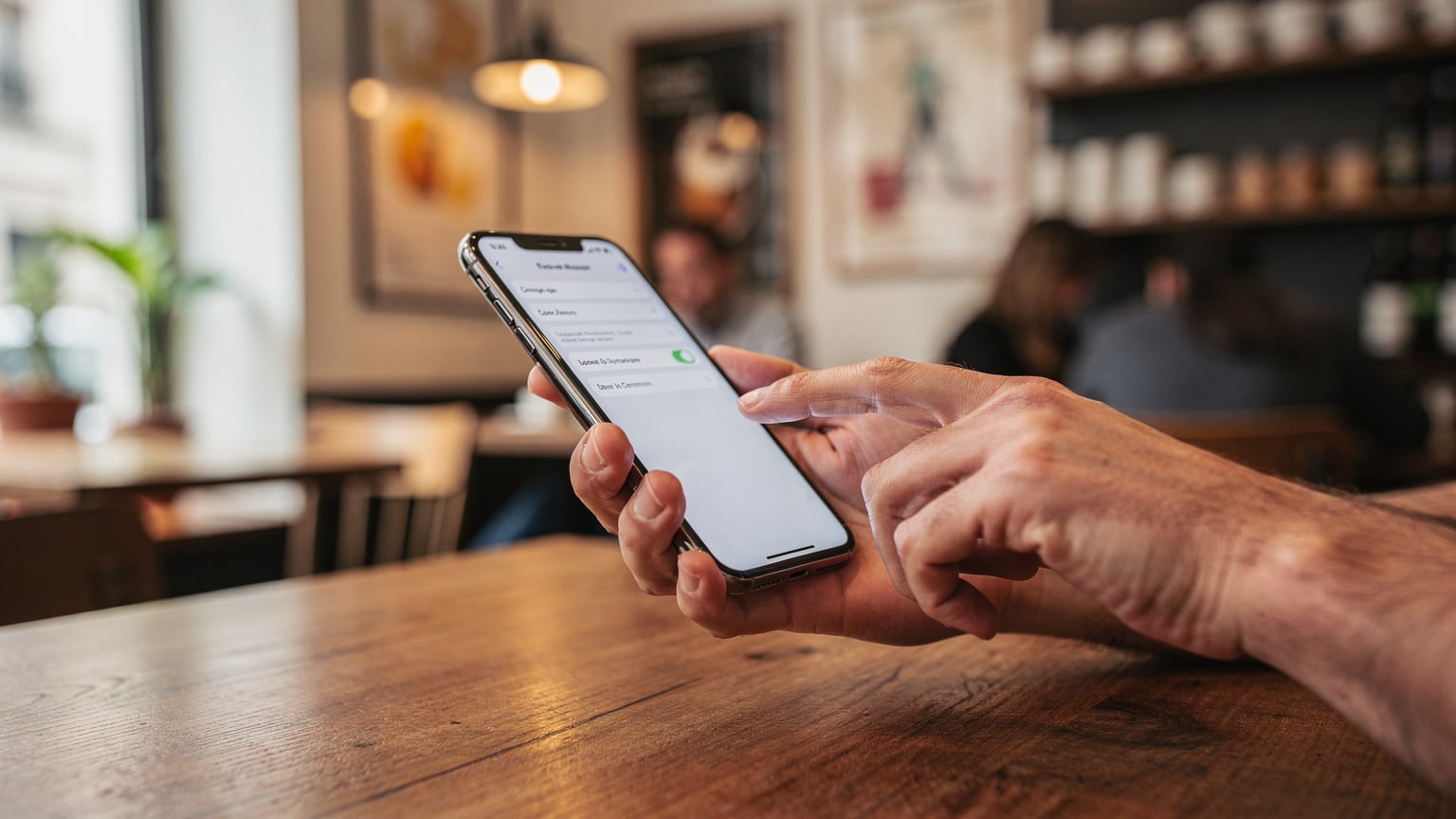
This is where many travelers get tripped up. The key is to manage your SIM settings carefully. Here’s how to do it on an iPhone, which is largely similar to Android devices:
Step-by-Step: iPhone Dual SIM Setup
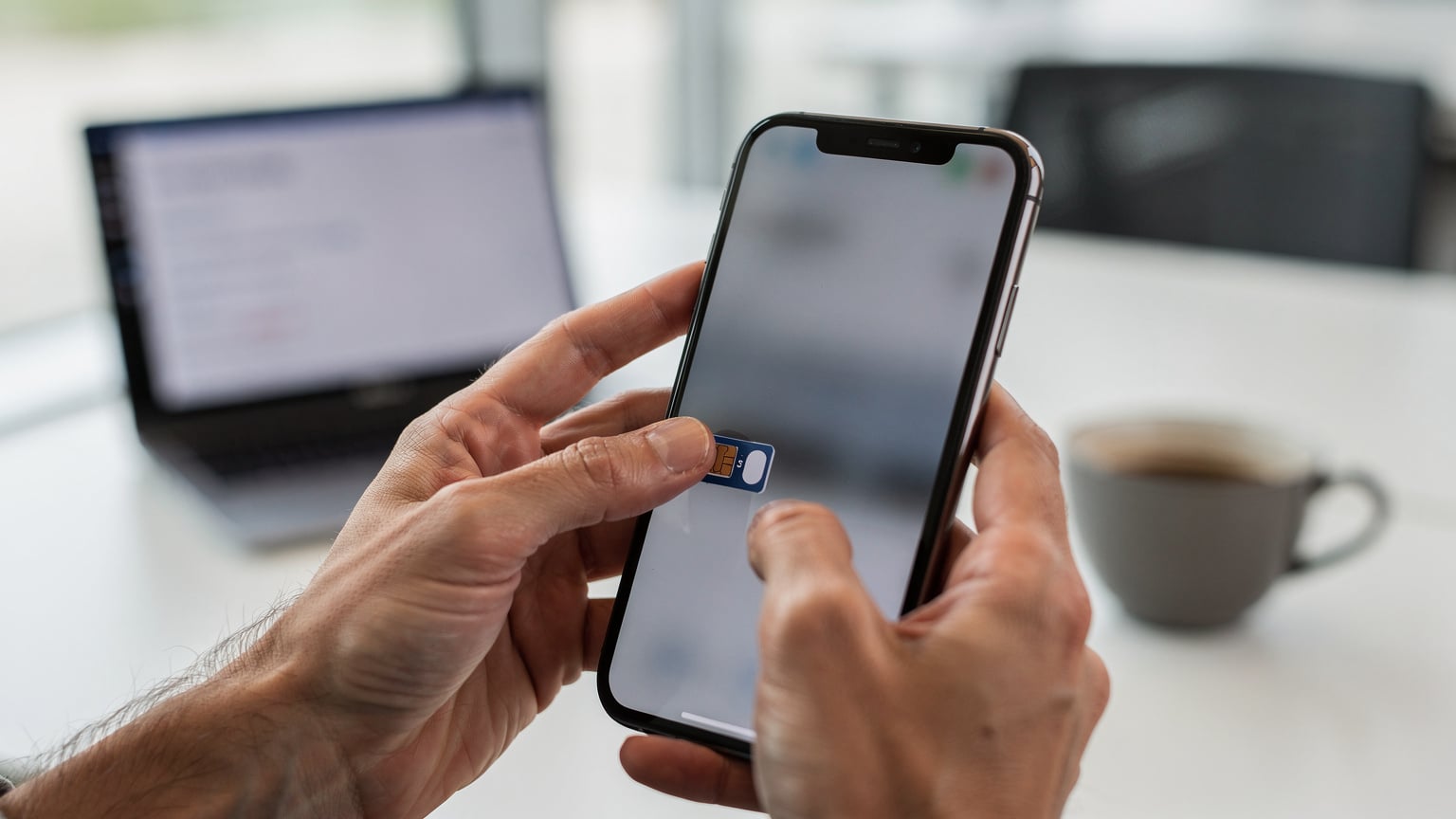
Install Your eSIM: First, ensure your eSIM for your destination is installed and active. You'll typically do this by scanning a QR code or entering activation details. Once installed, your phone will recognize it as a new cellular plan. If you're using an operator like T-Mobile, their eSIM QR code activation process is quite streamlined.
Access Cellular Settings: Go to Settings > Cellular (or Mobile Data). Here, you'll see a list of your cellular plans: your primary physical SIM (e.g., "Primary" or "Home") and your newly installed eSIM (e.g., "Travel" or the carrier's name like Cellesim).
Set Default Voice Line: Tap on Default Voice Line. Select your Primary (home country) SIM. This ensures that any calls you make will originate from your home number and, crucially, that your home number remains active for incoming calls and SMS.
Designate Cellular Data Line: Tap on Cellular Data. Select your eSIM plan. This tells your phone to use the eSIM for all internet access. Crucially, turn off "Allow Cellular Data Switching" if you see that option. You don't want your phone randomly switching back to your home SIM for data and racking up huge roaming charges.
Enable Data Roaming for eSIM: For your eSIM, ensure Data Roaming is turned on within its specific settings. For your primary SIM, ensure Data Roaming is turned off, but leave the SIM enabled. This way, your home SIM can still receive SMS and calls without consuming expensive data.
Install Your eSIM: Just like on an iPhone, install your eSIM plan. This usually involves scanning a QR code or manually adding details in Settings > Network & internet > SIMs (or Mobile network).
Access Network Settings: Go to Settings > Network & internet (or Connections on Samsung phones).
Manage SIMs: Tap on SIMs. You should see both your physical SIM and your eSIM listed. Make sure both are toggled on.
Set Preferred SIM for Calls/SMS: Look for options like Preferred SIM for calls and Preferred SIM for SMS messages. Set both to your Primary (home country) SIM. This ensures OTPs arrive.
Set Preferred SIM for Mobile Data: Tap on Preferred SIM for mobile data. Select your eSIM. Again, check for any options that allow automatic data switching and disable them.
Data Roaming Configuration: For your eSIM, go into its specific settings and enable Data Roaming. For your primary SIM, ensure its Data Roaming is turned off, but keep the SIM itself active.
You're staying in one country for more than 3-6 months. The cost of maintaining your home SIM for just SMS might start to outweigh the benefit, or your visa demands a local number.
Your home carrier's roaming fees for SMS are unexpectedly high. (Rare, but check your plan.)
Certain local apps require a local number for full functionality. Some Brazilian payment apps, for instance, are notoriously difficult to use without a local number, even for OTPs.
Get a local physical SIM: Purchase a local SIM card with a new number. You can find options like Telkomsel eSIM in Indonesia, but for a new primary number, a physical SIM might be easier to manage initially, especially if you need to register it with local ID.
Update ALL essential services: This includes your bank, credit card companies, investment platforms, email recovery, and any 2FA services. This can take time, sometimes days or even weeks for banks to process.
Test everything: Before you deactivate your old home SIM, test every single service that relies on an OTP. Try logging into your bank, making a small payment, and verifying email changes. Do this from a secure Wi-Fi connection at a known spot, like the Starbucks on Gorki Street in Tbilisi, or the NomadWorks co-working space in Manhattan.
Your home SIM is disabled or has no roaming agreement. Double-check your phone's cellular settings to ensure your home SIM is toggled on and that it has international roaming enabled with your home carrier. Sometimes, a quick call to your home carrier's support line before you travel can confirm your SMS roaming status. Even if you're not paying for data roaming, SMS roaming is usually a separate, low-cost or free service.
Signal issues. Your home SIM might not be getting a strong enough signal from a local roaming partner. Try manually selecting a network operator for your home SIM in your phone's cellular settings (e.g., Settings > Cellular > Primary SIM > Network Selection > Turn off Automatic, then choose a different network). Sometimes one network is just better at handling inbound SMS. I found this particularly true in rural Nepal, where network coverage can be spotty.
Data Roaming Off for Home SIM: Go back to your cellular settings. For your primary (home) SIM, ensure the Data Roaming toggle is definitively off. If your phone has a "Cellular Data Switching" option, make sure it's also off.
Monitor Data Usage: Regularly check your data usage in your phone's settings. If you see any activity on your home SIM, immediately investigate your settings.
APN Settings: Sometimes, the Access Point Name (APN) settings for your eSIM aren't automatically configured. Check the instructions provided by your eSIM provider (like Cellesim) for the correct APN. Go to Settings > Cellular > [Your eSIM Name] > Cellular Data Network (iPhone) or Settings > Network & internet > SIMs > [Your eSIM Name] > Access Point Names (Android) and enter the correct APN.
Data Roaming for eSIM: Ensure Data Roaming is turned on for your eSIM, as most travel eSIMs require this to connect to local networks.
Maintain a Local SIM (Even for Short Stays): If you're in a country for more than a month, consider getting a local physical SIM with a small credit balance, even if you rely on eSIM for primary data. This local number is invaluable for things like ordering food delivery, getting local taxi apps to work (Grab in Southeast Asia, Bolt in Europe, Uber everywhere else), or signing up for loyalty programs at your favorite Tuesday food court spot. In Lisbon, I used a local MEO SIM for delivery apps, even though my Cellesim eSIM handled my main data. This small local SIM cost me €10 a month.
WhatsApp Web is Your Friend: If you ever lose access to your primary SIM for OTPs, WhatsApp Web can be a lifesaver for communication. Make sure you've linked it while your phone number is active. Many banks now use WhatsApp for customer service, and sometimes even for OTPs, which can be a workaround if SMS is failing.
Notify Your Bank: Seriously, do this. Before you leave, call your bank and let them know you'll be traveling and using an international number (your eSIM data, while your home SIM is still active for OTPs). This prevents them from flagging your transactions as fraudulent and locking your account. This is particularly important for US banks. I once had my Chase card frozen because I forgot to tell them I was in a co-working space in Medellín, Colombia, making payments on a Cellesim eSIM.
Check Visa Limitations: Some visas, particularly for longer stays, require you to register a local phone number. For example, some working holiday visas or digital nomad visas in places like Portugal or Spain will eventually push you towards getting a local number. Be aware of these requirements and factor them into your connectivity plan. My friend got flagged during a visa extension for not having a local number to register for a local health service.
Have a Backup Authentication Method: For critical accounts, consider setting up authenticator apps (like Google Authenticator or Authy) as a secondary 2FA method. These generate time-based codes on your device itself, completely independent of SMS. This provides a robust fallback if SMS OTPs fail, though it requires foresight to set up before you need it. Many Cellesim users ask about this, and it's always my top recommendation for critical logins.
Step-by-Step: Android Dual SIM Setup
I've personally used this setup for years, from the bustling co-working spaces of Berlin like St. Oberholz on Rosenthaler Platz to a small café in Chiang Mai called Graph Cafe. It's how I manage my German N26 bank OTPs while using a China eSIM for data, or my US-based accounts while exploring Southeast Asia. My monthly rent payment in Prenzlauer Berg, about €850 for a 1-bedroom, always requires a bank transfer confirmed by an SMS code.
When to Switch Your Primary SIM Number
Sometimes, keeping your old number isn't feasible or practical. This usually happens on longer stays, especially if your visa requires a local phone number. For example, if you're on a D-visa in Portugal or a long-term stay in Mexico, having a local number becomes essential for everything from setting up utilities to getting delivery apps to work.
You should consider updating your primary phone number with banks and essential services only if:
If you decide to switch, do it methodically:
Common OTP and eSIM Troubleshooting
Even with careful setup, issues can arise. Here are the top three problems I've encountered and how to fix them:
1. OTPs Not Arriving
This is the most frequent complaint. It's almost always one of two things:
2. Accidental Data Usage on Home SIM
This is the nightmare scenario for many. You receive an eye-watering bill because your home SIM used data while roaming.
3. eSIM Not Connecting to Data
Your eSIM is active, but you have no internet.
Pro Tips for Long-Term Travelers
Living abroad for months at a time changes how you manage connectivity. It's not just about a week-long vacation anymore. Here are a few things I've learned that go beyond the basic setup:
Navigating OTPs and eSIMs while traveling can seem daunting, but with the right setup, it quickly becomes second nature. By keeping your primary SIM active for SMS and designating your eSIM for data, you maintain access to your essential services without breaking the bank. Happy travels, and may your OTPs always arrive on time.
Frequently Asked Questions
Can I receive SMS OTPs on my home number if I'm using an eSIM for data?
Yes, absolutely. Most modern smartphones allow you to keep your primary physical SIM active for calls and SMS messages while using an eSIM solely for mobile data. You just need to configure your phone's cellular settings to prioritize your home SIM for voice and messages.
Will I incur roaming charges for receiving OTP SMS messages?
Receiving SMS messages while roaming is often free, or at most, a very minimal charge, depending on your home carrier's plan. Sending SMS or making calls on your home SIM while roaming, however, will typically incur standard international roaming charges. Always check with your home provider before you travel.
What if my bank or app insists on sending OTPs to a local number?
Some highly localized services, particularly certain banking apps in countries like Brazil or India, may require a local phone number for full functionality or OTPs. If you plan a long-term stay, it's best to acquire a local physical SIM and update your contact number with these services. Do this methodically and test all services before deactivating your original number.
How do I prevent my home SIM from using data accidentally while roaming?
In your phone's cellular settings, ensure that Data Roaming is toggled OFF for your primary (home) SIM. Also, if your phone has an option for 'Cellular Data Switching' or 'Allow Mobile Data Switching,' make sure that is also turned off to prevent automatic data usage on your home SIM.
Is it better to use an authenticator app for 2FA instead of SMS OTPs?
For critical accounts, using an authenticator app (like Google Authenticator or Authy) is generally more secure and reliable than SMS OTPs, especially while traveling. Authenticator apps generate codes directly on your device, independent of network connectivity, making them immune to SMS roaming issues. Set these up proactively before you depart.
What if my eSIM is not connecting to the internet?
First, ensure Data Roaming is turned ON for your eSIM in your phone's settings. If it still doesn't connect, you might need to manually configure the Access Point Name (APN) settings, which should be provided by your eSIM carrier. You can find these settings in your phone's cellular data network options.