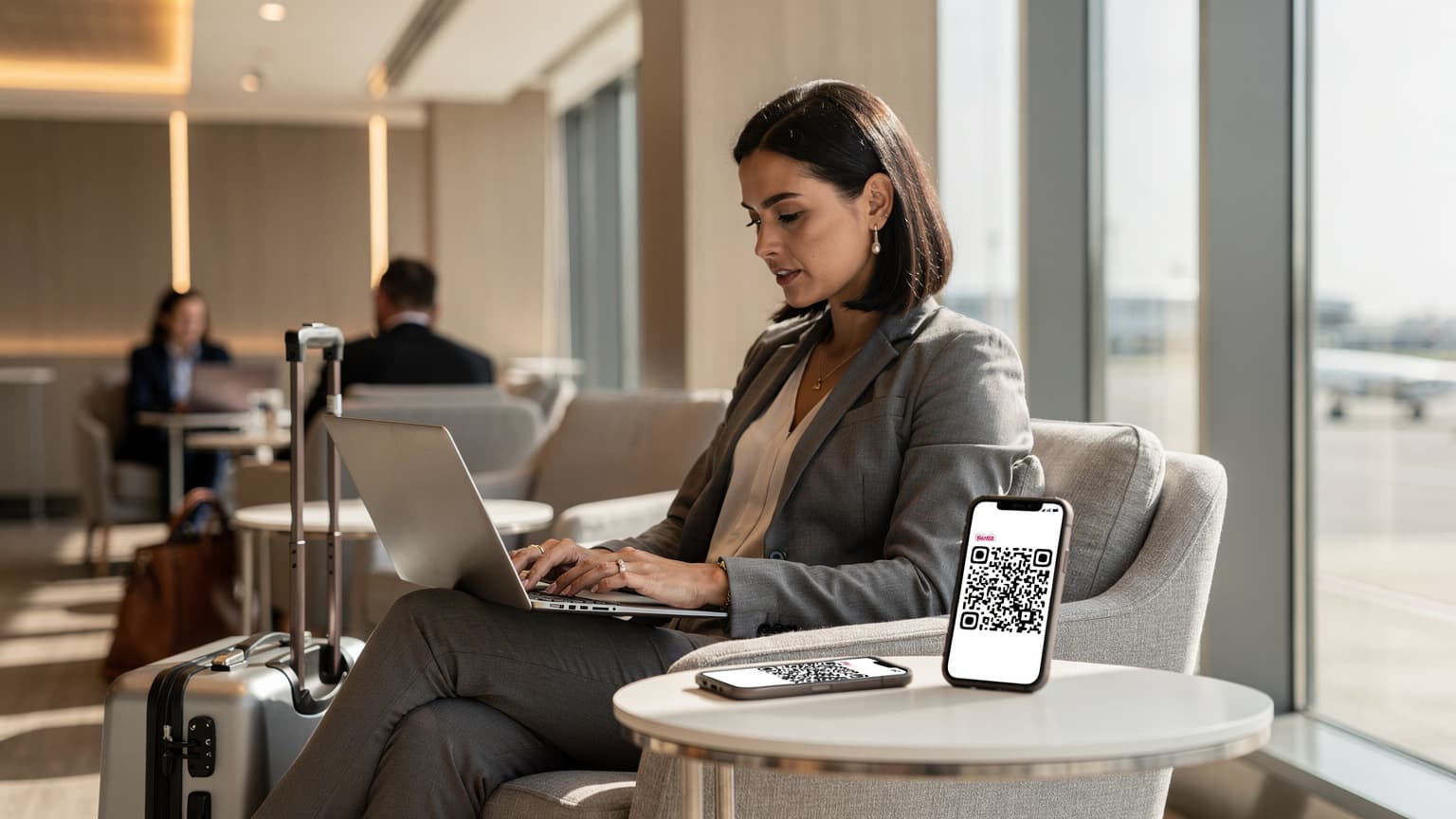
eSIM technology provides laptops and PCs with seamless, secure, and flexible mobile data connectivity in 2026, eliminating reliance on public Wi-Fi or cumbersome physical SIM cards for travelers and remote workers. By integrating digital SIM profiles directly into devices, users can activate local or regional data plans on the fly, ensuring reliable internet access across various global destinations.
Why eSIM for Your Laptop, The Connectivity Imperative
As business travel accelerates and remote work becomes the norm, the need for consistent, secure, and high-speed internet access for laptops and PCs has never been more critical. The days of hunting for reliable Wi-Fi in an unfamiliar city, or wrestling with insecure public hotspots, are quickly becoming a relic of the past. eSIM technology offers a compelling alternative, providing embedded mobile data directly to your device.
Consider a scenario: you've just landed at Frankfurt Airport, your flight was delayed, and you have a critical video conference in 30 minutes. Relying on airport Wi-Fi, often congested and throttled, is a gamble. With an activated eSIM profile on your laptop, you're connected the moment your plane touches down, assuming the network is live. This isn't merely a convenience; it's a productivity safeguard, especially when comparing against the escalating post-Brexit roaming charges levied by major UK carriers like EE, Vodafone, and O2 for EU travel.
The Limitations of Public Wi-Fi and Portable Hotspots
Public Wi-Fi, while ubiquitous, comes with inherent limitations. Beyond the obvious security vulnerabilities, which are a nightmare for sensitive corporate data, performance is rarely guaranteed. You might find yourself on a Wi-Fi 4 (802.11n) network in a busy café, struggling to achieve more than 5-10 Mbps download speeds, far below what's needed for cloud-based applications or large file transfers. Portable hotspots, like MiFi devices or tethering from your smartphone, offer a personal bubble of connectivity, but introduce another device to charge, another battery to monitor, and often incur additional roaming fees if you're using your home SIM internationally. Moreover, tethering can rapidly deplete your phone's battery and data allowance.
The eSIM Advantage, Flexibility and Security
eSIM, or embedded Subscriber Identity Module, fundamentally changes this paradigm. It's a tiny chip soldered directly onto your device's motherboard, capable of storing multiple network profiles digitally. This means no more fumbling with physical SIM cards, no more searching for local stores in a foreign city, and significantly reduced exposure to the risks associated with public Wi-Fi. For a business traveler commuting between London and Paris, for example, a single eSIM-enabled laptop can switch between a French carrier profile (perhaps on Bouygues Telecom's B3 or B7 LTE bands) and a UK profile with a few clicks, without ever swapping physical hardware. This flexibility is what sets eSIM apart, offering a streamlined, always-on connection that aligns with the demands of modern remote work.
Understanding eSIM-Enabled Laptops, Hardware and Compatibility
Not all laptops are created equal when it comes to eSIM compatibility. The core requirement is the presence of an integrated eSIM module and the necessary software support. This isn't something you can typically add aftermarket, so it's a crucial consideration when purchasing a new device.
Identifying eSIM-Ready Devices
Most modern laptops with eSIM capabilities fall under the umbrella of 'Always Connected PCs' (ACPC). These devices are designed from the ground up to offer persistent cellular connectivity, much like a smartphone. Key manufacturers like Microsoft, HP, Dell, and Lenovo have a range of models featuring this technology. When checking specifications, look for phrases like "integrated eSIM," "LTE/5G cellular modem," or a specific modem model such as a Qualcomm Snapdragon X55 (for 5G) or an Intel XMM 7360 (for LTE). The operating system also plays a role, with Windows 10 and 11 providing native support for eSIM management through the 'Cellular settings' menu. Apple's MacBook line, interestingly, has yet to widely adopt embedded cellular modems for eSIM, relying instead on iPhone tethering for mobile data. This is a design choice that often surprises users expecting parity with iOS devices, which have supported iPhone eSIMs in the Nordics for years.
| Manufacturer | Typical Models with eSIM | OS Support | Modem Examples |
|---|---|---|---|
| Microsoft | Surface Pro X, Surface Pro 9/10 (5G), Surface Laptop Studio 2 (select models) | Windows 10, Windows 11 | Microsoft SQ3 (Snapdragon based), Intel 5G Solution 5000 |
| HP | Elite Dragonfly G3/G4, Spectre x360 (select 5G models), ZBook Firefly G10 | Windows 10, Windows 11 | Qualcomm Snapdragon X55/X62, Intel XMM 7560 |
| Dell | Latitude 7000/9000 Series (select 5G models), XPS 13 Plus (5G option) | Windows 10, Windows 11 | Qualcomm Snapdragon X55/X62, Intel XMM 7560 |
| Lenovo | ThinkPad X1 Carbon (Gen 9/10/11 5G), ThinkPad X1 Fold, Yoga 9i (5G option) | Windows 10, Windows 11 | Qualcomm Snapdragon X55/X62, Fibocom FM350-GL |
| Samsung | Galaxy Book Go, Galaxy Book2 Pro 360 (5G option) | Windows 10, Windows 11 | Qualcomm Snapdragon 7c Gen 2, Intel XMM 7560 |
Windows and macOS, A Divergence in Cellular Strategy
While Windows has embraced integrated cellular, macOS has largely relied on the iPhone's Personal Hotspot feature. This means MacBook users, even those with the latest M3 chips, typically connect via Wi-Fi to their phone's cellular data. While effective, it introduces a reliance on a second device, potentially impacting battery life for both. For a true 'Always Connected' experience, a Windows laptop with an embedded eSIM offers a more streamlined solution, particularly for those who prefer to keep their phone's battery for calls or navigation.

Activating an eSIM on Windows, A Step-by-Step Guide
The process of activating an eSIM on a Windows laptop is remarkably straightforward, mirroring the simplicity found on modern smartphones. Once you've confirmed your device is eSIM-compatible, the rest is mostly software configuration.
Purchasing an eSIM Plan
The first step is to purchase an eSIM data plan from a provider like Cellesim. These plans are available for various regions, countries, and data allowances. For example, if you're traveling through the Middle East, a Middle East Multi-Country eSIM can cover several nations with a single plan, saving you the hassle of buying individual country-specific eSIMs. Most providers will send you a QR code or an activation code via email immediately after purchase. This digital delivery is one of the key advantages over physical SIMs.
- Select your destination and data plan: Browse the available eSIM plans for your specific travel needs, considering data volume and validity period.
- Purchase and receive activation details: Complete your purchase. You'll typically receive an email containing a QR code or manual activation details (SM-DP+ address and Activation Code).
- Ensure an initial internet connection: You'll need an active internet connection (e.g., Wi-Fi) on your laptop to download the eSIM profile initially.
- Access Windows Cellular settings: On your Windows laptop, go to Settings > Network & internet > Cellular.
- Add an eSIM profile: Click on 'Manage eSIM profiles' and then 'Add a new profile'.
- Scan QR code or enter details: Choose to 'Scan a QR code' (using your laptop's webcam) or 'Enter an activation code manually'. If scanning, hold the QR code displayed on your phone or a printed copy in front of your laptop's camera.
- Confirm and download: Follow the on-screen prompts to confirm the download and installation of the eSIM profile. This usually takes less than a minute.
- Select your new cellular profile: Once installed, you can select your new eSIM profile from the list of cellular networks in the 'Cellular' settings.
- Enable data roaming (if applicable): If your plan requires it for international use, ensure data roaming is enabled for the selected eSIM profile.
Managing Multiple eSIM Profiles
One of the most powerful features of eSIM is the ability to store multiple profiles on a single device. This is particularly useful for frequent international travelers. You could have a profile for the USA (perhaps an AT&T eSIM for International Travel), another for the EU, and even a third for a specific country like India for Diwali 2026. Switching between them is as simple as selecting the desired profile in Windows' cellular settings. The operating system handles the underlying network registration, making the transition seamless.

eSIM Performance, Expectations and Network Considerations
While eSIM offers unparalleled convenience, understanding the actual performance you can expect is crucial. Cellular networks aren't uniform, and various factors influence your real-world download and upload speeds.
Understanding Cellular Bands and Carrier Aggregation
Modern cellular modems in laptops are designed to support a wide array of frequency bands, both for LTE (4G) and 5G New Radio (NR). For instance, in many urban European areas, you'll often connect to LTE bands B3 (1800MHz), B7 (2600MHz), and B20 (800MHz). For 5G, the mid-band n78 (3.5GHz) is becoming increasingly prevalent, offering a good balance of speed and coverage. The concept of carrier aggregation (CA) is key here. CA allows a device to combine multiple frequency blocks, effectively creating a wider 'pipe' for data, leading to significantly higher speeds. A modem supporting 4xCA on LTE can combine four different frequency bands simultaneously, whereas a basic modem might only use one or two. This is why some laptops report much higher theoretical speeds than others, even on the same network. Always check your laptop's modem specifications for supported bands and CA capabilities.
Real-World Speed Ranges and Latency
Claimed speeds by carriers are always theoretical maximums. In reality, factors like network congestion, distance from the cell tower, building penetration, and even local topography dictate your actual experience. In a well-covered urban area on a 5G network (e.g., Vodafone UK's n78 band in central London), I've observed consistent download speeds of 200-400 Mbps and upload speeds of 30-70 Mbps on a Surface Pro 9 (5G) with an Intel 5G Solution 5000 modem. However, in a less congested rural town on LTE B20, speeds might drop to 15-30 Mbps down and 5-10 Mbps up. Latency, the delay in data transmission, is also a critical factor for video conferencing and real-time collaboration. On 5G, I typically see round-trip times (RTT) of 20-40ms, while LTE generally falls into the 40-80ms range. For business users, lower latency is always preferred.
VoLTE and VoWiFi Considerations
While laptops are primarily for data, some users might consider using them for voice or video calls over cellular. Most eSIM data plans for laptops are data-only and do not natively support VoLTE (Voice over LTE) or VoWiFi (Voice over Wi-Fi), which are standard for smartphone cellular calls. This means you won't be able to make traditional phone calls directly from your laptop's cellular connection. However, applications like Microsoft Teams, Zoom, or Google Meet, which use Voice over IP (VoIP), will function perfectly over the data connection. It's an important distinction: you get data for internet-based communication, but not a traditional circuit-switched voice line. This is a common gotcha for users expecting full smartphone-like functionality.

Cost Efficiency, eSIM Versus Traditional Roaming
One of the most compelling arguments for adopting eSIM in laptops, especially for business travelers, is the significant cost savings compared to traditional roaming. The landscape of mobile data pricing for international travel has shifted dramatically, particularly in the UK post-Brexit.
Comparing Roaming Charges
Before Brexit, UK citizens could travel across the EU and use their mobile data, calls, and texts at no extra cost, thanks to 'Roam Like At Home' regulations. That era is largely over. Major UK carriers now impose daily roaming charges. For instance, EE charges £2.29 per day for EU roaming, Vodafone charges £2.25 per day, and O2 has a £2 daily charge for Zone 1 countries (which includes most of the EU). These charges can quickly accumulate, turning a two-week business trip into an additional £30-£40 expense just for basic phone connectivity, let alone the data demands of a laptop. An eSIM data plan, by contrast, allows you to purchase a fixed amount of data for a specific region or country at a transparent, upfront cost, often far cheaper than daily roaming fees.
| Service Type | Traditional Roaming (e.g., UK Major Carrier in EU) | eSIM Data Plan (e.g., Cellesim EU) |
|---|---|---|
| Daily Cost (Average) | £2.00 - £2.50 per day (for basic phone use) | £1.50 - £2.00 per GB (data-only, no daily charge) |
| Data Allowance | Often throttled or limited, counts against home plan | Dedicated data bundle (e.g., 5GB, 10GB, 20GB) |
| Cost for 10GB in 14 days | £28 - £35 (plus potential overage fees) | £15 - £25 (fixed cost, no surprises) |
| Activation | Automatic (if roaming enabled), manual opt-out needed | Digital QR code scan, quick setup |
| Flexibility | Limited to your home carrier's agreements | Choose from multiple local/regional carriers |
Predictable Spending with eSIM
With an eSIM, you purchase a specific data package, such as 10GB for 30 days in Europe. Once that data is used, your connection stops, or you can easily top up, giving you complete control over your spending. There are no hidden fees, no unexpected bill shock upon returning home. This predictability is invaluable for corporate travel budgets and individual freelancers alike. For example, a 10GB data package for Europe from Cellesim offers great value, valid for 30 days, which is considerably less than two weeks of daily roaming charges from a major UK carrier, even before factoring in the higher data consumption of a laptop.
The Advantage of Local Network Access
When you purchase an eSIM from a provider like Cellesim, you're essentially gaining access to a local mobile network in your destination. This typically means better performance, as your data traffic is routed directly within that country's infrastructure, rather than backhauling through your home network. For instance, using an eSIM in France will likely connect you to a local operator like Orange or SFR, leveraging their optimized B3/B7/B20 LTE networks, potentially offering speeds of 50-150 Mbps depending on your location, far outstripping the often-throttled performance of a roaming connection. This local access also helps mitigate issues like CGNAT (Carrier-Grade Network Address Translation) or IPv6-only network quirks that can sometimes affect certain VPNs or enterprise applications when roaming on a foreign carrier's infrastructure that isn't fully optimized for international traffic.
Security Implications, and Best Practices for Remote Work
For any professional handling sensitive data, security is paramount. While eSIM offers significant advantages over public Wi-Fi, it's essential to understand its security posture and implement best practices for remote work.
eSIM vs. Public Wi-Fi Security
Public Wi-Fi networks are notorious for their security vulnerabilities. Many operate without encryption (open networks), allowing malicious actors to snoop on your traffic, intercept credentials, or even inject malware. Even password-protected public Wi-Fi can be compromised if the network administrator isn't diligent. An eSIM connection, conversely, leverages the robust security protocols of cellular networks. Data transmitted over LTE or 5G is encrypted at the air interface, making it significantly more difficult for casual eavesdropping. Your connection is effectively a private tunnel to the cellular operator's core network, reducing the attack surface considerably. This is a fundamental advantage for business travelers, who often access corporate resources or sensitive client information.
Implementing a VPN, Your Digital Shield
Even with the enhanced security of a cellular connection, a Virtual Private Network (VPN) remains an indispensable tool for remote workers. A VPN encrypts your internet traffic from your device to a secure server, creating a private, encrypted tunnel. This adds an additional layer of protection, particularly important if you're connecting to corporate networks or handling proprietary data. Ensure your chosen VPN client is always active when using your laptop for work, whether on eSIM or any other network. Many enterprise-grade VPNs (e.g., Cisco AnyConnect, Fortinet FortiClient) are designed to provide this secure tunnel, masking your IP address and encrypting your data, even if the underlying network were somehow compromised.
- Always enable your VPN: Ensure your corporate or personal VPN is active whenever you are connected to the internet, especially when processing sensitive information.
- Keep your OS and software updated: Regularly install operating system updates and security patches for all applications to guard against known vulnerabilities.
- Use strong, unique passwords: Implement complex, unique passwords for all accounts and enable two-factor authentication (2FA) wherever possible.
- Be wary of phishing attempts: Exercise caution with suspicious emails or links, even when connected via a secure eSIM.
- Back up your data: Regularly back up critical data to a secure cloud service or external drive.
- Physically secure your device: Never leave your laptop unattended in public spaces, even for a moment.
Common Troubleshooting and APN Settings
While eSIM setup is generally smooth, occasional hiccups can occur. Knowing how to troubleshoot common issues and understanding APN settings can save considerable time and frustration.
Network Not Connecting
The most frequent issue is the eSIM profile activating but failing to connect to the network. Here’s a quick checklist:
- Check Data Roaming: Ensure data roaming is enabled in Windows' Cellular settings if you are outside the eSIM's primary country of origin.
- Restart your Device: A simple reboot can often resolve transient network registration issues.
- Select Network Manually: In Cellular settings, try selecting a network operator manually instead of relying on automatic selection. Some eSIMs, particularly multi-country ones, might prefer specific partner networks. For instance, in France, manually selecting Orange or Bouygues might yield better results than Free Mobile, depending on the specific eSIM provider's agreements.
- Check Signal Strength: Are you in an area with adequate cellular coverage? Some buildings or underground areas can significantly degrade signal.
- Confirm Data Balance: Has your data plan expired or run out of allowance? Check your Cellesim account dashboard.
APN Edge Cases and Manual Configuration
The Access Point Name (APN) is essentially the gateway between the cellular network and the public internet. Most eSIM profiles automatically configure the correct APN. However, in rare instances, especially with certain specific phone models (like some older Lenovo ThinkPad X series with Fibocom modems, which can be finicky), or if you're using an obscure regional eSIM, you might need to enter the APN manually. The APN name is typically provided by your eSIM vendor (e.g., "internet" or "data.roam.eu").
To manually configure the APN in Windows 10/11:
- Go to Settings > Network & internet > Cellular.
- Scroll down and click on 'Advanced options' under your active cellular profile.
- Under 'APN settings', click 'Add an APN'.
- Enter the Profile name (can be anything, e.g., 'Cellesim EU'), APN (e.g., 'internet'), and leave other fields (Username, Password, Proxy server) blank unless specifically instructed by your provider.
- Set the IP type to 'IPv4v6' for broader compatibility.
- Click 'Save' and then select your newly created APN from the dropdown list.
It's worth noting that issues with APN settings are far less common with modern eSIM services, as the profile provisioning usually handles this automatically. Still, it's a useful tool in the troubleshooting arsenal.

The Future of PC Connectivity, What's Next for eSIM
The integration of eSIM into laptops is not just a trend; it's a foundational shift in how we approach mobile computing. The trajectory for 2026 and beyond points towards even greater seamlessness and capability.
Wider Adoption and New Form Factors
Expect to see eSIM become a standard feature across a broader range of laptops, not just premium business models. As chipset manufacturers like Qualcomm and Intel continue to integrate 5G modems more deeply into their platforms, the cost and complexity of including eSIM will decrease. We might even see eSIM making its way into more niche devices, such as ruggedized tablets for field work or even certain desktop replacements that require mobile backup. The push for 'Always Connected' devices is strong, and eSIM is central to that vision.
Enhanced 5G Capabilities
The evolution of 5G New Radio (NR) promises even more robust and higher-performance connections. Features like mmWave (millimeter wave), while currently limited in deployment, offer multi-Gigabit speeds in dense urban areas (e.g., 1-2 Gbps down, 100-200 Mbps up on n258/n260 bands), which could transform real-time collaboration and cloud computing for laptops. Sub-6 GHz 5G (like n78, n77, n41) will continue to expand, providing widespread coverage with significantly better speeds than LTE. Future eSIMs will fully leverage these advancements, ensuring your laptop can tap into the fastest available network. This will be particularly beneficial for bandwidth-intensive tasks like live streaming, large data analytics, or even cloud gaming on the go.
IoT and Enterprise Integration
Beyond individual users, eSIM for PCs will play a growing role in the Internet of Things (IoT) and enterprise deployments. Imagine a fleet of corporate laptops that are provisioned with data plans centrally, managed through an enterprise mobility management (EMM) solution, and automatically connect to the most cost-effective local network wherever they are in the world. This simplifies logistics, enhances security, and ensures business continuity. For specific sectors, such as logistics in Tajikistan, having reliably connected devices on the ground, even in remote areas, is a game-changer. The ability to remotely manage and switch eSIM profiles will be a powerful tool for IT departments, eliminating the need for physical SIM distribution and management.
Frequently Asked Questions
What is an eSIM for a laptop?
An eSIM for a laptop is a digital SIM profile embedded directly into the device's hardware. It allows your laptop to connect to cellular networks for internet access without needing a physical SIM card, providing flexible and secure mobile data on the go.
Which laptops are compatible with eSIM?
Many modern Windows laptops, often referred to as 'Always Connected PCs', from manufacturers like Microsoft (Surface Pro X, Surface Pro 9/10 5G), HP (Elite Dragonfly G3/G4), Dell (Latitude 7000/9000 series), and Lenovo (ThinkPad X1 Carbon 5G), feature integrated eSIM support. Always check the device specifications for an 'eSIM' or 'cellular modem' listing.
Can I use my phone's eSIM on my laptop?
No, you cannot directly transfer your phone's eSIM profile to your laptop. While both use eSIM technology, a laptop requires its own dedicated eSIM module and a separate data plan. You can, however, tether your laptop to your phone's cellular connection, but this uses your phone's data and battery.
How do I activate an eSIM on my Windows laptop?
To activate an eSIM, purchase a data plan from a provider, which will send you a QR code or activation details. On your Windows laptop, go to Settings > Network & internet > Cellular > Manage eSIM profiles, then 'Add a new profile' and follow the prompts to scan the QR code or enter the details manually. You'll need an initial Wi-Fi connection for the download.
Is an eSIM connection more secure than public Wi-Fi?
Yes, an eSIM connection is significantly more secure than public Wi-Fi. Data transmitted over cellular networks (LTE/5G) is encrypted at the air interface, making it much harder for malicious actors to intercept your traffic compared to often unencrypted or easily compromised public Wi-Fi hotspots. For enhanced security, always use a VPN.
What kind of speeds can I expect with an eSIM on my laptop?
Speeds vary significantly based on network congestion, coverage, and the specific cellular modem in your laptop. On a good 5G network (e.g., n78 band), you might see 200-400 Mbps download and 30-70 Mbps upload. On LTE, expect 15-150 Mbps download. These are never guaranteed and fluctuate with real-world conditions.