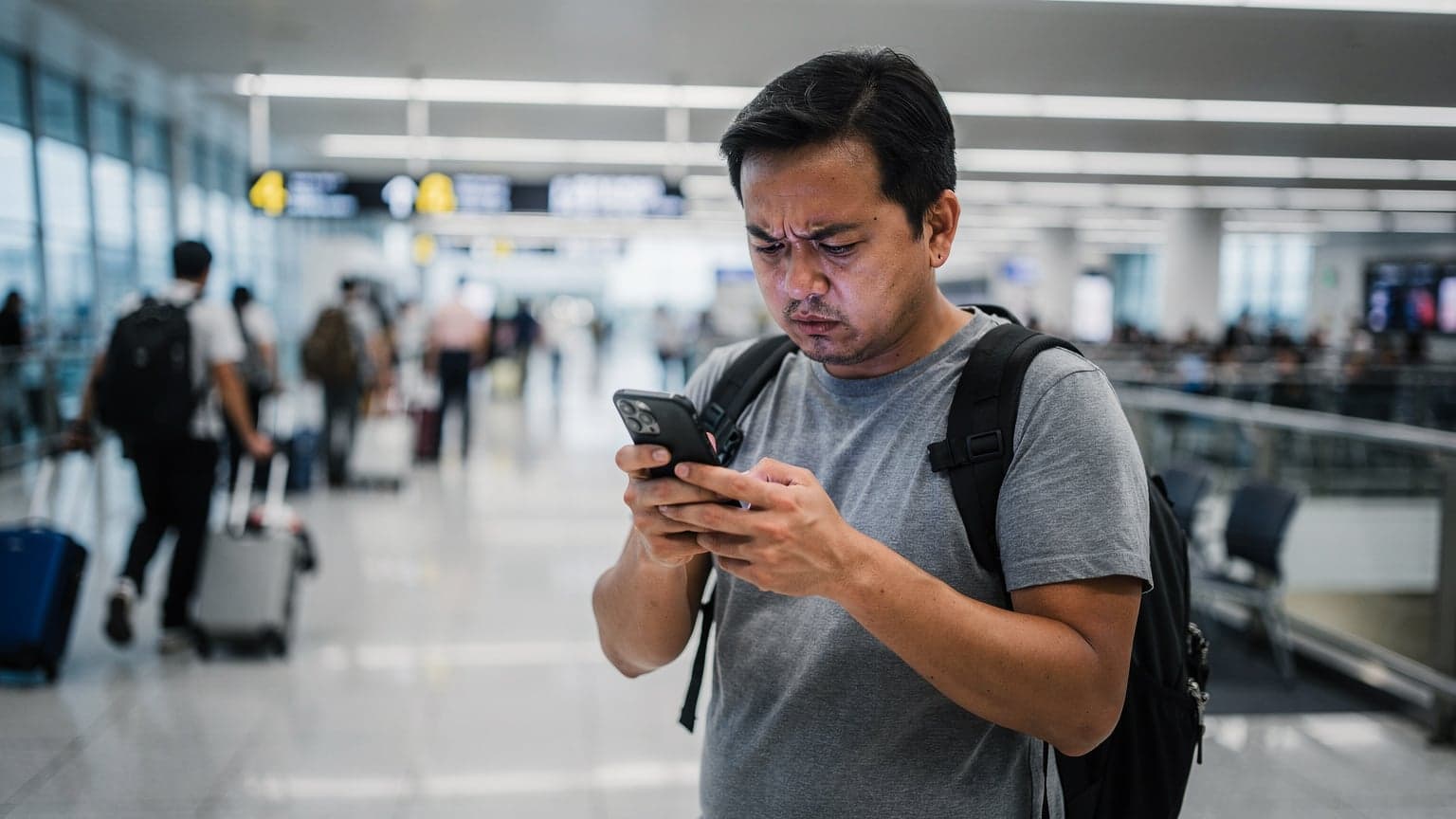
If your eSIM is stuck on activating, the first thing to do is flip Airplane Mode on and off for at least ten seconds. This often forces your phone to start a fresh connection. If that doesn't work, you'll likely need to manually enter the Access Point Name (APN) your carrier provided. Whatever you do, do not delete the eSIM profile. You can't just reinstall a QR code once it's been scanned without contacting support for a new one.
Why Your Profile Remains Trapped in Activating Limbo
Stepping off a plane and seeing that spinning wheel on your phone screen is a rotten way to kick off a trip. I see it all the time at international airports: travelers standing around baggage claim, holding up traffic, just trying to get a ride-share app to load. Most of the time, the problem is a hiccup in the initial network handshake.
The Carrier Handshake Protocol Explained
When you turn off Airplane Mode in a new country, your phone starts a pretty complicated dance with the local cell towers. This whole process follows strict 3GPP rules. Your phone's baseband processor sends an "attach request" to the closest Radio Access Network. Then, the local network checks your digital profile against a big global database to make sure you have permission to roam.
Sometimes, this database check just times out. The local tower expects a specific answer in milliseconds. If the authentication servers are swamped, or if there's too much radio interference in a busy airport, those little data packets get lost. Your phone assumes it needs to keep trying. The "activating" message on your screen tells you it's working on it, but without a nudge from you, it could be stuck in that loop for hours.

How iOS 18 Handles Foreign Network Requests
Apple has really fine-tuned how the secure enclave on your iPhone talks to foreign networks with recent iOS updates. But sometimes, these optimizations can actually cause issues. When iOS 18 spots a new digital profile, it tries to pull in carrier settings automatically. If that profile belongs to a mobile virtual network operator (MVNO) instead of a big name carrier, the automatic setup often fails quietly.
Instead of giving you a clear error, the interface just freezes. The background processes are waiting for a configuration file that's never going to arrive over the air. You have to step in and manually interrupt this process to get your modem back on track.
Fix 1: The Hard Network Reset Procedure
Your first move is to force your phone's modem to forget its current failed state and try connecting again from scratch.
Toggling Airplane Mode vs Full Reboot
Plenty of travelers just flick Airplane Mode on and off super fast. That's a mistake. You need to leave Airplane Mode on for at least ten seconds. The internal timers in your phone's cellular modem need that time to fully power down the radio transmitters and clear out any temporary session data. A quick toggle just pauses the existing failed connection attempt, it doesn't really start a fresh one.
- Swipe down from the top right (iPhone) or top (Android) to open your control center.
- Tap the airplane icon to turn off all radios.
- Count slowly to ten, giving the modem time to clear its cache.
- Tap the airplane icon again to turn connections back on.
- Give it up to two minutes for your status bar to show a connection.
Clearing the Network Cache on Android
If you're using a Google Pixel or Samsung Galaxy, the operating system holds onto network states pretty aggressively. Sometimes, a simple toggle isn't enough. You might need to clear the network cache entirely.
For Samsung users, head to your general management settings, pick the reset menu, and choose "reset mobile network settings." This wipes out any temporary, possibly corrupted, authentication tokens. It makes your device act like it's fresh out of the box when it comes to cellular connections.
Resetting Network Settings on iPhone
iPhone users have a similar, more drastic option. Just know that this will erase all your saved WiFi passwords, but if you're stuck without data, it's a worthwhile trade-off.
| Reset Method | Time Required | Data Lost | Effectiveness |
|---|---|---|---|
| Ten Second Airplane Toggle | 15 seconds | None | Medium |
| Full Device Reboot | 2 minutes | None | Medium |
| Clear Network Settings | 3 minutes | WiFi Passwords | High |
Fix 2: Forcing the Correct APN Configuration
This is the most common problem I see when helping people at events. A missing or wrong routing configuration will completely stop data flow, even if your phone shows full signal bars.
What is an APN and Why Does it Fail?
APN stands for Access Point Name. Think of it like the exact street address your phone needs to send internet traffic through the carrier's network. When your device connects to a tower, it needs to reach the Packet Data Network Gateway. Without the right APN, the tower has no clue where to send your data requests, so it just drops them.
Travel profiles usually rely on automatic setup. But there are always odd cases. For example, the Samsung Galaxy S24 Ultra has a known glitch where it sometimes completely drops the default APN string when roaming on certain European networks. You're left with a blank field, and your phone just sits there, "activating."
Manual APN Entry for Samsung Galaxy Devices
You can easily fix this by manually typing in the text string from your purchase email.
- Open your main settings menu and tap "connections."
- Go to "mobile networks" and then select "access point names."
- Tap the "add" button at the top right of the screen.
- Enter the exact text string your provider gave you into the APN field.
- Tap the three dots menu and select "save."
- Make sure the new profile is selected with a filled radio button.

Manual APN Entry for Google Pixel Phones
Pixel phones have a slightly different menu layout. Go to "network and internet," select "SIMs," tap your travel profile, and scroll down to "access point names." Hit the plus icon. The most important thing here is to leave the proxy, port, username, and password fields totally blank unless your instructions specifically tell you otherwise. Adding extra spaces or characters will cause the connection to fail instantly.
Fix 3: Bypassing Carrier Band Restrictions
Sometimes your phone connects to a tower, but the specific radio frequency is so jammed or incompatible that the activation handshake times out.
Manual Network Selection Protocol
By default, your device is set to pick a network automatically. It asks local towers who has the strongest signal and connects to that one. But the strongest signal isn't always the most useful one. You might be stuck on a tower that's super congested, which stops your profile from finishing its registration.
You can turn off automatic selection in your cellular settings. Your phone will then scan the airwaves for about sixty seconds and show you a list of available operators. Choosing a different partner network manually often makes the activation go through.
Locking Onto High Bandwidth Frequencies
If you're a bit more tech-savvy, you can even look at specific carrier bands. When I cover huge events like Coachella, the sheer number of people there kills network performance. The local towers get completely swamped on standard coverage frequencies. To get my livestreams out, I lock my device to specific high-capacity bands.
In cities, Band B7 at 2600 MHz offers incredible capacity. It doesn't penetrate buildings well, but if you're outside, it's a lifesaver. For newer devices, connecting to Band n78 gives you massive 5G mid-band speeds. If your phone is stuck trying to authenticate on a crowded low-frequency band, manually switching networks can force it onto a high-capacity band where the handshake finishes instantly.
| Frequency Band | Spectrum Type | Typical Speed Range | Best Used For |
|---|---|---|---|
| Band 20 (800 MHz) | Low Band LTE | 5 to 25 Mbps | Rural coverage and deep building penetration. |
| Band B7 (2600 MHz) | High Band LTE | 40 to 150 Mbps | Urban capacity and crowded environments. |
| Band n78 (3500 MHz) | Mid Band 5G | 150 to 600 Mbps | Massive throughput and low latency streaming. |
Avoiding Congested 3G Fallback Zones
Many countries are gradually shutting down older networks. If your phone tries to drop to an older standard during activation, it might get stuck in a "ghost network." These old towers still broadcast a signal, but they have zero capacity to actually move data. Forcing your phone to "LTE only" mode in your cellular data options can prevent this trap.
The VoLTE and WiFi Calling Trap
Modern smartphones are amazing, but sometimes they try to be too clever for their own good, especially when managing multiple phone lines at once.
How VoLTE Conflicts with Dual SIM Setups
Voice over LTE (VoLTE) needs a successful IMS registration to work. IMS stands for IP Multimedia Subsystem. If you're traveling with a dual SIM setup, you're probably keeping your main home line active for texts while using your new eSIM for data.
This often creates a huge conflict. Your primary line keeps trying to register for WiFi Calling using the cellular data connection from your travel eSIM. Your phone's baseband processor then gets bogged down constantly handling registration failures from your home line, which chokes the activation process for your travel line.
- Silent call drops: Your phone shows a connection, but calls don't go through.
- Data stalling: The network indicator shows full bars, but apps say there's no internet.
- Battery drain: Your device constantly searches for an IMS server it can't reach.
If you're planning a trip, like reading up on Island Hopping Greece 2026: Will Your US Carrier Work There?, you really need to set up your device properly beforehand.

Disabling Primary SIM WiFi Calling Overseas
The fix is pretty simple. Before you even get on your flight, or right after you land, go into the settings for your main home line and turn off WiFi Calling completely. You also need to disable any feature called "allow cellular data switching." You want a solid wall between your home voice line and your travel data line.
Advanced Diagnostics for Power Users
For those of us who enjoy reading 3GPP specs, there are deeper ways to troubleshoot when a connection just won't route traffic correctly.
Identifying CGNAT and IPv6 Routing Errors
Carrier Grade Network Address Translation (CGNAT) is a necessary evil. Because the world ran out of IPv4 addresses years ago, mobile operators use CGNAT to let thousands of phones share a single public IP address. To lighten this load, many international networks have moved to an IPv6-only setup.
Here's where things get tricky. If a network gives you an IPv6 address, but the app you're trying to use needs the older IPv4, the network has to translate it using NAT64 and DNS64 protocols. If this translation fails, your phone will show an active data connection, but specific apps just won't load.
Out on the playa at Burning Man, temporary cell sites use aggressive CGNAT to handle the huge number of users. If your eSIM profile defaults to an IPv6-only configuration, you'll see apps silently fail. If you notice modern web browsers working fine, but older banking apps or specific social media tools hang indefinitely, you're probably dealing with a routing translation error. Changing your APN protocol from IPv6 to IPv4/IPv6 dual stack in your Android settings usually fixes this.
Field Test Mode for Signal Strength
You can check exactly what your modem is picking up by entering Field Test Mode. On an iPhone, dial *3001#12345#* and press call. This opens a hidden diagnostic menu. You can see the precise radio frequency band you're connected to and the real signal strength measured in decibels. If your signal strength is worse than -115 decibels, your phone will struggle to complete any data handshakes, no matter your APN settings.
Real World Speeds: What to Expect When Connected
Once you get past the "activating" hurdle, it's really important to manage your expectations about speed. Marketing promises the world, but physics has the final say.
Urban Festival Congestion Benchmarks
During a sold-out match at Wembley Stadium, the sheer number of devices causes constant radio interference. Your phone wastes battery pinging towers that won't connect. Last year at Coachella, standing near the Sahara tent, my phone showed full 5G bars, but no data. The local cell towers were completely saturated. I locked my device to Band B7, and my download speeds jumped from a congested 2 Mbps to a usable 18 Mbps. That let me stream without buffering, but it was nowhere near gigabit speeds.
| Environment | Typical Download | Typical Upload | Latency Ping |
|---|---|---|---|
| Major Airport Arrivals Hall | 15 to 40 Mbps | 2 to 5 Mbps | 120 ms |
| Dense Festival Crowd | 1 to 10 Mbps | 0.5 to 2 Mbps | 250 ms |
| Open City Street (Band n78) | 150 to 350 Mbps | 30 to 80 Mbps | 45 ms |
Airport Arrival Hall Dead Zones
Airport terminals are notorious signal killers. All that concrete, steel, and glass act like a Faraday cage. If you're stuck "activating" while standing by the baggage carousel, try walking outside to the curb. The physical obstruction of the building often causes the packet loss that prevents the initial handshake from finishing. If you're reading our Japan Trip 2026: Roaming Costs $250, Here's How eSIM Saves You 90% guide, remember that saving money sometimes means a little extra patience at the terminal.
When to Delete and Reinstall Your Profile
Travelers often panic and delete their profile, hoping a fresh install will fix the problem. This is almost always a terrible idea.

The QR Code Expiration Myth
There's a persistent myth that you can just scan a QR code again if something goes wrong. Digital travel profiles are built on strict security rules. A QR code is basically a one-time-use cryptographic key. The second your phone scans it, the central provisioning server marks that key as used. If you delete the profile from your phone, scanning the paper printout again will simply give you an error message saying the code is no longer valid.
If you're purchasing a local data profile for Japan or any other place, handle that digital installation with care. Never remove it unless a support technician specifically tells you to.
Requesting a Fresh Provisioning Profile
If you've tried every reset method, double-checked your APN, and verified your bands, the profile itself might be corrupted. This is rare, usually happening if your phone dies exactly during installation. In this case, you have to contact support. You can check our frequently asked questions for exact contact procedures. The engineering team will need to revoke your original certificate and give you a brand new QR code to scan. If you're headed to a tricky coverage zone, reading the Umrah Data Guide 2026: Avoid The Huge Saudi Roaming Fees can help you understand why backup connectivity is so important while you wait for support.
Prevention: Setting Up Before You Fly
The best way to fix an activation error is to stop it from happening in the first place. Proper preparation eliminates ninety percent of network problems.
Preloading Profiles on Home WiFi
You should never try to download and install a digital eSIM profile using airport WiFi. Public access points often block the specific ports needed for secure enclave communication. Always install your eSIM while connected to your stable home network before you even leave for the airport.
- Download the app over your secure home WiFi network.
- Screenshot the QR code and save it to your photo gallery, just in case you need to refer to the manual activation string.
- Complete the installation so the profile is sitting cleanly in your cellular menu, but switched off until you land.
Verifying Unlock Status with Your Carrier
Finally, make sure your phone is legally allowed to accept third-party eSIM profiles. In the United States, carriers love to lock phones to their specific network until the device is fully paid off. If your phone is locked, that "activating" spinner will run forever because your phone's modem is actively rejecting the foreign credentials. Check your unlock status in your general settings menu weeks before your departure date.
Frequently Asked Questions
Why does my phone say activating for over an hour?
Your phone's baseband processor is stuck in a loop trying to authenticate with a local cell tower that's refusing the connection. This usually happens because the default Access Point Name (APN) is missing or the network is really congested. Toggling Airplane Mode for ten seconds forces the modem to restart the handshake process.
Can I just delete the profile and scan the code again?
No. The QR code for your digital profile is a one-time-use cryptographic key. If you delete the profile from your device settings, you won't be able to reinstall it using the same code. You'll need to contact customer support to get a brand new provisioning profile generated.
What should I type in the APN settings?
You must enter the exact text string provided in your purchase confirmation email into the APN name field. Leave the proxy, port, username, and password fields completely blank. Adding unnecessary spaces or extra characters will cause the routing to fail instantly.
Does keeping my home SIM active affect my travel data?
Yes. If your home SIM tries to register for WiFi Calling using the cellular data from your travel profile, it creates an IMS registration conflict. This constant background failure can choke your data connection. You should disable WiFi Calling on your primary line before leaving your home country.
Why do some apps work perfectly while others fail to load?
This is typically caused by an IPv6 routing translation error. Carrier networks use CGNAT to manage IP addresses, and if the network assigns an IPv6 address but an older app needs IPv4, those data packets get dropped. Changing your APN protocol to IPv4/IPv6 dual stack in your settings usually fixes the issue.