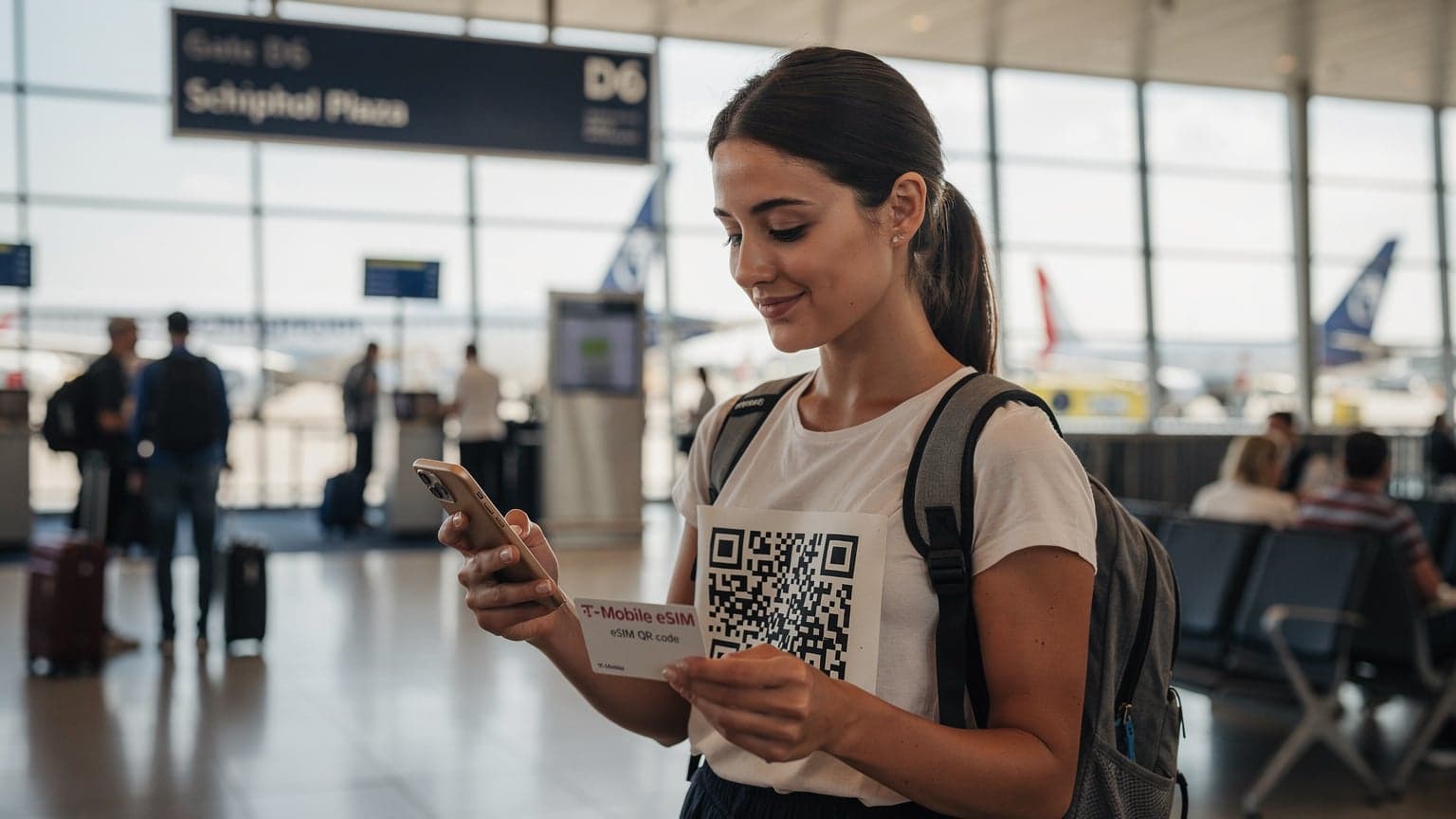
To get an eSIM working on your iPhone 15, 16, or 17, first grab an eSIM plan from a company like Cellesim. Then, head to Settings > Cellular (or Mobile Data) > Add eSIM, and just follow the prompts. You’ll either scan a QR code or type in some activation details. This whole thing usually takes less than five minutes, as long as you have good Wi-Fi.
eSIM Primer: How Does It Really Work?
Moving from physical SIM cards to eSIMs is a big change in how our phones connect to networks. For those of us who like to dig into the technical stuff, an eSIM isn't just convenient; it's a completely new way of handling your phone's identity. Basically, an eSIM is a tiny chip built right into your phone's motherboard, following the ETSI TS 102 671 standard. It replaces that little plastic card, letting your phone download and save multiple network profiles digitally. This means no more fiddling with small trays and even smaller pins, which is a real lifesaver when you're trying to catch a Shinkansen at Tokyo Station.
When you buy an eSIM plan, you're actually getting a digital profile, usually delivered as a QR code or details for manual entry. This profile has all the info your phone needs to connect to a specific mobile network, like your International Mobile Subscriber Identity (IMSI) and network settings. The activation process involves your device securely downloading this profile onto its embedded Universal Integrated Circuit Card (eUICC) chip. This secure chip handles all the encryption for network authentication, making the whole thing super reliable and hard to tamper with.
For example, when you activate a Cellesim eSIM for Japan, your iPhone 15/16/17 downloads a profile from a server, confirms it's legit, and then sets itself up to connect to local carriers like NTT Docomo or KDDI. This digital switch is much faster than swapping physical cards. Plus, you can switch between different carriers or plans instantly without touching anything physical, which is perfect for remote workers hopping between Wi-Fi networks and cafes.
The Architecture Behind Digital Profiles
Knowing a bit about how eSIMs are built helps make sense of them. The eUICC chip is basically a secure mini-computer with its own operating system, designed to manage several eSIM profiles. When you scan a QR code, your iPhone sends a request to a Subscription Management Platform, often called an SM-DP+, which then pushes the encrypted profile to your device. This platform makes sure the profile is secure and real before it's saved. Think of it as a very secure, over-the-air delivery system for your phone's identity. This design also makes remote setup easy, which is great for IoT devices and, of course, people traveling internationally.
eSIM vs. Physical SIM: Key Differences for Travelers
Both SIM types do the same basic job, but how they work makes a big difference for travelers. The main benefit of eSIMs is their flexibility. With an eSIM-only iPhone (like U.S. models of the iPhone 14/15/16/17), you're not stuck with just one physical slot. This means you can keep your main phone number active for calls and texts (using VoLTE, perhaps) while using a second eSIM for local data when you're abroad. This dual SIM feature, known as DSDS (Dual SIM Dual Standby), lets your phone be connected to two networks at once, though only one can use data at any given moment. This is super handy for saving money and staying connected to your home number while traveling.
| Feature | Physical SIM | eSIM |
|---|---|---|
| Installation | Physical insertion/removal | Digital download via QR or app |
| Multiple Profiles | One physical card per slot | Multiple profiles stored, one active for data |
| Switching Carriers | Requires new physical card | Digital switch within settings |
| Device Compatibility | Universal slot | Newer devices (iPhone XS/XR and later) |
| Security | Can be lost/stolen | Embedded, less prone to physical theft |
Preparing Your iPhone for eSIM Activation
Before you even think about scanning a QR code, a few steps can make the eSIM activation on your iPhone 15, 16, or 17 much smoother. These aren't just suggestions; they're like pre-flight checks for a solid data connection, especially when you're far from home. Getting your device ready stops common problems that can delay getting online. (Believe me, I've wasted too many hours trying to fix connections in airport lounges.)
Checking iOS Version and Device Compatibility
First and foremost, make sure your iPhone is running the latest stable iOS version. While eSIMs have been supported since iOS 12.1, later updates, especially in iOS 16 and iOS 17, really improved eSIM management. Apple often releases updates that make eSIM setup, dual SIM performance, and overall network stability better. To check, go to Settings > General > Software Update. An old iOS version can sometimes cause errors or weird network behavior, so updating is always the safest bet. All iPhones from the XS/XR onwards, including your 15, 16, or 17, work with eSIMs. However, some regional models, particularly U.S. iPhones since the 14, are eSIM-only and don't even have a physical SIM tray. Double-check your model if you're not sure.
Stable Wi-Fi Connection is Crucial
Activating an eSIM needs a solid internet connection to download the profile, usually over Wi-Fi. Trying to activate an eSIM on a weak hotel Wi-Fi or a busy public hotspot can lead to timeouts and corrupted downloads. A good rule is to use a Wi-Fi network you trust, or if you're in a bind, make sure you have a strong signal from another cellular connection if your phone allows it. For example, I always use my home network or a reliable cafe Wi-Fi before traveling, especially when I need immediate internet when I land abroad.
Unlocking Your iPhone: Carrier Restrictions
This step is vital and often forgotten. If your iPhone is still locked to a specific carrier (like AT&T, Verizon, T-Mobile), it might not be able to activate an eSIM from another provider, especially an international one. Your home carrier puts these locks on, restricting your phone to only their network or their roaming partners. Before buying any international eSIM, confirm your iPhone is unlocked. You can usually check this by going to Settings > General > About and looking for "No SIM restrictions" under Carrier Lock. If it says "SIM locked," you'll need to contact your home carrier to ask for an unlock, which can take a few business days. Don't wait until you're at the airport to find this out.
Step-by-Step eSIM Activation via QR Code
The QR code method is by far the easiest way to activate an eSIM on your iPhone 15, 16, or 17. Most eSIM providers, including Cellesim, send your eSIM profile as a QR code by email or through their app. This process uses your iPhone's camera to quickly set up the digital SIM, cutting down on manual errors. It's built for speed and simplicity, getting you online without unnecessary delays.
Here’s exactly how to activate your eSIM using a QR code:
- Buy Your eSIM Plan: First, pick and purchase an eSIM plan from Cellesim. You’ll get an email with your QR code and activation steps. It’s often helpful to have this QR code displayed on another device (like a laptop or another phone) or printed out, since your iPhone will use its camera to scan it. For example, if you're traveling through Europe, consider a regional plan that covers several countries to simplify your data management.
- Access Cellular Settings: On your iPhone, open the Settings app. Scroll down and tap on Cellular (or Mobile Data, depending on your region). This menu is where you manage all your cellular connections.
- Start eSIM Addition: Tap on Add eSIM. Your iPhone will then offer two choices: "Transfer From Nearby iPhone" (for moving an existing plan) or "Use QR Code." Choose Use QR Code.
- Scan the QR Code: Your iPhone’s camera will turn on. Hold your iPhone so the QR code is centered in the frame on your screen. The phone should automatically detect and scan the code. If it struggles, make sure you have good lighting and a steady hand.
- Confirm and Activate: Once scanned successfully, your iPhone will show "Cellular Plan Detected." Tap Continue. You'll then be asked to confirm adding the new cellular plan. Tap Add Cellular Plan. Your phone will then download and activate the eSIM profile. This usually takes 30-60 seconds.
- Label Your eSIM: After activation, iOS will prompt you to name your new eSIM (e.g., "Travel Data," "Japan eSIM," or the carrier name). This is important for telling your plans apart, especially if you keep your primary line active. Pick a clear, descriptive label.
- Set Default Line (Optional): If you have multiple active plans (like your home physical SIM and the new eSIM), iOS will ask you to set your "Default Line." For international data, you'll generally want to keep your primary line for calls and messages, and set the new eSIM for "Cellular Data" only. Make sure "Allow Cellular Data Switching" is off to avoid accidental roaming charges on your primary line.
Troubleshooting QR Code Scan Failures
Sometimes, scanning the QR code can be tricky. If your iPhone isn't reading the code, try these steps:
- Check Lighting: Make sure the QR code is well-lit and not shiny.
- Clean Camera Lens: A smudged camera lens can stop a successful scan.
- Zoom/Distance: Adjust how far your iPhone is from the QR code. Moving closer or further away can sometimes help the camera focus.
- Resolution: If you're showing the QR code on a screen, make sure it’s clear and high-resolution. If printed, use a sharp, high-contrast print.
- Restart iPhone: A quick reboot can sometimes fix temporary camera or system issues.
Manual eSIM Setup for Tricky Situations
While using a QR code is usually the best way to activate an eSIM, sometimes you have to set it up manually. This often happens if you don't have another device to show the QR code, if the QR code is damaged, or if you're using an older eSIM system that doesn't use QR codes. Manual entry needs precise input of several details, so paying close attention is key. This method is a backup, but it's a reliable one when you need it.
When you choose manual entry, your eSIM provider will typically give you specific information: an SM-DP+ address (sometimes called an activation code or server address) and, less often, a confirmation code. These are the digital coordinates your iPhone uses to find and download your eSIM profile from the provider's server. Entering even one character wrong can stop the activation, so double-check everything.
Here's how to manually set up your eSIM:
- Purchase and Get Details: Just like with QR code activation, buy your eSIM plan. Instead of a QR code, specifically look for "Manual Installation Details" in your confirmation email or Cellesim account. This will include the SM-DP+ Address (often a long string of characters) and sometimes an optional Confirmation Code.
- Go to Cellular Settings: On your iPhone, go to Settings > Cellular (or Mobile Data).
- Choose Manual Entry: Tap on Add eSIM, then select Enter Details Manually (or a similar option, depending on your iOS version).
- Input SM-DP+ Address: You'll see fields to enter the "SM-DP+ Address." Carefully type or paste the exact address your eSIM carrier gave you. This address usually looks like
smdp.operator.comor a longer mix of letters and numbers. Any typo here will mean the profile can't be found. - Enter Confirmation Code (If Applicable): Some providers ask for a "Confirmation Code" for extra security or to pick a specific profile. If your provider gave you one, type it into the field. If not, you can leave it blank.
- Activate the eSIM: Tap Next or Activate. Your iPhone will then try to connect to the SM-DP+ server and download the eSIM profile. This might take a little longer than a QR scan, as it needs to make a connection based on the address you typed in.
- Label and Configure: Once the profile is downloaded and active, you'll be asked to label your eSIM and set up your default line, just like you would with a QR code activation.
Common Manual Entry Errors and How to Avoid Them
Manual entry is easy to mess up. The most common mistake is typing the SM-DP+ address incorrectly. These strings are often case-sensitive and can have special characters. Always copy-paste if you can, or carefully check each character if you're typing it out. Another rare issue I've seen, mostly with older Androids but good to know for iPhones, is about APN settings. While iPhones usually set up APNs automatically for eSIMs, if you have signal but no internet after manual setup, check if your provider gave you a custom APN. This is rare for regular eSIMs but can happen with special business plans. You can usually find APN settings under Settings > Cellular > Cellular Data Network for the specific eSIM profile.
Post-Activation: Verification and Data Prioritization
Once your eSIM is active, you're not quite done. You need to verify it's working and that you're actually using the right data plan. This means checking your signal, confirming data is flowing, and most importantly, setting up your iPhone to use the new eSIM for data, especially when you're traveling. Managing your data lines correctly prevents unexpected roaming charges on your primary SIM and ensures you get the speeds you expect. (I've seen too many travelers get huge bills because they didn't check their active data line.)
Checking for Successful Connection
The first sign your connection worked is seeing signal bars and the carrier name in your iPhone's status bar. If you have two active SIMs, you should see two sets of signal bars, each for a different line. To confirm which line is using data, go to Settings > Cellular (or Mobile Data). Under "CELLULAR PLANS," you should see your new eSIM listed. Tap on it to check its status. Make sure "Turn On This Line" is toggled on. To quickly verify, try opening a web browser or an app that uses a lot of data, like Instagram or Google Maps. If things load fast, you're good.
For a more technical check, especially if speeds are slow, download a speed test app like Ookla Speedtest. Run a test to see your actual download and upload speeds. For example, in downtown Kyoto, on Docomo's network (using bands B1, B3, B7, and n78 for 5G), I usually get download speeds of 80-150 Mbps and upload speeds of 15-40 Mbps. If your speeds are much lower, it might mean network congestion or a less-than-ideal band selection, rather than an eSIM activation problem. For more on Japanese network performance, see Field Notes: Areola eSIM and the Uncharted Peaks of Japan's North, 2026.
Configuring Data and Voice Preferences
This is where having dual SIMs is really powerful, but also where mistakes can lead to surprise charges. In Settings > Cellular, you'll find options to manage your "Cellular Data" and "Default Voice Line."
- Cellular Data: Tap on "Cellular Data" and select your newly activated eSIM. This makes sure all your internet traffic goes through this plan.
- Allow Cellular Data Switching: Below "Cellular Data," you'll see "Allow Cellular Data Switching." This is often on by default. If you have an expensive home plan and want to strictly use your travel eSIM for data, I strongly recommend turning this OFF. With it on, your iPhone might briefly switch to your primary line for data if the eSIM signal is weak, potentially causing roaming charges.
- Default Voice Line: This setting decides which line is used by default for making calls and sending texts. You can set it to your primary line to get calls and texts from home, or set it to "Ask Every Time" if you want to choose manually for each outgoing communication.
Troubleshooting Common eSIM Activation Issues
Even if you prepare carefully, problems can come up during eSIM activation. These issues often come from tricky network settings, device configurations, or simple human error. As an engineer, I like to troubleshoot methodically, removing one variable at a time. Just randomly tapping settings rarely works; a structured approach is much better. (It's like debugging code, you need a precise method.)
No Service or Unable to Activate eSIM
If your iPhone says "No Service" or "Activation Failed," here are the first things to try:
- Restart Your iPhone: The simplest fix often works. A full power cycle can clear temporary software glitches.
- Check Wi-Fi Connection: Make sure you have a stable Wi-Fi connection during activation. The eSIM profile needs internet to download.
- Verify QR Code/Manual Entry: Double-check the QR code for damage or smudges. If you're entering details manually, meticulously verify the SM-DP+ address and confirmation code. Even one wrong character can cause it to fail.
- Airplane Mode Toggle: Turn Airplane Mode on for 30 seconds, then off. This forces your iPhone to reconnect to available networks.
- Network Settings Reset: Go to Settings > General > Transfer or Reset iPhone > Reset > Reset Network Settings. This wipes all Wi-Fi passwords, cellular settings, and VPN configurations, essentially giving your network a fresh start. You won't lose personal data, but you'll need to re-enter Wi-Fi passwords.
- Contact eSIM Provider Support: If none of that works, your eSIM provider (like Cellesim) is the next stop. They can check if the eSIM profile was set up correctly on their end or if there's an issue with your account. They can also often resend the QR code or manual details.
Data Not Working After Activation
You’ve activated your eSIM, you see signal bars, but no data is flowing. This usually points to a data configuration problem, not an activation issue.
- Verify Cellular Data Selection: As mentioned, go to Settings > Cellular > Cellular Data and make sure your new eSIM is chosen.
- Disable "Allow Cellular Data Switching": Turn this off in Settings > Cellular. This stops your iPhone from trying to use your primary line's data.
- Check APN Settings: This is less common with iPhones but worth checking. Go to Settings > Cellular > Cellular Data Network for your new eSIM. Most consumer eSIMs set up APN settings automatically. However, if your provider gave you specific APN details, enter them here. Incorrect APN settings are a classic reason for having signal but no internet.
- Enable Data Roaming: If you're using an international eSIM, make sure "Data Roaming" is enabled for that specific eSIM. Go to Settings > Cellular, tap on your eSIM, then toggle "Data Roaming" on. Many local eSIMs don't need this, but some regional or global plans might.
- Test Different Locations: Sometimes, "no data" simply means no coverage. Move to a different area, ideally outside, to rule out local signal dead zones.
Optimizing Your eSIM for International Travel 2026
Beyond just activating it, fine-tuning your eSIM setup can greatly improve your international travel experience. This isn't just about getting online; it's about making sure your connection is reliable, efficient, and affordable. From handling multiple profiles to understanding network specifics, a well-configured eSIM is like your digital travel buddy.
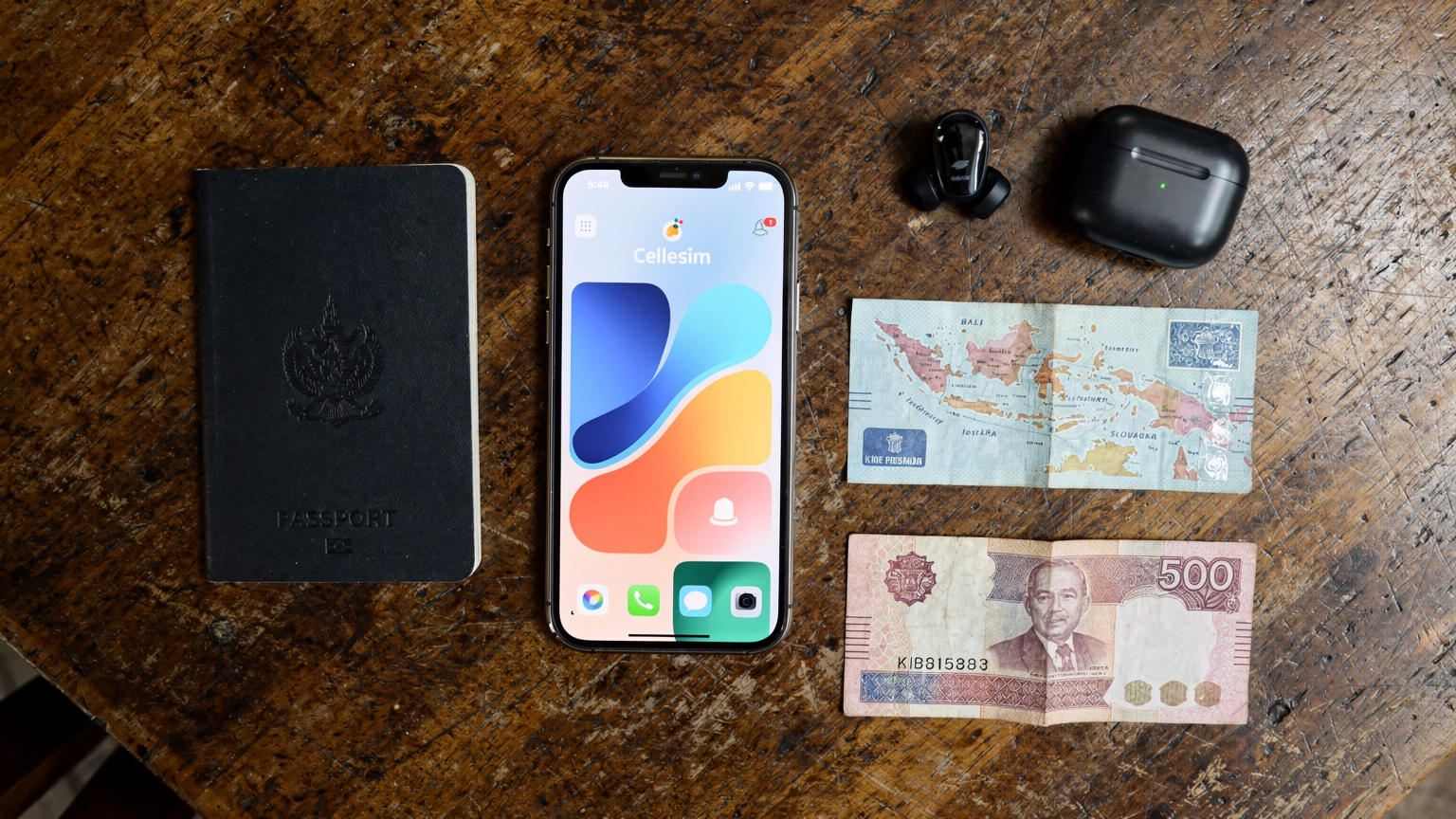
Managing Multiple eSIM Profiles
Your iPhone 15/16/17 can store several eSIM profiles, though only two can be active at once (one physical SIM + one eSIM, or two eSIMs). This is incredibly useful for frequent travelers. For example, you might have one eSIM for Japan, another for Thailand, and a third for Europe in general, all saved on your device. When you land in a new country, you simply go to Settings > Cellular, pick the right eSIM, and toggle "Turn On This Line."
| Scenario | Primary Line (Physical/eSIM 1) | Secondary Line (eSIM 2) | Benefit |
|---|---|---|---|
| Travel to Japan | Home Line (calls/texts only) | Cellesim Japan (data) | Keeps home number active, uses local data rates. |
| Multi-country Europe trip | Home Line (disabled for data) | Cellesim Europe Regional (data+some calls) | Single data plan across multiple Schengen countries. |
| Digital Nomad in Bali | Local Indonesian SIM (e.g., Telkomsel) | Backup Cellesim Global (data) | Primary local data, global backup for critical work. |
Always remember to label each eSIM clearly (e.g., "JP-Docomo," "TH-AIS") to avoid confusion. You can also delete old eSIM profiles from Settings > Cellular > [eSIM Name] > Remove Cellular Plan if you don't need them anymore, which frees up space, though eSIM storage capacity is rarely an issue.
Data Monitoring and Usage Alerts
Keeping an eye on your data use is crucial to avoid sudden cut-offs or overages. Your iPhone has built-in tools for this. In Settings > Cellular, scroll down to see "Cellular Data Usage." While this shows total usage since the last reset, it's not ideal for tracking specific plans. Many eSIM providers, including Cellesim, offer dedicated apps that show real-time data usage. Always check if your provider has an app, as it often gives more detailed info, like remaining data, plan validity, and top-up options. Setting up usage alerts in these apps, or even through your iPhone's own "Usage" settings (if your plan allows), can stop you from running out of data during a Zoom call in a Kyoto café.
Carrier Aggregation and Band Selection: What It Means for You
As a telecom engineer, these are the details that really make a difference between a good connection and a great one. Carrier aggregation (CA) and specific frequency band support are the unsung heroes of modern cellular speeds, especially with 5G Non-Standalone (NSA) and Standalone (SA) networks. Your iPhone 15/16/17, with its advanced modem, uses these fully, but understanding the basics helps you manage expectations and troubleshoot performance. (It's not just about "5G," it's about *which* 5G.)
Understanding Frequency Bands and 5G Deployment
Every cellular network runs on specific radio frequency bands, identified by numbers (e.g., B1, B3, B7 for LTE, and n1, n3, n78 for 5G). Different countries and carriers use different combinations. The iPhone 15, 16, and 17 support a wide range of these global bands, making sure you're compatible in most places. For example, in Thailand, carriers like AIS, TrueMove H, and Dtac heavily use LTE bands B1 (2100 MHz), B3 (1800 MHz), and B8 (900 MHz), along with 5G New Radio (NR) bands like n41 (2500 MHz) and n78 (3500 MHz, the common "C-band"). Knowing which bands are common where you're going helps you guess your potential speeds. If your device or eSIM plan doesn't fully support key local bands, your performance will suffer, even if your status bar shows "5G."
The Power of Carrier Aggregation
Carrier aggregation is a key feature in LTE-Advanced and 5G that lets your device use multiple frequency blocks (component carriers) at the same time to boost data speeds. Imagine having several lanes on a highway instead of just one. For example, a carrier might combine two 20 MHz blocks of spectrum, say B3 and B7, effectively doubling the available bandwidth to your device. In 5G, this gets even more complex, combining both LTE (for network control, in NSA mode) and 5G NR carriers. This is why you might see speeds of 300-500 Mbps in busy city areas, far more than what a single band could offer. Without CA, your connection would be limited to the capacity of a single component carrier, leading to much slower speeds. While iPhones handle CA automatically, knowing it's active explains why speeds can vary so much depending on location and network conditions.
VoLTE and VoWiFi Gotchas for Global Nomads
Voice over LTE (VoLTE) and Voice over Wi-Fi (VoWiFi) are crucial for clear phone calls, especially for travelers. However, using them with international eSIMs can bring some tricky issues, or "gotchas," that even experienced digital nomads might miss. These aren't always straightforward, as they depend a lot on your phone's capabilities and the specific carrier's setup. (It's not just data, folks, voice still matters.)
VoLTE with International eSIMs
VoLTE lets your voice calls go over the 4G LTE data network, instead of dropping back to older 2G/3G networks. This means clearer sound, faster call setup, and you can use data while talking. For your main home SIM, VoLTE is almost certainly on. But when you use an international eSIM for data, you might find that calls made through that eSIM (if it even supports calls) don't always use VoLTE. Many data-only eSIMs aren't designed for voice. Even if an international eSIM technically supports voice, the local network might not enable VoLTE for roaming or temporary eSIM users. This can mean your calls fall back to 3G (UMTS) or even 2G (GSM), leading to worse call quality or dropped calls in areas with poor older network coverage.
The important thing here is that for your home line, even if you're using an international eSIM for data, VoLTE should still work if your home carrier supports it and you have signal. If your primary line calls are failing or dropping to 2G/3G when you're abroad, make sure "VoLTE" (sometimes called "LTE Calls" or "4G Calling") is on under Settings > Cellular > [Your Primary Line] > Voice & Data. Also, be aware that some carriers (like T-Mobile's free eSIM trial, which often focuses solely on data capabilities as discussed in T-Mobile Free eSIM Trial: Is It Right for Your 2026 Family Travel?) might not offer VoLTE on their trial or international data-only plans.
VoWiFi for Seamless Connectivity
VoWiFi, or Wi-Fi Calling, is a fantastic feature that lets you make and get calls and texts over a Wi-Fi network when your cell signal is weak or nonexistent. This is really useful in places like basements, remote cabins, or even on planes with Wi-Fi. For your main home line, VoWiFi will typically work abroad, using any available Wi-Fi connection to send your calls back to your home network. This means you can still get calls to your home number even if your iPhone is in airplane mode (with Wi-Fi on) or if your travel eSIM is active for data, without racking up international roaming charges for voice.
The "gotcha" is making sure it's enabled and set up correctly. Go to Settings > Cellular > Wi-Fi Calling for your primary line and turn it on. Your iPhone might ask you to enter or confirm an emergency address (for US users). Also, some older iPhone models or specific carrier firmwares might have quirks where VoWiFi doesn't activate right away. A simple toggle off/on or a quick restart usually fixes it. Always test your VoWiFi before relying on it completely, especially if you're in a crucial remote work situation in, say, a quiet coworking space in Bali.
The Future of eSIM and iPhones Beyond 2026
Looking past the iPhone 17 and into 2026 and beyond, the path for eSIM technology is clear: it's becoming the main, if not only, way to connect to cellular networks. As a telecom engineer, I see this shift not just as a convenience, but as a door to more dynamic, flexible, and secure mobile networks. This change is driven by many things, from making devices smaller to giving users more control and improving network management. (The physical SIM, essentially, is living on borrowed time.)
Full eSIM Adoption and Its Implications
Apple's choice to remove the physical SIM tray from U.S. iPhone models starting with the iPhone 14 was a bold, but expected, move. It's a strong sign of where the industry is headed. By 2026, it's very likely that most, if not all, iPhone models globally will be eSIM-only. This full adoption has several important effects:
- Increased Device Security: Without a removable SIM, it's harder for thieves to quickly disable tracking or swap SIMs. The embedded nature of the eUICC chip also makes it more resistant to physical tampering.
- More Robust Device Design: Removing the SIM tray frees up space for better waterproofing, potentially larger batteries, or improved camera sensors, and allows for a cleaner design.
- Enhanced User Experience: The ability to set up and switch cellular plans digitally simplifies life for travelers and anyone who changes carriers often. The hassle of getting a physical SIM in a new country, or even just at a local store, is completely gone. This directly benefits services like Cellesim, allowing for instant activation when you land.
- Carrier Flexibility: While some traditional carriers have been slow to adopt eSIM, widespread adoption by phone makers will force them to speed up their eSIM support and offerings. This leads to more competition and more flexible plans for customers.
Remote SIM Provisioning and Global Roaming
The core technology behind eSIM, Remote SIM Provisioning (RSP), is constantly getting better. RSP allows for secure management of eSIM profiles over the air, a capability that will only become more advanced. Expect to see:
- Seamless Global Profiles: Instead of needing a new eSIM for each country, future eSIMs might offer "global profiles" that automatically connect to the best available network in any region, perhaps with prices based on how much data you use.
- Integrated Travel Experience: Imagine arriving at an airport, and your iPhone automatically suggests or even pre-activates a suitable local eSIM plan based on your travel itinerary, linked directly to your Apple Wallet. This level of integration, while speculative, is definitely possible technically.
- Improved Roaming Agreements: As eSIMs become standard, traditional roaming agreements might change. We could see more competitive international data rates as mobile network operators (MNOs) compete directly with eSIM providers, possibly leading to lower costs for you.
The future of connectivity, especially for iPhone users who travel the world, is definitely digital. Mastering eSIM activation now isn't just about your current trips; it's about getting ready for the standard of tomorrow. Your iPhone 15, 16, or 17 is more than capable of handling this change, making your international journeys smoother and more connected than ever. For comprehensive data solutions, always remember to explore Cellesim's eSIM options for your next adventure.
Frequently Asked Questions
Can I use both my physical SIM and an eSIM on my iPhone 15/16/17 simultaneously?
Yes, all iPhone models from the XS/XR onwards support Dual SIM functionality, allowing you to use one physical SIM and one eSIM concurrently. U.S. models of iPhone 14 and newer are eSIM-only, supporting two active eSIMs simultaneously. This setup is ideal for keeping your home number active for calls/texts while using a travel eSIM for data.
What if my iPhone is carrier-locked? Can I still activate an international eSIM?
No, a carrier-locked iPhone will prevent you from activating an eSIM from a different provider. You must contact your home carrier to request an unlock before attempting to activate an international eSIM. Verify your iPhone's unlock status under Settings > General > About > Carrier Lock.
Why is my data not working even after my eSIM is activated and shows signal?
This often indicates a configuration issue. First, check that your new eSIM is selected for 'Cellular Data' in Settings > Cellular. Crucially, turn off 'Allow Cellular Data Switching' to prevent your iPhone from defaulting to your primary line. Also, verify that 'Data Roaming' is enabled for your international eSIM if required by the provider.
How many eSIM profiles can I store on my iPhone 15/16/17?
Your iPhone can store multiple eSIM profiles, typically around 5 to 10, though the exact number can vary by model and iOS version. However, only two can be active at any given time (one physical SIM + one eSIM, or two eSIMs on eSIM-only models). You can easily switch between stored profiles in your Cellular settings.
Is VoLTE or VoWiFi supported when using an international eSIM for calls?
While your primary home SIM will usually support VoLTE and VoWiFi, many international data-only eSIMs do not offer voice services, or if they do, VoLTE provisioning may not be available for temporary users. For voice, it's generally best to rely on your primary line with VoLTE/VoWiFi enabled or use VoIP apps over your eSIM data connection.
What is the SM-DP+ Address and why do I need it for manual eSIM setup?
The SM-DP+ (Subscription Manager - Data Preparation+) Address is a server address provided by your eSIM carrier. It acts as the digital location where your iPhone downloads your encrypted eSIM profile during manual activation. It's a critical component for the remote SIM provisioning process, ensuring your device connects to the correct server for activation.
See also: Indonesia eSIM