Rio Carnival GuideLollapalooza (Brazil/Argentina/Chile)Día de los MuertosStreet Safety HacksCrowd Connectivity
Areas de Experiencia Carnaval de Río Lollapalooza LatAm Seguridad en la Calle Conectividad en Multitudes Certificaciones y Credenciales Planificadora de Eventos Culturales Consultora de Seguridad de Viajes Creadora de Contenido Digital Articulos de Isabella Cruz 19 Articulos Cómo el roaming en Singapur te saldrá caro en 2026: Tu alternativa eSIM de bajo coste marzo 15, 2026 Ahorros y comparaciones El roaming en Singapur puede costar hasta €15/MB. Compara la eSIM de Cellesim por solo €0.9/GB y ahorra un 90% en tu viaje de 2026. Descubre cómo.
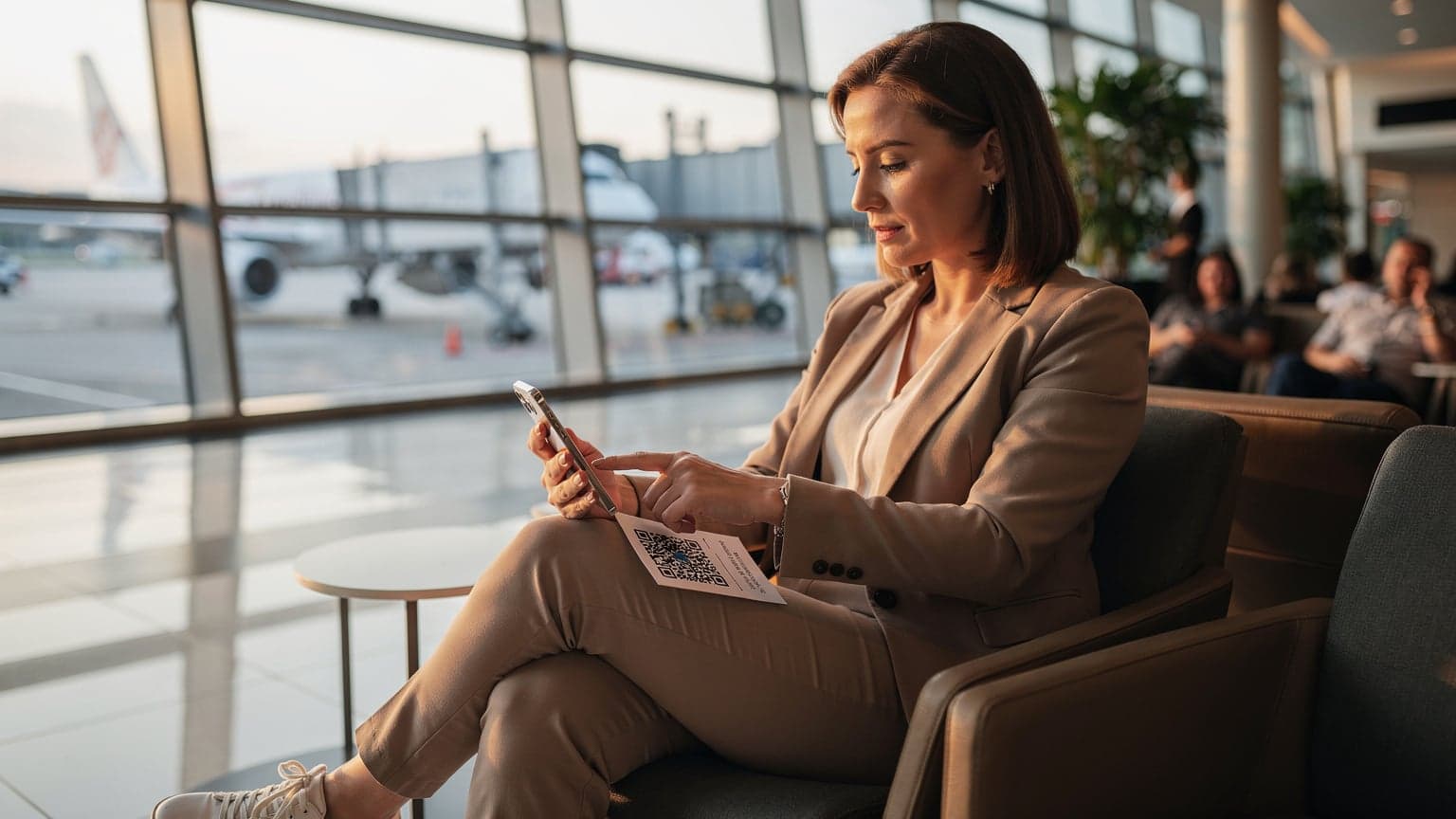
T-Mobile users can easily get and activate an eSIM with a QR code for international travel in 2026. You just need to request it through the T-Mobile app, their online portal, or by visiting a store. Once you have the QR code, scan it with your compatible device to install your international profile, which means you'll have instant connectivity without needing a physical SIM card.
Why Ditch the Physical SIM: My Travel Tales
I remember my first trip to Buenos Aires, specifically the San Telmo market, trying to haggle for a SIM card. It was a Sunday, and most stores were closed. The one kiosk that was open had a line stretching down Defensa street, and the vendor only spoke rapid-fire Spanish. My phone, a clunky Nokia at the time, certainly wasn't an iPhone eSIM abroad champion. It took half my morning and a small fortune in pesos just to send a WhatsApp message back home. Now, the idea of fumbling with tiny plastic cards, or worse, losing one in the chaotic depths of my backpack, feels like a relic from another era.
That's where the eSIM, especially T-Mobile's QR code method, comes in. It's not just about convenience, though that's a huge part of it. It’s about not missing that crucial connection when you land in a new city, needing to call an Uber from the curb outside Terminal 1 at Mexico City’s Benito Juárez International Airport, or looking up the opening hours for the Casa Azul museum in Coyoacán (which, by the way, closes at 5:30 PM on weekdays). The digital nature of an eSIM means you can set up your data plan before you even leave home. This ensures you hit the ground running, connected from the moment your plane touches down. No more frantic searches for a phone store near the Sagrada Familia in Barcelona, only to find it's siesta time.
The Pain Points of Physical SIMs: A Recollection
I've been there, more times than I care to admit. Landing in Bangkok's Suvarnabhumi Airport, exhausted, and the first thing on my mind is finding a local SIM. The booths are always crowded, the plans confusing, and there’s always that moment of dread when you pop open your phone’s SIM tray, hoping not to drop the tiny card on the grimy airport floor. Then there’s the issue of needing a local ID for registration in some countries, or the inevitable moment when you realize you bought a data-only SIM and can't make a local call to confirm your hostel booking in Shibuya, Tokyo.
The physical SIM card also ties up your phone's only SIM slot. This was a particular nuisance on my trip through Egypt, when I needed to keep my primary US number active for urgent family calls, but also wanted affordable local data to navigate the bustling souks of Khan el-Khalili. My dual SIM phone was a lifesaver, but juggling physical cards was still a hassle. The eSIM solves this problem elegantly, allowing you to maintain your home number while adding a local or international data plan easily.
eSIM Benefits for the Savvy Traveler, Like You
Think about it. You’re at a cafe in Montmartre, Paris, sipping a café au lait, and you realize you need to check the RATP metro schedule to get to the Louvre before the crowds swell. With an eSIM, your data is already active. No hunting for Wi-Fi, no exorbitant roaming charges. It’s the kind of experience that truly enhances travel.
Instant Activation: Purchase and activate your data plan from anywhere, often in minutes.
Cost Savings: Avoid T-Mobile's international roaming charges, which, while improving, can still add up faster than a speeding bullet train.
Flexibility: Easily switch between different eSIM profiles, buying new plans as you cross borders. This is a game-changer for multi-country trips, say, through the Balkans or Southeast Asia.
Security: No physical card to lose, steal, or swap.
T-Mobile eSIM QR Code: The Nitty-Gritty of Obtaining It
So, you've decided to embrace the future of connectivity. Excellent choice. Getting your T-Mobile eSIM QR code is surprisingly straightforward, but it does require a bit of foresight. You won't just stumble upon a QR code dispenser at a vending machine near the BVG U-Bahn station in Berlin. It's a process initiated through T-Mobile directly.
A traveler using their T-Mobile app to request an eSIM QR code while planning a trip at a cozy cafe in Lisbon's Chiado district.
Requesting Your eSIM Through T-Mobile Channels
T-Mobile offers several avenues to get your eSIM QR code. My recommendation, if you're planning ahead, is to use the online portal or the My T-Mobile app. It's generally quicker and avoids the potential for miscommunication you might encounter over the phone or in a busy store.
My T-Mobile App: This is often the most convenient. Open the app, navigate to your account settings or the 'Lines & Devices' section. Look for an option related to 'eSIM' or 'Digital SIM'. You might need to confirm your identity. The app will then guide you through requesting a new eSIM profile, which will typically be sent to your registered email as a QR code.
T-Mobile Website (My T-Mobile Account): Log in to your T-Mobile account on their official website. Similar to the app, seek out device management or SIM options. You'll likely find a dedicated section for eSIM activation or ordering. They'll email you the QR code to your registered address.
Customer Service (Phone): If you prefer to speak to a human, call T-Mobile customer service. Be prepared for a short wait, especially during peak hours. Clearly state that you need an eSIM QR code for international travel and that you have an eSIM-compatible device. They will verify your account and email the QR code.
T-Mobile Store Visit: For those who prefer in-person assistance, visit a T-Mobile retail location. This can be helpful if you have questions or encounter issues, but it's the least efficient method. Make sure to call ahead to confirm their operating hours, as many stores, especially smaller ones, might close early on weekends (e.g., some smaller shops in the Upper West Side of Manhattan close by 6 PM on Saturdays).
Remember, the QR code is essentially a digital key to your T-Mobile profile. Treat it like a valuable document. I usually print it out and save a digital copy in a secure cloud storage, just in case my primary phone runs out of battery before I can activate it.
What to Expect in Your eSIM QR Code Package
Once you’ve successfully requested your eSIM, T-Mobile will typically send you an email. This email will contain the QR code itself, along with detailed instructions on how to activate it. It might also include a manual activation code, which is a long string of numbers and letters, useful if your phone's camera is having trouble scanning the QR code, or if you prefer to input it manually. Keep this email safe, as you might need to refer back to it.
Pro Tip
When you receive the QR code, ensure you have stable Wi-Fi access. While you can often save the QR code and scan it later, the activation process itself usually requires an internet connection to download the profile to your device. Don't wait until you're on the tarmac at Heathrow, already disconnected from Wi-Fi, to try and activate!
Activating Your T-Mobile eSIM: A Step-by-Step Walkthrough
This is where the magic happens. Activating your eSIM is surprisingly simple, almost like pairing a new Bluetooth device. The exact steps might vary slightly depending on whether you have an iPhone eSIM abroad or an Android device, but the general principle remains the same.
For Apple iPhone Users
iPhones have made eSIM activation incredibly user-friendly. I've guided countless friends through this on their various iPhone models, from the iPhone X to the latest iPhone 18.
Open Settings: Tap the 'Settings' icon on your home screen.
Navigate to Cellular/Mobile Data: Select 'Cellular' or 'Mobile Data', depending on your region's terminology.
Add eSIM: Tap 'Add eSIM' or 'Add Data Plan'.
Scan QR Code: Your phone's camera will open. Position your phone to scan the QR code that T-Mobile sent you. Make sure the QR code is well-lit and not blurry.
Confirm & Label: Follow the on-screen prompts. You'll be asked to confirm the cellular plan and can label it (e.g., 'T-Mobile International' or 'Work Line'). This is incredibly useful for distinguishing between your plans, especially if you're also using a travel eSIM from Cellesim for local data.
Set Default Line: Choose which line you want to use for data, calls, and messages. For international travel, you'll likely want to set your T-Mobile eSIM as the primary for data while abroad.
For Android Users (Samsung, Google Pixel, etc.)
Android devices also offer a smooth eSIM activation process, though the menu names might differ slightly across brands like Samsung, Google Pixel, or OnePlus.
Open Settings: Swipe down from the top of your screen and tap the gear icon, or find 'Settings' in your app drawer.
Network & Internet: Tap 'Network & Internet' or 'Connections'.
SIMs / Mobile Network: Look for 'SIMs', 'Mobile Network', or 'SIM card manager'.
Add Mobile Plan / Download a SIM: Select 'Add mobile plan' or 'Download a SIM'.
Scan QR Code: Use your phone's camera to scan the T-Mobile eSIM QR code.
Follow Prompts: Confirm the plan and give it a clear label. Set your preferences for data, calls, and SMS.
A close-up of a traveler's hands holding a smartphone, actively scanning a QR code for eSIM activation, with a blurred backdrop of a traditional Japanese tea house in Kyoto's Gion district.
Manual Activation: When the QR Code Isn't Cooperating
Every now and then, technology decides to be stubborn. Perhaps the lighting isn't great, or the QR code is printed too small. In such cases, manual activation is your fallback.
Locate Manual Code: In the email from T-Mobile, there will be a section with a manual activation code (often called 'SM-DP+ Address' and 'Activation Code').
Choose Manual Entry: During the 'Add eSIM' process on your phone, there's usually an option like 'Enter Details Manually'.
Input Details: Carefully type in the SM-DP+ Address and the Activation Code as provided. Double-check for typos, as even a single character can throw it off.
Before You Fly: Crucial Pre-Departure Checks for Your eSIM
Trust me on this, you don't want to find out your eSIM isn't working when you're trying to hail a taxi from the curb at Charles de Gaulle, especially with the MTA strike rumors always swirling in Paris. A few simple checks before you leave will save you a world of trouble.
Confirm Activation and Network Connectivity
Once you've installed your T-Mobile eSIM, it's wise to ensure it's actually active and connecting. In your phone's cellular settings, you should see the T-Mobile eSIM profile listed. Try to toggle it on and off, or even make a quick test call or send a text if your plan includes it. If you're still in the US, it will likely connect to T-Mobile's domestic network. This confirms the profile is correctly installed.
Checklist Item
Action
Why It Matters
eSIM Profile Listed
Verify T-Mobile eSIM appears in phone settings.
Confirms successful installation.
Test Call/Text
If plan includes, make a quick local call/text.
Ensures voice/SMS functionality.
Data Toggle Test
Switch data to T-Mobile eSIM, browse a website.
Confirms data connectivity and settings.
APN Settings (if needed)
Check T-Mobile's recommended APN for international plans.
Incorrect APN can prevent data access.
Understanding Your T-Mobile International Plan
T-Mobile's international roaming plans, particularly with their 'Magenta Max' tiers, often include some level of free data and calling in many countries. However, this data is usually at slower speeds (like 256kbps, which, as I've found, is fine for WhatsApp and basic navigation but certainly not for streaming that Netflix show on the JR East train in Japan). Ensure you understand what your T-Mobile plan offers internationally. Sometimes, it's more cost-effective to use your T-Mobile eSIM for calls and texts (keeping your original number) and purchase a separate local eSIM for faster data, especially for data-intensive tasks like video calls with family.
I've been burned by this before, assuming my plan included high-speed data only to find myself crawling along in rural Portugal, trying to load Google Maps. Always verify your plan's specifics for your destination country.
eSIM Compatible Devices: Is Your Phone Ready for 2026?
Not all phones are created equal, especially when it comes to eSIM technology. While most newer flagship devices from the last few years support eSIM, it's crucial to verify your specific model before you rely on it for your next trip to the bustling markets of Marrakech.
A Quick Check for eSIM Readiness
The easiest way to check is usually through your phone's settings. For iPhones, go to Settings > Cellular (or Mobile Data) > Add Cellular Plan. If you see the option, your phone is likely eSIM compatible. For Android, it's Settings > Network & Internet > SIMs. If you see an option to 'Add mobile plan' or 'Download a SIM', you're in business.
Generally, any iPhone from the XR/XS onwards, and most Google Pixel phones from Pixel 3/3a onwards, are eSIM compatible. Samsung's recent flagships, especially the S20 series and newer, as well as the Fold/Flip series, also support it. However, some region-specific models might differ. For example, older Chinese iPhone models might not support eSIM, even if their Western counterparts do.
Varies greatly by model and region. Always check manufacturer specs.
The Future of eSIM in 2026 and Beyond
By 2026, eSIM is rapidly becoming the standard. Apple's decision to make US iPhone 14 models eSIM-only was a clear signal. This trend will only accelerate, making the process even more streamlined. So, if you're upgrading your phone soon, especially to a model like the iPhone 18 or Galaxy Z Fold/Flip 6, rest assured it will be eSIM-ready. This shift fundamentally changes how we think about connectivity, moving away from physical constraints to a purely digital, software-driven experience.
Navigating Data Abroad: T-Mobile vs. Local eSIMs
This is the traveler's dilemma, isn't it? Stick with your home carrier's international plan, or go local? I've wrestled with this on many trips, particularly during Carnival in Rio, where reliable data in the Sambadrome is non-negotiable for coordinating with friends.
A street vendor in a vibrant market in Lisbon's Baixa district, displaying fresh produce, with a traveler in the foreground checking their phone for directions, highlighting the need for local data.
T-Mobile International Roaming: What to Expect
T-Mobile's 'Magenta' and 'Magenta MAX' plans include international roaming in 215+ countries and destinations. The catch? Speed. While you get unlimited texts and data, the data speed is often limited to 256 kbps. As someone who's tried to upload a photo of a delicious street taco from the Roma Norte neighborhood in Mexico City on 256 kbps, let me tell you, it's a test of patience. It works for basic messaging and light browsing, but anything more, like video calls or streaming, will feel like dial-up.
For those quick check-ins or emergencies, it's a godsend. But for truly engaging with your destination, finding hidden gems on Google Maps, or sharing your adventures in real-time, you might want more speed. T-Mobile does offer high-speed data passes, but these can add up, costing around $5 for 512MB for 24 hours, or $50 for 15GB for 30 days. This is where a local eSIM often shines.
The Power of Local eSIMs for Data-Hungry Travelers
This is my secret weapon for data-intensive trips. Instead of relying solely on T-Mobile's slower speeds, I'll often purchase a local eSIM from a provider like Cellesim. For example, when exploring the alleyways of Venice, I picked up an eSIM that connected me to TIM or Vodafone IT, giving me blazing-fast 5G speeds at a fraction of what T-Mobile's high-speed passes would cost. This allowed me to upload all my photos, make video calls, and navigate the intricate canal system without a hitch.
The process is simple: buy an eSIM for Poland (or your destination), scan the QR code, and you're instantly connected to a local network with local speeds and prices. You can keep your T-Mobile eSIM active for calls and texts, using it as your primary number, while the local eSIM handles all your data needs. It’s the best of both worlds, truly allowing you to be a cash-saving backpacker.
Feature
T-Mobile International Roaming (Magenta/MAX)
Local/Cellesim eSIM
Data Speed
Limited to 256 kbps (basic) or purchased high-speed passes.
Full local 4G/5G speeds, often much faster.
Cost
Included in plan (slow data), high-speed passes cost extra.
Pay-as-you-go, often cheaper per GB for high speed.
Coverage
215+ countries, uses partner networks.
Specific to chosen country/region, uses best local network.
Convenience
Automatic, no action needed on arrival.
Requires purchase and activation, but flexible.
Primary Use
Emergencies, light messaging, keeping home number.
Heavy data usage, streaming, reliable navigation.
Troubleshooting Common eSIM Issues On The Go
Even with the best planning, sometimes things don't go perfectly. I've had my share of connectivity conundrums, like trying to get data in a remote part of Patagonia, or even just dealing with a glitchy Wi-Fi signal in a hotel room in the Shinjuku district of Tokyo. Don't panic, most eSIM issues are easily resolved.
A frustrated traveler, standing near a metro station in Seoul's Gangnam district, looking at their phone screen with a worried expression, unable to connect to data, depicting a typical travel-friction moment.
No Service or No Data: The First Checks
This is usually the most common issue. You've landed, activated, but your phone shows 'No Service' or data isn't flowing. Here's a quick run-through:
Restart Your Phone: The oldest trick in the book, but often effective. A fresh reboot can sometimes kickstart the network connection.
Toggle Airplane Mode: Turn Airplane Mode on for 30 seconds, then off. This forces your phone to re-scan for networks.
Check Data Roaming: For international eSIMs (even T-Mobile's if you're using it for data abroad), ensure 'Data Roaming' is enabled in your phone's cellular settings for that specific eSIM profile.
Verify APN Settings: Sometimes, especially with certain carriers or if you've manually entered settings, the Access Point Name (APN) might be incorrect. T-Mobile usually sets this automatically, but if you're really stuck, search for T-Mobile's international APN settings online and compare.
Signal Strength: Are you in a basement? A remote area? Sometimes it's just a matter of poor signal. Try moving to an open area or closer to a window.
Contacting T-Mobile Support From Abroad
If you've tried everything and still can't connect, it's time to reach out to T-Mobile. They have dedicated international support lines. I usually recommend using Wi-Fi calling through a strong Wi-Fi connection, or a messaging app like WhatsApp to reach them if your data isn't working. Before calling, have your account details ready, your device model, and specific details of the problem you're facing (e.g.,