
Understanding T-Mobile eSIM QR Codes: The Digital Nomad's Primer
Look, four years on the road teaches you one thing, if nothing else: always have a backup plan for your internet. And usually, a backup for the backup. The T-Mobile eSIM QR code is part of that toolkit, a digital lifeline that replaces the flimsy physical SIM card, saving you from fumbling with tiny trays and even tinier pins. It's essentially a virtual SIM profile downloaded onto your phone, activated by scanning a unique QR code T-Mobile provides. This means you can keep your primary T-Mobile number active while simultaneously running a local data plan or a Cellesim international eSIM on the same device.
It’s not just about convenience. It’s about not getting stranded. Remember that time I landed in Lisbon and Vodafone Portugal took three days to activate my physical SIM? Never again. With an eSIM, the activation is typically instant, assuming you've done your homework before landing.
What Exactly Is an eSIM and How Does it Work with T-Mobile?
An eSIM, or embedded SIM, is a small chip built directly into your smartphone, tablet, or smartwatch. Instead of needing a new physical card for every network or country, you download a 'profile' onto this chip. For T-Mobile, this means you can switch between your Magenta MAX plan and an international data package without ever touching a physical card. The QR code is just the delivery mechanism for that profile.
Why is a QR Code Essential for T-Mobile eSIM Activation?
The QR code is the key that unlocks the eSIM profile. It contains all the necessary network configuration details. Without it, your phone wouldn't know which network to connect to or how to authenticate your service. It's a quick, secure way to get your digital SIM up and running. Think of it as a digital handshake between your device and the T-Mobile network (or any network, for that matter).
Getting Your T-Mobile eSIM QR Code: The Practical Steps
This isn't rocket science, but it's also not something you want to leave until you're trying to order a Grab in Bangkok and your data isn't working. Plan ahead. Seriously. I've seen too many friends stuck in airport lounges trying to troubleshoot this stuff with flaky airport Wi-Fi.
Requesting Your eSIM QR Code from T-Mobile
Your journey begins with T-Mobile directly. There are a few ways to get that QR code, and some are definitely smoother than others:
- Through My T-Mobile Account (Online): Log into your T-Mobile account online. Navigate to your line details, and look for an option to 'Change SIM' or 'Get a new eSIM.' If available, this is often the quickest digital route.
- Via T-Mobile Customer Service (Phone): Call T-Mobile customer service. Be prepared for a wait, especially during peak hours. Clearly state you need an eSIM QR code for an existing line for international travel. They might email it to you or guide you to a link.
- Visiting a T-Mobile Store (In-Person): This is my preferred method for anything critical. Walk into a T-Mobile store, explain your need. They can usually print the QR code right there on a slip of paper. Make sure you confirm it's for your specific device and plan. Always double-check.
Important Considerations Before You Request
- Device Compatibility: Is your phone eSIM compatible? Most newer iPhones (XS and later), Google Pixels (3 and later), and Samsung Galaxy S20 series and up are, but always confirm.
- Active T-Mobile Account: You need an active T-Mobile account and the line you wish to convert to eSIM must be active.
- Internet Access: You'll need Wi-Fi to download the eSIM profile once you scan the QR code. Don't try this in the middle of nowhere.
Activating Your T-Mobile eSIM with a QR Code: A Step-by-Step Guide
This is where the rubber meets the road. It's usually straightforward, but one wrong tap and you could be restarting the process. Pay attention here.
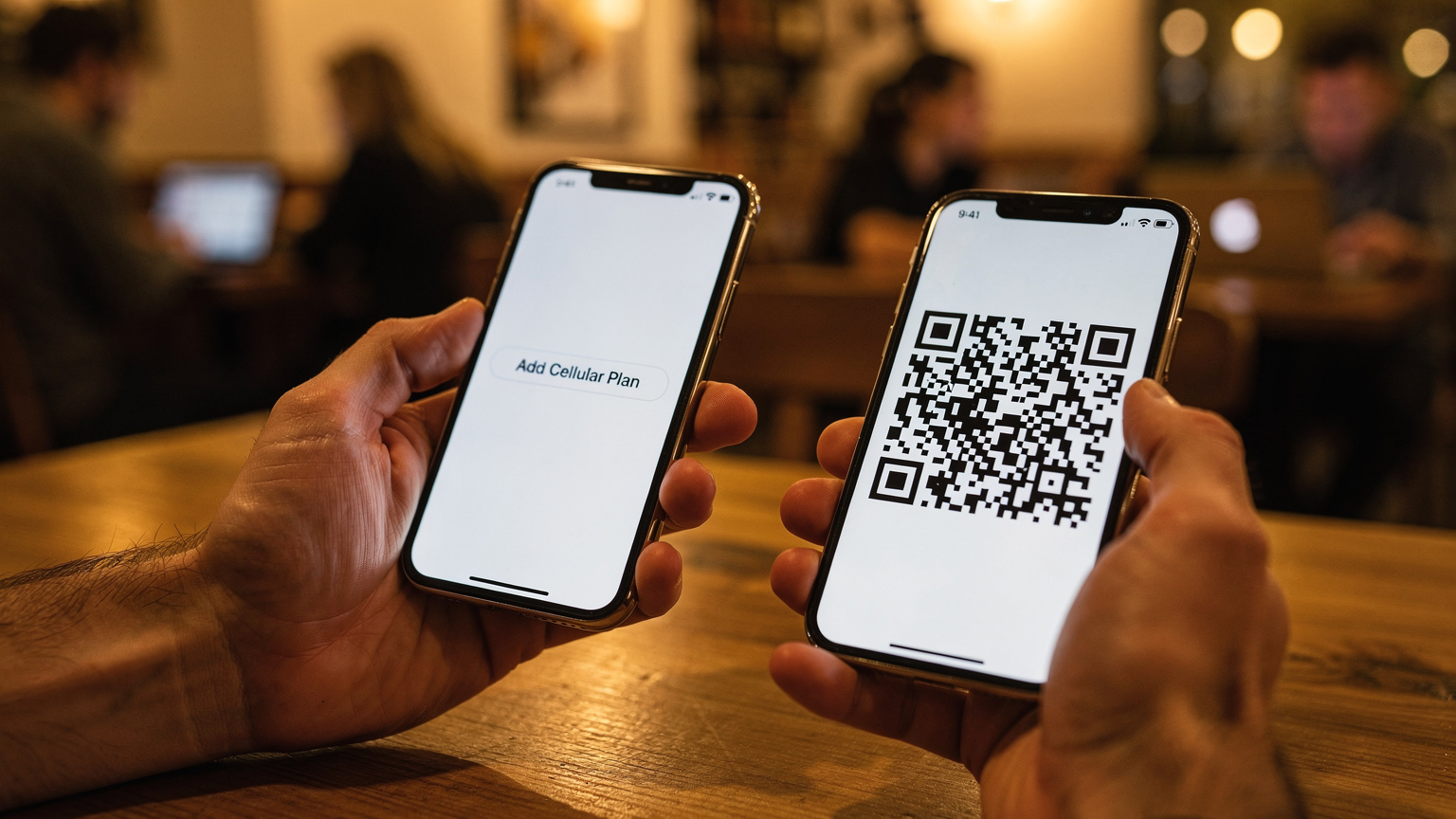
Step-by-Step Activation Process for iOS Devices
- Get Your QR Code Ready: Have the T-Mobile QR code printed or displayed on another device (a tablet, laptop, or even a friend's phone).
- Open Settings: On your iPhone, go to Settings > Cellular (or Mobile Data).
- Add eSIM: Tap on Add eSIM or Add Cellular Plan.
- Scan QR Code: Select Use QR Code. Your camera will open.
- Scan and Confirm: Position your phone to scan the QR code. Once scanned, follow the on-screen prompts. You might be asked to label your plans (e.g., 'Primary,' 'Travel,' 'T-Mobile').
- Set Default Line (Optional): Decide which line is your default for calls, messages, and mobile data. For international travel, you might want to keep your T-Mobile line for calls/texts, but use a data eSIM for USA travel or a Cellesim plan for data.
Step-by-Step Activation Process for Android Devices
- Prepare Your QR Code: Same as iOS, have that QR code handy.
- Navigate to Network Settings: Go to Settings > Network & internet > SIMs.
- Add New SIM: Tap on + Add more or Download a SIM.
- Scan QR Code: Select Use a 2D code or Scan QR code.
- Scan and Follow Prompts: Scan the QR code. Your phone will guide you through the remaining steps, including naming the eSIM profile.
- Configure Data Preferences: Set your preferred SIM for mobile data. For instance, if you're using a Cellesim plan for data abroad, you'd select that profile here.
Troubleshooting Common T-Mobile eSIM QR Code Issues
It's never a seamless process 100% of the time. I've spent enough time in airport lounges in São Paulo, waiting for a stable signal, to know that things go wrong. Here's what usually crops up.