Why T-Mobile eSIM for International Travel (and Why It Matters for Families)
As a seasoned family travel planner, I've learned that reliable connectivity abroad isn't just a luxury, it's a necessity. It's how you navigate unfamiliar streets, find that elusive gelato shop the kids are clamoring for, or, let's be honest, keep them quietly entertained during a long train ride when Bluey is absolutely essential. For T-Mobile customers, the eSIM offers a way to stay connected without the hassle of physical SIM cards, which, frankly, I've lost more often than I care to admit, usually somewhere between a cramped airplane seat and a screaming toddler.
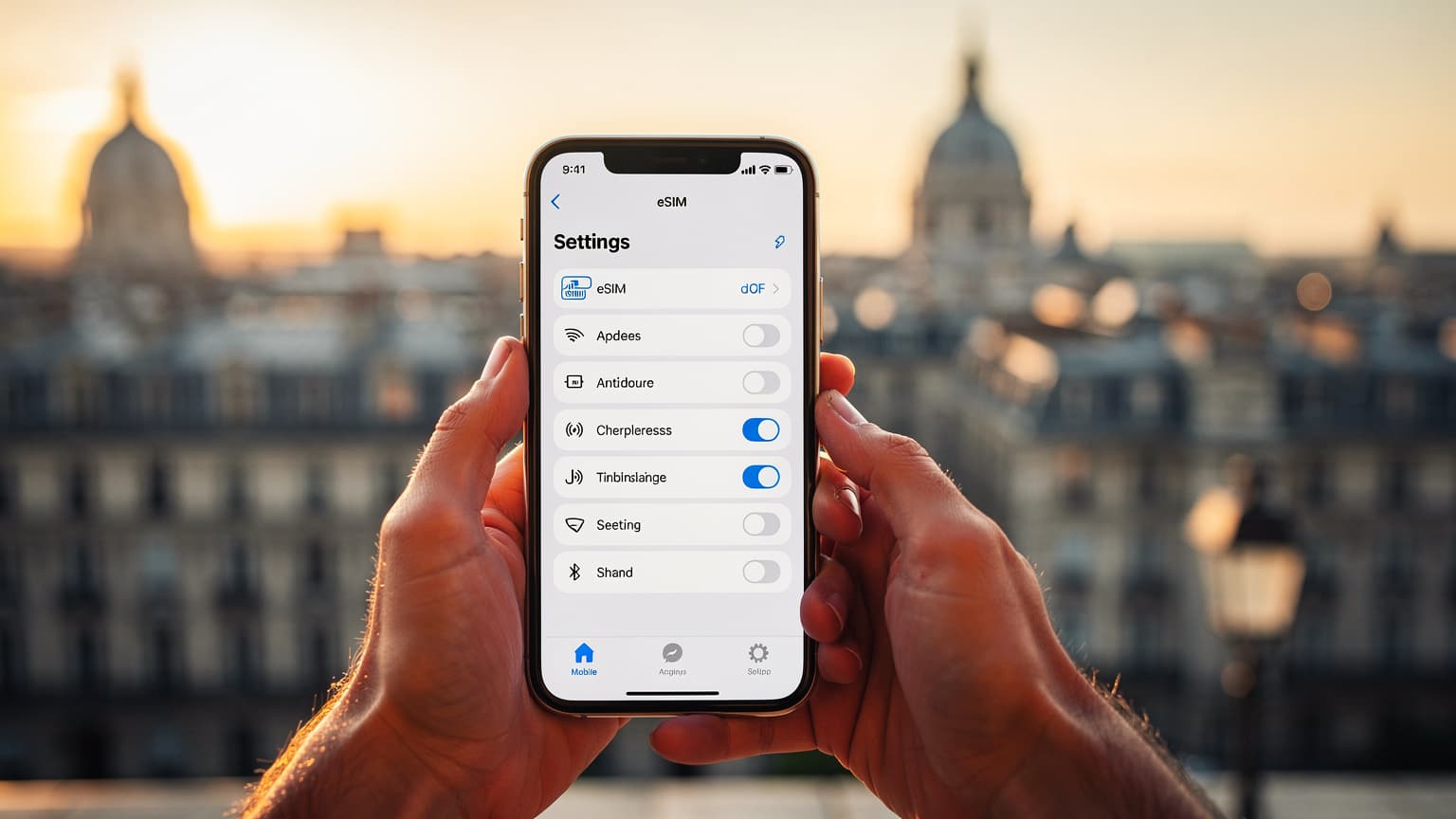
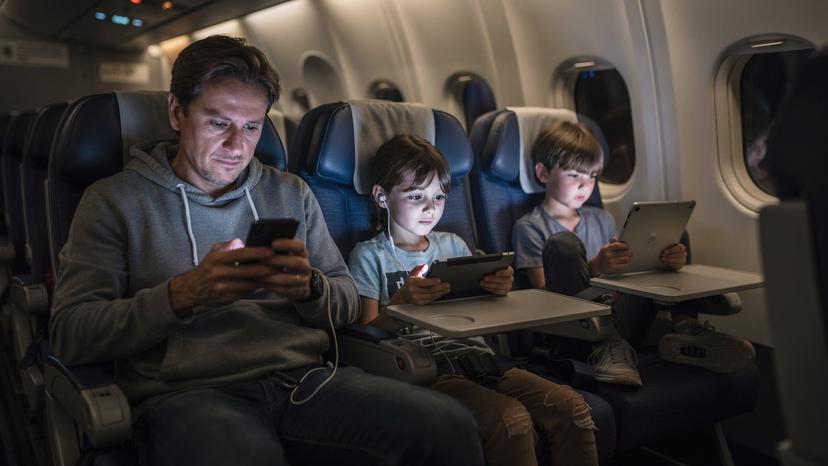
An eSIM, or embedded SIM, is a digital SIM card. It lets you activate a cellular plan from your carrier without needing a physical SIM. For international travel, this means you can keep your primary T-Mobile line active for calls and texts (often at their international roaming rates) while adding a separate, affordable data plan for your destination. This dual-SIM capability, available on most modern smartphones like iPhones, is a game-changer for families. Imagine, for a moment, arriving in Paris, finding your Airbnb, and realizing the kids' iPads suddenly have zero data to stream their carefully pre-downloaded Disney+ shows. That's a meltdown I wouldn't wish on my worst enemy. Having a robust data plan ready means smooth transitions and happy campers, even if it means a little extra screen time on travel days.
The Benefits of eSIM for Multi-Device Families
For me, the biggest win with eSIMs is managing multiple devices. My kids, bless their tech-savvy hearts, each have their own iPad for school and travel. Before eSIMs, I was constantly juggling local SIM cards, trying to figure out which device had which plan, and often finding myself paying exorbitant hotel Wi-Fi fees just to get a quick map download. With an eSIM, particularly a local data plan from a provider like Cellesim, I can manage separate, affordable data profiles for each device, or even tether from my primary phone to their iPads if I've opted for a larger plan on my device. This means no more frantic searching for a Wi-Fi hotspot in a crowded piazza just to let them finish a level of Roblox or send a quick message to grandma.
Understanding T-Mobile International Options: The Fine Print
T-Mobile's un-carrier approach has always been about making international travel easier, but it's crucial to understand the nuances, especially when you're relying on it for an entire family's connectivity. Most T-Mobile plans include some form of international roaming, typically 256kbps data in 215+ countries and destinations. While 256kbps sounds like a number, in practice, it's enough for basic messaging and checking emails, but barely. We're talking painfully slow, not exactly ideal for streaming, video calls, or even loading complex maps quickly. It's certainly not enough for two kids simultaneously streaming Disney+ in 4K, or even standard definition, while you're trying to figure out if the local metro takes Apple Pay.
T-Mobile's Included International Roaming: What to Expect
The included international roaming on T-Mobile plans is a safety net, not a primary data solution for heavy users or families. At 256kbps, think of it as emergency data. It's fine for quickly looking up a restaurant address on Google Maps (if you're patient), sending a WhatsApp message to coordinate with your group, or checking a flight status. For anything more, especially anything involving photos, videos, or multiple users, you'll hit a wall. I once tried to upload a quick photo of the kids at the Eiffel Tower using T-Mobile's free roaming, and it took so long, we'd already eaten dinner and returned to the hotel before it finally posted. Not exactly spontaneous sharing.
Upgrading to Higher Speed Data with T-Mobile International Passes
T-Mobile does offer International Passes that provide higher-speed data, typically up to 5GB or 15GB, for a set period. These passes can be useful, but they add up quickly, especially for longer trips or multiple devices. For example, a 15GB pass might cost $50 for 30 days. If you have two teenagers who spend an hour each on TikTok daily, that 15GB will vanish faster than a croissant at breakfast. When I'm planning our trips, I always factor in how much data we'll truly need. For a family of four, with two iPads for streaming and gaming, plus two phones for navigation, photos, and general browsing, I'm easily looking at 50GB+ for a two-week trip. T-Mobile's passes might cover one phone, but not the whole digital ecosystem of a modern family.
Getting Your T-Mobile eSIM QR Code: The Step-by-Step Guide
Obtaining a T-Mobile eSIM QR code for international use isn't as straightforward as buying a local eSIM from a third-party provider, but it's certainly doable. You typically can't just download it from an app. Instead, it involves a bit of direct interaction with T-Mobile. This method is primarily for replacing a physical SIM with an eSIM on your primary T-Mobile line, or for adding a new T-Mobile line as an eSIM, not for purchasing a temporary international data plan from them. If you're simply looking for a data-only plan for a secondary line or a child's iPad while keeping your T-Mobile voice/text active, a dedicated international eSIM provider is often a simpler and more cost-effective route.
Contacting T-Mobile Customer Service
Your first port of call should be T-Mobile customer service. I've found that calling them directly or using their online chat feature often yields the best results. Be clear about what you need: you're traveling internationally and want to convert your physical SIM to an eSIM, or you need an eSIM for a new line on a specific device. They'll walk you through the process, confirm your device's compatibility, and then, if eligible, send you the QR code. Make sure to have your account information and device IMEI handy (you can find this in your phone's settings under 'About Phone' or by dialing *#06#).
- Identify Your Need: Are you converting your existing T-Mobile line to an eSIM, or adding a new line via eSIM? Be specific.
- Check Device Compatibility: Confirm your phone supports eSIM. Most iPhones XR and newer, Google Pixels 3 and newer, and many newer Samsung Galaxy phones do.
- Contact T-Mobile: Call 611 from your T-Mobile phone, use their online chat, or visit a T-Mobile store. Explain you need an eSIM QR code for international travel.
- Verify Account Details: Provide your account PIN or security questions.
- Receive QR Code: T-Mobile will typically email you the QR code or provide a link to generate it. If in-store, they might print it for you.
- Important Note: This process usually focuses on your primary T-Mobile service. For dedicated international data on a secondary device, or to avoid T-Mobile's roaming rates altogether, consider a separate international eSIM for your trip.
Visiting a T-Mobile Store for Immediate Assistance
If you're like me and prefer to have someone physically hand you a solution, a T-Mobile store is a good option. They can often generate the QR code on the spot and even help you activate it on your device. This can be particularly useful if you're feeling technically challenged or just want peace of mind that it's done correctly before you jet off. Just remember, store staff might try to sell you T-Mobile's international passes. While these have their place, compare them carefully with dedicated international eSIM options before committing, especially if you have high data needs for the kids' devices. I've found that for substantial data, like what my kids need to stream Minecraft on the road, third-party eSIMs are often more economical.
Activating Your T-Mobile eSIM QR Code on Your Device
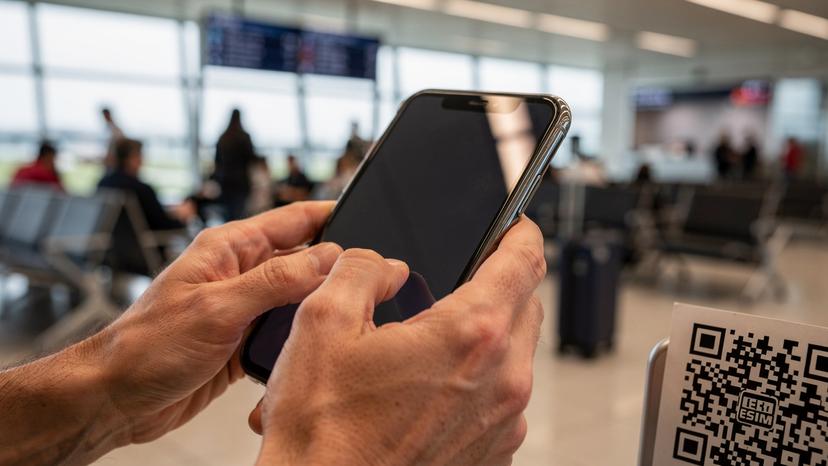
Once you have that precious QR code, the activation process is pretty straightforward, assuming your device is eSIM compatible. (Most newer iPhones, like the iPhone XS and newer, and Android flagships like the Samsung Galaxy S20 and up, are.) The key is to do this when you have a stable Wi-Fi connection. You don't want to be fumbling with this at the airport gate with spotty signal and two impatient children asking if the plane has Wi-Fi yet.
Step-by-Step Activation for iPhone Users
For iPhone users, adding an eSIM is quite intuitive. Make sure your iPhone is updated to the latest iOS version.
- Open Settings: Tap the 'Settings' app on your iPhone's home screen.
- Navigate to Cellular/Mobile Data: Tap 'Cellular' or 'Mobile Data'.
- Add eSIM: Select 'Add eSIM' or 'Add Data Plan'.
- Scan QR Code: Choose 'Use QR Code' and scan the QR code provided by T-Mobile. If you received an activation code instead, tap 'Enter Details Manually'.
- Label Your Plans: Once installed, you'll be prompted to label your cellular plans (e.g., 'Primary' for your T-Mobile line and 'Travel' for an international eSIM). This is crucial for managing which line uses data, especially when you're trying to keep the kids off your main line's data.
- Set Default Line: Choose which line you want for voice, messages, and cellular data. For international travel, you'll likely want to keep your T-Mobile line for calls/texts and use a separate international eSIM for data.
- Data Roaming: For your T-Mobile line, ensure data roaming is set to 'Off' for data, unless you specifically bought an International Pass and want to use it. This prevents accidental charges.
Activating Your eSIM on Android Devices
Android's steps are similar, though the exact wording might vary slightly depending on your phone's manufacturer (Samsung, Google Pixel, etc.) and Android version.
- Open Settings: Go to 'Settings' on your Android device.
- Find Network & Internet: Tap 'Network & Internet' or 'Connections'.
- Manage SIMs/eSIM: Look for 'SIM card manager', 'Mobile Network', or 'eSIM'.
- Add Mobile Plan/eSIM: Tap 'Add mobile plan' or 'Add eSIM'.
- Scan QR Code: Select 'Scan QR code' and point your camera at the QR code from T-Mobile. If manual entry is needed, select that option.
- Follow Prompts: Your phone will guide you through the remaining steps, including naming your new plan.
- Configure Data Usage: Go back to 'Network & Internet' or 'Connections' and select 'Mobile Network'. Here, you can choose which SIM/eSIM to use for mobile data. Make sure your T-Mobile line is not set for data roaming if you're using a separate international eSIM.
Preparing for Your Trip With Kids, Data, and Devices
The secret to a smooth family trip isn't just about having an eSIM, it's about anticipating every connectivity need. And with kids, that means thinking about their devices before you even leave the driveway. From pre-loading apps to managing screen time, a little planning goes a long way in preventing those dreaded 'I'm bored!' moments.
Pre-loading Apps and Content Before You Fly
This is my golden rule. Before any major trip, especially one involving a long flight or car ride, I make sure the kids' iPads are loaded with everything they could possibly need. This includes their favorite movies and shows downloaded from Disney+, Netflix, or Max (offline playback is a lifesaver), plenty of games that don't require an internet connection (like Minecraft Earth or Monument Valley), and educational apps. I also make sure to download offline maps for myself and any translation apps we might need. Trust me, trying to download a 2GB movie over hotel Wi-Fi when everyone else is also trying to connect is a special kind of purgatory. The beauty of an eSIM is that even if you forget something, you can often download it quickly upon arrival if you choose a robust data plan from a provider like Cellesim.
Parental Control Features and eSIM Connectivity
Parental control apps like Apple's Screen Time or Google's Family Link are essential for managing kids' device usage, both at home and abroad. They allow you to set time limits, restrict app access, and even track locations (which is invaluable in a crowded museum or theme park). The good news is that these features work perfectly fine with an eSIM. The eSIM just provides the underlying internet connection; the parental controls operate at the device or account level. What's important is ensuring their devices have enough data to communicate with these control apps, especially for location tracking or remote locking. I always make sure their iPads have a small, dedicated data allowance or are tethered to my phone with a generous eSIM data plan so I can always reach them or see their location, even if they wander off to find the closest churro stand.
Connectivity in Theme Parks and Cruise Ships
Ah, the joys of theme parks and cruise ships. While these places promise endless fun, their connectivity can be a real headache. Theme parks often have spotty Wi-Fi, and relying on it for crucial apps like Disney World's My Disney Experience or Universal's app for ride times and mobile ordering is a gamble. Your phone's data connection, powered by an eSIM, is almost always more reliable. Similarly, cruise ships are notorious for expensive and slow satellite internet. My strategy is to use an international eSIM for data while in port in places like Cozumel or Marseille, giving us reliable access to maps and messaging without paying the ship's exorbitant fees. Once at sea, I embrace the digital detox, or budget for a bare minimum ship Wi-Fi package for emergencies. It's a balance, really, between staying connected and remembering why we travel in the first place (spoiler: it's not usually for uninterrupted Netflix on the high seas).

Managing Data Usage and Costs Abroad: Family Edition
Once you're actually traveling, the real challenge begins: making that data plan last without incurring surprise charges. This is especially true with multiple devices. I've learned a few tricks over the years to keep our digital budget in check, even with two data-hungry kids.
Monitoring Usage on Your eSIM and T-Mobile Line
Regularly check your data usage. For your T-Mobile line, you can do this through the T-Mobile app or by dialing *#WEB#. For your international eSIM, the provider's app will usually show real-time usage. On iPhones, you can also go to Settings > Cellular/Mobile Data and scroll down to see which apps are consuming the most data. This is how I discover that a certain child has been watching YouTube Kids on cellular data instead of Wi-Fi, despite my stern warnings. (Yes, it still happens.)
Data-Saving Tips for Family Travelers
- Download Everything Offline: As mentioned, this is huge. Maps, entertainment, guidebooks.
- Limit Background App Refresh: In your phone settings, turn off background refresh for apps that don't need constant updates.
- Disable Auto-Downloads: Make sure apps aren't automatically downloading updates or media over cellular data.
- Use Wi-Fi When Available: Take advantage of hotel, cafe, or attraction Wi-Fi for heavy tasks, but always with a VPN for security.
- Set Data Limits: Many Android phones allow you to set a data limit. iPhones let you see usage per app.
- Educate the Kids: Explain that data is a finite resource abroad, and that streaming Peppa Pig for hours on cellular costs money. (They rarely listen, but you tried!)
eSIM Data Plans for High-Consumption Families
When T-Mobile's included roaming is too slow and their international passes too expensive for a family's needs, a dedicated international eSIM from a provider like Cellesim is often the best solution. Many providers offer regional plans that cover multiple countries, perfect for a European tour. I often opt for a generous data plan, like 20GB or 30GB, and use my phone as a hotspot for the kids' iPads. This way, I have one primary data pool to manage, and they get fast connectivity for their games and shows. Just make sure your phone's battery can handle the hotspot duty, or bring a portable charger!
| Provider | Coverage | Typical Data Speed | Family-Friendly Features | Cost for 10GB (Approx.) |
|---|---|---|---|---|
| T-Mobile (Roam) | 215+ countries | 256kbps (included) | Limited for primary line, tethering possible but slow. | N/A (requires International Pass, e.g., $35 for 5GB) |
| Cellesim | Global, regional, country-specific | Local 4G/5G speeds | Easy multi-device setup, hotspot friendly, affordable larger plans. | $15-30 (varies by region/country) |
| Local Physical SIM | Single country | Local 4G/5G speeds | Can be cheap, but difficult to manage for multiple devices, language barrier. | $10-25 (plus time to find/activate) |
Troubleshooting Common T-Mobile eSIM QR Code Issues
Even with the best planning, sometimes things go sideways. As someone who's spent years in tech support, I know that 'Sim Not Supported' messages or a QR code that refuses to scan can induce instant travel panic. Here's my troubleshooting playbook for common T-Mobile eSIM QR code issues.
QR Code Not Scanning or Showing an Error
This is a common one, and usually, it's a simple fix. First, ensure you have good lighting when scanning. Sometimes the screen glare or a poorly printed QR code is the culprit. Try cleaning your phone's camera lens. If it's still not scanning, try zooming in slightly or holding your phone further away. Also, make sure you're using the 'Add eSIM' or 'Add Data Plan' option in your settings, not just your regular camera app.
- Check Lighting and Clean Camera Lens: Glare or dirt can prevent proper scanning.
- Ensure Stable Internet Connection: You need Wi-Fi to download the eSIM profile.
- Restart Your Device: The classic IT solution, often surprisingly effective.
- Manual Entry: If the QR code absolutely won't scan, ask T-Mobile if they can provide the SM-DP+ Address and Activation Code for manual entry.
- Device Compatibility: Double-check that your phone model supports eSIM. Not all older devices do.
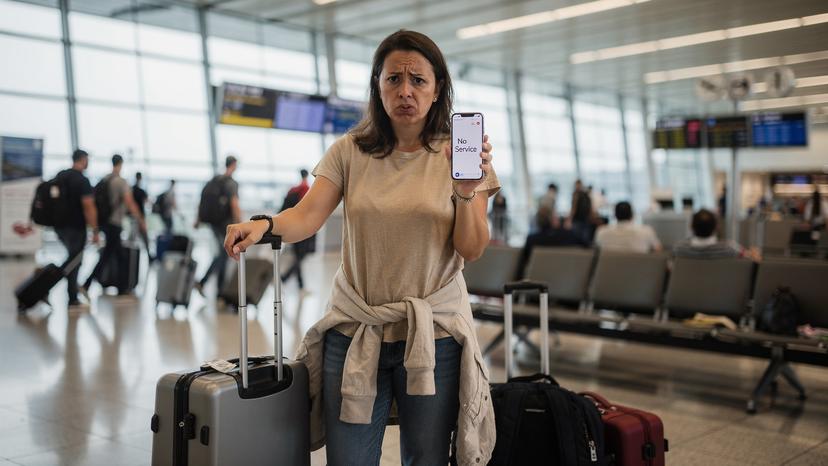
eSIM Activated But No Service or Data
You've scanned the QR code, the eSIM shows up in your settings, but you've got no signal or data. Frustrating, right? This often comes down to network settings or roaming permissions.
- Enable the eSIM: Make sure the newly added eSIM profile is toggled 'On' in your cellular settings.
- Check APN Settings: Sometimes, the Access Point Name (APN) settings aren't automatically configured. For T-Mobile, the common APN is 'fast.t-mobile.com'. You can usually find and edit this under your cellular settings for the specific eSIM.
- Ensure Data Roaming is On (for T-Mobile's included roaming/passes): If you're relying on T-Mobile's international roaming or an International Pass, you MUST have data roaming enabled for that specific T-Mobile line. If you're using a separate international eSIM for data, ensure data roaming is OFF for your T-Mobile line to prevent accidental charges.
- Network Selection: Sometimes, your phone might latch onto a weak partner network. Try manually selecting a network operator in your phone's cellular settings.
- Contact T-Mobile Support: If all else fails, reach out to T-Mobile's technical support. They can check if the eSIM is properly provisioned on their end. As a troubleshooting guru, I can tell you that sometimes, it's an issue on the carrier's side, not yours.
When T-Mobile eSIM Isn't Enough: Considering Alternatives
As much as I appreciate T-Mobile's efforts to simplify international travel, there are undeniable limitations, especially for data-hungry families. The 256kbps free roaming just doesn't cut it when you need to stream, navigate complex city maps, or keep multiple devices connected. This is where exploring alternatives becomes not just an option, but a smart planning move.
Dedicated International eSIM Providers Like Cellesim
For me, dedicated international eSIM providers are the unsung heroes of family travel. Companies like Cellesim specialize in offering data-only eSIMs for hundreds of countries, often at a fraction of the cost of traditional roaming or even T-Mobile's International Passes. The process is usually incredibly simple: you choose your destination (or region), select a data plan that fits your needs (hello, 50GB for two weeks!), purchase it online, and receive a QR code via email instantly. You scan it, activate, and you're good to go. This means you can keep your primary T-Mobile line active for calls and texts, but use the Cellesim eSIM for all your data needs, giving you fast, reliable internet without the T-Mobile data roaming charges. It's especially useful when planning a big multi-country trip, say, through Central Asia where consistent coverage and affordable data are paramount.
Dave's Tech Tip: Dual SIM SetupWhen using an international eSIM alongside your T-Mobile line, always remember to set your T-Mobile line to 'Primary' for calls and texts, and your international eSIM to 'Travel' for data. Crucially, turn off 'Data Roaming' for your T-Mobile line to avoid unexpected charges. This setup lets you receive calls/texts on your familiar number while enjoying affordable local data speeds.
Local Physical SIM Cards: Pros and Cons
Before eSIMs became widely available, buying a local physical SIM card upon arrival was the go-to strategy for budget-conscious travelers. While still an option, it comes with its own set of challenges, particularly for families. You have to find a local mobile store, navigate potential language barriers, often register the SIM with your passport, and then physically swap out your T-Mobile SIM, meaning you can't receive calls or texts on your regular number unless you have a dual-SIM phone and use the second slot. Then, you have to keep track of that tiny T-Mobile SIM so you don't lose it. With kids, that's just another small, easy-to-lose item to worry about. For a simple data plan for a child's iPad, it might be viable, but for a primary device, the convenience of an eSIM often outweighs the marginal cost savings of a local physical SIM.
Understanding Data Speed Needs for Different Activities
This is where the rubber meets the road. 256kbps is simply not enough for most modern travel needs, especially with a family. Here's a quick breakdown:
| Activity | Minimum Recommended Speed | T-Mobile 256kbps Roaming | Cellesim/Local eSIM |
|---|---|---|---|
| Text Messaging (WhatsApp, iMessage) | ~100kbps | Adequate | Excellent |
| Email (checking, light sending) | ~200kbps | Adequate (slow) | Excellent |
| GPS Navigation (Google Maps, Waze) | ~500kbps-1Mbps | Painfully Slow/Unreliable | Excellent |
| Social Media (browsing, light photos) | ~1-2Mbps | Very Slow/Frustrating | Excellent |
| Standard Definition Streaming (Disney+, YouTube Kids) | ~3-5Mbps | Impossible | Excellent |
| High Definition Streaming (1080p) | ~5-8Mbps | Impossible | Excellent |
| Video Calls (Facetime, Zoom) | ~1-3Mbps (up/down) | Impossible | Excellent |
| Online Gaming (Roblox, Fortnite) | ~2-10Mbps | Impossible | Excellent |
As you can see, for anything beyond basic messaging, T-Mobile's included international roaming simply won't cut it. For a family, where multiple devices might be vying for bandwidth, investing in a proper data plan through an international eSIM is non-negotiable for a truly smooth trip. Otherwise, you'll spend half your vacation waiting for pages to load, or worse, dealing with grumpy kids because their favorite apps won't work.
Final Thoughts on Stress-Free Family Connectivity
Planning family travel is a marathon, not a sprint, and connectivity is one of those essential gears that keeps the whole thing running smoothly. While T-Mobile offers some international perks, understanding their limitations and proactively seeking out better solutions for data, especially with kids and their devices in mind, is key. Nobody wants to be the parent whose kids can't stream their comfort show because the data plan ran out, or because the hotel Wi-Fi is slower than a snail race.
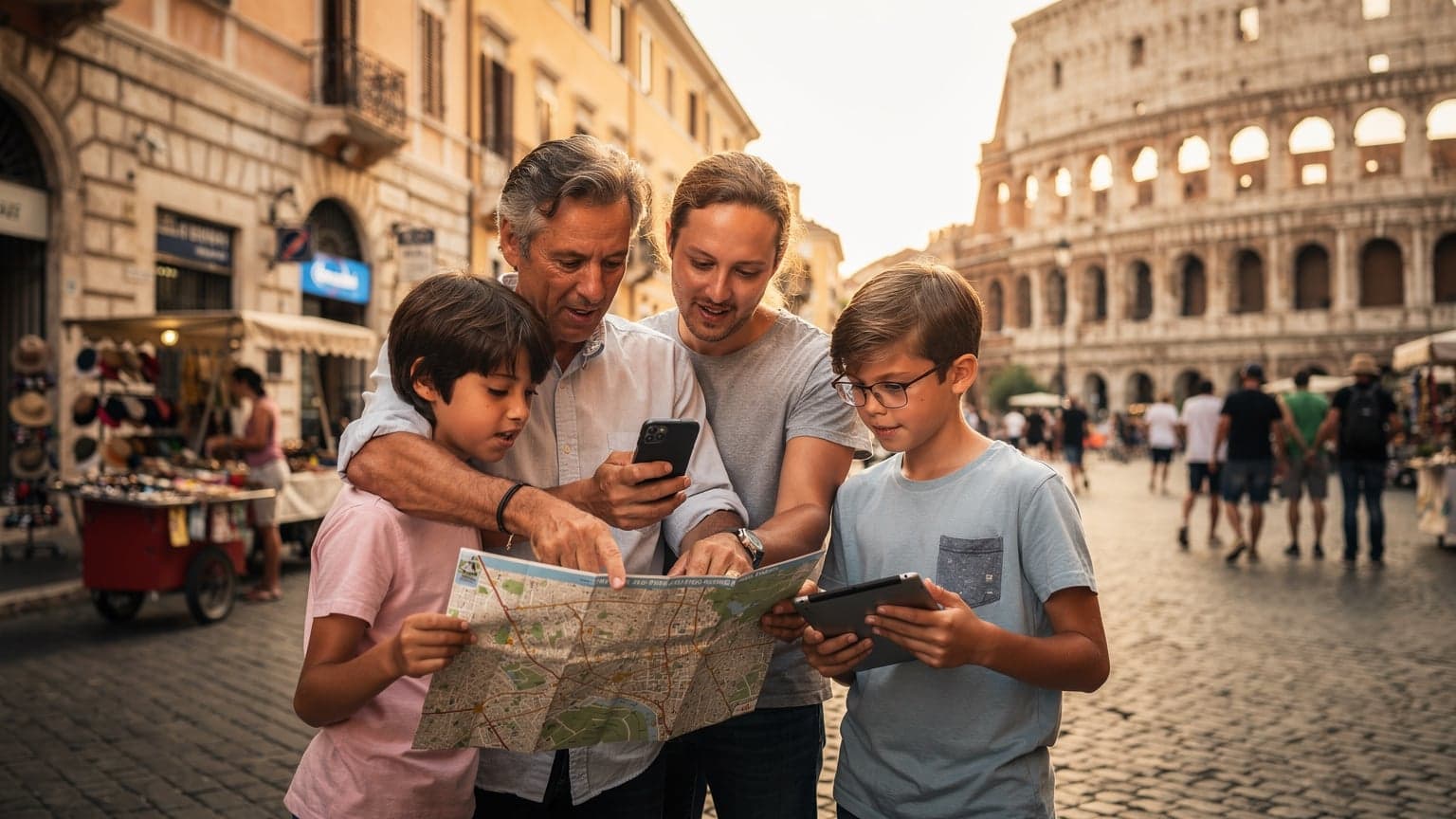
By leveraging the power of eSIMs, whether it's your T-Mobile line or a dedicated international data plan, you're not just buying data, you're buying peace of mind. You're ensuring that you can navigate Rome's ancient streets without getting lost, find an urgent care clinic if a scraped knee happens, and, yes, keep those iPads topped up with enough data for Disney+ on the long flight home. A little foresight in your connectivity planning saves a lot of headaches, and trust me, as a parent who's been there, that's worth its weight in gold.
Frequently Asked Questions
Can I use my T-Mobile phone with an international eSIM from another provider simultaneously?
Yes, most modern smartphones are dual SIM (or dual eSIM) compatible. This means you can keep your T-Mobile line active for calls and texts while using a separate international eSIM from a provider like Cellesim for all your data needs, allowing you to avoid T-Mobile's roaming charges.
What happens if I forget to turn off data roaming for my T-Mobile line while using an international eSIM?
If you forget to turn off data roaming for your T-Mobile line and you're using a separate international eSIM for data, your phone might still use T-Mobile's roaming data when the international eSIM's signal is weak or if your phone defaults to it. This can lead to unexpected and often expensive roaming charges. Always double-check your cellular settings.
Is 256kbps speed enough for kids' streaming apps like Disney+?
Absolutely not. 256kbps is barely enough for basic messaging and very slow email. Streaming apps like Disney+, Netflix, or YouTube require significantly higher speeds, typically 3-5 Mbps for standard definition and even more for high definition. Attempting to stream on 256kbps will result in constant buffering and frustration.
Can parental control apps like Screen Time work with an international eSIM?
Yes, parental control apps operate at the device or account level, not specifically on the SIM card. An international eSIM simply provides the internet connection. As long as the device has an active data connection (from either your T-Mobile line or the international eSIM), parental controls, including location tracking and app limits, will function as normal.
How much data should I budget for a family of four (2 adults, 2 kids) for a two-week international trip?
For a family of four, especially with children using devices for entertainment, I'd recommend budgeting at least 50-70GB for a two-week trip. This allows for navigation, social media, light work, and sufficient streaming for the kids. If you plan on heavy video use or online gaming, consider 100GB or more, often best achieved through a generous multi-country eSIM plan.