eSIM Primer: Why iPhones Are Ideal for Global Connectivity
eSIMs have really changed how we think about mobile data, and Apple has been a big part of that. Starting with the iPhone XS, XR, and 11 series, every iPhone has had eSIM capability. Then, with the US models of the iPhone 14, Apple completely removed the physical SIM tray. This makes iPhones incredibly ready for travel, giving you tons of flexibility for international data.
An eSIM, short for embedded SIM, is essentially a tiny chip built right into your phone. Instead of swapping out those little plastic cards, you just download a digital SIM profile. This profile has all the necessary subscriber information. It means you can load up multiple network profiles on one device and switch between them with just a few taps in your iPhone settings. For instance, you could keep your home plan, add a Cellesim travel eSIM for Europe, and even have another one ready for a specific country, all active and waiting to be used.
This setup is a huge win for anyone who travels often. Imagine landing at Narita Airport in Tokyo, already having bought and installed your data plan. As soon as you land, you simply switch to your Japan eSIM profile. In moments, you're connected to a local network like NTT Docomo or SoftBank. You'll likely be using their strong Band 3 (1800MHz) for city coverage or Band 1 (2100MHz) for wider areas, and maybe even Band 42 (3.5GHz) for 5G in busy spots. No more fiddling with tiny tools or worrying about losing your home SIM. Just a smooth connection.
iPhone eSIM Compatibility: What Models Support It?
Almost every recent iPhone supports eSIM, but there are some small differences. All iPhones from the XS/XR/11 generation onwards support at least one eSIM alongside a physical SIM. However, US-market iPhone 14, 15, and future models are eSIM-only. This means they don't have a physical SIM tray at all. For travelers, this just makes things even simpler, as you manage everything digitally without the option of a physical SIM.
Key iPhone eSIM compatibility points:
- iPhone XS, XS Max, XR, 11, 12, 13 series (non-US): These support one eSIM and one physical nano-SIM.
- iPhone 13 series (US): These support two active eSIMs.
- iPhone 14, 15 series (US): These are eSIM-only, supporting multiple eSIM profiles, with two active at the same time.
- iPhone 14, 15 series (non-US): These support one eSIM and one physical nano-SIM.
It's always a good idea to check your specific iPhone model's regional variant, especially if you bought it outside your home country. You can find this under Settings > General > About > Model Number.
The Benefits of eSIM for iPhone Users Traveling Abroad
For iPhone users, eSIMs offer some really great advantages compared to traditional roaming or buying local physical SIMs:
- Instant Activation: You can buy an eSIM for France (or wherever you're going) online and activate it even before you get on your flight. No more searching for SIM card shops after a long journey.
- Dual SIM Functionality: You can keep your home phone number active for calls and texts (potentially using Wi-Fi Calling) while your travel eSIM handles all your data. This is super important for things like two-factor authentication or reaching emergency contacts.
- Cost-Effectiveness: Say goodbye to those outrageous roaming charges. eSIM plans from companies like Cellesim are often much cheaper per GB than your home carrier's international roaming packages. For example, a Cellesim regional Europe plan can give you data for a fraction of what a typical US carrier charges for roaming on Band 20 (800MHz) or Band 3 (1800MHz) in the EU.
- Environmental Impact: You'll create less plastic waste since there are no disposable physical SIM cards.
- Security: A digital profile can't be physically removed or stolen from your phone.
These benefits directly translate into a smoother, more connected travel experience. Whether you're using Apple Maps to find your way or making FaceTime calls to family, reliable data is a must-have.
Activating Your eSIM on iOS: A Step-by-Step Walkthrough
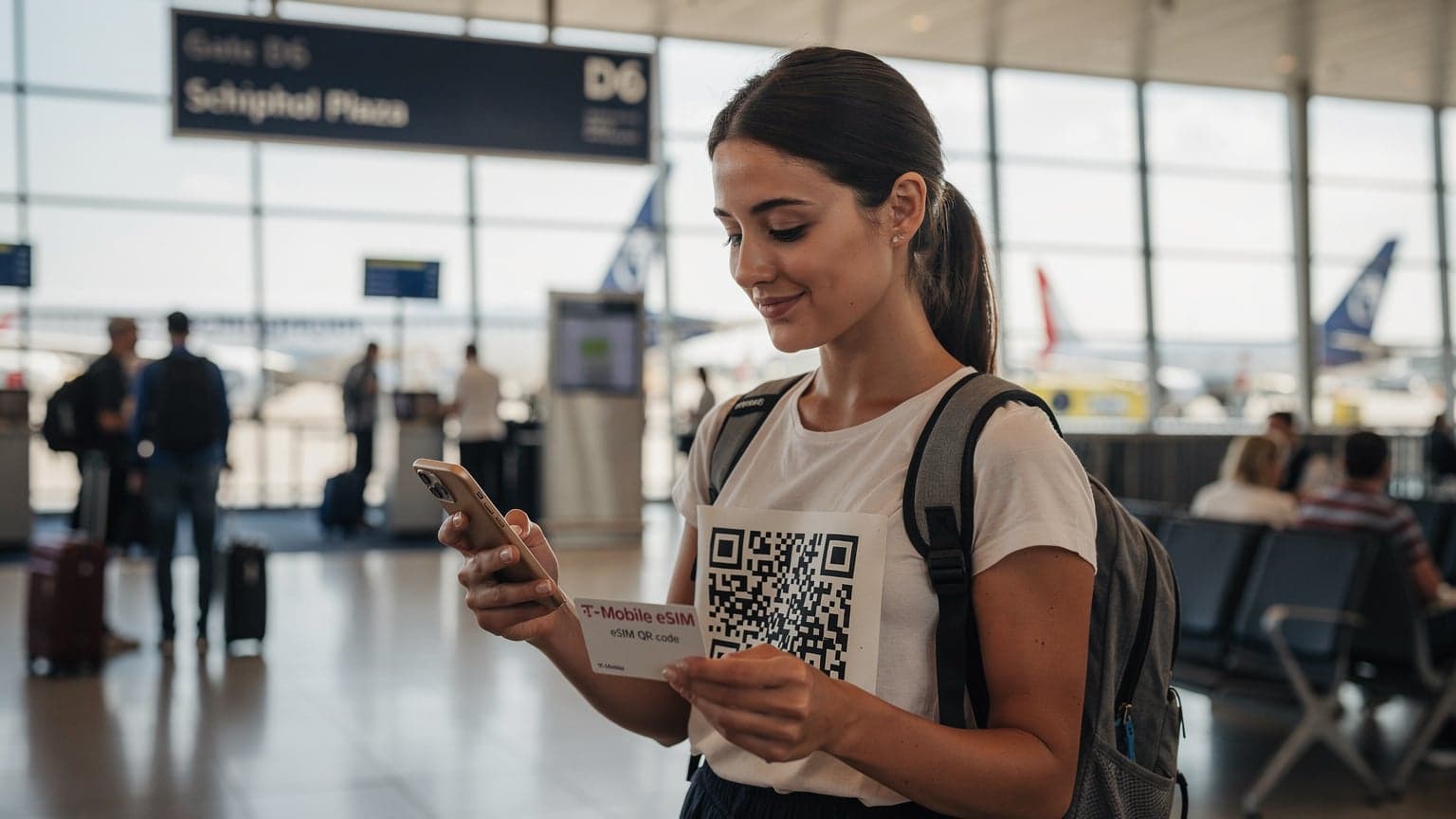
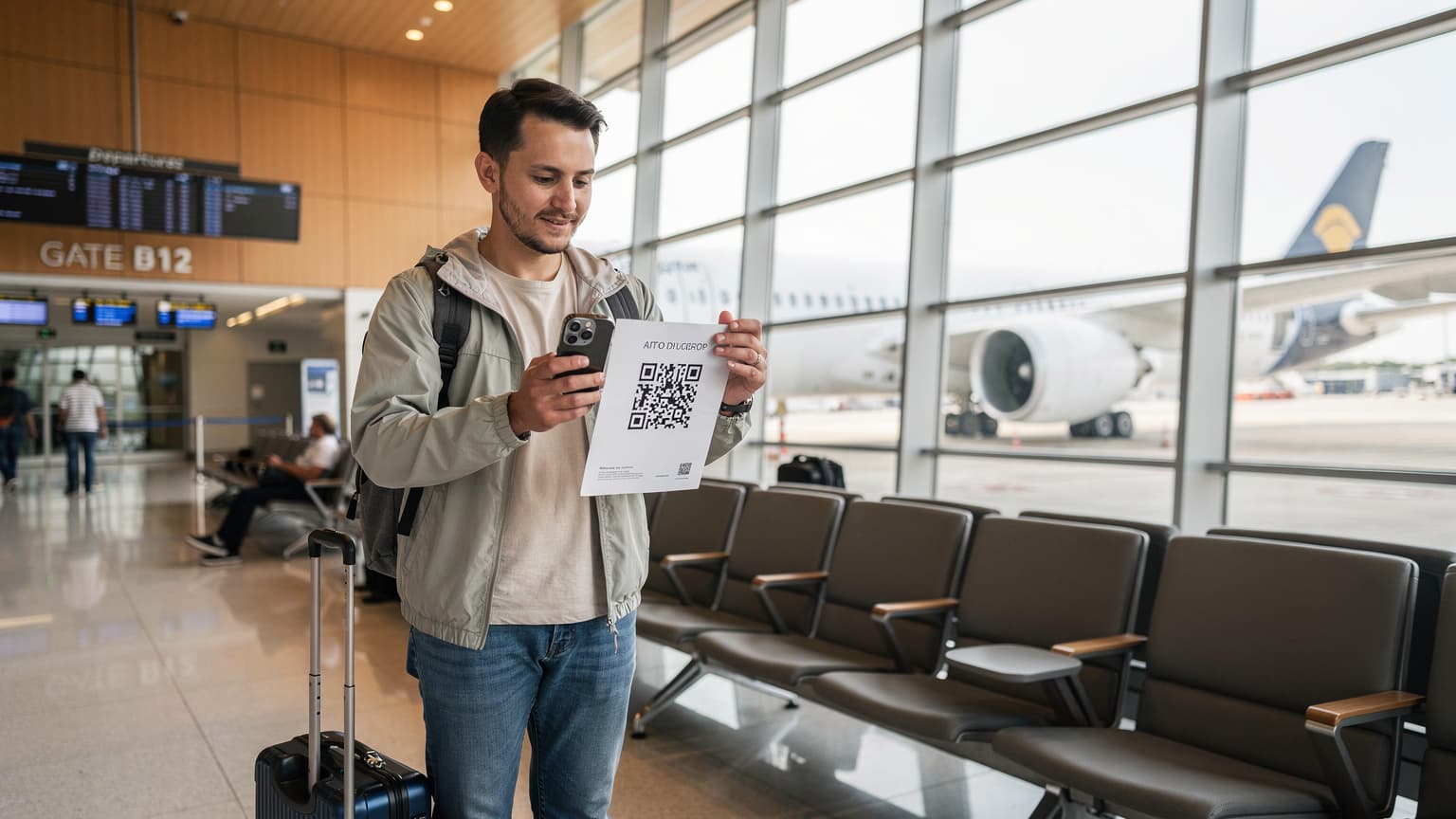
Getting an eSIM up and running on your iPhone is pretty straightforward. You'll usually scan a QR code or enter some details manually. Most providers, including Cellesim, give you a QR code to make setup easy.
QR Code Activation: The Easiest Method
This is the most common and simplest way to add an eSIM to your iPhone.
- Get on Wi-Fi: First, make sure your iPhone is connected to a strong Wi-Fi network. This is crucial for downloading the eSIM profile.
- Go to Cellular Settings: Head to Settings > Cellular (or Mobile Data).
- Add eSIM: Tap on Add eSIM.
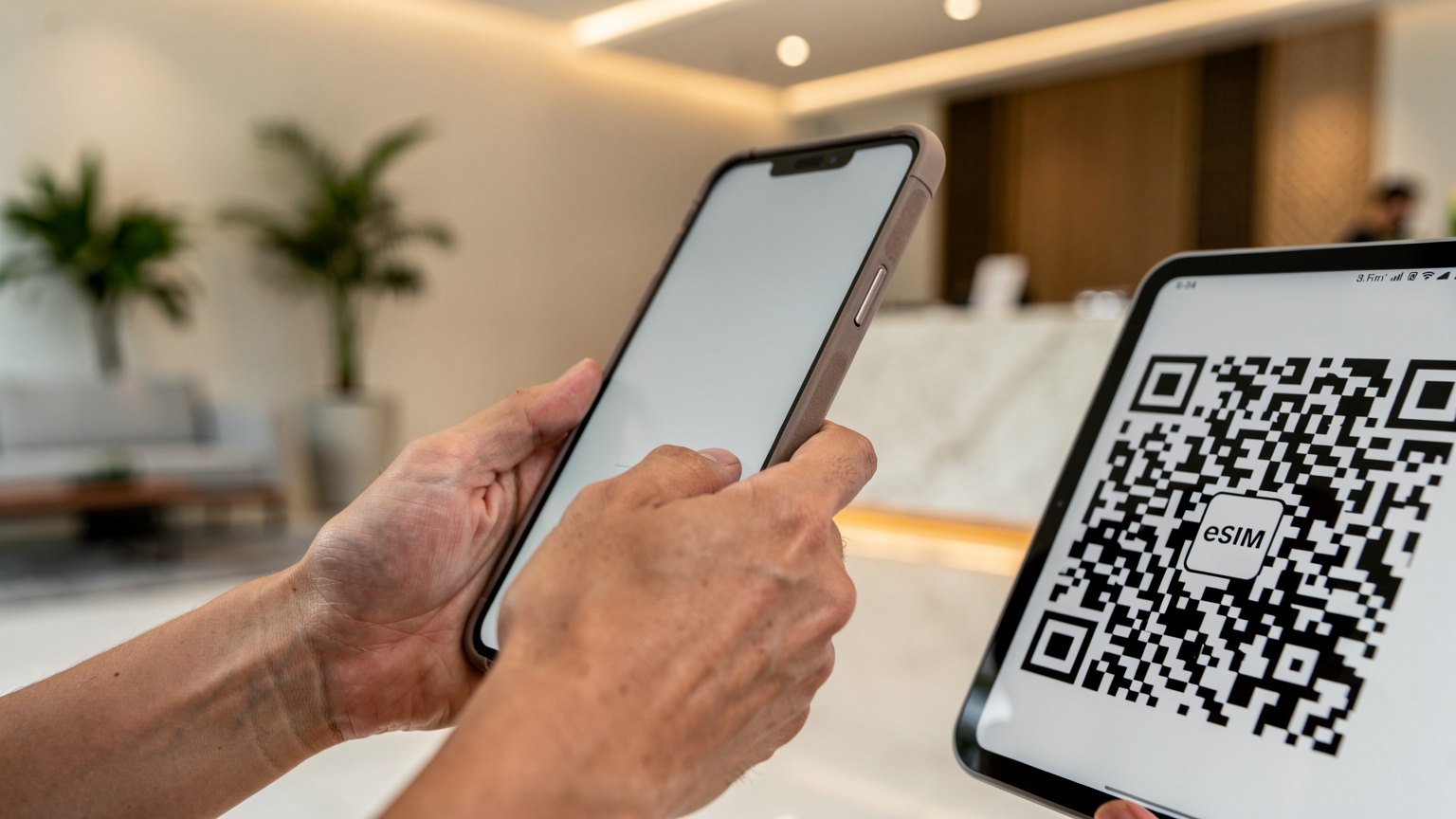
- Scan QR Code: Choose Use QR Code. Your iPhone camera will open. Scan the QR code your eSIM vendor provided (you'll usually find it in your purchase email or on their website).
- Follow Prompts: Your iPhone will recognize the cellular plan. Tap Continue or Add Cellular Plan. You might be asked to name your plans, like 'Primary' and 'Travel France'.
- Choose Default Line: Once installed, iOS will ask you to pick a default line for calls, messages, and cellular data. For data, select your new travel eSIM. For calls/texts, you might stick with your primary line, especially if it supports Wi-Fi Calling.
This whole process usually takes less than two minutes, assuming your Wi-Fi is good. Keep in mind that downloading the eSIM profile uses a small amount of data, which is why Wi-Fi is essential.
Manual eSIM Setup for Edge Cases
Sometimes, you might get activation details as a manual entry code instead of a QR code. This is less common but still works on iOS.
- Get on Wi-Fi: Just like with QR codes, a stable Wi-Fi connection is necessary.
- Go to Cellular Settings: Head to Settings > Cellular (or Mobile Data).
- Add eSIM: Tap on Add eSIM.
- Enter Details Manually: Choose Enter Details Manually at the bottom of the screen.
- Input SM-DP+ Address, Activation Code, and Confirmation Code: You'll need to type in the SM-DP+ Address (Subscription Manager Data Preparation+), Activation Code, and sometimes a Confirmation Code provided by your eSIM vendor. These are unique identifiers to set up your eSIM profile.
- Follow Prompts: Just like with QR activation, follow the on-screen prompts to name your plan and set default lines.
Manual entry comes in handy if you can't scan a QR code, maybe because of a cracked screen or if you're setting it up from a device that can't show the QR code clearly.
Managing Multiple eSIMs and Data Plans
One of the best things about using an iPhone with an eSIM is how well it handles multiple profiles. You can store many eSIMs on your device, though you can only have two active at once (on US models of iPhone 13/14/15) or just one (on non-US models) for cellular data.
Labeling and Organizing Your eSIMs
iOS gives you great tools to label and organize your cellular plans, making it easy to tell them apart. When you add a new eSIM, you'll be asked to give it a custom name (e.g., 'Work', 'Personal', 'Travel Europe', 'Japan Data'). You can change these names anytime by going to Settings > Cellular (or Mobile Data) and tapping on the plan you want to rename.
Smart ways to label your eSIMs:
- By Region: 'Travel UK', 'Asia Roam'
- By Purpose: 'Work Data', 'Holiday SIM'
- By Provider: 'Cellesim EU', 'Local Carrier AU'
Clear labels prevent you from accidentally using data on the wrong plan, which could lead to unexpected charges, especially if you have a pay-as-you-go eSIM or a primary plan with high roaming rates.
Switching Between eSIMs for Data and Calls
Switching your active data eSIM is very simple:
- Go to Settings > Cellular (or Mobile Data).
- Tap on Cellular Data (or Mobile Data).
- Select the eSIM you want to use for data from the list of installed plans.
For calls and messages, iOS lets you set a default line. However, when you're about to make a call, you can always tap the line indicator above the dial pad to choose which line to use for that specific call. For messages, you can select the line before sending an iMessage or SMS. This flexibility means you control which number is used for different communications, which is important if you want to keep your home number private while you're abroad.
Network Selection and Optimisation for Peak Performance
Once your eSIM is active, your iPhone will typically connect to the strongest network it can find. But sometimes, a little manual tweaking can improve your experience, especially if you're in an area with spotty coverage or a very busy city.
Automatic vs. Manual Network Selection
By default, your iPhone automatically chooses the best available carrier. Most of the time, this works perfectly. However, if you're experiencing slow speeds, an inconsistent signal, or unexpected roaming, you might want to try manual selection.
To switch to manual network selection:
- Go to Settings > Cellular (or Mobile Data).
- Tap on your active travel eSIM plan.
- Tap on Network Selection.
- Toggle off Automatic.
- Your iPhone will scan for available networks. Choose a preferred network from the list.
Just remember, if you manually select a network, your phone will stick to it. If that network loses coverage, your phone won't automatically switch to another. You'll have to manually pick a different one or turn automatic selection back on. This is especially useful in countries with several MNOs (Mobile Network Operators) where one might offer better 5G coverage on specific bands, such as n78 (3.5GHz) or n28 (700MHz), depending on the location.

Understanding APN Settings and Data Roaming
APN (Access Point Name) settings are vital for getting a data connection. They tell your phone how to connect to the internet through your carrier. For most Cellesim eSIMs, these settings configure themselves automatically when you activate. But in rare cases, or with older iOS versions, you might need to enter them manually.
You can find APN settings under Settings > Cellular (or Mobile Data) > Your eSIM Plan > Cellular Data Network. Here, you'll see fields for APN, Username, and Password. If your data isn't working, check your eSIM provider's instructions for the correct APN. Common APNs are 'internet' or 'data', but some carriers use their own unique ones.
Data Roaming: For eSIMs, you often need to enable data roaming even if you're on a local plan. This is because many global eSIM providers act as MVNOs (Mobile Virtual Network Operators) and technically 'roam' on partner networks in different countries. Always make sure data roaming is switched 'On' for your active travel eSIM under Settings > Cellular (or Mobile Data) > Your eSIM Plan > Data Roaming. With a Cellesim plan, this won't mean extra charges, as roaming is part of the package.
Troubleshooting Common eSIM Issues on iPhone
While eSIMs are generally reliable, you might run into issues sometimes. Here's how to systematically troubleshoot common problems:
No Service or No Data Connection
If your iPhone says 'No Service' or you can't get data:
- Check Data Roaming: As mentioned, make sure Data Roaming is on for your travel eSIM.
- Restart iPhone: This classic trick often fixes temporary network glitches.
- Toggle Airplane Mode: Turn Airplane Mode on for 30 seconds, then off. This forces your phone to reconnect to the cellular network.
- Check APN Settings: Double-check that your APN settings are correct, especially if you're using a less common provider or an older iOS version.
- Manual Network Selection: Try picking a network operator manually from the list of available networks (see the previous section).
- Update Carrier Settings: Go to Settings > General > About. If there's an update, you'll see a prompt. Carrier settings updates often improve network compatibility and performance.
If these steps don't help, verify that your eSIM plan is active and still has data available. You can usually check this through your provider's app or website.
eSIM Not Appearing in Settings
If you've installed an eSIM but it's not showing up in your Cellular settings:
- Confirm Installation: Did you complete every step of the QR code scan or manual entry? Sometimes a prompt might get missed.
- Re-scan/Re-enter: Try the installation process again. Make sure you have a strong Wi-Fi connection the whole time.
- Check for Pending Profiles: Occasionally, a profile download can get interrupted. Look for any incomplete installations under Settings > Cellular (or Mobile Data) > Add eSIM.
- Contact Support: If nothing else works, reach out to your eSIM provider's customer support. They can confirm if the eSIM profile was successfully provisioned to your device's EID (Embedded Identity Document), which is a unique ID for your eSIM chip.
Remember, your iPhone's EID is a permanent, unique identifier, similar to an IMEI for a physical SIM slot. Your eSIM provider uses this to send the profile to your device.
Understanding Data Speeds and Network Performance Abroad
Data speeds when you're abroad can vary a lot. It depends on the local infrastructure, how busy the network is, and the specific frequency bands being used. While eSIMs offer flexibility, they can't magically overcome physics or local network limits.
Factors Influencing Speed and Coverage
Several things affect your actual data speeds:
- Network Technology: 5G offers the fastest theoretical speeds, then 4G LTE, and finally 3G. Not every network in every area will have 5G. For example, while big European cities have strong 5G on Band n78 (3.5GHz) and n1 (2100MHz), rural areas might still rely on 4G LTE on Band 20 (800MHz) or Band 3 (1800MHz). These are slower but cover a wider area.
- Spectrum Availability: Different carriers own different frequency bands. A carrier with more continuous spectrum in a specific band (like Band 7 at 2.6GHz for LTE) can often give you faster speeds than one with fragmented spectrum.
- Network Congestion: During busy times or at large events (like the Summer Games 2026 in Paris), even the best networks can slow down because too many people are using them.
- Phone Hardware: Newer iPhones have more advanced modems and support more frequency bands. This can mean better connectivity and speeds in various international settings.
- Location: Indoor coverage, especially in older buildings or basements, can be much worse than outside.
In a well-covered urban 5G area, you might see real-world download speeds between 150-500 Mbps and uploads of 30-80 Mbps. In a 4G LTE area, expect 20-80 Mbps download and 5-20 Mbps upload. Compare that to the 256kbps throttled speeds some plans offer, which are fine for messaging but not much else.
| Network Type | Typical Download Speed | Typical Upload Speed | Latency (ms) | Use Case |
|---|---|---|---|---|
| 5G (Sub-6 GHz) | 150 - 500 Mbps | 30 - 80 Mbps | 15 - 30 | High-res streaming, large file uploads, cloud gaming |
| 4G LTE-A (Carrier Aggregation) | 50 - 150 Mbps | 10 - 40 Mbps | 30 - 50 | HD streaming, video calls, general browsing |
| 4G LTE | 20 - 80 Mbps | 5 - 20 Mbps | 40 - 60 | Web browsing, social media, standard definition streaming |
| 3G (HSPA+) | 3 - 10 Mbps | 1 - 3 Mbps | 80 - 150 | Email, basic messaging, light browsing |
Benchmarking Your Connection Speed Abroad
To really get a feel for your connection, use speed test apps like Speedtest by Ookla or Fast.com. Run tests in different places and at different times of day to understand typical performance. These apps measure download speed (how fast data comes to your phone), upload speed (how fast data leaves your phone), and latency (the delay before data transfer starts, measured in milliseconds).
High latency can make real-time apps like video calls or online gaming feel sluggish, even if your download speeds are decent. Generally, a latency under 50ms is considered good for most apps. If you're consistently seeing high latency, it could mean network congestion or a routing issue, possibly through a far-away gateway. Pay attention to the server location reported by the speed test app, as this can affect results.
Voice and Messaging: VoLTE and VoWiFi Considerations
While eSIMs mostly focus on data, voice calls and messages are still crucial. Knowing about VoLTE and VoWiFi is key for smooth communication.
Making Calls with VoLTE and VoWiFi on Your Travel eSIM
VoLTE (Voice over LTE): This lets your voice calls use the 4G LTE data network instead of older 2G/3G circuits. The big benefit is clearer call quality (HD Voice) and the ability to use data at the same time you're on a call. Most modern networks support VoLTE. Your iPhone will automatically use VoLTE if both the network and your eSIM plan support it. You'll briefly see 'VoLTE' next to your signal bars during a call.
VoWiFi (Voice over Wi-Fi, or Wi-Fi Calling): This feature allows you to make and receive calls and texts over a Wi-Fi connection, which is great when your cellular service is weak or nonexistent. This is super valuable when traveling, as you can use your home number to call back home without roaming charges, even if your home SIM isn't active for data (assuming your home carrier supports international Wi-Fi Calling).
To turn on Wi-Fi Calling for your primary line while using a travel eSIM for data:
- Make sure your primary line is active (even if just for calls/SMS).
- Go to Settings > Cellular (or Mobile Data) > Your Primary Line.
- Tap on Wi-Fi Calling and toggle it on.
- Ensure you have a stable Wi-Fi connection.
The important thing to remember is that not all travel eSIMs support VoLTE, and even fewer support VoWiFi for their own numbers. Most Cellesim data eSIMs are data-only, meaning you'll rely on VoIP apps (like WhatsApp, FaceTime Audio) or your home number's Wi-Fi Calling for voice. Always check with your eSIM provider about VoLTE/VoWiFi support if traditional voice calls are a priority for the number on your travel eSIM.
Dual SIM Benefits for Voice and Messaging
Your iPhone's dual SIM ability (either physical + eSIM, or two eSIMs) is a game-changer for voice and messaging while traveling. You can:
- Keep your home number active: Use your primary physical SIM or eSIM for calls/texts from home, potentially through Wi-Fi Calling, while your travel eSIM handles all your data. This is crucial for getting OTPs (One-Time Passwords) for banking or app logins.
- Get a local number for convenience: Some longer-term travel eSIMs might include a local number, which is handy for booking local services, making restaurant reservations, or contacting local emergency services.
In Settings > Cellular (or Mobile Data), you can set which line is used for what. For example, you might set your primary line as the default for calls but your travel eSIM as the default for cellular data. iOS is smart enough to route calls and messages correctly, even suggesting which line to use based on your contacts.
Security, Privacy, and Carrier-Grade NAT (CGNAT)
Whenever you connect to a network abroad, security and privacy are top concerns. It helps to understand how eSIMs work with network technologies like CGNAT.
Data Security with eSIMs and Public Networks
An eSIM connection itself isn't inherently more or less secure than a physical SIM connection. The real security of your data depends on the network you're using and your own online habits. When you use a travel eSIM, you're essentially connecting to the internet through a local carrier's network. This connection, especially if it's 4G or 5G, is generally encrypted at the cellular level.
However, the risk often comes with public Wi-Fi networks, which are usually less secure. If you're using public Wi-Fi at a café in Berlin (even if you have an active Cellesim eSIM for Germany), your data could be vulnerable. Always use a VPN (Virtual Private Network) when you're on public Wi-Fi, especially for sensitive things like banking or accessing personal info. Many Cellesim eSIMs actually come with a VPN service bundled in, which is a great privacy perk.
Tips for keeping your data secure:
- Use a VPN: Especially on public Wi-Fi.
- HTTPS Everywhere: Make sure the websites you visit use HTTPS.
- Strong Passwords: For all your online accounts.
- Two-Factor Authentication (2FA): Turn it on whenever you can.
Understanding Carrier-Grade NAT and IPv6-Only Networks
Carrier-Grade NAT (CGNAT): Many mobile carriers, especially those with budget-friendly or travel-specific data plans, use CGNAT. This is a network setup where many subscribers share one public IPv4 address. While most users won't even notice it, CGNAT can cause problems for specific applications that need inbound connections or direct peer-to-peer communication, like some games, VPN setups, or port forwarding. If an app that needs a direct connection is giving you trouble, CGNAT might be the reason. There's usually no user-side fix for this, other than using a VPN that provides its own public IP or switching to a different carrier/plan.
IPv6-Only Networks: The internet is slowly moving from IPv4 to IPv6, which is the next generation of internet protocol. Some mobile networks are now primarily IPv6-only, using IPv6 to connect devices. To keep things compatible with older IPv4-only services, these networks use translation methods (like NAT64/DNS64). For iPhone users, this usually works without a hitch because iOS handles the translation automatically. However, in very rare cases, an app or service might have issues in IPv6-only environments. This is becoming less common as more services update to be IPv6-compatible, but it's a technical detail worth knowing if you hit unusual connection problems.
eSIM Providers and Plan Selection
The market for eSIM providers has really boomed, giving travelers tons of options. Picking the right one means knowing what you need.
Evaluating eSIM Plan Options for iPhones
When you're choosing an eSIM plan for your iPhone, think about these points:
- Coverage Area: Do you need a plan just for one country (like an eSIM for the Middle East) or a regional/global plan? Cellesim offers multi-country plans, which are perfect if you're hopping between countries.
- Data Allowance: How much data do you actually need? Streaming high-definition video uses a lot more data than just browsing or messaging. For example, check how much data you might use if you're working remotely.
- Validity Period: How long is the plan active? Some plans are for 7 days, others for 30, 60, or even 90 days. Make sure it matches your trip length.
- Speed and Network: Does the eSIM provider partner with major local carriers (like O2 in the UK, Orange in France, Vodafone in Italy) and offer 4G/5G speeds? Some cheaper options might cap speeds or only offer 3G.
- Voice/SMS Inclusion: Most travel eSIMs are data-only. If you need a local number for calls/texts, confirm if it's included or if you'll have to rely on VoIP apps.
- Top-Up Options: Can you easily add more data if you run out?
- Price per GB: Compare the cost per gigabyte across different providers.
It's often helpful to read reviews specific to the region you're visiting. What works well in Western Europe might not be ideal in, say, Central Asia, where network infrastructure can vary quite a bit.
| Feature | Cellesim eSIM | Traditional Roaming | Local Physical SIM |
|---|---|---|---|
| Activation Method | Digital, QR Code/Manual | Automatic (home plan) | Physical swap, in-store activation |
| Cost per GB (Avg) | Low to Moderate | High | Very Low |
| Convenience | Extremely High (pre-purchase) | High (no setup) | Moderate (find store, paperwork) |
| Dual SIM Support | Yes (with home SIM) | Yes (single plan) | No (replaces home SIM) |
| Network Flexibility | Multi-carrier options | Single partner network | Single local carrier |
| VoLTE/VoWiFi Support | Varies, often data-only | Yes (home plan) | Yes (local plan) |
Why Cellesim Is a Strong Contender for iPhone Users
Cellesim is built with the international iPhone user in mind. Here's why it often stands out:
- Global Coverage: They offer extensive country and regional plans, making sure you have connectivity wherever your iPhone takes you.
- Transparent Pricing: Clear, upfront costs with no hidden roaming fees. What you see is exactly what you pay.
- Easy Activation: A smooth QR code activation process that works perfectly with iOS.
- Reliable Networks: Cellesim partners with top-tier and second-tier local carriers, giving you access to strong 4G LTE and 5G networks. They often use common bands like B3 (1800MHz), B7 (2600MHz), and n78 (3.5GHz) for great performance in cities.
- Customer Support: Dedicated support is there to help with any activation or connectivity issues, which is critical when you're far from home.
When you compare eSIM alternatives, Cellesim often provides a good mix of coverage, value, and ease of use, making it a compelling choice for iPhone-toting travelers.
Future of eSIM on iPhones: What to Expect
The path for eSIMs on iPhones is pretty clear: more adoption and even better integration. Apple's decision to get rid of the physical SIM tray in US iPhone 14 and 15 models shows they're really committed to this technology.
iOS Updates and eSIM Enhancements
Look forward to future iOS updates (like iOS 18, iOS 19) bringing even more advanced eSIM management features. We might see things like:
- Smarter Network Prioritization: More intelligent ways for your iPhone to switch between active eSIMs based on your location, signal strength, or even what app you're using.
- Enhanced Data Usage Monitoring: More detailed control and reporting on how much data each eSIM profile is using, potentially with real-time alerts built right into the operating system.
- Improved eSIM Transfer: Simpler ways to move eSIMs between iPhones, possibly using iCloud or direct device-to-device transfers without needing to contact your carrier.
- Integrated eSIM Marketplaces: While probably not a totally open marketplace, Apple might make buying and activating eSIMs even easier directly from iOS settings, perhaps by partnering with certain providers.
As the technology gets more mature, the user experience will only get smoother and more intuitive, further cementing the iPhone's role as the perfect travel companion.
The Long-Term Vision for eSIM and Global Connectivity
The ultimate goal for eSIMs and global connectivity is a truly borderless experience. Imagine a future where:
- Universal Profiles: A single eSIM profile could potentially adjust to different regions and carriers automatically, finding the best rates and connections on the fly. This would remove the need to buy separate plans for each region.
- Satellite Integration: With features like Apple's Emergency SOS via Satellite already here, future iPhones could seamlessly switch between terrestrial eSIM data and low-earth orbit (LEO) satellite data (from companies like Starlink or Project Kuiper). This would offer true global coverage, even in the most remote places. This could mean basic data connectivity in areas currently only served by high-frequency bands like 700MHz (Band 28) or 800MHz (Band 20), which still have coverage gaps.
- Dynamic Band Switching: iPhones could automatically switch between different frequency bands (for example, moving from a busy n78 5G to a less congested B7 LTE) based on real-time network conditions. This would ensure optimal performance without you having to do anything.
While some of these things are still on the horizon, the groundwork laid by current eSIM technology on iPhones is clearing the way for a future where staying connected abroad is as effortless as using your phone at home. The days of struggling with local SIM cards are quickly becoming a distant memory for iPhone users, letting you focus on your trip, not your connection.
Frequently Asked Questions
Can I use two eSIMs at the same time on my iPhone?
Yes, on US models of iPhone 13, 14, and 15, you can have two eSIMs active concurrently. For non-US models, you can typically use one physical SIM and one eSIM simultaneously. You can store multiple eSIM profiles on your device, switching between them as needed.
Do I need Wi-Fi to activate an eSIM on my iPhone?
Yes, a stable Wi-Fi connection is required to download and provision the eSIM profile onto your iPhone. Once installed, the eSIM will use cellular data, but the initial setup needs Wi-Fi for the download process.
What if my travel eSIM doesn't show a data connection?
First, ensure 'Data Roaming' is enabled for your travel eSIM in Cellular settings, as many global eSIMs operate as MVNOs. Then, try restarting your iPhone, toggling Airplane Mode, or manually selecting a network operator. Check your eSIM provider's documentation for specific APN settings, though these are usually automatic.
Will my home number still work for calls and texts with a travel eSIM?
Yes, with an iPhone's Dual SIM capability, you can keep your home number active for calls and texts while using your travel eSIM for data. You can enable Wi-Fi Calling for your home number to make calls without roaming charges when connected to Wi-Fi abroad.
Are eSIM speeds guaranteed to be fast abroad?
No, data speeds are not guaranteed and depend on local network infrastructure, congestion, and your iPhone's hardware. While eSIMs allow access to 4G LTE and 5G, actual speeds can vary from 20-500 Mbps download. Use speed test apps to benchmark performance in different locations.
Can I transfer an eSIM from one iPhone to another?
Some carriers and eSIM providers support eSIM Quick Transfer in iOS, allowing you to move an eSIM between iPhones digitally. However, this feature's availability varies by carrier and region. For Cellesim, you would typically reinstall the eSIM profile on the new device, often requiring a new QR code scan or manual entry.