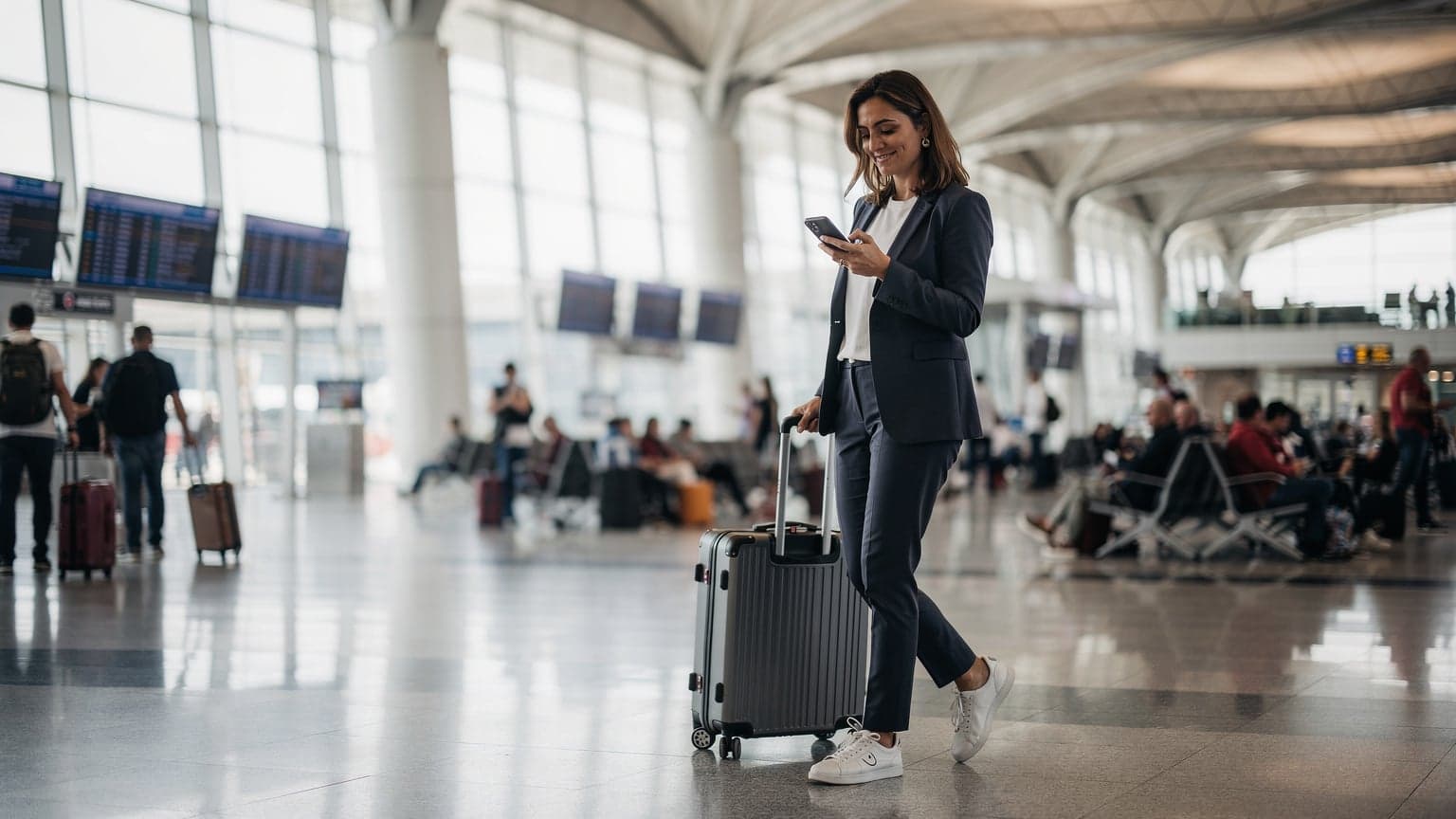
Picture this: you have just landed at Charles de Gaulle after a long flight, your hotel check-in is not for hours, and you have an urgent work email to send from your laptop. The airport Wi-Fi is slow, insecure, and requires a tedious sign-up process. This is a classic travel moment where your phone becomes a lifeline, but not just for calls. This is where eSIM tethering transforms your smartphone into a secure, private internet hub for your other devices. Many travelers do not realize how simple it is to get instant internet abroad on all their gadgets. This guide will walk you through exactly how to share your eSIM data with your laptop, tablet, or a travel companion's phone. We will cover the step-by-step setup for both iPhone and Android, share pro tips to manage your data and battery, and troubleshoot common issues you might encounter on the road.
- What Exactly is eSIM Tethering and Why is it a Game-Changer for Travelers?
- Step-by-Step Guide: How to Set Up Your Mobile Hotspot for Travel
- Ecosystem Compatibility: Windows, macOS, and Tablets
- Optimizing Your eSIM Tethering Experience: Pro Tips for Digital Nomads and Savvy Travelers
- Real-World Use Cases for eSIM Tethering
- Common Tethering Problems and How to Solve Them
- Cost Comparison: eSIM Tethering vs. Alternatives
- Network Coverage and Speed Considerations for Tethering
- Frequently Asked Questions
Seamless Connectivity for Your Next Trip
Experience reliable internet in 200+ countries, share data with ease, and join 50,000+ happy customers.
Browse All eSIM Plans →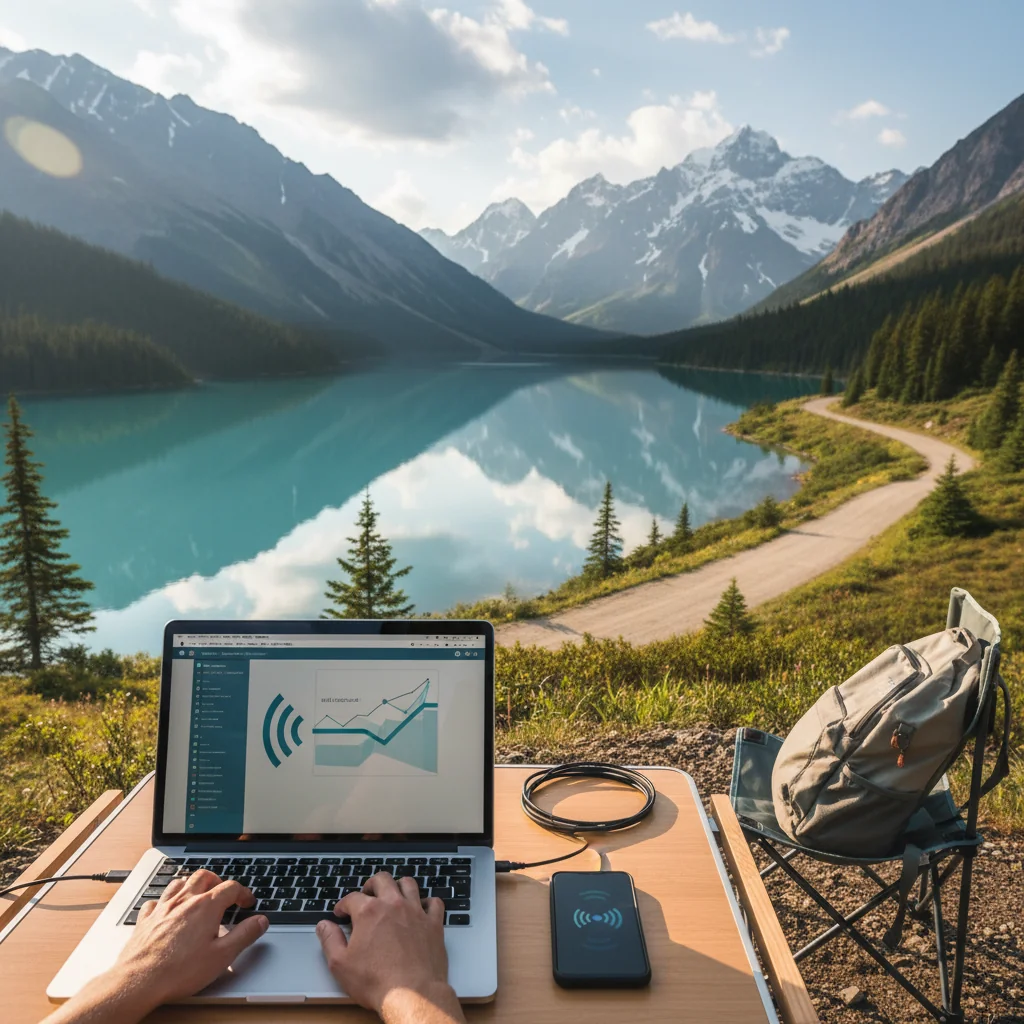
What Exactly is eSIM Tethering and Why is it a Game-Changer for Travelers?
You have probably heard of using your phone as a “personal hotspot,” and eSIM tethering is precisely that, just powered by the convenience of a modern travel eSIM. Instead of fumbling with tiny plastic SIM cards or hunting for local SIM vendors, your eSIM provides the data, and tethering shares that connection with your other devices.
Beyond Just "Sharing Wi-Fi": The Core Concept
At its core, tethering (or creating a mobile hotspot) turns your smartphone into a portable Wi-Fi router. It takes the cellular data connection from your eSIM and broadcasts it as a Wi-Fi signal that your laptop, tablet, or another phone can connect to. This creates a personal, private network for your devices, giving you a reliable internet connection almost anywhere you have a mobile signal. For travelers, this is revolutionary. It means you are no longer dependent on the whims of questionable public Wi-Fi networks in cafes, hotels, or airports. It is about freedom and control over your connectivity, which is crucial when navigating a new country or trying to get work done.
The Key Benefits for Modern Travel
The real magic of using a travel eSIM for your hotspot comes down to a few essential advantages:
- Unmatched Security: Public Wi-Fi is a well-known risk. Connecting your laptop to your phone's password-protected hotspot is vastly more secure. Your connection is encrypted, protecting your work emails, banking information, and personal data from prying eyes on the same network. For more insights into public Wi-Fi dangers, consult resources from cybersecurity experts like ZDNET's guide on public Wi-Fi security.
- Seamless Convenience: The moment you land, you can activate your Cellesim plan and have a hotspot ready in seconds. There is no need to buy a separate portable Wi-Fi device that you have to charge and carry. Your phone, which is already with you, does all the work.
- Cost-Effectiveness: Many hotels still charge a premium for decent Wi-Fi. By using your travel eSIM data, you can sidestep these fees entirely. It is also a fantastic way of avoiding exorbitant roaming charges from your home provider, which can be astronomical for data-heavy tasks on a laptop.
Step-by-Step Guide: How to Set Up Your Mobile Hotspot for Travel
Getting your hotspot up and running is surprisingly straightforward. While the menus might look slightly different depending on your phone's model and software version, the core steps are universal. Let's break it down for both iOS and Android users.
Setting Up Data Tethering on an iPhone with an eSIM
Apple makes the process incredibly simple. Before you start, ensure your Cellesim eSIM is active and selected for cellular data (Settings > Cellular > Cellular Data).
- Navigate to Settings on your iPhone.
- Tap on Personal Hotspot. (If you do not see it, you may need to go to Cellular first, then Personal Hotspot).
- Toggle on the switch for Allow Others to Join.
- Underneath the toggle, you will see the Wi-Fi Password. You can keep the default one or change it to something you will easily remember.
That is it. Your iPhone is now broadcasting a Wi-Fi network. The network name will typically be your iPhone's name (e.g., "Jane's iPhone").
Your Guide to Android Hotspot Setup
The Android ecosystem is a bit more diverse, but the process is just as easy. The names might vary slightly (e.g., "Hotspot & tethering" vs. "Mobile Hotspot"), but the path is similar on most devices like Samsung, Google Pixel, or OnePlus.
- Open the Settings app on your Android phone.
- Go to Network & internet (or Connections on Samsung devices).
- Select Hotspot & tethering.
- Tap on Wi-Fi hotspot.
- Toggle it on. Here you can also view and change the Hotspot name (SSID) and set a secure Hotspot password.
Your Android phone is now ready to share its connection. For more detailed instructions, our interactive setup guide provides visual aids for various device models.
Connecting Your Laptop (or Tablet)
This is the easy part. On your laptop, tablet, or other device:
- Open the Wi-Fi settings.
- Look for your phone's network name in the list of available networks.
- Select it, enter the password you set up, and click connect.
You are now using your phone's eSIM data to browse the internet on your laptop. Welcome to the world of true mobile freedom.
Ecosystem Compatibility: Windows, macOS, and Tablets
eSIM tethering extends seamless internet access beyond just your smartphone to a wide range of devices. Whether you are using a Windows laptop, a MacBook, an iPad, or an Android tablet, the connection process is universally simple, mirroring how you would connect to any other Wi-Fi network.
Connecting to Laptops (Windows & macOS)
On both Windows and macOS laptops, connecting to your phone's hotspot is straightforward. You simply navigate to your Wi-Fi settings, find your phone's hotspot name (SSID) in the list of available networks, enter the password you set on your phone, and connect. The operating system handles the rest, establishing a secure connection to your mobile data. This allows you to work, stream, or browse just as if you were connected to a traditional Wi-Fi network, but with the added portability and security of your personal hotspot.
Tablets: iPads and Android Devices
Tablets, whether an iPad or an Android model, also benefit significantly from eSIM tethering. For travelers who prefer a larger screen for reading, watching movies, or light productivity, connecting to your phone's hotspot means you do not need to rely on potentially slow or expensive hotel Wi-Fi. The process is identical to connecting a laptop: access the Wi-Fi settings on your tablet, select your phone's hotspot, and input the password. This capability ensures that all your essential travel gadgets remain connected, enhancing your overall digital experience while abroad.
Optimizing Your eSIM Tethering Experience: Pro Tips for Digital Nomads and Savvy Travelers
Simply turning on your hotspot is just the beginning. To make the most of your travel eSIM data and avoid common frustrations, a few pro tips can make a world of difference, especially for digital nomads who rely on a stable connection.
Manage Your Battery Life Like a Pro
The number one thing you will notice is that tethering is a power-hungry process. Your phone is doing double duty, maintaining a cellular connection while also broadcasting a Wi-Fi signal. Here is how to keep it from dying at a critical moment:
- Plug it in: Whenever possible, keep your phone connected to a power source (a wall outlet, power bank, or your laptop's USB port) while tethering.
- Use USB Tethering: For the most battery-efficient connection, connect your phone directly to your laptop with a USB cable. On Android, you will find the "USB tethering" option in the same hotspot menu. On iPhone, it often works automatically when connected to a trusted computer. This method also charges your phone simultaneously.
- Dim Your Screen: Your phone's display is a major battery drain. Lower the brightness or set a short screen timeout while you are not actively using it.
Monitor Your Travel eSIM Data Usage
A laptop can consume data much faster than a phone. Automatic cloud backups, software updates, and higher-resolution streaming can burn through a data plan quickly. Stay in control:
- Be Mindful of Background Data: On your laptop, consider pausing automatic updates (like Windows Update) and cloud-syncing services (like Dropbox or Google Drive) until you are on a proper Wi-Fi network.
- Use Your Phone's Tracker: Both iPhone and Android have built-in tools to monitor cellular data usage. You can see which apps are using the most data and even reset the statistics at the start of your trip to keep a clear tally.
- Plan Ahead with a Data Calculator: Not sure how much data you will need for a week of remote work in Lisbon? Using Cellesim's Smart Data Calculator can help you estimate your usage and pick the right plan from the start.
Choosing the Right eSIM Plan for Tethering
Not all eSIM providers or plans are equal when it comes to hotspot functionality. Some budget operators may restrict tethering or significantly reduce speeds when you do. At Cellesim, we believe in transparent and flexible connectivity, which is why all our plans fully support tethering at the highest available speeds. When choosing a plan, consider getting a slightly larger data package than you think you need, especially if you plan to tether frequently. For example, our data plans for the United States come in various sizes to accommodate everything from light map usage to heavy laptop work.

Real-World Use Cases for eSIM Tethering
The utility of eSIM tethering extends across various travel scenarios, making it an indispensable tool for many different types of travelers. Its flexibility allows you to remain connected and productive, regardless of your location or activity.
Business Travelers: Always On the Go
For business travelers, reliable internet is not a luxury, but a necessity. eSIM tethering transforms layovers, train commutes, and even coffee shop breaks into productive work sessions. You can confidently join video conferences, send large files, and access cloud documents from your laptop, knowing your connection is secure and stable. This eliminates the stress of searching for Wi-Fi or relying on slow hotel networks, enabling seamless productivity anywhere. If you are frequently traveling for work, exploring guides like "How to Set Up Your Phone for a UK Trip with an eSIM" can offer more specific advice for your needs.
Family Travel: Keeping Everyone Entertained
Traveling with family often means multiple devices needing internet access. Kids' tablets for games, streaming movies, or online learning can quickly deplete a single device's data plan. With eSIM tethering, you can share your data across all family devices, keeping everyone entertained during long journeys or quiet evenings. This reduces arguments over screen time and allows for coordinated planning, such as looking up directions or restaurant reviews simultaneously. It is an efficient way to manage internet access for everyone without juggling multiple SIMs or portable Wi-Fi devices.
Outdoor Adventures and Remote Work
Even when exploring national parks or working from a remote cabin, eSIM tethering provides a lifeline. Hikers can download detailed maps or emergency information, while digital nomads can set up an impromptu office with a view. As long as your phone has a cellular signal, your other devices can connect. This capability is particularly useful for uploading photos, sharing travel updates, or simply staying in touch with loved ones from off-the-beaten-path locations. For those combining travel with work, guides like "Finding the Best eSIM for Digital Nomads" can offer further valuable insights.
Explore Cellesim eSIMs
Common Tethering Problems and How to Solve Them
Even with the best technology, you can occasionally run into a snag. Most issues are minor and can be fixed with a few simple troubleshooting steps. Here are the most common ones travelers face.
"My Laptop Can't Find My Phone's Hotspot"
This is a classic issue. Before you panic, try these steps in order:
- Toggle Everything Off and On: The oldest trick in the IT book works wonders. Turn off the Personal Hotspot on your phone, wait ten seconds, and turn it back on. Do the same with the Wi-Fi on your laptop.
- Check for Low Power Mode: Some phones automatically disable the hotspot feature when in a battery-saving mode. Make sure this is turned off.
- Restart Both Devices: If the toggle trick does not work, a simple restart of both your phone and your laptop can resolve many temporary software glitches.
"The Connection is Unstable or Slow"
A slow connection is frustrating, but it is often related to your environment, not a faulty eSIM. The speed of your tethered connection is entirely dependent on the strength and quality of the underlying 4G or 5G cellular signal your phone is receiving.
- Change Your Location: Your phone's physical position matters. If you are deep inside a concrete building or in a basement cafe, the signal will be weaker. Try moving closer to a window.
- Check Network Congestion: In extremely crowded places like a concert, festival, or major tourist landmark, the local cell towers can get overloaded, leading to slower speeds for everyone. Sometimes moving a few blocks away can make a significant difference.
- Confirm Your eSIM Profile: Ensure your phone is using the correct eSIM profile, especially if you have multiple plans installed. For travelers just beginning their journey, understanding the process of transitioning from a physical SIM to an eSIM can help prevent these kinds of configuration mix-ups.
Cost Comparison: eSIM Tethering vs. Alternatives
When traveling, comparing connectivity options is crucial for both convenience and budget. eSIM tethering often stands out as a cost-effective and flexible solution compared to traditional roaming, local SIM cards, pocket Wi-Fi devices, and even hotel Wi-Fi.
Here is a breakdown of common options and their typical cost and flexibility for a traveler needing data for multiple devices:
| Connectivity Option | Typical Daily Cost (Estimate) | Flexibility / Convenience | Security |
|---|---|---|---|
| Cellesim eSIM Tethering | From $2 - $5 (data plan dependent) | High: Use existing phone, instant activation, multi-device support. | High: Password-protected, private network. |
| Carrier Roaming (Home Provider) | $10 - $15+ | Moderate: Automatic, but often limited data or throttled speeds. | High: Uses your home carrier's secure network. |
| Local Physical SIM (for tethering) | $3 - $7 (plus initial SIM cost) | Moderate: Requires finding and buying a local SIM, swapping. | High: Private network, but tied to local provider's terms. |
| Pocket Wi-Fi Device | $8 - $15 (rental fee) | Moderate: Separate device to carry, charge, and return. | High: Private network, but device quality varies. |
| Hotel Wi-Fi | Free - $20+ | Low: Often slow, insecure, limited to hotel premises. | Low: Public network, often unencrypted. |
As the table illustrates, Cellesim eSIM tethering offers a compelling balance of affordability, flexibility, and security. It leverages a device you already carry, eliminating the need for extra gadgets or cumbersome setup processes. This makes it an ideal choice for the modern traveler aiming to stay connected without incurring excessive costs.
Network Coverage and Speed Considerations for Tethering
The performance of your eSIM tethering is directly tied to the underlying cellular network. Understanding how network coverage and speed operate can help you manage your expectations and optimize your experience while traveling.
4G and 5G Connectivity
Cellesim partners with leading local networks in over 200 countries to ensure you receive the best available connectivity, whether it is 4G (LTE) or the newer, faster 5G. 5G networks offer significantly higher speeds and lower latency, which is particularly beneficial for data-intensive activities like video calls, large file transfers, or streaming high-definition content on your laptop. While 5G coverage is expanding rapidly, 4G remains robust and widely available, providing ample speed for most travel needs. You can learn more about how Cellesim ensures widespread coverage on our How Our Network Works page.
Factors Affecting Speed and Reliability
Several factors can influence the actual speed and reliability of your tethered connection:
- Location: Physical obstacles like buildings, mountains, or being indoors can weaken signal strength. Moving closer to a window or to an open area often improves performance.
- Network Congestion: In densely populated areas or during major events (like festivals or concerts), local cell towers can become overloaded. This "network congestion" means many users are vying for bandwidth, which can temporarily reduce speeds for everyone.
- Device Capability: Both your smartphone and the device you are tethering to (laptop, tablet) must support the network technology (4G, 5G) to achieve optimal speeds. Older devices might not fully utilize faster networks.
By being aware of these factors, you can make informed decisions about where and when to tether, ensuring a more consistent and productive internet experience during your travels.
Frequently Asked Questions
Is eSIM tethering secure?
Yes, eSIM tethering through your personal hotspot is significantly more secure than public Wi-Fi networks. Your connection is encrypted and password-protected, safeguarding your personal and financial data from potential security risks often associated with open public networks.
Does tethering drain my phone's battery quickly?
Tethering does consume more battery power as your phone is simultaneously maintaining a cellular connection and broadcasting a Wi-Fi signal. To manage battery life, consider using USB tethering when possible, keeping your phone plugged in, and dimming your screen.
Can I use eSIM tethering with any Cellesim plan?
Yes, all Cellesim eSIM plans are designed to fully support tethering. You can share your data connection with your laptop, tablet, or other devices at the highest available speeds, ensuring flexible and reliable connectivity during your travels.
How much data do I need if I plan to tether frequently?
Laptop usage typically consumes more data than smartphone usage due to background updates, higher-resolution content, and work applications. If you plan to tether frequently, especially for work or streaming, it is advisable to choose an eSIM plan with a larger data allowance than you might initially estimate for phone-only use. Our Smart Data Calculator can help you assess your needs.
What should I do if my tethered connection is slow?
Slow tethering speeds usually stem from a weak or congested cellular signal. Try moving to a location with better reception, such as closer to a window. In very crowded areas, network congestion can also reduce speeds. Ensure your phone is using the correct eSIM profile and that low power mode is not enabled.
Will tethering affect my phone's primary number for calls and texts?
No, tethering uses your eSIM's data connection and does not interfere with your primary phone number. You can continue to receive calls and texts on your physical SIM while your eSIM provides data for your hotspot, allowing you to manage dual SIM functionality effectively.

Ready for Uninterrupted Connectivity?
Unlock seamless internet for all your devices, wherever your journey takes you.
Get Your Cellesim eSIM Today →Join 50,000+ happy customers traveling with Cellesim.
Mastering eSIM tethering is not just a technical skill; it is a travel superpower. It is the freedom to work from a park bench in Paris, the peace of mind of having a secure connection for online banking in a Tokyo hotel, and the convenience of navigating with a tablet while your co-pilot drives through the Tuscan countryside. By turning your phone into a reliable mobile hotspot, you take control of your digital life abroad, untethering yourself from the limitations of unreliable public Wi-Fi.
The next time you pack your bags, think of your phone not just as a communication device, but as your personal, portable gateway to the internet. With a Cellesim travel eSIM and the knowledge from this guide, you are equipped to stay connected, productive, and secure on all your devices, no matter where your adventures take you.