iPhones from the XS and up have eSIM, which is a digital SIM card. It's a huge upgrade for international travel because you can switch data plans without messing with tiny plastic chips. This guide will walk you through what your iPhone can do, how to set it up, and what to do if things go wrong while you're traveling in 2026.
eSIM Essentials: What iPhones Support It?
Honestly, if you're still fighting with physical SIM cards when you travel, you're probably just making things harder for yourself. Your iPhone is smarter than that. Ever since the iPhone XS, XS Max, and XR came out in late 2018, every new iPhone has had eSIM capabilities. So unless your phone is ancient, you're good to go.
Here's a quick rundown of what supports what:
- iPhone XS, XS Max, XR: These were the first. They offered dual-SIM with one physical nano-SIM and one eSIM.
- iPhone 11 through iPhone 14 series: Most regions continued with the physical SIM + eSIM setup.
- iPhone 14 series (US models only): Apple went all in, making these phones entirely eSIM-only. If you bought your iPhone 14 in the US, there's no physical SIM tray at all. For travelers like me, this was a huge relief, one less tiny thing to lose.
- iPhone 15 series and newer: All global models now support dual eSIM. This means you can have multiple eSIM profiles loaded and switch between them, or even use two at the same time. US models are still eSIM-only, but international versions keep a physical SIM slot alongside the dual eSIM. That dual eSIM feature on something like the iPhone 17 Pro Dual-eSIM is a real game-changer for managing plans worldwide.
Before you even think about grabbing an eSIM for Greece or anywhere else, just confirm your iPhone model. You can usually find this under Settings > General > About, right next to "Model Name." No sense buying a digital plan if your phone can't handle it.
Checking Your iPhone’s eSIM Compatibility
This is a super quick check. Most newer iPhones are fine, but a few regional models or older refurbished ones might be tricky.
- Go to Settings: Tap the "Settings" app icon.
- Navigate to Cellular: Select "Cellular" or "Mobile Data."
- Look for "Add eSIM": If you see an option like "Add eSIM" or "Add Data Plan," your iPhone is eSIM compatible. If it's not there, your model probably doesn't support it, or your carrier has blocked the feature (which is rare).
If you're really unsure, just pop out your current SIM card. If there's no physical tray, like on US iPhone 14 models and newer, then you definitely know you're eSIM-only.
Why Go eSIM for International iPhone Travel?
I've been on the road for four years, jumping between continents, and the biggest pain used to be getting local SIM cards. Those little kiosks at airports with their high prices, the language barrier, worrying about losing a tiny chip in a hostel - it was all a headache. eSIMs changed everything. They're not just convenient, they're essential for staying connected without any drama.
When you're trying to hail an Uber from a new airport or find that obscure Airbnb (which, let's be real, is most of them), reliable data isn't a luxury, it's a lifeline. Relying on airport Wi-Fi is a rookie move; it's usually slow, unsecured, or just not there when you need it. eSIMs fix this by letting you buy and activate data plans before your plane even touches down.
And let's talk money. Roaming plans from your home carrier are almost always a rip-off. I've seen friends get slammed with hundreds of dollars in charges just for basic WhatsApp use. As I've said before in eSIM vs International Plan: Why Smart Travelers Pick eSIMs in 2026, an eSIM is nearly always the smarter financial choice.
The Cost Savings and Flexibility
I remember being in Chiang Mai, Thailand, and needing data for a month. A local SIM from AIS cost me about 300 THB (around $8 USD) for 10GB. With an eSIM from a global provider, I could get similar data for about the same price, or often less, especially for shorter trips. The best part? I could buy it from my Airbnb in the Nimmanhaemin area before I even went out for my first "khao soi" (you have to try it). No hunting for kiosks, no language issues, just smooth activation.
Here's why that flexibility is so important:
- No more SIM swapping: You can store several eSIM profiles on your iPhone and switch between them in seconds. This is invaluable when you're moving from country to country.
- Keep your primary number: Your home number stays active for calls and texts (which is crucial for things like banking two-factor authentication) while your eSIM handles data. Some sensitive apps, like certain Brazilian banking apps or India's Aadhaar, still need a local physical SIM for the initial setup or ongoing checks, so this dual functionality is a lifesaver.
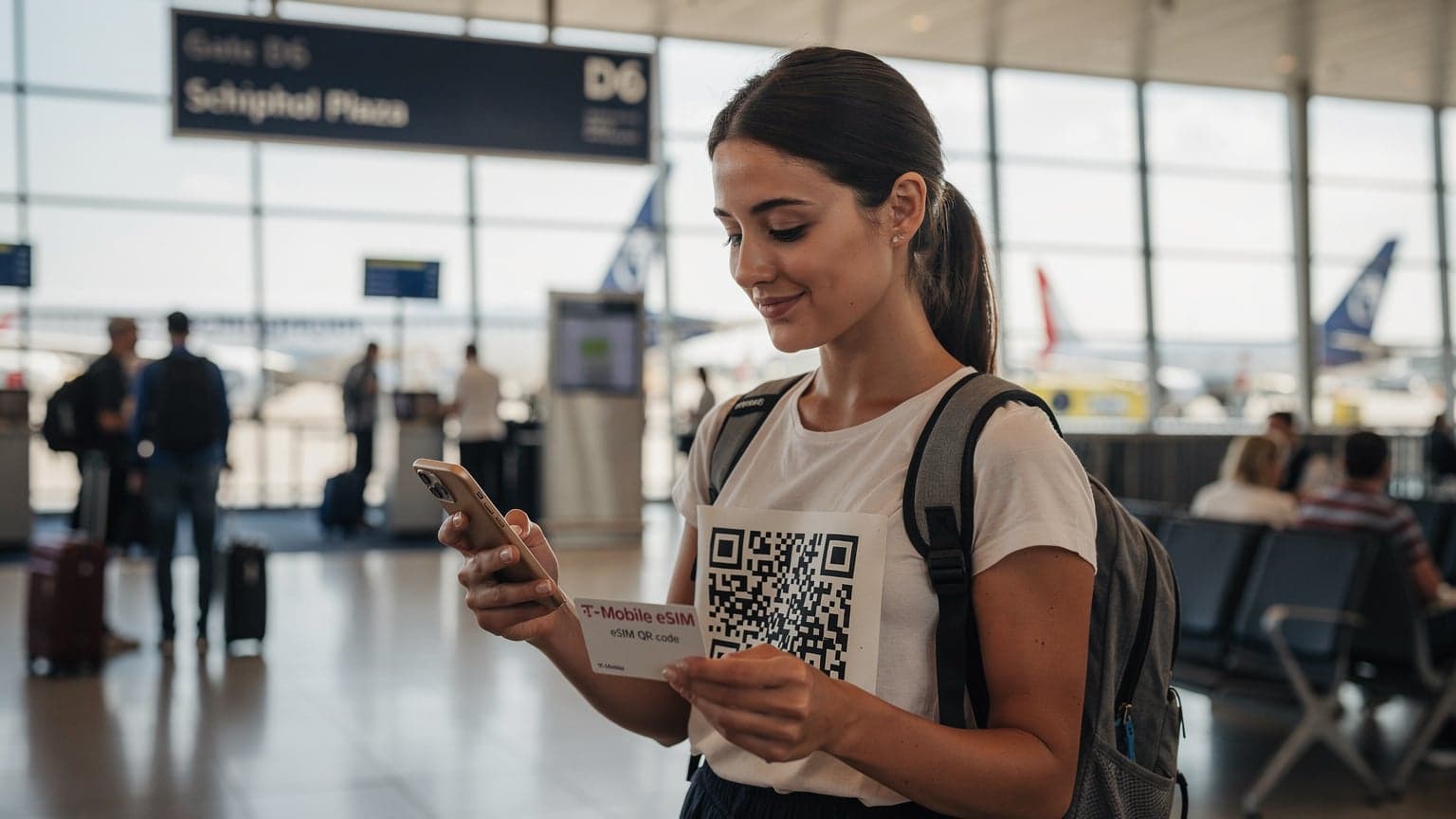
- Instant activation: Buy a plan online, scan a QR code, and you're connected. No waiting in line. I've activated an eSIM while my plane was taxiing to the gate in Barcelona's El Prat, ready to go the second we landed.
Security and Convenience on the Go
Losing a physical SIM card is a pain. It's tiny, easy to misplace, and means you lose your local number. An eSIM is built into your phone digitally, so you can't physically lose it. If your iPhone gets stolen, the eSIM is still linked to the device, making it harder for someone to just pop it out and use your data plan - an unlikely but unsettling thought when you're trying to keep your data secure in a foreign city.
Plus, for those of us traveling with family, keeping everyone connected is key. I've helped friends set up eSIM SMS for Families to make sure kids can always reach parents and that important verification codes come through without a hitch, even when abroad.
Getting Started: How to Activate an eSIM on Your iPhone
Activating an eSIM on your iPhone is usually pretty simple, assuming you bought a plan from a good provider. Most providers will give you either a QR code to scan or details to enter manually. I always go for the QR code; it's quicker and less likely to have typos.
Step-by-Step QR Code Activation
This is the most common and easiest way. Just make sure you have another device (a laptop, another phone) to display the QR code, or print it out if you're old school.
- Purchase your eSIM plan: Buy an eSIM plan from a provider like Cellesim. You'll usually get an email with a QR code and instructions.
- Open Settings on your iPhone: Tap the "Settings" app.
- Go to Cellular/Mobile Data: Tap "Cellular" or "Mobile Data."
- Add eSIM: Tap "Add eSIM" or "Add Data Plan."
- Scan QR Code: Choose "Use QR Code" and scan the QR code your eSIM carrier gave you. Your iPhone camera will open. Put the QR code in the frame.
- Confirm Activation: Follow the prompts on the screen. You'll typically be asked to name your new plan (like "Travel Data" or "Spain eSIM") and set it as your main option for data or certain contacts. I always label mine clearly, especially if I have multiple plans for different countries.
- Select Default Line: Pick which line (your main physical SIM or the new eSIM) will be used for data, and which for calls/texts. For travel, I usually keep my home SIM for calls/texts with Wi-Fi calling and set the eSIM for all data.
Within a minute or two, your iPhone should connect to the local network. You'll see the new carrier's name in your status bar. If you're having trouble, check out "iPhone 17 eSIM Abroad: Quick Fixes for New Device Activation (2026)" for common troubleshooting steps.
Manual eSIM Activation
Sometimes, a QR code isn't an option, or it just won't scan right (bad screen, glare, etc.). In these cases, manual entry is your backup.
- Purchase your eSIM plan: Get your manual activation details from your eSIM provider, usually an SM-DP+ Address and an Activation Code.
- Open Settings on your iPhone: Tap "Settings."
- Go to Cellular/Mobile Data: Select "Cellular" or "Mobile Data."
- Add eSIM: Tap "Add eSIM" or "Add Data Plan."
- Enter Details Manually: Choose "Enter Details Manually."
- Input SM-DP+ Address and Activation Code: Carefully type in the information you were given. This is where accuracy really counts - one typo will stop it from activating.
- Confirm Activation: Follow the rest of the on-screen prompts to label and set up your new plan.
It's a bit more work, but it gets the job done. Make sure your internet connection is stable during this process - a flaky hotel Wi-Fi can cause problems here.
Managing Multiple eSIMs: The Power of Dual-SIM
This is where iPhones really shine for people who travel a lot. With dual-SIM (one physical + one eSIM, or dual eSIM on newer models), you can easily manage several phone numbers and data plans. I often have my US number for banking and family, plus three or four eSIM profiles loaded for different regions. In Southeast Asia, for example, I'll load a Vietnam eSIM, a Thailand eSIM, and a regional Asia eSIM - ready to switch as I cross borders. My current iPhone 15 Pro, with its dual eSIM setup, handles this perfectly.
Switching Between eSIM Profiles
This is surprisingly easy:
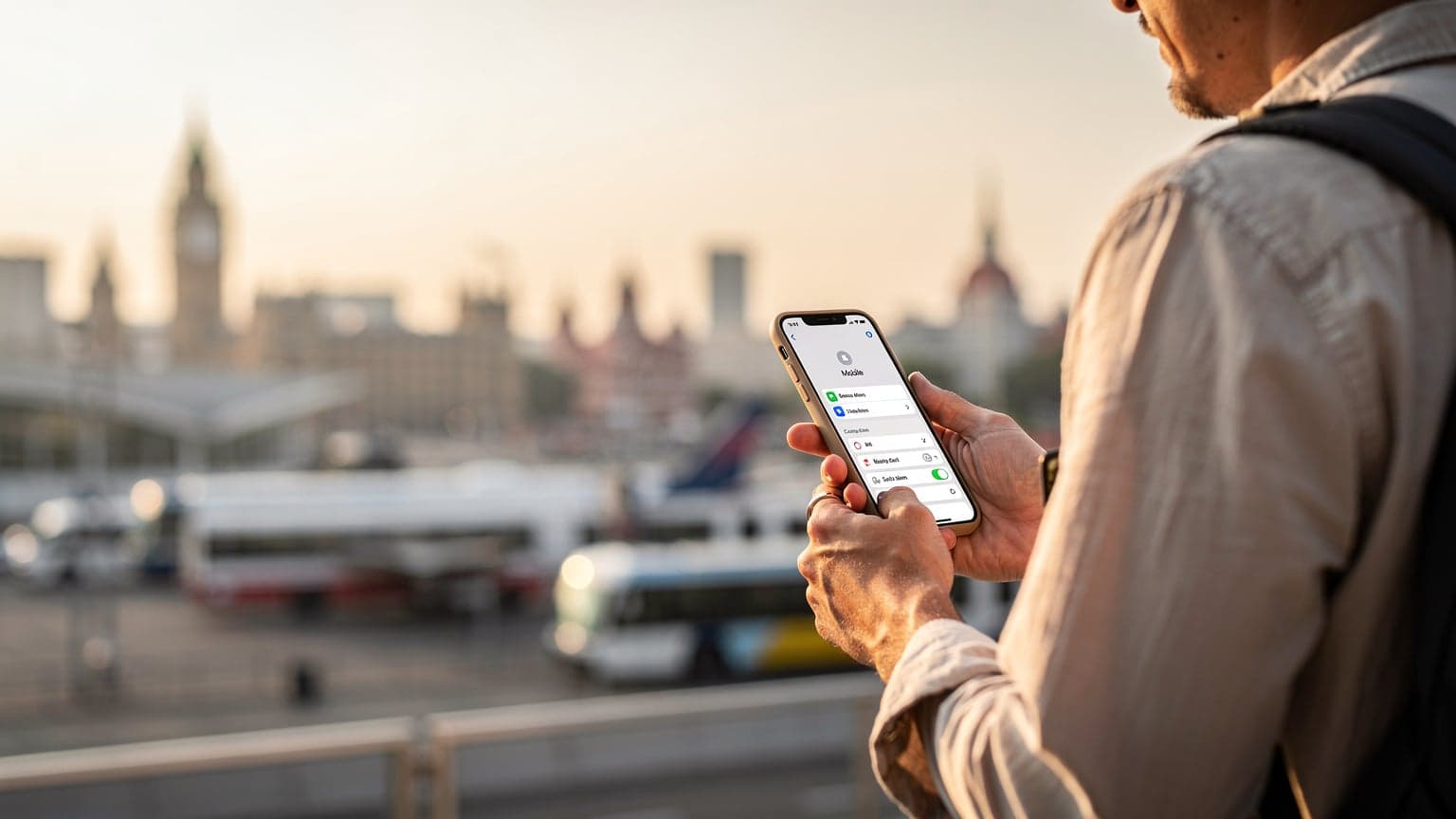
- Go to Settings > Cellular/Mobile Data.
- Tap "Cellular Plans" or "Data Plans." You'll see a list of your active and inactive eSIMs.
- Select the eSIM you want to use for data. Toggle "Turn On This Line" to activate it, and if it's not already, set it as your "Cellular Data" line.
You can also quickly turn off an eSIM if you don't need it, which stops any accidental data usage. I do this regularly when I'm staying in one place for a while and have a dedicated local SIM, but want to keep the eSIMs ready for my next trip.
Using Two eSIMs Simultaneously
On iPhone 15 series and newer, you can actually use two eSIMs at once. This is fantastic if you need two local numbers, or if you want to use one eSIM for data and another for local calls/texts. For instance, if you're living in Medellín, Colombia, you might have an eSIM from Claro for calls and texts (many local businesses still prefer calls) and a Cellesim data-only eSIM for cheap internet.
To set this up, you'll assign different functions to each active line in your Cellular settings: one for "Primary" calls/texts, another for "Secondary" calls/texts, and then specify which one handles "Cellular Data." It gives you incredibly precise control.
Troubleshooting Common eSIM Issues on iPhone
Even with how simple eSIMs are, things can sometimes go wrong. I've seen it all: "No Service" messages, slow data, activation errors. Most problems are small and can be fixed with a few basic steps.
No Service or Slow Data
This is the most common complaint. Before you freak out, try these:
- Check your data roaming settings: Go to Settings > Cellular/Mobile Data > [Your eSIM Plan] > Data Roaming and make sure it's ON. Many eSIMs are technically "roaming" on partner networks.
- Restart your iPhone: The classic fix, but it often works. It makes your phone re-register with the network.
- Check APN settings: Sometimes, the Access Point Name (APN) needs to be set manually. Your eSIM provider will give you these details. Go to Settings > Cellular/Mobile Data > [Your eSIM Plan] > Cellular Data Network and enter the APN. For example, some Cellesim plans might use "internet" or "data."
- Verify network selection: Your iPhone should automatically pick the best network. But if you're near a border or in an area with bad coverage, manually choosing a network can help. Go to Settings > Cellular/Mobile Data > [Your eSIM Plan] > Network Selection, turn "Automatic" off, then pick a strong local carrier.
- Contact support: If nothing else works, reach out to your eSIM provider's support. They can check if your plan is active and if there are any network-specific issues.
...a "No Service" message. If you're still running into persistent "No Service" issues, or other common problems like activation errors, here’s how to deal with them:
Activation Errors
You’ve scanned the QR code, but your eSIM just won’t activate. Annoying, right? Here’s your checklist:
- Stable Internet Connection: Make sure your iPhone has a good Wi-Fi connection during activation. eSIMs need to talk to the network to set themselves up.
- Re-scan QR Code: Sometimes, scanning it again quickly can fix a minor glitch. Ensure the QR code is clear and well-lit.
- Check for Pending Activations: In rare cases, a previous activation attempt might be stuck. Go to Settings > Cellular/Mobile Data and look for any "Activating..." messages. You might need to delete and re-add the plan.
- Verify Plan Details: Double-check that you're trying to activate the correct eSIM plan. Mistakes happen, especially if you've bought several.
- Contact Your eSIM Provider: If all else fails, your provider can confirm if the eSIM profile has been correctly set up on their end. They can often re-send activation instructions or help troubleshoot remotely.
Maximising Your eSIM Experience on iPhone for 2026 Travel
eSIM technology keeps getting better, so here are some advanced tips to make sure you get the most out of your iPhone for your 2026 trips:
Pre-Trip Preparation & Smart Purchasing
- Buy Before You Fly: Get your eSIM plan a few days or weeks before you leave. This lets you set it up at home with reliable Wi-Fi, avoiding last-minute stress when you land in a new country.
- Multi-Country Plans: For trips with multiple destinations, look for regional or global eSIM plans. Cellesim, for example, offers plans that cover many countries, making it easier to stay connected across borders without needing a new eSIM for each stop.
- Data-Only vs. Voice & Data: Decide if you need local calls and texts. Many travelers find data-only eSIMs are enough, using apps like WhatsApp, FaceTime, or Messenger for communication, which can be cheaper.
- Monitor Data Usage: Keep an eye on how much data you're using through Settings > Cellular/Mobile Data. This helps prevent running out unexpectedly and informs future plan purchases. Your iPhone even breaks it down by app.
Leveraging iPhone Features for Seamless Travel
- Label Your eSIMs Clearly: Go to Settings > Cellular/Mobile Data > [Your eSIM Plan] > Cellular Plan Label. Rename your eSIMs to something easy to understand, like "Mexico Data," "Europe Trip," or "Home Line." This avoids confusion when you're managing multiple plans.
- Conditional Activation: While it's not fully automatic, you can pre-load several eSIMs and only activate them when you arrive in a specific country. Keep them "Off" until you need them to prevent accidental data usage.
- Personal Hotspot with eSIM: Your eSIM data plan can power your personal hotspot, letting you share internet with laptops, tablets, or travel buddies. Just make sure your plan supports hotspot use.
- Emergency Services & Roaming: In 2026, iPhones still support emergency calls even without an active cellular plan. But having an active eSIM ensures you can be reached and use data for maps or information in an emergency.
Real-World Scenarios for the Modern Traveler
"Using an eSIM on my iPhone 15 Pro Max for my 3-month backpacking trip through Southeast Asia was a game-changer. I landed in Bangkok, scanned my Cellesim QR code, and was online before I even left the airport. No fumbling for local SIMs, no language barriers, just instant connectivity. I kept my home eSIM active for banking alerts and two-factor authentication, using the Cellesim data-only plan for everything else. Seamless." - Alex P., Digital Nomad, March 2026
- The Business Traveler: Juggling client calls across different time zones? Keep your main business line on one eSIM, and use a dedicated data eSIM for reliable internet in various countries. This way, you're always connected for video conferences and emails.
- The Family Vacationer: Grab a high-data regional eSIM for your iPhone. Use it for navigation, booking attractions, and keeping the kids happy with streaming. Then, use your Personal Hotspot to share data with other family devices.
- The Budget-Conscious Explorer: Research and buy data-only eSIMs for each country or region you're visiting ahead of time. Activate them only when you need them, ensuring you get the best local rates without being tied to long contracts.
Conclusion: Your iPhone, Your Global Connectivity Hub
By 2026, eSIMs are definitely the best choice for iPhone users on the go. Their unmatched flexibility, easy activation, and the ability to manage multiple plans right from your device turn your iPhone into the ultimate global connection tool. Say goodbye to physical SIM cards, awkward swapping, and those terrible roaming charges.
Whether you fly often, live as a digital nomad, or are just taking your yearly vacation, using eSIM technology on your iPhone will make your travel easier. It keeps you connected, informed, and in control, no matter where your adventures take you.
Ready to make your 2026 travels simpler? Check out Cellesim's wide range of affordable and reliable eSIM plans designed for global connectivity. Get your Cellesim eSIM today and experience truly free and easy travel.