
To find your eSIM number (EID) on iPhone, go to Settings > General > About and scroll to the Digital SIM section. Your EID will be listed there. If you’re on Android, you’ll typically find the EID under Settings > About phone > SIM status (or a similar path), usually in a field called 'eSIM ID' or 'EID'. This unique ID is super important for getting your service set up and for any support you might need.
eSIM Identification: Why It Matters More Than You Think
As a mobile network engineer, I've spent countless hours digging through network logs, fixing everything from dropped calls in busy cities to mysterious data dead zones in the countryside. Many travelers mostly care about download speeds (which is fair, especially for those Zoom calls from a Kyoto cafe), but understanding the unique identifiers of your mobile connection is just as important.
The eSIM number, officially called the Embedded Identity Document (EID), isn’t just a random string of digits. It's like the digital fingerprint of your embedded SIM, and it's absolutely necessary for activation, solving problems, and even moving your profile to a new device.
Think of the EID as a unique serial number permanently etched into your phone's eSIM chip. Unlike a regular physical SIM, which you can pull out to check its ICCID (Integrated Circuit Card ID), the eSIM's identity lives inside your device's hardware and software. That means finding it is a software job, and the steps can differ a bit between iOS and Android versions, and even between different Android phone makers. For example, when you’re activating an AT&T eSIM for families abroad, having that EID ready can save you a lot of time on a support call.
The Role of the EID in eSIM Provisioning
When you buy an eSIM from a provider like Cellesim, you usually scan a QR code or type in an activation code. Behind the scenes, this kicks off a secure request to your device using its EID. The EID acts like the address for the SM-DP+ (Subscription Manager, Data Preparation+) server, which then downloads your carrier profile to the eSIM. Without a valid EID, the server wouldn't know where to send the profile, making activation impossible.
This reliance on a unique, built-in identifier is a core security feature. It makes sure that only authorized devices can receive and store eSIM profiles, which helps prevent unauthorized copying or tampering. This is especially useful for travelers who frequently switch carriers or manage several profiles, like those using an eSIM for iPhones to avoid hefty roaming fees.
Decoding the EID: Understanding Your eSIM Identity
The EID is a 32-digit hexadecimal number. It's globally unique and follows GSMA standards. It's different from your IMEI (International Mobile Equipment Identity), which identifies the phone hardware itself, and your IMSI (International Mobile Subscriber Identity), which identifies your specific subscriber profile once an eSIM is active. Each of these plays a specific role in how your phone connects to the network.
| Identifier | Purpose | Format | Location |
|---|---|---|---|
| EID (Embedded Identity Document) | Identifies the embedded SIM hardware itself, for provisioning. | 32 hexadecimal digits | Device settings (About Phone/General > About) |
| IMEI (International Mobile Equipment Identity) | Unique serial number for the phone hardware. | 15-17 digits | Device settings, *#06#, printed on device/tray |
| IMSI (International Mobile Subscriber Identity) | Identifies the subscriber in the carrier's network. | Up to 15 digits | Carrier-specific, not always user-accessible |
| ICCID (Integrated Circuit Card ID) | Identifies a physical SIM card. | 19-20 digits | Printed on physical SIM card |
Frequently Asked Questions
What is an eSIM number (EID) and why do I need it?
The eSIM number, or EID (Embedded Identity Document), is a unique 32-digit identifier for your phone's embedded SIM chip. You need it for activating new eSIM profiles, troubleshooting connectivity issues with your carrier, or transferring an eSIM profile to a new device.
Can I find my eSIM number if I haven't activated any eSIM yet?
Yes, the EID is a hardware identifier, meaning it's permanently assigned to your device's eSIM module. It's present even if you haven't installed any eSIM profiles yet. You can still locate it through your phone's settings menus as described in this guide.
Is the eSIM number the same as my phone's IMEI?
No, the eSIM number (EID) is distinct from your phone's IMEI (International Mobile Equipment Identity). The IMEI identifies the phone hardware itself, while the EID identifies the embedded SIM chip within the phone, a critical distinction for network provisioning.
What should I do if my phone doesn't show an eSIM number?
First, ensure your phone actually supports eSIM technology. If it does, check for any pending software updates. If the EID is still not visible, consult your device manufacturer's support documentation or contact their customer service, as there might be a specific path for your model or a rare hardware issue.
Can I change my eSIM number?
No, the EID is a permanent, factory-assigned identifier for the embedded SIM hardware. It cannot be changed or modified by the user or even by carriers. If you need a new identifier for a new service, you would be getting a new eSIM profile, not changing the EID itself.
Do I need my eSIM number to switch eSIM providers?
While you don't typically need your EID to install a new eSIM profile from a different provider, it's good to have it on hand. Some providers might request it for manual activation or advanced troubleshooting, especially if their standard QR code activation process encounters an error.
The Technical Nuance: How EIDs Enable Remote Provisioning
From an engineering perspective, the EID is fundamental to remote SIM provisioning (RSP). When you activate an eSIM, your device sends its EID to the provisioning server. This server, usually run by your eSIM provider, uses the EID to identify your device's eSIM module and start the secure download of the profile. This profile contains all the necessary network settings: PLMN (Public Land Mobile Network) IDs, APN settings, and cryptographic keys needed to authenticate with the network.
Knowing this process helps explain why certain network problems happen. If an eSIM profile doesn't download correctly due to a server error or a temporary network glitch during provisioning, the EID is the main reference point for support agents to restart the process or figure out exactly what went wrong. It's the fixed address that allows the system to talk to your phone's eSIM hardware, a crucial part of the 3GPP standards.
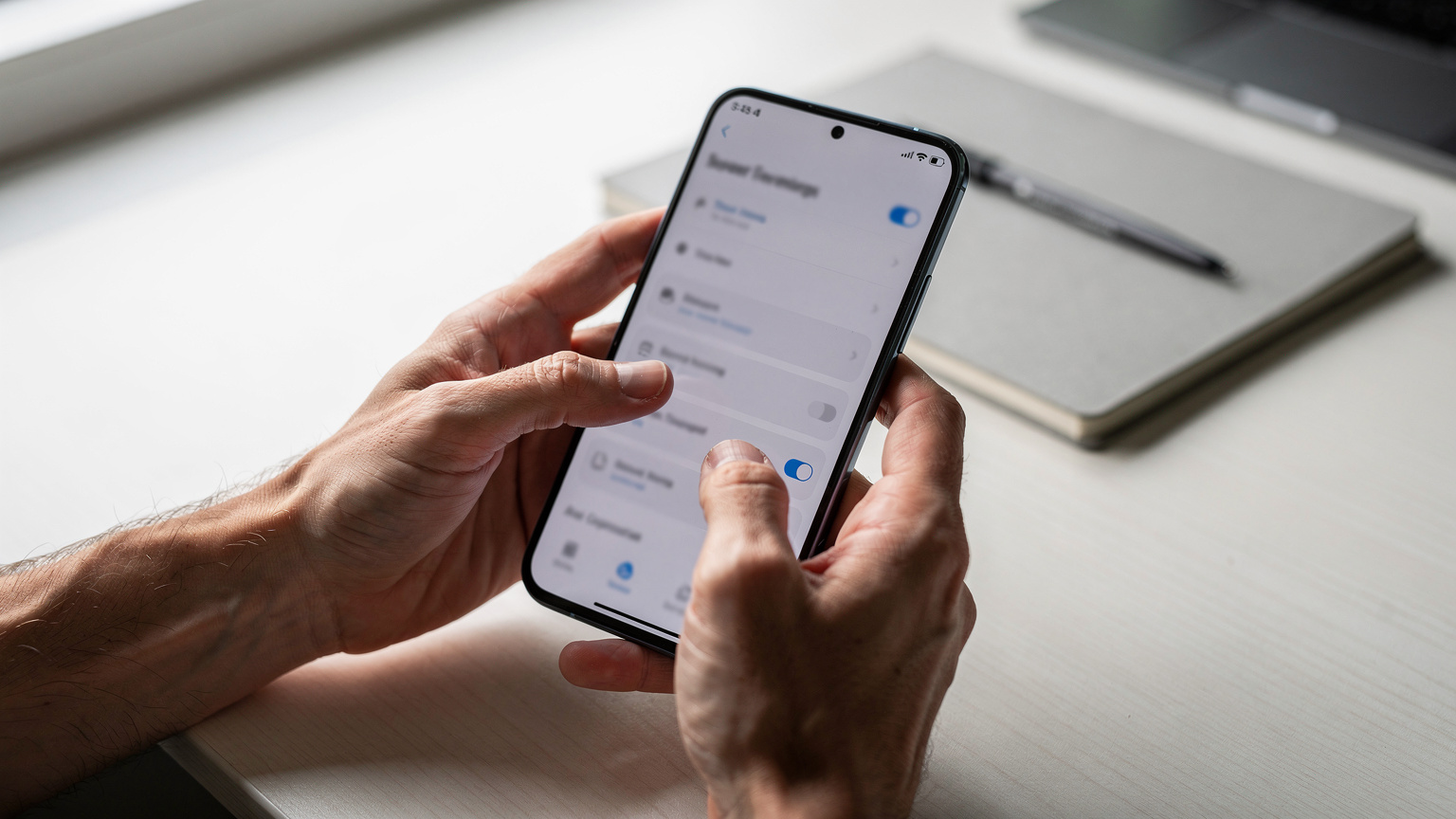
Finding Your eSIM Number on iPhone (iOS 16 and Newer)
Apple has made managing eSIMs much simpler in recent iOS versions. While the EID might have been hidden deeper before, iOS 16 and newer make it pretty easy to find. The trick is knowing exactly where to look, since it’s not always clearly labeled 'EID'.
Step-by-Step Guide for iPhones
- Open Settings: Tap the grey 'Settings' icon on your Home screen.
- Navigate to General: Scroll down and tap 'General'.
- Access About: Tap 'About'. This section has all your device's important info.
- Locate Digital SIM/EID: Scroll past your IMEI numbers. You’ll usually see a section called 'Digital SIM' or 'eSIM'. Underneath this, you’ll find a 32-digit number labeled 'EID'. Write this number down.
- Identify the Specific eSIM: If you have multiple eSIM profiles installed, the EID shown here is the device's main EID. To see the specific details of an installed eSIM profile, go back to Settings > Cellular (or Mobile Data) > {Your eSIM Plan} and look for details there. But remember, the device's core EID stays the same.
For those juggling multiple profiles, like a main local SIM and a Cellesim eSIM for Japan, it's vital to know which profile is active and its associated data. Apple's interface usually lists each plan clearly, letting you switch between them. Also, keep VoLTE (Voice over LTE) capabilities in mind. While most modern eSIMs support VoLTE, older devices or certain carrier combinations might drop to 3G for calls, which could affect call quality in areas where 3G is being phased out (like parts of rural Japan).
iPhone eSIM Activation and Troubleshooting with EID
When activating a new eSIM, especially if scanning the QR code doesn't work, your provider might ask for the EID. This is a common backup method. For instance, if you're trying to set up a T-Mobile eSIM QR code for international travel and run into problems, giving them the EID lets T-Mobile push the profile directly to your device's embedded hardware.
A typical troubleshooting scenario involves a failed profile download. If the SM-DP+ server (Subscription Manager Data Preparation+) can't push the profile, or if there's a temporary network issue, the EID is your key. A support agent can manually try pushing the profile again using this identifier, ensuring the correct profile (e.g., for LTE bands B3/B7 in Europe or n78 for 5G in South Korea) is installed. Without the EID, they'd be completely guessing.
Locating Your eSIM Number on Android: A Multi-Vendor Approach
Android is an open system, which means that while the basic function is the same, the exact menu path to find your eSIM number can be quite different depending on the manufacturer, like Samsung, Google Pixel, Xiaomi, and OnePlus. However, the general idea remains consistent: look in the 'About phone' or 'Network & Internet' sections of your Settings app.
Step-by-Step Guide for Google Pixel Devices
Google Pixel phones, running standard Android, usually have the easiest path:
- Open Settings: Tap the 'Settings' icon.
- Navigate to Network & internet: Tap this option.
- Find SIMs: Tap 'SIMs' or 'Mobile network'.
- Locate eSIM Details: Under the 'eSIM' section, tap on the relevant eSIM profile (if you have more than one). You should see an option like 'eSIM ID' or 'EID' listed there.
- Alternatively, via About Phone: Some Pixel models also list it under Settings > About phone. Scroll down to 'eSIM ID' or 'EID'.
Step-by-Step Guide for Samsung Galaxy Devices
Samsung, with its One UI interface, has a slightly different navigation:
- Open Settings: Tap the 'Settings' icon.
- Navigate to Connections: Tap 'Connections'.
- Find SIM manager: Tap 'SIM manager'.
- Locate eSIM Information: Under the 'eSIMs' section, you'll see your active eSIM profiles. Tap on one, or look for an 'EID' or 'eSIM ID' option here. On some models, you might need to tap 'More SIM settings' or 'About SIM manager'.
General Android Troubleshooting Tips
If you're having trouble finding it, try these common paths for other Android devices:
- Settings > About phone > SIM status > EID
- Settings > Mobile network > Advanced > eSIM
- Settings > System > About phone > EID
One oddity with some Android devices, especially older ones or those with heavily customized manufacturer skins, can be the APN (Access Point Name) configuration. While most eSIMs set up the APN automatically, I've seen rare cases where a wrong or missing APN caused data connection problems, even after the eSIM was installed successfully. Always double-check your Cellesim provider's recommended APN settings if data isn't working, even after a successful eSIM installation. For instance, some carriers might need a specific 'IPv6 only' APN, which could cause issues on devices that default to IPv4 or have CGNAT configurations. When working remotely in places like Georgia, a reliable connection for video calls is essential, so these details matter for Tbilisi Digital Nomad Visa holders.

Troubleshooting Common eSIM Number Retrieval Issues
It's not unusual to hit a snag when you're trying to find your eSIM number, especially if you're in a rush or using a phone you're not familiar with. As an engineer, I can tell you that most problems come from either an old operating system, a heavily customized Android interface, or simply not knowing the exact terms your device uses.
Outdated Operating System
Make sure your device is running the latest stable version of its operating system. Older iOS or Android versions might have different menu layouts, or in rare cases, might not fully support eSIM functions in a way that makes the EID easy to find. An OS update often fixes these inconsistencies.
Device-Specific Quirks and Customizations
Some Android phone makers (Original Equipment Manufacturers) hide or rename standard Android settings. If the common paths don't work, try searching directly within the Settings app for terms like