
Why Your eSIM Number is Your Travel BFF
When you're traveling, every penny counts. And when your data connection craps out, you start losing money trying to fix it. Your eSIM Identification Document, or EID, isn't just a bunch of numbers. It's your digital lifeline. Think of it like the serial number for your digital SIM profile.
Without it, customer support - whether from your Nomad eSIM provider or a local carrier - can't confirm your profile or help you troubleshoot. It's the only way to get back online without burning through your cash.
I learned this the hard way. I once spent 8 days in rural Georgia, only to realize my brand-new eSIM wasn't connecting to the local Magti network. I'd bought a plan for €28, thinking I was all set. Turns out, a small typo during activation meant my profile was stuck. I needed my EID to get Cellesim support to remotely reset it. That's 8 days of scrounging for hostel Wi-Fi and paying €0.50 per text message from my UK number. Total spent on data for that trip: €28 for the eSIM, plus another €15 on local café Wi-Fi and emergency SMS. If I'd known how to find that EID instantly, I would have saved at least €10 and a ton of stress.
What is an EID and Why is it Crucial?
The EID is a unique, 32-digit code baked right into your device's eSIM chip. It's like the IMEI for your phone, but specifically for the eSIM hardware. Every device that can use an eSIM has one. When you buy an eSIM plan, your provider connects that plan to your device's EID. This is how they get your service running and make sure your data package lands on your specific phone or tablet.
Its importance boils down to three key things:
- Activation: Some providers need you to type in your EID during setup, especially if scanning a QR code doesn't work.
- Support: When you need help, the first thing any support person will ask for is your EID. It lets them find your profile in their system and figure out why you're not connected.
- Transfer: Moving an eSIM from one device to another often means verifying the EID of both your old and new devices.
Common Scenarios Where Your EID Saves the Day
Imagine you're at the border, going from Laos to Cambodia. The bus is waiting, and suddenly, your data quits. You have an eSIM that covers multiple countries, but it won't connect to Cellcard or Smart. The local SIM card seller at the border is pushing cards for 5,000 Riel (about €1.15) for 1GB, but you just bought 5GB for €12 online. You need to call support. They will ask for that EID. Without it, you're either buying the overpriced local SIM or praying for Wi-Fi at the next hostel.
Here's another one: You're trying to activate a new eSIM for your family's iPhone abroad, but the QR code won't scan. The provider tells you to enter the details manually, including the EID. Without it, that €40 family data plan is useless. Trust me, it's much better to know where this number is before you even leave home.
Finding Your eSIM Number on iPhone (iOS 18 Update)
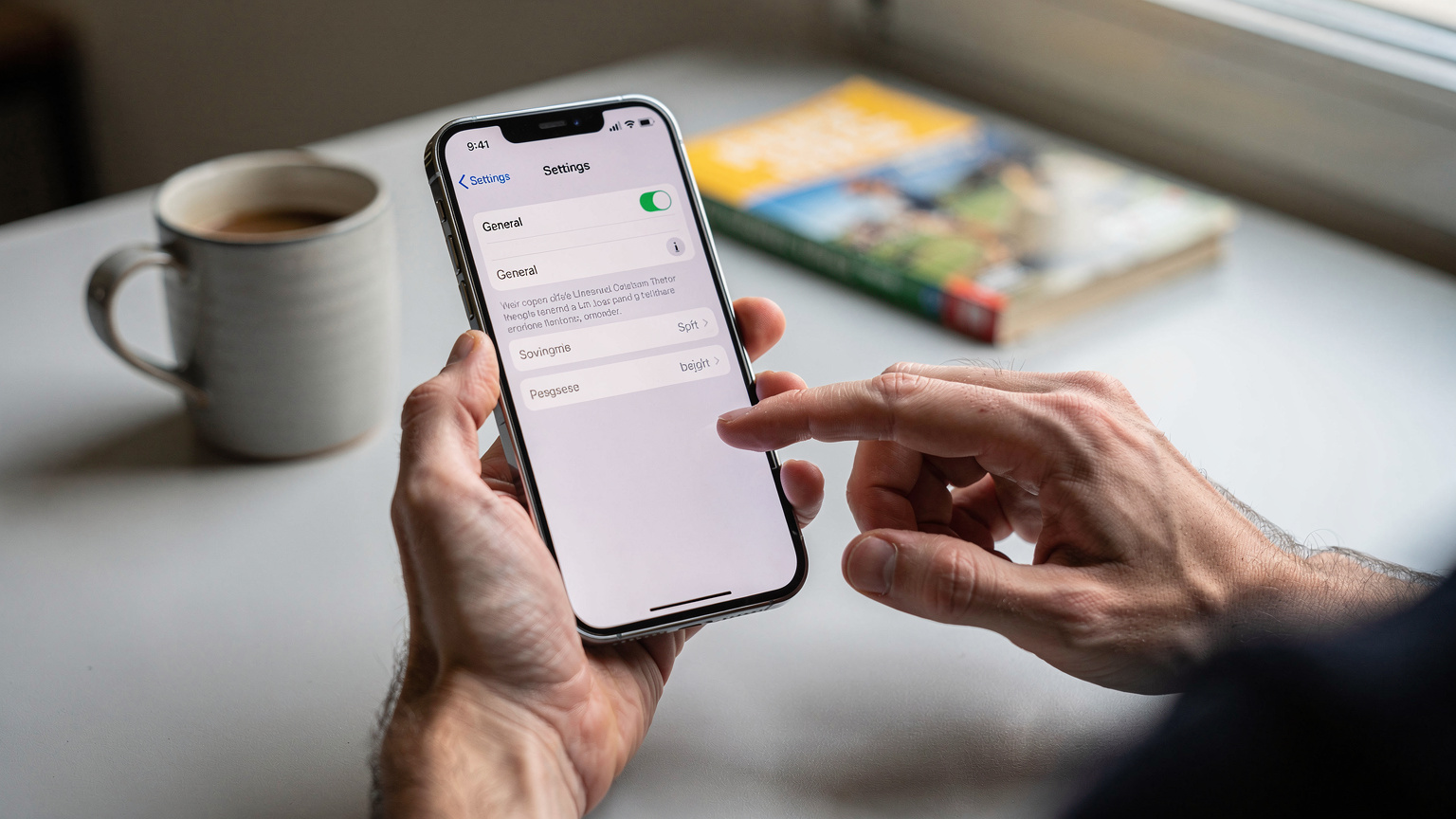
Apple makes finding your EID pretty simple, and it hasn't changed much with the latest iOS 18 updates. It's usually tucked away in the 'About' section, along with all your other device info. This process is the same across all eSIM-compatible iPhones, from the iPhone XS/XR up to the iPhone 15 series.
Step-by-Step Guide for iPhone Users:
- Open Settings: Tap the gray 'Settings' icon on your home screen.
- Go to General: Scroll down and tap 'General'.
- Tap About: Select 'About' from the General menu.
- Find EID: Scroll down again. You'll see a section labeled 'EID'. Your eSIM number is the 32-digit string shown there. You can tap and hold it to copy, which is super helpful for pasting into support chats or forms.
What if Your EID isn't Visible?
Sometimes, especially if you haven't activated any eSIMs yet, the EID might not show up right away. If you don't see it, it's usually for one of two reasons:
- No eSIM Profile Activated: Your phone has the eSIM hardware, but until you add an eSIM profile (even a free trial), the EID might stay hidden. Try activating a dummy eSIM or a small, cheap plan, then check again.
- Software Glitch: A quick restart often fixes minor display problems. If that doesn't work, make sure your iOS is up to date. Major updates sometimes include firmware fixes for eSIM functions.
Locating Your eSIM Number on Android Devices
Android phones, in all their wonderful variety, can have slightly different menu layouts. What works for a Samsung Galaxy might be a bit different for a Google Pixel or a Xiaomi. Still, the general way to find your EID is pretty similar across most newer Android phones that support eSIM.
Step-by-Step Guide for Android Users:
- Open Settings: Find and tap the 'Settings' icon, usually a cogwheel.
- Look for 'About Phone' or 'About Device': Scroll down and tap on 'About Phone', 'About Device', or sometimes just 'System'.
- Find SIM Status or eSIM Information: Inside 'About Phone', you'll typically see 'SIM status', 'eSIM information', or something similar under 'Network & Internet'. Tap this.
- Identify EID: Your EID will be listed here. On some devices, you might need to tap a specific eSIM profile to see its details.

Android Variations: Samsung, Pixel, and Others
Here's a quick guide for the popular brands:
| Device Brand | Typical Path to EID | Notes |
|---|---|---|
| Samsung Galaxy | Settings > Connections > SIM manager > Tap on your eSIM > EID | Often listed directly under the eSIM profile. |
| Google Pixel | Settings > Network & Internet > SIMs > Tap on your eSIM > EID | Very clean and direct interface. |
| OnePlus/Xiaomi | Settings > About Phone > SIM status / Device identifiers > EID | Can vary; sometimes requires a deeper dive into 'Device identifiers'. |
Uncovering Your eSIM Number on Windows Laptops
It's not just phones using eSIMs anymore. Many modern Windows laptops, especially those built for business travel or with always-connected features, come with eSIM support. This means you can keep working with mobile data without hunting for Wi-Fi or using your phone's hotspot, which is a lifesaver when you're on a long train ride or stuck in an airport lounge at Charles de Gaulle.
Step-by-Step Guide for Windows Users:
- Open Settings: Click the 'Start' button, then the 'Settings' cogwheel icon.
- Go to Network & Internet: In the Settings window, select 'Network & Internet'.
- Select Cellular: From the left-hand menu, click on 'Cellular'.
- Manage eSIM Profiles: Under the 'Cellular' section, look for 'Manage eSIM profiles'. Click this.
- Find EID: Here, you'll see a list of any installed eSIM profiles. Select the right profile (or click 'Properties' if it's there) and your EID will be shown.
This is super useful for business travelers who need consistent internet for video calls and secure email. Imagine trying to upload that last-minute report before your meeting, and your hotel Wi-Fi dies. Having a reliable eSIM on your laptop, and knowing its EID for quick troubleshooting, can literally save your job. For more on staying connected in the US, check out eSIMs for a USA road trip.
Why Windows eSIMs are a Game Changer for Budget Travelers
My Substack focuses on €40/day budgets, but sometimes you just need to get work done. A laptop with an eSIM means you don't have to shell out for expensive hotel Wi-Fi or hunt for a cafe with decent speeds. You can buy a Cellesim USA plan for your laptop for, say, €15 for 5GB, and stretch that over a week. If you use around 500MB per day for emails and light browsing, that's 5GB / 0.5GB per day = 10 days of internet for €15. Compare that to a €5/day hotel Wi-Fi charge, and you're saving €35. That's a week's worth of hostel beds in many parts of Southeast Asia. It's smart budgeting, not luxury.
The Real-World Impact of a Missing eSIM Number: Border Crossings and Beyond
I've seen it, and honestly, I've been there myself. Not having your EID when you're in a tough spot is like having a car without its VIN. It just adds layers of headaches and stress to an already tense situation. Border crossings are perfect examples.
Border-Crossing Edge Cases
Picture this: You're crossing from Thailand into Malaysia by bus. You have a great multi-country eSIM that worked perfectly in Thailand, but suddenly, no data in Malaysia. You try the usual tricks: resets, airplane mode on/off, but nothing. You contact your eSIM provider's support, and they ask for your EID. You're trying to find it on your phone while the bus is stuck at immigration, people are staring, and the queue behind you is getting longer. This is absolutely not the time to be fumbling through menus you've never looked at.
Or imagine flying from the UK to Spain, post-Brexit. You thought your O2 contract's roaming would cover it. Then you get a text: 'Welcome to Spain! Roaming charges apply: £2/MB.' Suddenly, that €18 Cellesim Europe plan for 10GB looks like a steal compared to your potential bill shock. You try to activate it, but the QR code is being finicky. The manual activation asks for the EID. Without it, you're either paying O2 a fortune or trying to buy a physical SIM at Madrid-Barajas Airport for €30 (which, trust me, is not the best deal).
The Cost of Connectivity Fumbles
Let's crunch the numbers. On my last trip through the Balkans, I used about 750MB of data per day. Over 14 days, that's 10.5GB. A local physical SIM from A1 in Serbia cost me about 1,000 Dinar (€8.50) for 10GB. A Cellesim eSIM for the same region cost €15 for 10GB. The difference is €6.50. Now, if my eSIM failed, and I didn't have the EID to fix it, I'd either be stuck with no data or paying my UK carrier, EE, a brutal £2.50/day roaming charge. That's £35 (about €41) for 14 days, just for basic internet. Or I'd waste time and money hunting down a local SIM. The €6.50 saving from the local SIM is tiny compared to the cost of being unprepared.
Troubleshooting Common eSIM Issues with Your EID
The EID is your best friend when things go wrong. It's the unique code that lets your provider see exactly what's happening with your service on their network. Think of it as your digital passport for data. Without it, getting real help is like trying to check into a hostel without your booking reference - a recipe for frustration and extra costs.
When to Provide Your EID to Support
- Activation Failure: If your eSIM won't activate after scanning a QR code or manual input.
- No Network Connection: You've installed the eSIM, but your phone shows no signal or 'No Service'.
- Data Not Working: You have a signal, but can't get online. This often points to APN settings problems.
- Transfer Problems: If you're trying to move an eSIM to a new device and run into errors.
- Billing Discrepancies: In rare cases, if there's an issue with your plan's data allowance or how long it's valid.
Diagnosing Common Problems
Most eSIM issues come down to a few main problems. Your EID helps the support team quickly figure out which one it is:
| Problem Symptom | Likely Cause | How EID Helps |
|---|---|---|
| No Signal/No Service | eSIM not set up correctly, device compatibility, network roaming turned off. | Lets the provider check activation status and network access on their end. |
| Data Not Working (with Signal) | Wrong APN settings, data roaming off, plan expired. | Allows remote confirmation of plan validity and proper APN setup. |
| Slow Data Speeds | Network congestion, fair usage policy slowing you down, device settings. | Helps identify if your specific profile is being throttled. |
Always have your EID ready when you contact Cellesim support or any other provider. It speeds up fixing things dramatically. You don't want to be in a foreign country, trying to explain your problem in broken English over a bad public Wi-Fi connection, only to be asked for a number you can't find.
eSIM vs. Physical SIM: The Real Cost Breakdown
I'm a budget backpacker, so I live by the numbers. And when it comes to data, eSIMs usually win, especially for trips through multiple countries. But for just one country, a local physical SIM can sometimes be cheaper, depending on where you are.
The Cheapest Local SIM Alternative
Let's be honest. In places like Vietnam or Thailand, you can get a physical SIM from a big carrier like Viettel or AIS for as little as 100,000 VND (around €3.70) for 5GB. Sometimes even less. You walk into a 7-Eleven, show your passport, and you're good to go. The whole thing is quick, often under 5 minutes, and the cost is fantastic for a short visit. This is the baseline.
However, once you cross a border, that physical SIM is useless. You'll need to buy another one. That means two SIMs, two activations, two registration processes. For a two-week trip through, say, Vietnam, Cambodia, and Thailand, you're looking at three physical SIMs, likely costing you €10-€15 total, plus the time spent. And good luck getting support in English if something goes wrong.
The eSIM Advantage: Flexibility and Multi-Country Savings
This is where eSIMs shine. For that same multi-country trip, a Cellesim ASEAN plan for €25 might give you 10GB across all three countries. That's an extra €10-€15 upfront, but you get:
- One-time activation: Install it once, use it everywhere.
- English-speaking support: Crucial when you're trying to fix something from a hostel in Siem Reap.
- No physical SIM swaps: No losing tiny plastic cards.
- Instant activation: No hunting down a store or registering your passport.
For someone visiting several countries, the ease and reliable support of an eSIM often beat the slightly higher upfront cost of a local physical SIM. For more details on avoiding unexpected charges, check our guide on AT&T eSIM for International Travel.
How to Transfer Your eSIM Safely with Your EID
Upgrading your phone? Need to move your active eSIM plan to your shiny new device? Your EID is vital for a smooth transfer. While many newer phones, especially iPhones, have easy eSIM transfer options, sometimes you'll need that EID to manually move it or to give to your carrier.
EID for Apple's Quick Transfer Feature
Apple's iOS has a pretty cool feature that lets you transfer an eSIM from an old iPhone to a new one during setup, or later through the Cellular settings. This often works perfectly, but behind the scenes, your EID is used to talk to the carrier's systems to put your profile on the new device.
If the automatic transfer fails, your carrier might ask for the EID of both the old and new devices to do a manual transfer. That's why it's smart to have both ready, just in case.
Manual eSIM Transfer Process
For Android devices, or if Apple's automatic transfer isn't an option (like if you sold your old phone before getting a new one), you'll typically follow these manual steps:
- Deactivate eSIM on Old Device: Go to Settings > Cellular/Network & Internet, pick your eSIM profile, and choose 'Remove Data Plan' or 'Delete eSIM'. Confirm the deletion.
- Note Old EID (Optional, but Smart): Before deleting, write down the EID from your old device, just in case.
- Contact eSIM Provider: Tell your provider (like Cellesim) that you want to move your active plan to a new device. They will likely ask for the EID of your *new* device.
- Receive New QR Code/Activation Details: Your provider will send you a new QR code or manual activation details for your plan, linked to your new device's EID.
- Install on New Device: Follow the usual eSIM installation steps on your new phone using the new QR code or details.

This process makes sure that your existing data plan, which you've already paid for, isn't lost. It's a crucial step for sticking to your budget and avoiding buying a whole new plan just because you upgraded your phone.
Securing Your eSIM Number: Best Practices
Your EID is a unique identifier, but it's not as sensitive as, say, your credit card number or passport. Still, it's part of your device's identity, and like any other piece of personal tech info, it's best to keep it private.
Why Keep Your EID Private?
While an EID alone can't give someone access to your personal data or phone, it could potentially be used with other information to pretend to be you to a carrier. For example, if someone had your EID and other personal details, they might try to transfer your eSIM profile to their device, basically stealing your data plan or even your phone number. This is rare, but why risk it?
Tips for Protecting Your EID
- Only Share with Trusted Support: Only give your EID to official customer support when they specifically ask for it to troubleshoot or activate something.
- Avoid Public Display: Don't post screenshots of your 'About Phone' or 'Settings' pages on social media, as these often show your EID.
- Secure Your Device: Always keep your phone, tablet, or laptop locked with a strong passcode, PIN, or biometric security. This stops unauthorized people from getting into your settings, including your EID.
- Be Wary of Phishing: If you get an unexpected email or message asking for your EID, be suspicious. Always double-check if the sender is legitimate.
By being careful about where and when you share your EID, you add another layer of security to your digital life, ensuring your travel internet stays yours. For common questions about eSIMs and more, remember to check out our Cellesim FAQ page.
Frequently Asked Questions
What is an eSIM number (EID)?
An eSIM Identification Document (EID) is a unique 32-digit serial number built into your device's eSIM chip. It identifies your eSIM hardware globally and is essential for activating, managing, and troubleshooting your digital SIM profiles with network providers.
Can I have multiple EID numbers on one device?
No, each eSIM-compatible device has only one fixed EID number, as it's tied to the physical eSIM chip inside the device. However, you can store multiple eSIM *profiles* on a single EID.
Why is my EID not showing up in my phone's settings?
If your EID isn't visible, it might be because no eSIM profile has been activated on the device yet. Try installing even a small, free eSIM plan, and then check again. A simple device restart or making sure your operating system is updated can also fix display issues.
Is my EID the same as my phone's IMEI?
No, the EID is different from your phone's International Mobile Equipment Identity (IMEI). The IMEI identifies the physical phone hardware itself, while the EID specifically identifies the embedded eSIM chip within that device.
Can I transfer my EID to another phone?
You cannot transfer an EID, as it's permanently linked to your device's hardware. However, you can transfer your *eSIM profile* (your data plan) from one device to another. This usually involves your carrier using the EID of your new device to set up your existing plan.
What should I do if my eSIM isn't working and I can't find my EID?
First, try restarting your device and checking your settings again. If it's still not showing, contact your eSIM provider's support. They might have other ways to confirm your account, but finding your EID should be your top priority for a quicker fix.