
Activate That eSIM, Buddy: The First Check
You've just landed, you're tired, and you're ready to head to your hostel in Palermo, Sicily. You grab your phone to call a Bolt, but nothing. No service. Before you panic, let's start with the absolute basics: is your eSIM actually turned on and ready to go?
Lots of eSIMs, especially those bought for a specific trip, don't automatically kick in until you arrive in the country. Some even need a manual flip of a switch. I've seen travelers waste an hour at Warsaw Chopin Airport because they missed this simple step. Don't make that mistake. Check the easy stuff first.
Is Your eSIM Line Turned On?
This sounds obvious, but it's the number one beginner's mistake. Your phone might have several SIM profiles, and the one you need for your current destination could be off. It's like trying to drive a car with an empty gas tank - it just won't go anywhere.
- Go to Settings: On iPhones, you're looking for 'Cellular' or 'Mobile Data'. Android users will usually find it under 'Network & Internet' then 'SIMs' or 'Mobile network'.
- Select Your eSIM: You'll see a list of all your installed SIMs and eSIMs. Tap the one you want to use.
- Toggle 'Turn On This Line' or 'Enable SIM': Make sure this switch is ON. If it's off, your phone isn't even trying to connect.
- Set as Primary for Data: While you're there, make sure this eSIM is chosen as the main line for 'Cellular Data' or 'Mobile Data'. This tells your phone which connection to prioritize.
Check Your Cellular Data Settings: The Obvious, But Overlooked
Sometimes the eSIM itself isn't the problem, but how your phone is set up to use it. Think of it like having the right bus ticket but waiting at the wrong stop. The connection is there, but your device isn't looking for it in the right place.
I once had no data in Portugal while using a local Vodafone SIM. Turns out, I'd accidentally left my phone set to use my dormant T-Mobile US physical SIM for data. Rookie error. It cost me €5 in a pinch before I figured it out. Every euro counts when you're trying to stick to a €40/day budget.
Ensure Data Roaming is Enabled for Your eSIM
This is super important. Even though an eSIM is built for international travel, your phone still considers connections outside your "home" network as 'roaming'. If you've turned off data roaming globally, or specifically for that eSIM profile, you're out of luck. It's not about paying roaming fees if you have an active eSIM plan; it's about allowing your phone to connect to foreign networks.

APN Settings: The Secret Sauce for Connectivity
APN, or Access Point Name, is basically the gateway that links your phone to the internet. Most eSIMs set this up automatically, but not always. If your eSIM says 'no service' or only 'E' for Edge (which is basically useless dial-up speed), incorrect APN settings are a likely suspect. This is especially common if you grabbed a cheap local SIM from a dodgy vendor near a bus station; they often don't pre-configure this.
I've had to manually enter APN settings for some obscure local providers in Southeast Asia, and it's always a bit of a scavenger hunt. The instructions usually come on a tiny folded leaflet that looks like it was printed back in 2005. Stick to reputable eSIM providers, and they generally handle this behind the scenes.
How to Manually Configure Your APN
- Find APN Settings:
iPhone: Settings > Cellular > Cellular Data Network.
Android: Settings > Network & Internet > Mobile network > Advanced > Access Point Names. - Add a New APN: Look for a '+' icon or an option to 'Add new APN'.
- Enter Details: Your eSIM provider should give you the specific APN name. Common ones are 'internet', 'data', or 'm2m'. Usually, you only need to fill in the 'APN' field. Leave username, password, proxy, etc., blank unless they tell you otherwise.
- Save and Select: Save the new APN and make sure it's chosen as the active one.
| Provider Type | Common APN | Notes for Travelers |
|---|---|---|
| Cellesim eSIM | Usually automatic | Rarely requires manual input. Check provider's FAQ if issues persist. |
| Local Physical SIM (e.g., Vodafone PT) | internet.vodafone.pt | Often specific to carrier and country. Can be found on their website. |
| Budget MVNO (e.g., LycaMobile) | data.lycamobile.com | More prone to requiring manual APN setup. |
Manual Network Selection: Force a Connection When All Else Fails
Your phone usually tries to connect to the strongest network by itself. But sometimes, it gets stuck. Imagine your phone trying to flag down a taxi, but it keeps trying the same empty taxi stand, ignoring the busy one right across the street. Manual network selection forces your phone to scan for all available networks, letting you pick one. This is super helpful in border areas or places with spotty coverage.
I remember being on a night bus from Budapest to Krakow. As we crossed into Slovakia, my eSIM died. Turns out, my phone was clinging to a weak Hungarian signal instead of picking up a strong Slovakian one. A quick manual scan, and I was back online, checking hostel reviews for Krakow (I ended up at Greg & Tom Hostel, decent for €15 a night).
Steps for Manual Network Selection
- Access Network Selection:
iPhone: Settings > Cellular > Network Selection. Turn 'Automatic' off.
Android: Settings > Network & Internet > Mobile network > Network operators. Turn 'Choose automatically' off. - Scan for Networks: Your phone will now scan and show a list of available carriers.
- Select a Network: Try connecting to each network one by one. If one doesn't work, try another. You're looking for one that allows your eSIM to register and provide service. Your eSIM provider usually partners with specific local carriers, so if you know those names, try them first. For example, if your eSIM for Greece uses Cosmote, look for that, but also try others like Vodafone GR or Wind Hellas.
- Re-enable Automatic: Once you find a working network, you can sometimes switch 'Automatic' back on, and your phone will remember the preferred network. But if problems keep happening, leave it on manual.
Reboot to the Rescue: The Classic Fix That Still Works
The oldest trick in the tech book. But it actually works. Seriously. A simple restart can often clear temporary software glitches that are stopping your eSIM from connecting properly. It's like giving your phone a quick nap to refresh its brain.
Why a Restart Helps
- Clears Cache: A reboot flushes out temporary data and clears any stuck processes.
- Resets Network Connection: It forces your phone to re-establish a fresh connection with the cellular network towers.
- Resolves Software Conflicts: Sometimes, an app or background process might be messing with network functions. A restart often sorts these conflicts out.
Physical SIM Interference: A Hidden Culprit
If you've got a dual-SIM phone (one physical SIM, one or more eSIMs), sometimes your physical SIM can unintentionally mess with your eSIM. I've seen this happen with travelers who keep their home SIM active for SMS verification, but it occasionally interferes with the data hand-off.
What to Do About It
- Temporarily Disable Physical SIM: The fastest way to see if your physical SIM is causing trouble is to turn it off for a bit. Go to your phone's SIM settings and toggle off your physical SIM. Then, check if your eSIM connects. If it does, you found the problem.
- Remove Physical SIM (Last Resort): If just disabling it doesn't work, consider taking your home SIM card out physically. Just remember to store it somewhere safe, maybe in a tiny Ziploc bag taped inside your passport.

Data Roaming: On or Off? It's Not Always What You Think
This part can trip people up. For a regular physical SIM from your home country, 'data roaming' means you're using international partners and will likely rack up huge charges. You'd typically keep it OFF to avoid a monstrous bill. However, with an international eSIM, especially one made for a specific region or worldwide coverage, 'data roaming' often needs to be ON for it to work.
Why? Because your eSIM, even though you bought it from Cellesim or a similar provider, connects to local networks where you are. Your phone still sees these as 'roaming' networks compared to the eSIM's virtual 'home' network. It sounds backwards, but it's crucial.
The Data Roaming Dilemma
When to ensure Data Roaming is ON:
- For your international eSIM: If you're using a Cellesim eSIM for travel, make sure data roaming is enabled for that specific eSIM profile. This lets it connect to the local partner networks.
- For home SIM (if you have an international plan): If your home carrier (like T-Mobile in the US) offers free international roaming, you'll need data roaming enabled on that physical SIM to use it abroad.
When to ensure Data Roaming is OFF:
- For your home SIM (if you DON'T have an international plan): If your home carrier charges crazy roaming fees, keep data roaming OFF for your physical SIM to avoid accidental charges. You can still keep the line active for calls/texts if you need, but no data.
Always double-check your Cellesim eSIM instructions. They usually explain this clearly. For example, when I used an eSIM for Morocco last year, the instructions explicitly said to enable data roaming. My total data usage for 10 days in Morocco was 8GB. At €3.50/GB (my Cellesim rate), that's €28. Compare that to the €12/day many local carriers charge for limited data; it's a no-brainer.
Update Your Device's Software: Because Bugs Happen
Software bugs are just a fact of life, and sometimes they can mess with your phone's ability to recognize or connect with eSIMs. Outdated operating systems (iOS or Android) might have glitches that have already been fixed in newer versions.
I once had a problem in the Nordic countries where my iPhone 13 Pro Max suddenly wouldn't activate a new eSIM. After trying everything, I realized I was two iOS versions behind. An update fixed it immediately. Don't underestimate how much a fresh software install can help.
How to Check for Updates
- iPhone: Settings > General > Software Update.
- Android: Settings > System > System update or Software update.
Always do this on Wi-Fi before you travel, or at your hostel with a good connection. You don't want to use up your data budget on a huge software download.
Border-Crossing Glitches and How to Beat Them
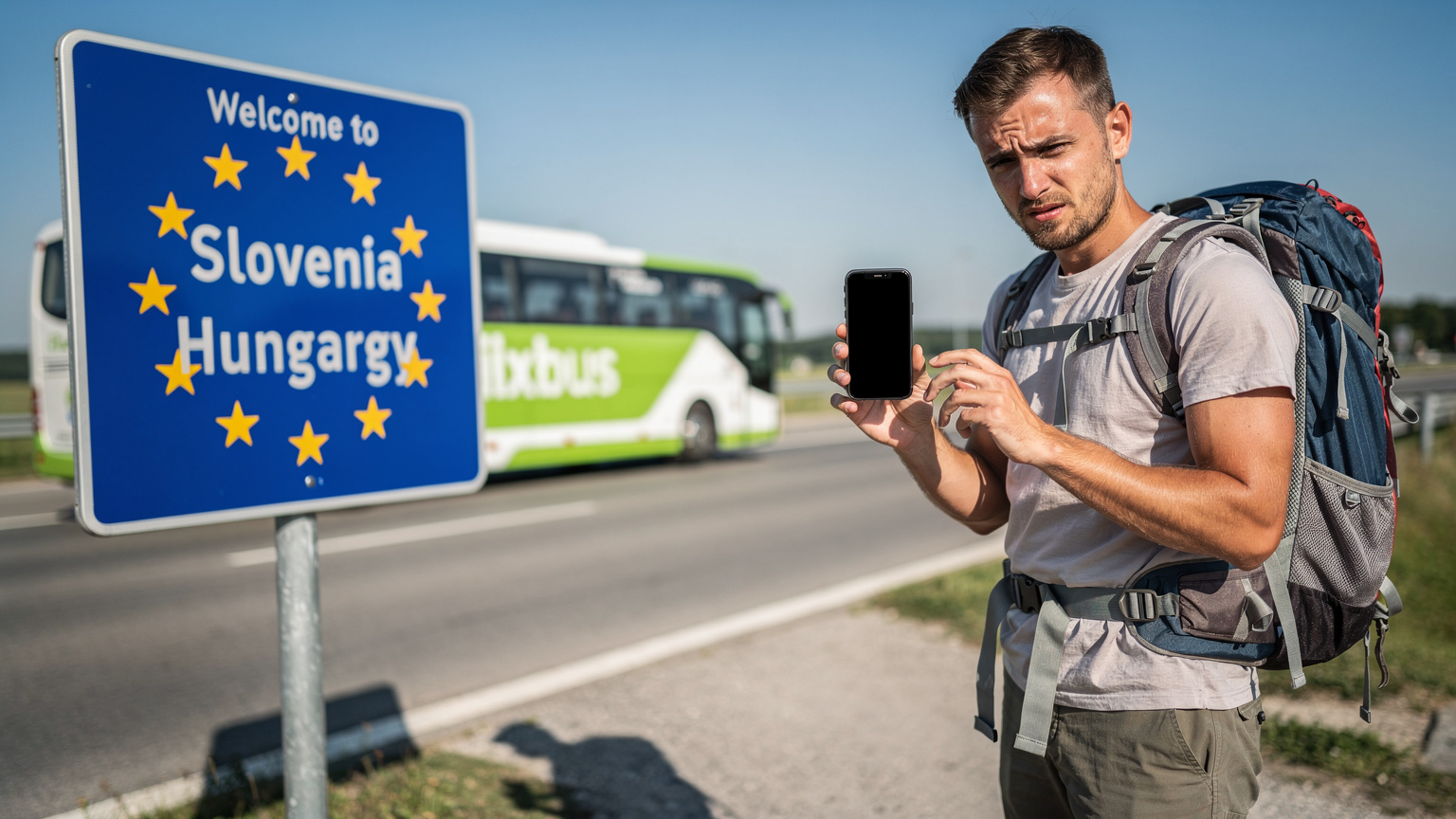
This is a specific headache for backpackers hopping between countries quickly. When you cross a border, your phone needs to switch from one country's network to another. Sometimes, it gets confused, especially if the networks are weak or jammed at the crossing point (like a busy land border checkpoint).
Tactics for Smooth Border Transitions
- Power Cycle at the Border: As you enter a new country, simply turn your phone off and then back on. This forces it to look for local networks again. This trick saved me hours at the Serbia-Bosnia border, which, let's just say, isn't exactly known for its cutting-edge digital infrastructure.
- Manual Network Selection (Again): If a reboot doesn't work, go straight for manual network selection. Your phone might be clinging to a weak signal from the country you just left. For example, if you're traveling from the UK to Ireland, your phone might try to hold onto a UK network. For UK travel, I generally use an eSIM, but sometimes I'll grab a physical giffgaff SIM if I'm planning a long stay.
- Check eSIM Region Coverage: Make sure your eSIM actually covers the country you've just entered. Some regional eSIMs might cover 'Europe' but exclude certain countries (like Georgia or Azerbaijan, which are often grouped with Europe but sometimes left out of specific eSIM bundles). Always read the fine print before you buy an eSIM for Turkey, or any other specific destination.
When All Else Fails: Contact Support or Go Local
You've tried everything. Power cycling, APN settings, manual network selection, even begging the digital gods. Still 'no service'. It's time to admit you might need some outside help.
Contact Your eSIM Provider's Support
Cellesim, like any good provider, has a support team. Use Wi-Fi (your hostel, a cafe, a McDonald's) to get in touch with them. They can check your account status, confirm your eSIM is active, and often diagnose network-specific issues remotely. Have your eSIM number ready; if you're not sure how to find it, check out this guide on finding your eSIM number.
When you're troubleshooting, take screenshots of your settings. If you have to contact support, these images can quickly show them exactly what you've done, saving you time and frustration. It's like showing a mechanic the exact dent in your fender instead of just describing it.
The Local SIM Card Fallback
If your eSIM truly isn't working and support can't fix it quickly, don't let it wreck your trip. There's always the backup plan: a local physical SIM card. My general rule: if I'm staying in a country for more than 5-7 days and my eSIM dies, I'll consider a local SIM. For shorter stops, I'll rely on hostel Wi-Fi and offline maps.
Local SIMs can be surprisingly cheap, especially in places like Albania or North Macedonia, where you can get 10GB for €5-€10. The catch? You have to find a store, deal with activation, and sometimes provide passport details. Also, beware of tourist traps at airports. Those kiosks often charge 2-3x what you'd pay in the city center.
| Alternative | Pros | Cons |
|---|---|---|
| Local Physical SIM | Very low cost per GB, widely available in city centers. | Requires finding a store, activation hassle, potential language barrier, not always available at reasonable prices at airports. |
| Public Wi-Fi | Free, readily available in cafes, hostels, libraries. | Insecure, not always reliable or fast, limited mobility. |
| Home Carrier Roaming | Convenient, familiar number, sometimes 'free' (e.g. T-Mobile's basic roaming). | Expensive for most, throttled speeds, easy to incur bill shock. |
Final Thoughts on Connectivity
Staying connected on the road is crucial for safety, getting around, and keeping up with other travelers. While eSIMs are a game-changer for budget travel, glitches do happen. The main thing is to troubleshoot systematically. Don't assume the worst. Most 'no service' problems are easily fixed with a few taps in your settings. Always compare the cost per gigabyte, whether it's an eSIM or a local physical SIM. For my last European trip, a Cellesim eSIM gave me 20GB for €25, covering 14 days across 5 countries. That's €1.25/GB, way cheaper than any physical SIM I could have bought at various borders. Good luck, and happy travels.
Frequently Asked Questions
Why does my eSIM say 'no service' even after activation?
Even after you've activated an eSIM, it can show 'no service' for a few reasons. It might be because data roaming is turned off for that specific eSIM profile, your APN settings are wrong, or your phone is stuck trying to connect to a weak or incompatible network. Always check your phone's cellular settings to confirm the eSIM is enabled for data and that data roaming is on.
How can I check if my eSIM is actually turned on?
To see if your eSIM is turned on, go to your phone's cellular or mobile data settings. You'll usually see a list of your installed SIMs and eSIMs there. Tap on your eSIM profile and look for a toggle switch, often labeled 'Turn On This Line' or 'Enable SIM'. Make sure it's in the ON position.
What are APN settings and why are they important for my eSIM?
APN (Access Point Name) settings are crucial configurations that allow your phone to connect to the internet through your cellular provider. While most eSIMs set these up automatically, sometimes you'll need to enter them manually. Incorrect APN settings can stop your eSIM from getting data, leading to 'no service' or extremely slow speeds.
Should I keep 'data roaming' on or off for my international eSIM?
For most international eSIMs, you should keep 'data roaming' ON. This lets your eSIM connect to the local partner networks in the country you're visiting. Unlike your home physical SIM, where roaming costs a lot, an international eSIM's plan already covers this usage.
My eSIM worked in one country but stopped at the border, what happened?
eSIMs can sometimes act up at border crossings because your phone struggles to switch from one country's network to another. As soon as you cross the border, try turning your phone off and then back on. If that doesn't work, manually select a network operator from your phone's settings to force a connection to the local network.
What should I do if my eSIM still shows 'no service' after trying all troubleshooting steps?
If you've tried all the troubleshooting steps and your eSIM still shows 'no service', get in touch with your eSIM provider's customer support. Use Wi-Fi to reach them, and be ready to tell them all the steps you've already taken. As a last resort, you might consider buying a local physical SIM card for immediate internet access.
See also: Slovakia eSIM
See also: North Macedonia eSIM