In 2025, an eSIM offers a seamless way to stay connected globally, eliminating the need for physical SIM cards. For iPhone users, activating an eSIM is a straightforward process that grants immediate access to mobile data in over 200 countries. This comprehensive guide details the step-by-step installation process, ensures your device is compatible, and covers common troubleshooting tips to provide a smooth, connected travel experience.
- What is an eSIM and Why it's Ideal for Your iPhone?
- Verifying Your iPhone's eSIM Compatibility in 2025
- Preparing Your iPhone for Seamless eSIM Activation
- Step-by-Step Guide: Activating Your eSIM on iPhone via QR Code
- Manual eSIM Installation: An Alternative Method for iPhone Users
- Managing Multiple eSIMs and Data Plans on Your iPhone
- Troubleshooting Common eSIM Activation Issues on iPhone
- Maximizing Your Connectivity with Cellesim eSIM on iPhone
- Frequently Asked Questions
Global eSIM Plans from $4.50
Connect instantly in 200+ countries. Join 50,000+ travelers who trust Cellesim for their global connectivity.
View Global eSIM PlansWhat is an eSIM and Why it's Ideal for Your iPhone?
An eSIM, or embedded SIM, is a digital SIM card that allows you to activate a cellular plan from your network provider without needing a physical nano-SIM. Instead of swapping tiny plastic cards, an eSIM profile is downloaded directly onto your iPhone. This technology offers significant advantages for travelers and anyone managing multiple phone numbers, especially with recent iPhone models that have embraced dual SIM capabilities, often combining one physical SIM with one or more eSIMs.
For iPhone users, the benefits are clear. You can:
- Switch carriers and plans instantly: Activate a new data plan for a different country within minutes, without visiting a local store or waiting for a physical SIM to arrive.
- Maintain your primary number: Keep your home country's physical SIM active for calls and texts while using an eSIM for affordable local data when abroad. This is particularly useful for business travelers or those who need to remain reachable on their main number.
- Simplify travel: No more fumbling with SIM ejector tools, storing tiny SIM cards, or worrying about losing your primary SIM. Your connectivity is built into your device.
- Enhance security: An eSIM cannot be physically removed from your phone, making it more secure than a traditional SIM in case of theft.
The integration of eSIM technology into iPhones has evolved, making it a reliable and preferred method for staying connected for millions of users worldwide. Cellesim takes advantage of this technology to provide seamless, affordable data solutions for your iPhone, no matter where your journey takes you.
Verifying Your iPhone's eSIM Compatibility in 2025
Before proceeding with any eSIM activation, confirming your iPhone's compatibility is essential. Most iPhone models released since 2018 support eSIM technology. This includes:
- iPhone XS, iPhone XS Max, iPhone XR
- iPhone 11, iPhone 11 Pro, iPhone 11 Pro Max
- iPhone SE (2nd generation and later)
- iPhone 12, iPhone 12 Mini, iPhone 12 Pro, iPhone 12 Pro Max
- iPhone 13, iPhone 13 Mini, iPhone 13 Pro, iPhone 13 Pro Max
- iPhone 14, iPhone 14 Plus, iPhone 14 Pro, iPhone 14 Pro Max (U.S. models are eSIM-only)
- iPhone 15, iPhone 15 Plus, iPhone 15 Pro, iPhone 15 Pro Max (all models are eSIM-only in the U.S.)
To double-check your iPhone's eSIM capability, especially if you purchased it internationally, follow these steps:
- Go to Settings > General > About.
- Scroll down to the 'Available SIM' or 'eSIM' section. If you see an EID (Embedded Identity Document) number, your iPhone supports eSIMs.
- Alternatively, you can try adding an eSIM by going to Settings > Cellular (or Mobile Data) > Add eSIM. If this option appears, your device is compatible.
Some iPhones purchased in specific regions, such as mainland China, Hong Kong, and Macao, may have dual physical SIM slots instead of eSIM support. Always verify your specific model's specifications or use Cellesim's eSIM Checker for a quick compatibility check.
Preparing Your iPhone for Seamless eSIM Activation
Before you begin the eSIM activation process, a few preparatory steps will ensure a smooth experience. These steps help prevent common issues and ensure your iPhone is ready to download and utilize your new cellular plan.
- Ensure Wi-Fi Connectivity: An active and stable Wi-Fi connection is crucial for downloading the eSIM profile to your iPhone. Without Wi-Fi, the activation process cannot be completed.
- Check for iOS Updates: Make sure your iPhone is running the latest version of iOS. Apple frequently releases updates that improve eSIM functionality and fix potential bugs. Go to Settings > General > Software Update to check.
- Unlock Your iPhone: Your iPhone must be unlocked by your carrier to use an eSIM from a different provider like Cellesim. If your phone is locked, contact your current carrier to request an unlock.
- Charge Your Battery: Ensure your iPhone has sufficient battery life. The installation process usually takes only a few minutes, but a low battery could interrupt the process or cause issues.
- Purchase Your Cellesim eSIM Plan: Visit cellesim.com to purchase your desired eSIM plan. After purchase, you will receive an email containing a QR code or manual activation details. Keep this email accessible.
Once these preparations are complete, you are ready to proceed with the actual activation of your Cellesim eSIM on your iPhone.
Step-by-Step Guide: Activating Your eSIM on iPhone via QR Code
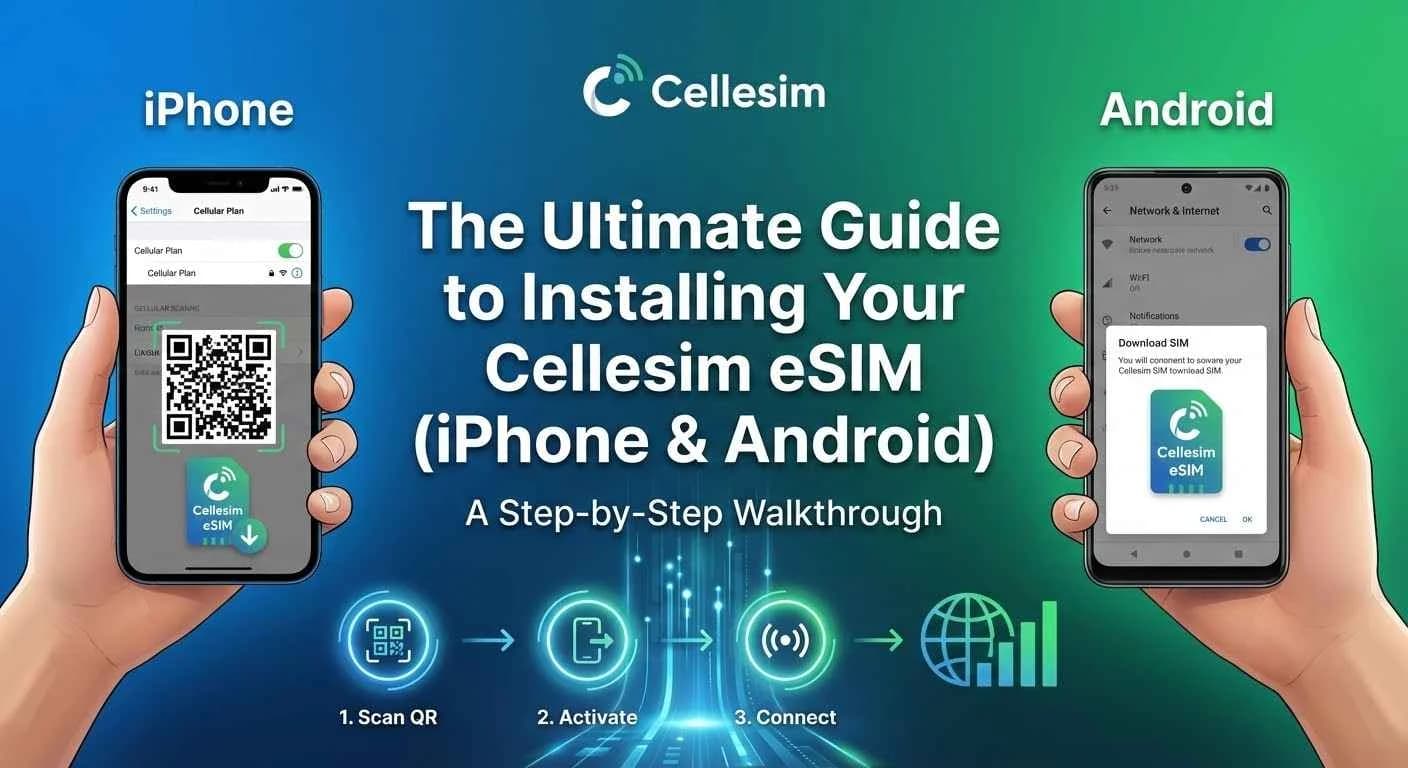
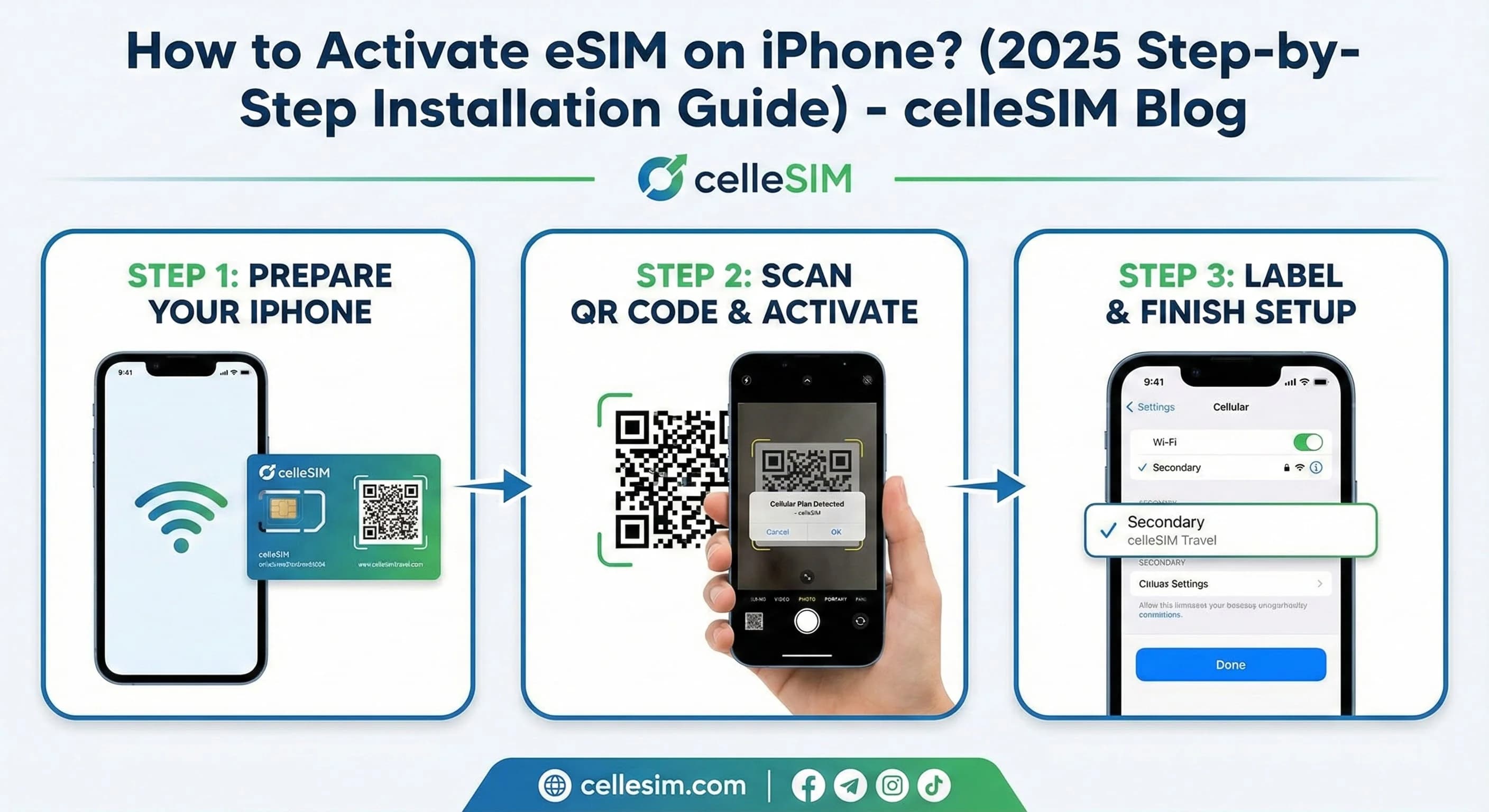
The QR code method is the quickest and most common way to activate an eSIM on your iPhone. Cellesim provides a QR code in your purchase confirmation email, designed for easy setup. Here’s how to do it:
- Open Settings: On your iPhone, go to Settings.
- Navigate to Cellular/Mobile Data: Tap on Cellular (or Mobile Data, depending on your region).
- Add eSIM: Tap on Add eSIM.
- Use QR Code: Select Use QR Code.
- Scan the QR Code: Your iPhone's camera will open. Use it to scan the QR code provided in your Cellesim email. Make sure the QR code is clearly visible and well-lit.
- Confirm Cellular Plan: After scanning, your iPhone will detect the Cellesim cellular plan. You might be prompted to label your new plan (e.g., "Travel," "Cellesim Italy"). Choose a label that helps you identify it easily.
- Choose Default Line: If you have multiple SIMs (physical and/or eSIMs), your iPhone will ask which line you want to use for primary data, calls, and messages. For travel, it's often best to set your Cellesim eSIM as the primary for Cellular Data and keep your home SIM for voice/SMS if you need it.
- Activate eSIM: Follow the on-screen prompts to complete the activation. This usually involves tapping "Continue" or "Add Cellular Plan."
Once activated, your iPhone will connect to the local network covered by your Cellesim eSIM. You can confirm activation by checking the signal bars and the chosen network name in your iPhone's status bar.
Manual eSIM Installation: An Alternative Method for iPhone Users
If you encounter issues scanning the QR code, or if you prefer manual input, Cellesim also provides the necessary details for a manual eSIM installation. This method requires inputting specific information directly into your iPhone's settings.
You will find the following details in your Cellesim purchase confirmation email, typically alongside the QR code:
- SM-DP+ Address (also known as "Activation Code" or "Server Address")
- Confirmation Code (optional, not always required)
Here’s how to install your eSIM manually:
- Open Settings: On your iPhone, go to Settings.
- Navigate to Cellular/Mobile Data: Tap on Cellular (or Mobile Data).
- Add eSIM: Tap on Add eSIM.
- Enter Details Manually: Choose the option to Enter Details Manually (this might be a smaller link at the bottom of the screen).
- Input SM-DP+ Address: In the 'SM-DP+ Address' field, carefully type or paste the address provided by Cellesim.
- Input Confirmation Code (if applicable): If Cellesim provided a 'Confirmation Code', enter it in the respective field. If not, you can leave it blank.
- Next > Activate: Tap Next and then Activate to download and install your eSIM profile.
- Label and Configure: Similar to the QR code method, you will be prompted to label your new plan and configure your default lines for data, voice, and messages.
Double-check your entries when performing a manual installation to avoid typos that could lead to activation failures. This method is equally effective as the QR code scan, providing flexibility for all iPhone users.
Managing Multiple eSIMs and Data Plans on Your iPhone
One of the significant advantages of eSIM technology on an iPhone is the ability to store and manage multiple cellular plans. Modern iPhones can store several eSIM profiles (the exact number depends on the model, but usually 5-10) and use two active lines simultaneously (one physical SIM and one eSIM, or two eSIMs on eSIM-only models). This functionality is invaluable for frequent travelers or those who require separate numbers for work and personal use.
Here’s how to manage your eSIMs:
- Labeling Your Plans: During activation, you'll be asked to label your eSIM. Choose descriptive names like "Cellesim Travel," "Work," "Personal," or "Home SIM" to differentiate them easily. You can change these labels anytime in Settings > Cellular (or Mobile Data).
- Switching Cellular Data Plans: To switch which eSIM provides your cellular data, go to Settings > Cellular (or Mobile Data) > Cellular Data. Select the eSIM you want to use for data. This allows you to quickly switch to your Cellesim plan when traveling.
- Choosing Default Voice Line: You can set a default line for making calls. Your iPhone will use this line for all outgoing calls unless you specify otherwise for a particular contact. You can also choose 'Use Secondary Line' or 'Ask Every Time' for calls made to unknown numbers.
- Turning eSIMs On/Off: If you want to temporarily disable an eSIM without deleting it, go to Settings > Cellular (or Mobile Data), tap on the eSIM you wish to manage, and toggle 'Turn On This Line' off. This is useful for saving battery or avoiding accidental usage.
- Deleting an eSIM: When a travel plan expires or is no longer needed, you can delete the eSIM profile. Go to Settings > Cellular (or Mobile Data), tap on the eSIM, and select 'Remove Cellular Plan'. Remember that once deleted, you'll need a new QR code or manual details to reinstall it.
Effectively managing your eSIMs ensures you always have the right plan active at the right time, preventing unexpected roaming charges and providing seamless connectivity.
"The ability to juggle multiple eSIMs on my iPhone has been a game-changer for my international trips. I keep my local SIM active for calls and switch to my Cellesim data plan as soon as I land."
Troubleshooting Common eSIM Activation Issues on iPhone
While eSIM activation is generally smooth, you might occasionally encounter minor hurdles. Here are some common issues and their solutions:
- "No Service" or "Searching":
- Check Data Roaming: Ensure Data Roaming is enabled for your Cellesim eSIM. Go to Settings > Cellular > [Your Cellesim eSIM] > Data Roaming and toggle it on.
- Network Selection: Sometimes, manual network selection helps. Go to Settings > Cellular > [Your Cellesim eSIM] > Network Selection and turn off Automatic. Manually select an available network from the list.
- Restart iPhone: A simple restart can often resolve connectivity glitches.
- QR Code Not Scanning:
- Lighting and Angle: Ensure good lighting and hold your iPhone steady.
- Zoom: If the QR code is small, try zooming in on the email or screen displaying the code.
- Damage/Blur: If the QR code itself is damaged or blurry, contact Cellesim support for assistance or use the manual installation method.
- "Unable to Add Cellular Plan" Error:
- Wi-Fi Connection: Confirm you have a strong and stable Wi-Fi connection. This is the most common reason for this error.
- iOS Updates: Ensure your iPhone is running the latest iOS version.
- Carrier Lock: Double-check that your iPhone is unlocked.
- Contact Cellesim Support: If all else fails, reach out to [email protected] with your order details for personalized assistance.
- Incorrect Data Usage or Speed:
- APN Settings: In rare cases, you might need to manually configure APN settings. Cellesim usually auto-configures this, but if needed, check your plan details for specific APN information. Go to Settings > Cellular > [Your Cellesim eSIM] > Cellular Data Network.
- Data Limit Reached: Check your Cellesim account to see if you have consumed all your data.
For more detailed troubleshooting, Apple's official support pages are a valuable resource. You can find information on managing cellular data options on your iPhone here.
Maximizing Your Connectivity with Cellesim eSIM on iPhone
Once your Cellesim eSIM is active on your iPhone, you can further optimize your mobile experience to ensure consistent, cost-effective connectivity throughout your travels. Leveraging your iPhone's features with your eSIM can make a significant difference.
- Use Cellesim's Smart Data Calculator: Before you travel, estimate how much data you'll need based on your planned activities. This helps you select the right Cellesim plan and avoid running out of data unexpectedly.
- Understand Dual SIM Functionality: If you're using both a physical SIM and an eSIM, familiarize yourself with how to manage them. Your iPhone allows you to designate a primary line for data, and separate lines for calls and SMS. This flexibility means you can receive calls on your home number while using the Cellesim eSIM for all data needs.
- Monitor Data Usage: Regularly check your data consumption on your iPhone via Settings > Cellular (or Mobile Data). You can also typically monitor usage through your Cellesim account portal. This helps you avoid overages or ensures you top up if needed.
- Leverage Wi-Fi When Available: To conserve your eSIM data, connect to secure Wi-Fi networks whenever possible for heavy data activities like streaming or large downloads.
- Consider a Regional or Global Plan: If your journey involves multiple countries, a Cellesim regional or global eSIM plan might be more cost-effective and convenient than purchasing individual country plans. For instance, a Global eSIM Plan can cover a wide range of destinations.
By following these best practices, your Cellesim eSIM will provide a robust and reliable connection, making your iPhone an even more powerful travel companion. For further installation guidance, refer to Cellesim's complete eSIM setup guide.
Ready for Seamless Connectivity on Your iPhone?
Experience instant activation and reliable data in 200+ countries with Cellesim. Set up your eSIM in minutes.
Start Your Connected JourneyTrusted by 50,000+ travelers worldwide. 24/7 Support.
Frequently Asked Questions
Can I activate an eSIM on any iPhone model?
No, eSIM functionality is available on iPhone XS, iPhone XS Max, iPhone XR, and newer models. U.S. models of iPhone 14 and 15 are eSIM-only. Always check your specific iPhone model's compatibility to ensure it supports eSIM technology before purchasing a plan.
Do I need Wi-Fi to install my Cellesim eSIM on my iPhone?
Yes, an active and stable Wi-Fi connection is essential during the eSIM installation process. Your iPhone downloads the eSIM profile over Wi-Fi, making it impossible to activate without it. You can switch to cellular data after activation.
Can I keep my current phone number while using a Cellesim eSIM for data?
Absolutely. One of the main benefits of eSIMs on iPhone is dual SIM capability. You can keep your physical SIM (and its associated number) active for calls and texts while using your Cellesim eSIM for all your mobile data needs, especially useful when traveling.
What if the QR code for my Cellesim eSIM isn't scanning?
If the QR code doesn't scan, ensure good lighting, a steady hand, and that the code isn't blurry. You can also try the manual installation method by entering the SM-DP+ Address and Confirmation Code provided in your Cellesim email. If issues persist, contact Cellesim support.
How many eSIMs can I store on my iPhone?
Most modern iPhones can store between 5 to 10 eSIM profiles simultaneously. While you can store many, only two lines (e.g., one physical SIM and one eSIM, or two eSIMs on eSIM-only models) can be active at any given time.
When is the best time to activate my Cellesim eSIM?
You can activate your Cellesim eSIM shortly before you depart, or immediately upon arrival at your destination, provided you have a Wi-Fi connection. Activating just before or after landing ensures you have connectivity from the moment you need it, avoiding expensive roaming fees.