Why Your Laptop Needs Its Own eSIM Signal
Let's be real, relying only on sketchy cafe Wi-Fi is a thing of the past. For years, I've hauled my laptop across continents, from co-working spots in Saigon to remote cabins in the Alps. The one constant pain? Internet. Tethering my phone drains its battery fast, and public Wi-Fi... well, I wouldn't trust it with my bank details, let alone a client presentation. This is where eSIM for PCs comes in, and honestly, it's about time. It's not just convenient; it's a productivity lifesaver.
Picture this: you've just landed in a new city, say, Medellín, Colombia. You need to check into your Airbnb, confirm your co-working spot at Selina Cowork, and maybe fire off a quick email before trying to find a local SIM. With an eSIM-enabled laptop, you're connected the second you power on. No messing with local SIM cards, no hunting for Wi-Fi passwords, no dealing with questionable public networks. This is the kind of smooth connectivity veteran nomads dream of. It lets you focus on actual work (or finding that perfect bandeja paisa) instead of wrestling with internet gods.
The Frustration of Unreliable Connectivity
I've lost count of how many times I've been stuck. Remember that cafe in Ubud, Bali, where the Wi-Fi drops every 15 minutes? Or the hotel in Buenos Aires where the signal barely reaches your room? Then there's security. Public networks are notoriously unsafe. I always ran a VPN, but even then, a nagging feeling remains when handling sensitive work on an open network. A dedicated cellular connection for your laptop cuts down on many of these risks, giving you a private, direct link to the internet.
For those of us who need to access specific services linked to a local number, a separate, reliable connection for the laptop means your phone battery isn't constantly dying from being a hotspot. Some banking apps, especially in Brazil or India (think Aadhaar-linked services), absolutely need a local SIM to work, even if you just need an SMS verification. You can't always count on your primary phone's signal for your laptop's data, especially if you're keeping that phone's local SIM active for banking or local contacts.
Why a Dedicated Connection Matters
When you're trying to hit a deadline, every minute counts. A stable, fast connection on your laptop means less stress and more actual work. This isn't just for browsing; it's for video calls with clients, uploading big files, and running demanding applications. If your laptop has its own eSIM, it's not fighting your phone for bandwidth, nor does it rely on your phone's battery life. It's an independent entity, a true mobile workstation.
Consider multi-country travel too. Instead of buying a new physical SIM in each country, or fumbling with an international roaming plan on your phone that might not even offer good speeds, an eSIM for your PC can be swapped digitally. You can buy a regional or multi-country plan and activate it instantly. It's the same convenience we've come to expect from eSIM for iPhones, now on a larger screen.
Checking for eSIM Compatibility on Your Laptop
Not all laptops are built the same when it comes to eSIM. While most newer smartphones have embraced the tech, PC adoption has been a bit slower, though it's quickly catching up. You're mainly looking for devices that specifically say they have 'cellular connectivity' or 'LTE/5G support' built-in, and explicitly mention eSIM capabilities.
Identifying eSIM-Ready Devices
Most modern laptops with eSIM support will run Windows 10 or 11, or certain Chromebook models. Apple's MacBook line, as of early 2026, still mostly uses Wi-Fi or tethering, though rumors about future integration keep popping up. For Windows machines, you're usually looking for devices marketed as 'Always Connected PCs.' These often have Qualcomm Snapdragon processors, designed for constant, low-power connectivity, or Intel Evo platforms that include strong cellular modems.
To check, go to your laptop's settings:
- For Windows 10/11: Go to Settings > Network & Internet > Cellular. If you see an option to 'Manage eSIM profiles' or 'Add an eSIM profile,' your device works.
- For Chromebooks: Look for Settings > Network > Mobile data. If it supports eSIM, you'll see options to add a new mobile plan.
If you're unsure, check your laptop's specs on the manufacturer's website. Look for terms like 'integrated eSIM,' 'WWAN module,' or '5G/LTE modem with eSIM support.' Don't assume. I've seen too many friends buy a laptop thinking it had cellular, only to find out it was Wi-Fi only. Always double-check.
Popular eSIM-Compatible Laptop Models
Some of the top eSIM-compatible laptops include:
- Microsoft Surface Pro X/9/Laptop Studio 2 (with 5G/LTE): Microsoft has been a big fan of eSIM, putting it into many of their top devices.
- Lenovo ThinkPad X1 Carbon (Gen 9 onwards with WWAN): A favorite among business travelers and nomads for its tough build and connectivity options.
- HP Elite Dragonfly G2/G3 (with WWAN): Another strong contender, known for its premium design and connectivity.
- Dell Latitude 9000 Series (with optional WWAN): Dell offers eSIM in some of its high-end business laptops.
- Acer Spin 7: One of the earlier Snapdragon-powered devices to feature eSIM.
Remember, 'optional WWAN' means you need to make sure the specific version you buy includes the cellular modem. It's not always standard, so read the specs carefully. If you're buying used, a quick check for the eSIM number in settings is a good idea to confirm it's there.
Sourcing and Installing an eSIM Profile for Your PC
Once you've confirmed your laptop is eSIM-ready, the next step is getting a data plan. This is where providers like Cellesim really shine. The days of hunting for local physical SIM cards or dealing with restrictive carrier contracts are over. With eSIM, you can buy a plan online, often made for specific regions or countries, and install it with a few clicks or a QR code scan.
Where to Buy eSIM Data Plans
You have a few main options for buying eSIM plans for your PC:
- Dedicated eSIM Providers (like Cellesim): These are often the best choice for travelers. They focus on international data, offering flexible plans without long-term commitments. You can buy plans for single countries (like Morocco eSIM), regional packages (like Europe), or even global plans. Pricing is usually clear, and activation is fast.
- Local Mobile Carriers: Some traditional carriers now offer eSIMs directly. However, these are often for residents and might require a local address or ID, which can be a pain for short visits.
- Integrated Carrier Plans: Certain laptop makers might partner with carriers to offer bundled data plans, but these can be less flexible and costlier than independent eSIM providers.
When picking a plan, always think about how much data you'll need. Working remotely, especially with video calls, uses a lot more data than just casual browsing. I usually aim for at least 50GB for a month if I'm doing heavy video conferencing, often more if I'm somewhere with unreliable Wi-Fi and need to rely on my laptop's cellular connection.
Step-by-Step Installation Process
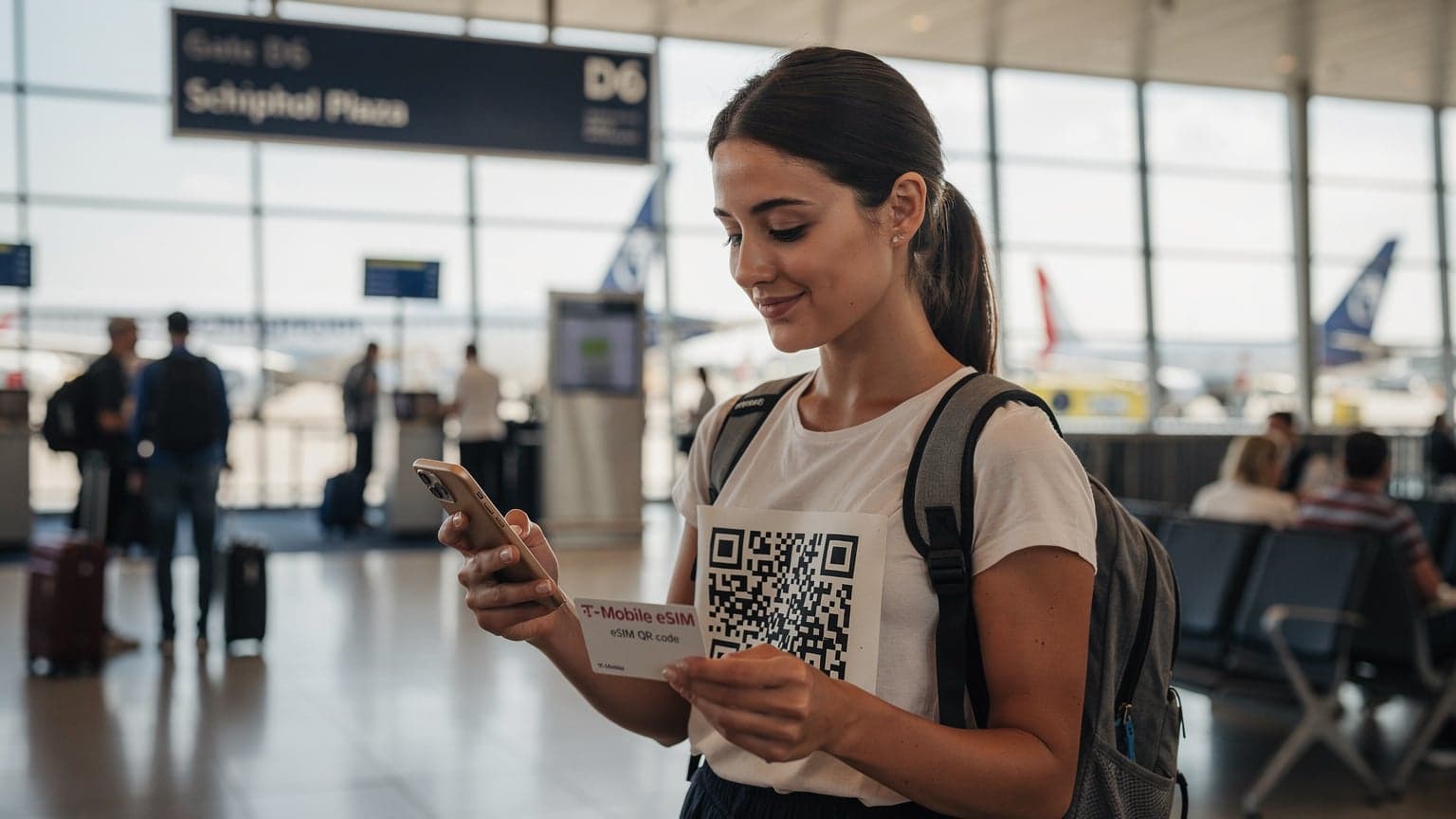
Installing an eSIM on your PC is surprisingly simple. Most providers will give you either a QR code to scan or manual activation details.
- Buy Your eSIM Plan: Go to a provider's website, choose your destination and data package. Finish the purchase.
- Get Activation Details: You'll usually receive an email with a QR code or an activation code (SM-DP+ Address and Activation Code).
- Open Cellular Settings on Your PC: Go to Settings > Network & Internet > Cellular.
- Add eSIM Profile: Click on 'Add an eSIM profile.'
- Scan QR Code or Enter Details: If you have a QR code, choose to scan it with your laptop's camera (if it has one). Otherwise, select 'Enter an activation code instead' and manually type in the SM-DP+ Address and Activation Code.
- Confirm and Activate: Follow the on-screen steps to confirm the profile and activate it. Once active, your laptop should connect to the cellular network, and you'll see your new plan listed under cellular settings.
- Set as Preferred (Optional): You can set this eSIM as your main cellular connection if you plan to use it often.
It's very similar to activating an eSIM on a smartphone using a QR code, just on a bigger screen. The whole process usually takes less than five minutes once you have your details.
Real-World Benefits of PC eSIMs for Digital Nomads
For someone who lives out of a backpack and often works from whatever corner of the world feels right for a few months, eSIM on my laptop isn't just a nice-to-have, it's essential. It solves so many of the small frustrations that pile up when you're constantly moving.
Uninterrupted Workflow in Any Location
Think about a typical day. You wake up in a new Airbnb in Lisbon, the Wi-Fi is spotty, but you have a morning call. With eSIM on your laptop, you skip the Wi-Fi entirely. You're connected, stable, and ready to go. I've taken calls on trains to Bristol (using UK Train Apps & eSIM), in airport lounges, and even in a park when the co-working space was full. This level of reliability allows for a much more flexible and less stressful work schedule.
My usual routine in a new city involves finding a good co-working space, but even those have their bad days. In Chiang Mai, I relied heavily on my laptop's eSIM when the internet at 'Punspace Nimman' sometimes failed. It meant I could still upload my blog posts or handle client questions without losing an hour of my day. It's the difference between hitting a deadline and missing it, or between finding crucial information and being stuck.
Enhanced Security and Privacy
Public Wi-Fi networks are infamous for security weaknesses. Anyone with a bit of tech knowledge can potentially snoop on your data. While VPNs help, a direct cellular connection adds another layer of security. Your data isn't going through an unknown public router. This is critical for sensitive work, banking, or simply keeping your privacy online.
I've heard too many horror stories of fellow nomads getting their data stolen on public networks. While I'm not saying an eSIM connection is perfect, it significantly reduces your risk compared to the open networks you find in cafes, airports, or even some hotels. It’s peace of mind, which, when you’re managing client work thousands of miles away, is invaluable.
Cost Efficiency and Flexibility
While an eSIM plan costs money, think about what you save. No more paying for expensive hotel Wi-Fi. No more constantly topping up your phone with international roaming data because you're tethering. eSIM plans, especially from providers like Cellesim, are often more cost-effective for dedicated data than traditional roaming or even local SIMs if you're only staying for a short time and don't need a local number.
You can buy plans for exactly the duration you need, whether it's a week-long sprint in Berlin or a month-long stay in Mexico City. The flexibility is unmatched. Plus, you avoid the hassle of local SIM registration processes, which can be quite difficult in some countries, requiring visa documents or even biometric data.
eSIM for PC vs. Tethering vs. Portable Hotspots
Before eSIM for PCs became a real option, digital nomads usually had two main ways to get their laptops online while traveling: phone tethering or a dedicated portable Wi-Fi hotspot. Both have their uses, but eSIM for PC offers clear benefits that often make it the better choice for consistent, reliable work.
Phone Tethering: The Good, The Bad, and The Battery Drain
Connecting your laptop to your smartphone's data is probably the most common solution. It's handy because you already have your phone. It works in a pinch. However, it's far from ideal for long-term use.
- Battery Drain: This is the biggest problem. Your phone's battery will drop fast. If you rely on your phone for directions, talking to people, or taking pictures, having it die because you're tethering your laptop is a nightmare. I learned this the hard way trying to navigate Marrakech's busy markets with a dead phone.
- Performance Issues: Your phone's modem might not be as strong as a dedicated laptop modem, leading to slower speeds or dropped connections.
- Single Point of Failure: If your phone runs out of data, or if you lose it, both your phone and laptop connectivity are gone.
Honestly, I only tether now for quick emergencies, like checking a single email or sending a small file. It's not a sustainable solution for actual work.
Portable Wi-Fi Hotspots: A Dedicated Device, But With Caveats
These are small, dedicated devices that act like a mobile router, creating a Wi-Fi signal for your laptop (and other devices). They use a physical SIM card or, increasingly, an eSIM. They're better than tethering for battery life and often have better modems.
- Extra Device: It's another gadget to buy, charge, and carry. My backpack is already full, so adding another device is a tough sell.
- SIM Management: You still need to manage SIM cards for the hotspot, which can be just as annoying as for a phone if it's not eSIM-enabled.
- Cost: The upfront cost of the device, plus the data plans, can add up.
| Feature | eSIM for PC | Phone Tethering | Portable Wi-Fi Hotspot |
|---|---|---|---|
| Dedicated Connection | Yes | No (uses phone's) | Yes |
| Battery Impact on Phone | None | Significant | None |
| Security | High (private connection) | Moderate (depends on phone security) | Moderate (private Wi-Fi, but device can be hacked) |
| Ease of Setup | Easy (digital activation) | Very Easy (built-in) | Moderate (physical SIM or eSIM setup) |
| Extra Device to Carry | No | No | Yes |
| Ideal Use Case | Primary work connection abroad | Emergency, light use | Group travel, multiple devices |
Why eSIM for PC Wins for Solo Nomads
For me, a solo nomad who values minimalism and efficiency, eSIM for PC is the clear winner. It's built into a device I already carry, it doesn't drain my phone, and it gives me a secure, reliable connection. It's one less thing to worry about, one less charger to pack, and one less potential point of failure. When your whole livelihood depends on being online, that simplicity is priceless.
Cost Considerations and Data Plans
Let's talk money, because that's usually the elephant in the room when discussing international data. While the upfront cost of an eSIM-compatible laptop might be higher, the data costs can actually be quite competitive, especially when you factor in how much more efficient and reliable it is.
Understanding eSIM Data Plan Pricing
eSIM data plans vary a lot based on:
- Region/Country: Data in Southeast Asia is usually cheaper than, say, Switzerland.
- Data Allowance: Unlimited plans exist but are often more expensive. Fixed data packages (e.g., 10GB, 20GB, 50GB) are common.
- Validity Period: Plans can range from a few days to 30 days or even longer.
- Provider: Cellesim often provides better value for frequent travelers compared to traditional carriers' roaming rates. You can compare Cellesim's offerings against Nomad eSIM alternatives for a clearer picture.
As a rough guide, a 30-day, 20GB plan for Europe might cost you around $30-45 USD from a dedicated eSIM provider. For a month in Thailand, a similar plan could be $15-25 USD. These prices are often much better than paying for international roaming on your home carrier, which can easily hit $10/day for limited data.
Budgeting for Your Monthly Connectivity
When I budget for a month, I always include connectivity. My general rule for laptop data, assuming I'm working 6-8 hours a day, including video calls, is around 50-80GB. If I'm lucky enough to find a shared apartment for €450/month in Lisbon (a good find these days!), an extra €35-50 for reliable laptop data is a small price for peace of mind. Compare that to the potential cost of losing a day's work because of bad internet.
| Plan Type | Data Allowance | Validity | Estimated Cost (USD) | Best For |
|---|---|---|---|---|
| Light User / Short Trip | 5 GB | 7 Days | 8-15 | Checking emails, light browsing |
| Moderate User / Mid Trip | 20 GB | 15-30 Days | 25-45 | Regular work, some video calls |
| Heavy User / Long Stay | 50 GB+ / Unlimited | 30 Days | 50-100+ | Heavy video, large uploads, main connection |
It's worth noting that some local SIMs in countries like Thailand or Vietnam offer incredibly cheap unlimited data plans, but these often require a local physical SIM and can have fair-use policies that slow down speeds after a certain amount of data. For laptop use, a dedicated eSIM often provides a more consistent, though sometimes pricier, experience. And don't forget about visa rules; some countries, like India, have strict SIM registration rules that can be tough for short-term visitors.
Troubleshooting Common eSIM for PC Issues
Even with the best technology, things can occasionally go wrong. I've had my share of connectivity weirdness over the years. Knowing a few basic troubleshooting steps can save you a lot of frustration when your laptop eSIM decides to act up.
Basic Checks and Fixes
Before you panic, try these common solutions:
- Restart Your Laptop: The classic IT solution, but it often works wonders. A fresh boot can fix many temporary network glitches.
- Check Signal Strength: Are you in an area with bad cellular coverage? Move closer to a window, or even try going outside. Sometimes buildings, especially older ones, can block signals.
- Verify Data Plan Status: Log into your eSIM provider's account (e.g., Cellesim's portal). Is your plan active? Do you have data left? Did it expire?
- Toggle Cellular On/Off: In your laptop's cellular settings, try turning off the cellular connection for a few seconds and then turning it back on. This can force a re-registration with the network.
- Check APN Settings: Most eSIMs set up the APN automatically, but sometimes they need manual entry. Your eSIM provider will give you the correct APN if needed. Go to Settings > Network & Internet > Cellular > (Your eSIM Profile) > Advanced options.
- Update Drivers: Make sure your cellular modem drivers are up to date. You can usually find these on your laptop manufacturer's support website.
When to Contact Support
If the basic steps don't fix the problem, it's time to ask for help. Here’s when:
- Persistent No Connection: If you consistently can't connect, even after trying different locations and reboots.
- Incorrect Billing: If your data usage seems wrong or you're being charged incorrectly.
- Activation Errors: If you're getting specific error codes during eSIM activation that you can't solve with online searches.
- Lost eSIM Number: If you're struggling to find your eSIM number for any reason, Cellesim's support can help, or you can refer to our general guide on finding your eSIM number.
Always give as much detail as possible to support, including your device model, operating system version, the specific error messages you're seeing, and what troubleshooting steps you've already tried. This speeds up the resolution process a lot. Good support is essential, especially when your work depends on being connected.
Future of eSIM on Laptops and Other Devices
The path for eSIM is clear: it's becoming the standard. What started with smartwatches and then moved to smartphones is now firmly making its way into laptops, and it won't stop there. The convenience, security, and flexibility are too good to ignore, especially for our increasingly mobile workforce.
Expanding Compatibility and Features
I expect that by late 2026, most new premium and mid-range laptops will come with eSIM capabilities as standard, not as an optional extra. We'll probably see Apple finally adopt eSIM in their MacBooks, which would be a huge step for wider use. Beyond just connectivity, we might see more advanced features:
- Dynamic Carrier Switching: Laptops automatically switching to the best available network in an area, even across different eSIM profiles.
- Enhanced Security Protocols: Tighter integration with device security, possibly using eSIM for identity verification.
- Broader Device Integration: More tablets, smart home devices, and even smart vehicles will likely integrate eSIM for constant connectivity.
The ability to manage multiple eSIM profiles on one device, easily switching between them for different regions (as is possible with Cellesim's multi-country eSIM for fall adventures), is a huge advantage for global travelers.
The End of the Physical SIM Era for Laptops
While physical SIM slots might stick around on some budget models for a bit longer, the trend is definitely towards eSIM. It makes manufacturing simpler, allows for thinner devices, and provides a much better user experience. For nomads, it means one less tiny piece of plastic to worry about losing or breaking, and one less fiddly tray to open with a paperclip.
This change isn't just about laptops, either. We're seeing eSIMs become standard in more industrial IoT devices, smart appliances, and even augmented reality headsets. The same technology that makes eSIM so effective for our laptops will power the next generation of connected devices, making our entire digital world more fluid and accessible, no matter where we are.
Frequently Asked Questions
Can I use an eSIM for my PC if it doesn't have a physical SIM card slot?
Yes, absolutely. eSIMs are designed to work without a physical SIM card slot. Your PC needs to have an integrated eSIM module or WWAN card that supports eSIM technology. Check your laptop's cellular settings to confirm compatibility, as most modern devices with cellular capabilities will have this built-in.
Is using an eSIM on my laptop more secure than public Wi-Fi?
Generally, yes. A cellular connection via eSIM creates a direct, private link to the internet, bypassing the shared infrastructure of public Wi-Fi networks. This reduces the risk of data interception and unauthorized access that can be prevalent on open networks, adding a significant layer of security for your online activities.
How much data do I typically need for a month of working on my laptop abroad?
For a digital nomad working 6-8 hours daily, including video calls and large file transfers, a minimum of 50GB per month is a good starting point. If you rely heavily on your cellular connection due to poor local Wi-Fi, consider a 70-100GB plan or even an unlimited option, if available and cost-effective for your destination.
Can I switch between multiple eSIM profiles on my laptop?
Yes, compatible Windows and ChromeOS laptops allow you to store multiple eSIM profiles and easily switch between them in your cellular settings. This is incredibly useful for travelers who move between countries or regions frequently, letting you activate the most suitable plan for your current location without any physical changes.
Are all laptops with cellular connectivity also eSIM compatible?
Not necessarily. Some older laptops with cellular connectivity might only support physical SIM cards. To ensure eSIM compatibility, specifically look for documentation or settings that mention 'eSIM,' 'embedded SIM,' or 'manage eSIM profiles.' Always verify this detail before purchasing an eSIM plan for your laptop.