












Russian flag Russian $ USD
Мгновенная активация
Высокая скорость Интернета
Совместное использование точек доступа
Никаких скрытых платежей
Область
Мгновенная активация
Высокая скорость Интернета
Совместное использование точек доступа
Никаких скрытых платежей
Африка (29 Стран) eSIM
Африка (29 Стран)
ОТ $9.69
Ï 5G
Сетевой провайдер: Airtel, AirtelTigo, Cell C
  • 3 доступных вариантов плана
  • 5G и точка доступа
  • Активация в течение 2 минут
  • Круглосуточная служба поддержки клиентов, 7 дней в неделю
  • 100% гарантия возврата денег
Азия (20 Стран) eSIM
Азия (20 Стран)
ОТ $6.12
Ï 5G
Сетевой провайдер: 3, AirTel, CTM
  • 9 доступных вариантов плана
  • 5G и точка доступа
  • Активация в течение 2 минут
  • Круглосуточная служба поддержки клиентов, 7 дней в неделю
  • 100% гарантия возврата денег
Австралия и Новая Зеландия eSIM
Австралия и Новая Зеландия
ОТ $1.87
Ï 5G
Сетевой провайдер: Optus, Spark
  • 10 доступных вариантов плана
  • 5G и точка доступа
  • Активация в течение 2 минут
  • Круглосуточная служба поддержки клиентов, 7 дней в неделю
  • 100% гарантия возврата денег
Балканы (5+ areas) eSIM
Балканы (5+ areas)
ОТ $2.55
Ï 5G
Сетевой провайдер: A1, T-Mobile, Tele2
  • 9 доступных вариантов плана
  • 5G и точка доступа
  • Активация в течение 2 минут
  • Круглосуточная служба поддержки клиентов, 7 дней в неделю
  • 100% гарантия возврата денег
Карибы (24 страны) eSIM
Карибы (24 страны)
ОТ $5.10
Ï 5G
Сетевой провайдер: Altice, Antel, Claro
  • 5 доступных вариантов плана
  • 5G и точка доступа
  • Активация в течение 2 минут
  • Круглосуточная служба поддержки клиентов, 7 дней в неделю
  • 100% гарантия возврата денег
Central Asia eSIM
Central Asia
ОТ $1.02
Ï 4G
Сетевой провайдер: Beeline, Hutch, Jazz
  • 8 доступных вариантов плана
  • 5G и точка доступа
  • Активация в течение 2 минут
  • Круглосуточная служба поддержки клиентов, 7 дней в неделю
  • 100% гарантия возврата денег
China (vasteland HK Macau) eSIM
China (vasteland HK Macau)
ОТ $1.53
Ï 5G
Сетевой провайдер: CTM, China Unicom, csl
  • 13 доступных вариантов плана
  • 5G и точка доступа
  • Активация в течение 2 минут
  • Круглосуточная служба поддержки клиентов, 7 дней в неделю
  • 100% гарантия возврата денег
 Европа (42 Страны) eSIM
Европа (42 Страны)
ОТ $5.44
Ï 5G
Сетевой провайдер: 3, 7acht, A1
  • 6 доступных вариантов плана
  • 5G и точка доступа
  • Активация в течение 2 минут
  • Круглосуточная служба поддержки клиентов, 7 дней в неделю
  • 100% гарантия возврата денег
Южная Америка (17 Стран) eSIM
Южная Америка (17 Стран)
ОТ $9.69
Ï 5G
Сетевой провайдер: Antel, Claro, Digicel
  • 5 доступных вариантов плана
  • 5G и точка доступа
  • Активация в течение 2 минут
  • Круглосуточная служба поддержки клиентов, 7 дней в неделю
  • 100% гарантия возврата денег
Ближний Восток (11 стран) eSIM
Ближний Восток (11 стран)
ОТ $11.90
Ï 5G
Сетевой провайдер: Bakcell, Beeline, Etisalat
  • 3 доступных вариантов плана
  • 5G и точка доступа
  • Активация в течение 2 минут
  • Круглосуточная служба поддержки клиентов, 7 дней в неделю
  • 100% гарантия возврата денег
Северная Америка (3 страны) eSIM
Северная Америка (3 страны)
ОТ $1.95
Ï 5G
Сетевой провайдер: AT&T, Bell, Movistar
  • 16 доступных вариантов плана
  • 5G и точка доступа
  • Активация в течение 2 минут
  • Круглосуточная служба поддержки клиентов, 7 дней в неделю
  • 100% гарантия возврата денег
Глобальная eSIM (127 Стран) eSIM
Глобальная eSIM (127 Стран)
ОТ $12.92
Ï 5G
Сетевой провайдер: 3, 7acht, A1
  • 6 доступных вариантов плана
  • 5G и точка доступа
  • Активация в течение 2 минут
  • Круглосуточная служба поддержки клиентов, 7 дней в неделю
  • 100% гарантия возврата денег
How to Activate eSIM on iPhone? (2025 Step-by-Step Installation Guide)
eSIM 101 / Технический центр

How to Activate eSIM on iPhone? (2025 Step-by-Step Installation Guide)

Learn how to activate eSIM on iPhone. Our 2025 step-by-step guide shows you how to install your eSIM via QR code or manually. Get connected in seconds.

Alper
4 min read

Introduction: Just got a new iPhone? Or perhaps you've purchased an eSIM for your international travels from a provider like cellesim.com? Excellent choice! eSIM (embedded SIM) is a digital SIM technology that eliminates the hassle of carrying, losing, or swapping physical SIM cards.

Activating an eSIM on your iPhone is much simpler than you might think, especially when using a QR code. In this guide, we'll walk you through how to set up your eSIM on your iPhone in a matter of seconds.


Prerequisites Before You Start

Before you begin the installation, make sure you have these three things ready:

  1. Compatible iPhone: You need to have an iPhone XS, iPhone XR, or a newer iPhone model (iPhone 11, 12, 13, 14, 15 series, etc.).

  2. Wi-Fi Connection: Your iPhone must be connected to a stable Wi-Fi network for the eSIM to be downloaded and activated.

  3. eSIM Information: The QR Code sent to you via email by your eSIM provider (e.g., Cellesim). (If there's no QR code, "Manual Setup Information" can also be used).


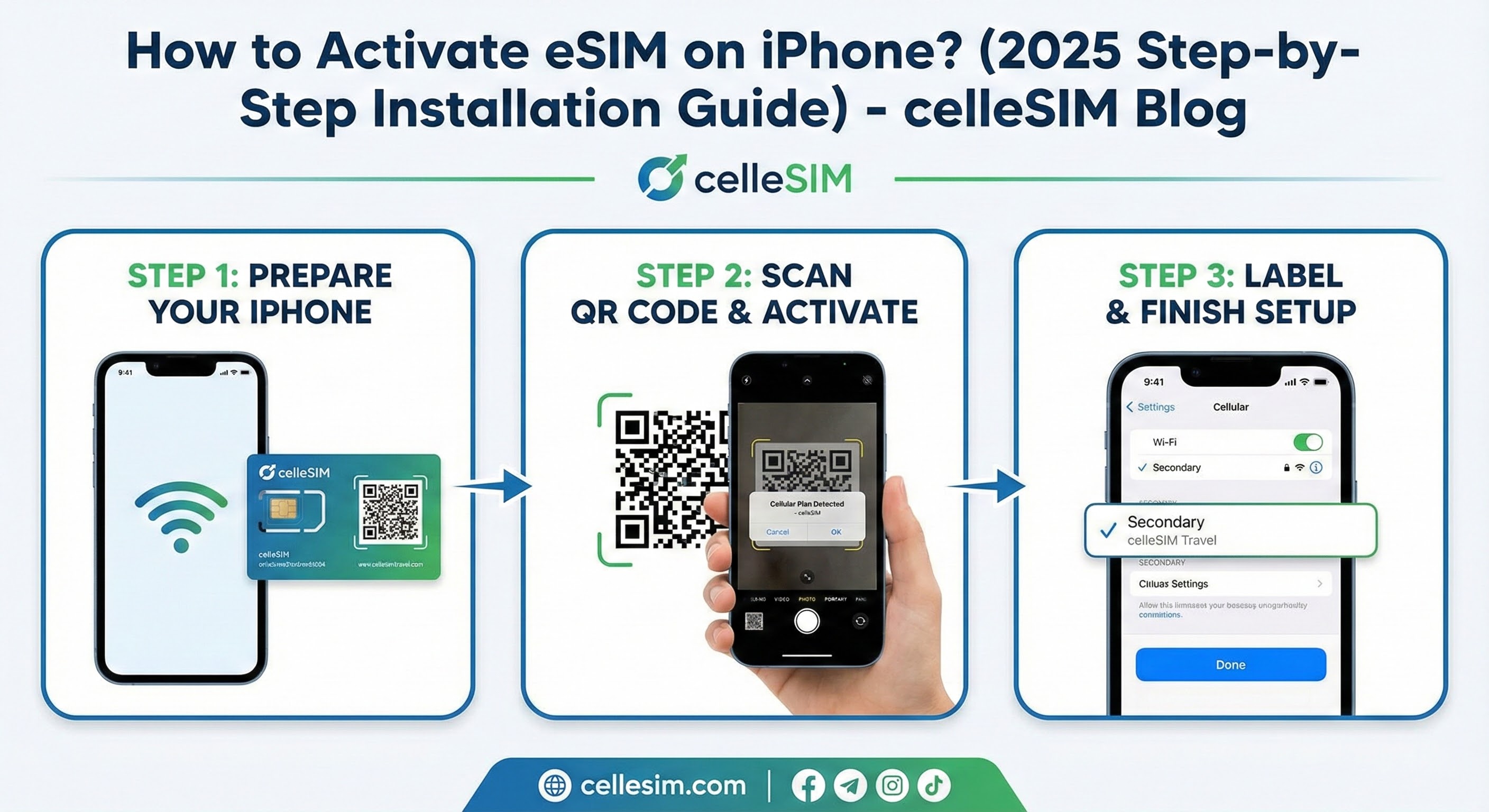
Method 1: eSIM Activation via QR Code (The Easiest Method)

99% of eSIM providers will send you a QR code. This is the fastest way to install.

Step 1: Go to Settings Open the "Settings" app on your iPhone.

Step 2: Select Cellular In the Settings menu, tap on "Cellular".

Step 3: Tap Add eSIM In the "Cellular" menu, find and tap the option that says "Add eSIM" or "Add Cellular Plan".

Step 4: Choose Use QR Code On the screen that appears, tap "Use QR Code".

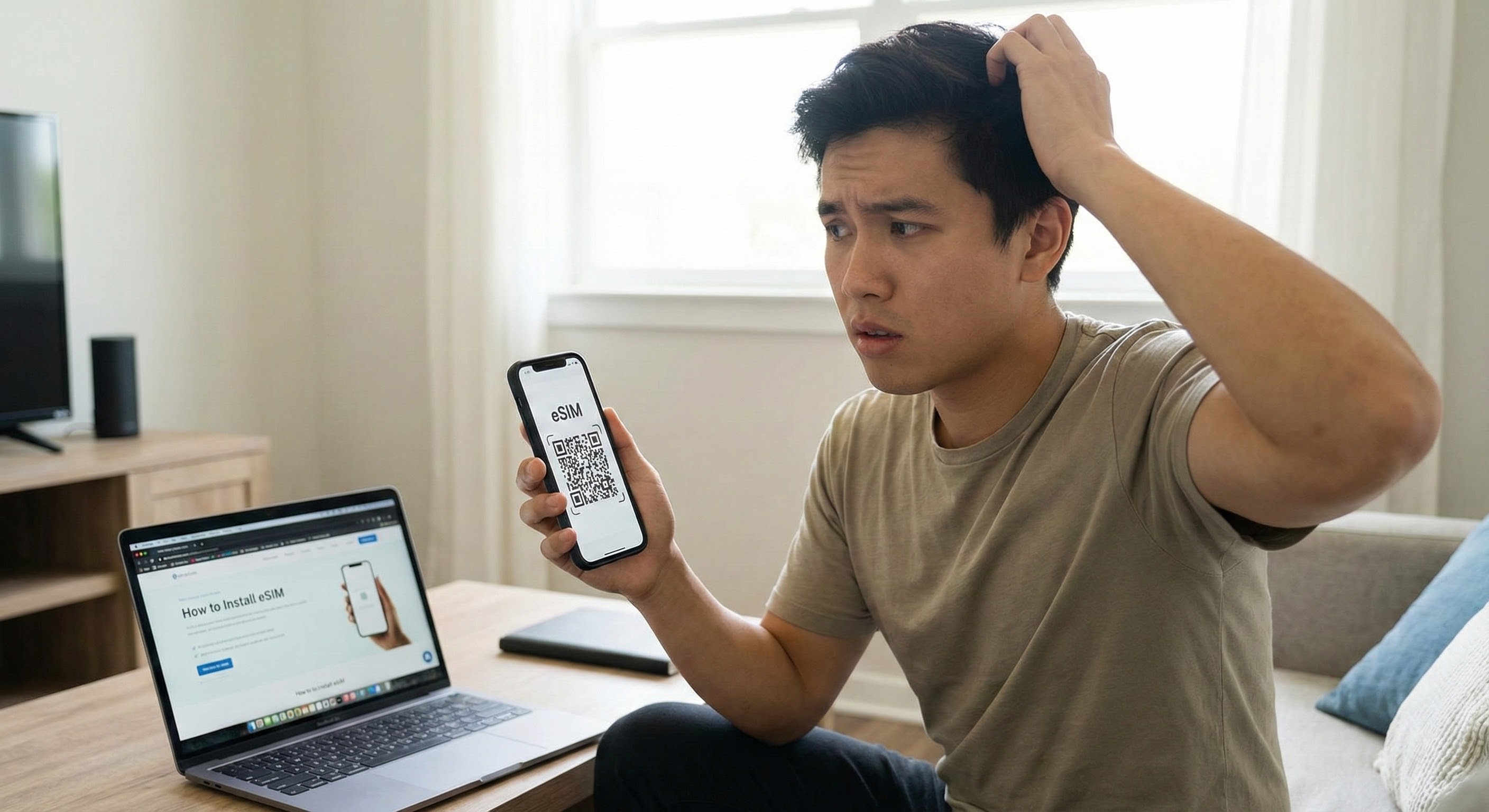
Step 5: Scan the QR Code Your iPhone's camera will open. Point your phone at the QR code that was sent to you via email (or displayed on the provider's website).

Important Tip: The QR code is usually on the screen of another device (computer, tablet). You need to scan the code from that screen with your phone's camera.

Step 6: Confirm Installation After your phone recognizes the QR code, a "A Cellular Plan is Ready to be Added" alert will appear on the screen. Tap "Continue" and wait for the eSIM to be installed.


Method 2: Manual Installation

If your QR code doesn't work or you experience an issue with your camera, you can enter the information manually.

  1. Proceed to Step 4 above (the "Use QR Code" screen).

  2. Tap on the "Enter Details Manually" option located at the bottom of the screen.

  3. Paste the "SM-DP+ Address" and "Activation Code" information provided by your provider (Cellesim, etc.) into the respective boxes.

  4. Tap "Next" to complete the installation.


After Installation: Label Your Line

Once your eSIM is successfully installed, your iPhone will ask you how you want to use the lines.

  1. Cellular Plan Labels: Your iPhone now has two lines (your existing physical SIM and your new eSIM). To avoid confusion, give them labels.

    • Your existing line: "Personal" or "Primary"

    • Your new eSIM: "Business" or (if it's an international package) "Travel" or "Data"

  2. Default Line Selection:

    • Voice Calls and SMS: It is generally recommended to select your "Personal" (Primary) line.

    • iMessage and FaceTime: You can select your "Personal" line.

    • Mobile Data (Most Important): If you purchased this eSIM for international internet, make sure to select your "Travel" (new eSIM) line for Mobile Data.

International Travel Tip: When traveling abroad, to avoid exorbitant roaming charges, go to "Settings > Cellular", turn off "Mobile Data Roaming" for your "Personal" (Turkey) line, and use only your "Travel" eSIM for Mobile Data.


Frequently Asked Questions (FAQ)

Q: Can I install an eSIM without Wi-Fi? A: No. An active Wi-Fi connection is absolutely necessary during installation for the eSIM plan to be downloaded to your iPhone.

Q: I installed the eSIM but can't connect to the internet? C: Make sure you have selected the new eSIM ("Travel", etc.) under "Settings > Cellular > Mobile Data". Additionally, "Data Roaming" might need to be enabled in that eSIM's settings (especially for international packages).

Q: I scanned my QR code, but it says "Invalid Code"? C: QR codes are usually single-use. If you've tried to install the code once or deleted it, it may not work again. Please contact your provider (Cellesim Support).

Q: Can I delete the eSIM after my trip ends? C: Yes. You can remove the eSIM by going to "Settings > Cellular", selecting the relevant eSIM, and tapping "Delete eSIM".


Conclusion: As you can see, adding an eSIM to your iPhone is a simple process that only takes a few minutes. Experience the convenience of eSIM for your international travels or as an additional business line, without the hassle of searching for a physical SIM card.

Need an affordable and reliable eSIM package before your trip? Check out cellesim.com's America, Europe, Asia, and Global eSIM packages now and discover the easiest way to connect to the internet!

Вам также может понравиться

Найдите больше статей на похожие темы

You’ve purchased an eSIM for your upcoming trip, and the QR code has arrived in your email. But there’s a catch: The QR code is on your phone screen,...

Planning a trip to Indonesia? Get the best Telkomsel tourist eSIM data packages. Learn how to buy online, see 2025 prices, and activate instantly via...

Stop paying outrageous ship Wi-Fi fees! Discover the **eSIM for Caribbean cruise** solution that keeps you connected across 20+ islands cheaply. Fast,...