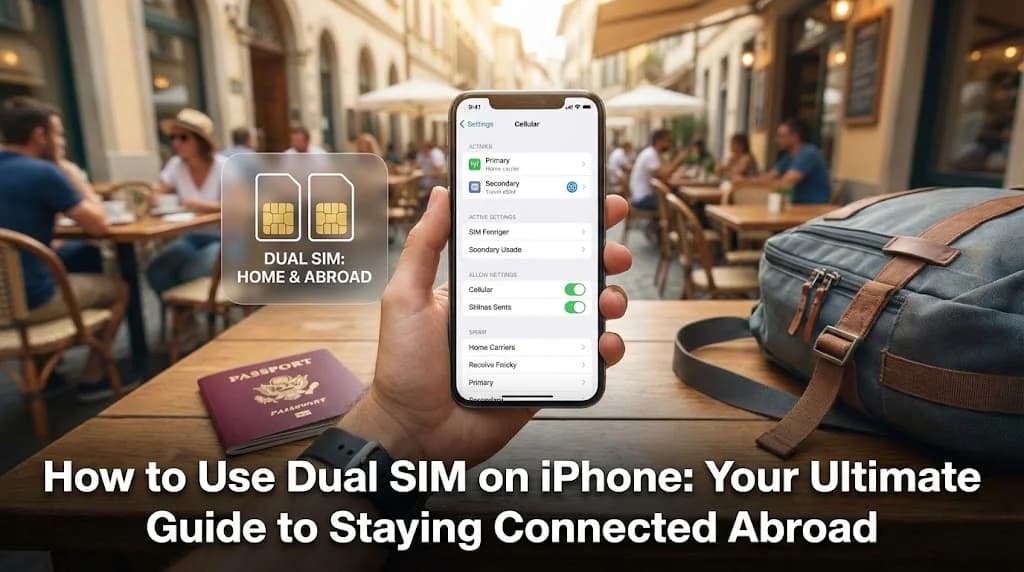
Keep the home number and choose the data line deliberately
Retaining your home line can preserve access to its number, subject to your carrier's roaming conditions. A data-only travel eSIM does not itself supply that number's SMS service. Check which line is selected for mobile data and whether automatic data switching is enabled before travelling. Review home-line calls, messages and data charges separately; turning off data roaming is not the same action as turning the entire line off. Refer to Apple's Dual SIM instructions for the settings on a compatible iPhone.
You’ve just landed. The airplane cabin door opens, and that first wave of warm, foreign air hits you. You’re excited, but then that familiar, low-grade anxiety kicks in. Your phone, your lifeline to maps, hotel bookings, and ride-sharing apps, is essentially a brick until you connect to the airport’s spotty Wi-Fi. Many of us have been there.
But what if you could step off the plane, turn off airplane mode, and be instantly connected? All while keeping your home number active for important calls? This isn't a travel fantasy. It's a reality for anyone who learns how to use dual SIM on iPhone. This guide will show you exactly how to set up your device to make calls on one line and use affordable data on another. It's the ultimate travel hack. Before you get started, always confirm you have one of the many eSIM compatible devices, which includes most modern iPhones.
- What Exactly is Dual SIM and Why Should Travelers Care?
- Choosing the Right eSIM Plan for Your Trip
- Setting Up Your iPhone for Dual SIM Success: A Step-by-Step Guide
- When to Activate Your Cellesim eSIM for Maximum Benefit
- The Core Skill: How to Make Calls on One SIM and Use Data on Another iPhone
- eSIM vs. Traditional Roaming and Local SIM Cards: A Cost Comparison
- Pro Tips for Managing Dual SIMs on iPhone While Traveling
- Troubleshooting Common Dual SIM Issues
- FAQ: Frequently Asked Questions About Dual SIM & eSIM for Travel
Stay Connected Across Europe with Cellesim
Explore 42 countries with seamless, high-speed data. Join 50,000+ happy customers already traveling smarter.
Get Your Europe eSIM 🌍
What Exactly is Dual SIM and Why Should Travelers Care?
At its core, Dual SIM technology means you can use two different mobile plans on a single iPhone. This might be a physical nano-SIM (the little card you're used to) combined with an eSIM (an embedded, digital SIM). Or, on newer iPhone models, it could even be two separate eSIMs. Think of it like having two phones in one, but without all the extra bulk.
iPhones use something called Dual SIM, Dual Standby (DSDS). This sounds technical, but it just means both of your phone lines are active and ready to receive calls and texts. You can get a call on your home number or your travel number anytime. The important thing to remember is that while both are ready for calls, only one can actively use cellular data at any given moment. For a traveler, that's a perfect setup.
The Unbeatable Dual SIM Benefits for International Travel
Why bother with all this? The advantages are huge, especially when you're abroad:
- Avoid Crippling Roaming Fees: This is the biggest perk. By using a local or regional travel eSIM for data, you completely skip those often-outrageous per-megabyte charges your home carrier would love to send your way. It's the most effective international roaming alternative out there today.
- Keep Your Home Number Active: You can still receive important calls and SMS texts, like two-factor authentication codes from your bank, on your primary number. Your friends and family can reach you just as they normally would.
- Get Local Speeds and Coverage: A travel eSIM connects you to local networks. This usually means faster, more reliable data than what you'd get roaming with your home provider. Cellesim partners with top local carriers in over 200+ countries to make sure you get optimal performance.
- Ultimate Convenience: With an eSIM, there's no need to hunt for a local SIM card shop at the airport, fumble with tiny SIM trays and ejector tools, or worry about losing your primary SIM card. This ease of use is a major upgrade from buying traditional SIMs at the airport.
Choosing the Right eSIM Plan for Your Trip
Picking the right eSIM plan is key for a smooth travel experience. Cellesim offers a variety of options designed for different travel needs and durations. Here's what to think about when you choose:
Data Volume: How Much Do You Really Need?
Your data needs really depend on how you travel. Are you a light user who just checks emails and maps? Or do you stream videos and make lots of video calls? Cellesim has plans from 1 GB for short trips or light use, up to 20 GB or more for longer stays or heavy data consumption.
- Light Use (1-3 GB): Occasional maps, messaging, email, light social media. This is enough for a weekend trip.
- Moderate Use (5-10 GB): Regular navigation, social media, some video streaming, occasional video calls. Good for a 1-2 week trip.
- Heavy Use (15+ GB): Frequent video calls, streaming, working remotely, extensive social media. Recommended for longer trips or digital nomads.
You can use our Smart Data Calculator to estimate how much data you'll need based on your planned activities.
Regional vs. Single-Country Plans
If your trip includes several countries within a specific region, a regional eSIM plan can save you money and be more convenient than buying individual country eSIMs. For example, Cellesim offers Europe eSIM plans that cover 42 countries, or Southeast Asia plans perfect for backpacking adventures.
- Single Country: Best for trips focused on one destination, like a week in Italy or France.
- Regional: Perfect for multi-country tours, such as a Eurotrip or exploring Asia. One eSIM covers all destinations, making connectivity simple.
Always check the plan's validity period to make sure it covers your entire trip. Cellesim plans usually range from 7 to 30 days, with options for longer terms.
Setting Up Your iPhone for Dual SIM Success: A Step-by-Step Guide
Getting your iPhone ready for dual SIM travel is pretty straightforward if you follow a few key steps. Think of it like a pre-flight check for your connectivity.
Before You Leave: The Pre-Travel Checklist
First, make sure your iPhone is “unlocked.” This means it isn't tied to a specific carrier. If you bought your phone directly from Apple, it's probably unlocked. If you got it through a carrier contract, you might need to contact them to request an unlock once your contract is fulfilled. An unlocked phone is crucial; it won't accept a second SIM from another provider otherwise. You can verify your phone's compatibility using our eSIM Checker.
Next, decide on your second line. While you could get a physical SIM card when you arrive, a travel eSIM for iPhone is much more convenient. You can buy and install it from the comfort of your home before you even pack your bags, ensuring you're connected the moment you land.
Activating Your Travel eSIM
The activation process is surprisingly simple. After buying a plan from a provider like Cellesim, you'll typically get a QR code by email. On your iPhone, you just need to:
- Go to Settings > Cellular.
- Tap on Add eSIM.
- Choose Use QR Code and scan the code you were sent.
Your iPhone will walk you through the next few prompts. For a more detailed walkthrough, you can always check an interactive setup guide, which visually breaks down every step. Cellesim also provides a complete eSIM setup guide if you prefer comprehensive instructions.
Labeling Your Lines for Clarity
Once your second line is active, your iPhone will ask you to label your plans. Don't skip this. It's a lifesaver. Default labels are often “Primary” and “Secondary,” but you can create custom ones. It's highly recommended to use clear, descriptive names like “Home Number” and “Travel Data” or "Cellesim [Country/Region]". This simple step prevents confusion later when you're choosing which line to use for a call or for data.
When to Activate Your Cellesim eSIM for Maximum Benefit
One of the best things about a Cellesim eSIM is how flexible it is when it comes to activation. Knowing the best time to activate can really improve your travel experience and help you get the most out of your plan.
Pre-Departure Activation: Seamless Arrival
For most travelers, the ideal scenario is to activate their Cellesim eSIM before even leaving home. You can do this via Wi-Fi once you get your QR code. The big benefit here is instant connectivity as soon as you arrive at your destination. The moment your plane lands and you switch off airplane mode, your phone will connect to the local network covered by your eSIM plan. This means immediate access to navigation, ride-sharing apps, and communication with family, all without scrambling for airport Wi-Fi.
For example, if you're traveling to Turkey, you can activate your Cellesim eSIM while still at home in the UK or Germany. This ensures you're connected from the minute you land at Istanbul Airport, avoiding any delays or relying on spotty public Wi-Fi.
Consider Your Plan's Validity
Most Cellesim plans start their validity period either from the moment you activate them or when you first connect to a supported network in the destination country. Always check the specific terms of the plan you bought. If your plan's validity begins immediately upon activation, and you activate it several days before your trip, those days will count towards your plan's duration. So, activate it closer to your departure date if the plan starts counting down right away.
If your plan's validity starts when you connect to a foreign network, you have more flexibility. You can install the eSIM profile weeks in advance, and the data package will only start counting down when your phone registers on a network in one of the covered countries.
For detailed information on when your specific Cellesim plan activates and expires, check your purchase confirmation email or the Cellesim app.
The Core Skill: How to Make Calls on One SIM and Use Data on Another iPhone
This is where the magic happens. You've got two lines active; now it's time to tell your iPhone exactly how you want to use them. This setup is the key to unlocking seamless, affordable connectivity abroad.
Designating Your Default Lines
Your iPhone's control center for this is in Settings > Cellular. Here you'll see two important options:
- Default Voice Line: This is the number your iPhone will use by default for making calls and sending SMS messages. It's often best to keep this set to your “Home Number” so that calls to your contacts go out from the number they recognize.
- Cellular Data: This is the most crucial setting for travel. Tap on it and select your “Travel Data” eSIM (e.g., "Cellesim [Country/Region]"). This tells your iPhone to use the affordable travel plan for all internet-related activities: maps, browsing, email, social media, and data-dependent apps like WhatsApp and FaceTime.
The Magic of “Allow Cellular Data Switching”
You'll also see a toggle for “Allow Cellular Data Switching.” What does this do? It's a clever feature that lets your iPhone temporarily use data from your non-primary data line during a voice call. Imagine you're on a call with your airline using your “Home Number,” but you need to look up your booking reference in your email. With this feature on, your iPhone will pull data from your “Travel Data” eSIM for that task without interrupting your call. For most travelers, it's best to leave this turned on, especially when you rely on your home number for important calls.
If you're looking to simplify your setup even more, you might consider freeing up your physical SIM slot entirely. Many travelers are now converting a physical SIM to an eSIM, which lets them use two travel eSIMs at once or keep maximum flexibility.
Making a Call: Choosing Your Line on the Fly
Even with a default voice line set, you're not stuck. When you go to make a call from the Phone app or your Contacts, you'll see a small button right above the number you're about to dial. Tapping this lets you choose which line, ”Home Number” or “Travel Data,” to place the call with. This gives you precise control, perfect for when you need to make a local call using your travel plan's number (if your Cellesim eSIM plan includes a local number, which some regional plans don't).
Browse All Cellesim eSIM Plans
eSIM vs. Traditional Roaming and Local SIM Cards: A Cost Comparison
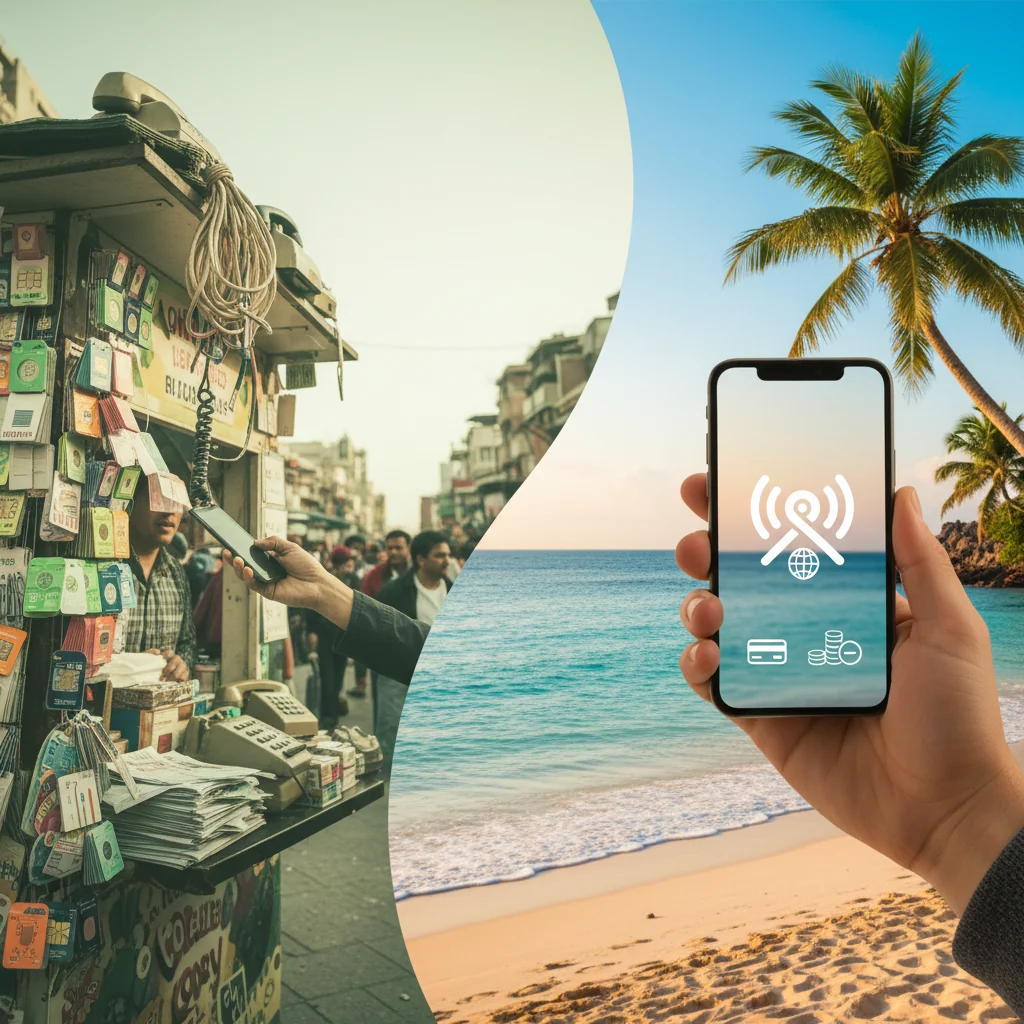
When you travel internationally, your connectivity options usually come down to three choices: using your home provider's international roaming, buying a local physical SIM card, or going for an eSIM. Let's compare these options, focusing on the financial and practical benefits of Cellesim eSIMs.
| Feature | Carrier Roaming | Local Physical SIM | Cellesim eSIM |
|---|---|---|---|
| Cost (example 5GB/7 days in Europe) | $50 - $100+ (often per day or per MB) | $15 - $30 (local currency equivalent) | $10 - $25 (competitive rates) |
| Activation Time | Automatic, but often throttled or expensive | Upon arrival, find store, queue, register | Instant, can activate before travel |
| Data Speed & Coverage | Variable, often throttled (e.g., 256kbps), dependent on roaming agreements | Full local speeds, strong coverage | Full local speeds (4G/5G), strong coverage via local partners |
| Keeping Home Number | Yes (calls/texts cost extra) | Yes (physical SIM removed, no service) | Yes (via Dual SIM, home number active for calls/texts) |
| Convenience | Easy, but expensive | Requires physical swap, can lose home SIM | Hassle-free digital installation, no physical swap |
| Flexibility | Limited plans, often auto-renew | Country-specific, limited multi-country options | Wide range of data plans, regional options, easy top-ups |
As the table shows, Cellesim eSIMs offer a compelling balance of cost, convenience, and performance. They often beat both traditional roaming and the logistical headaches of local physical SIMs. They're especially good for travelers who want to keep their primary number active without racking up huge charges, a common concern discussed in our guide on eSIM vs. international roaming.
Pro Tips for Managing Dual SIMs on iPhone While Traveling
You've got the basics down. Now, let's go over a few expert tips that really set apart the novice from the pro when it comes to managing dual SIMs on iPhone.
- CRITICAL: Turn Off Data Roaming on Your Home SIM. Go to Settings > Cellular > [Your Home Number] and make sure the “Data Roaming” toggle is switched OFF. This is your safety net. It stops your home carrier from charging you for data usage, even if there's a momentary glitch or incorrect setting. Double-check this before you take off. It's the difference between a great trip and a post-travel bill shock, a scenario detailed in many guides comparing Cellesim vs. roaming in Mexico.
- Manage iMessage and FaceTime Settings. In Settings > Messages > Send & Receive, you can choose which number or email address to start new conversations from. Similarly, in FaceTime settings, you can select your caller ID. You can keep this as your home number so your contacts recognize you, while all the data for the service runs over your affordable Cellesim eSIM.
- Understand Voicemail Charges. Accessing your home number's voicemail from abroad by dialing in can trigger roaming charges. It's often better to rely on Visual Voicemail if it can access data from your travel SIM, or simply wait until you're back home.
- Keep an Eye on Battery Life. Staying connected to two networks at once can use slightly more battery than using just one. It's usually not a huge difference, but if you're out sightseeing all day, carrying a small power bank is always a good idea. Consider adjusting settings like background app refresh or using low power mode to extend battery life.
- Monitor Data Usage. Regularly check your data consumption under Settings > Cellular. This helps you track how much data your Cellesim eSIM plan is using and lets you top-up if needed. Most Cellesim plans offer easy in-app top-ups. For more details on managing data, refer to our guide on checking eSIM data usage.
- Consider a VPN. If you're traveling to countries with internet censorship, like China, a Virtual Private Network (VPN) is essential. While Cellesim provides the connectivity, a VPN encrypts your traffic and can help you bypass restrictions, as outlined in our guide on bypassing censorship with an eSIM. Choose a reputable VPN service before you travel. For broader travel security tips, consulting official government travel advisories like those from the U.S. Department of State can be beneficial.
Troubleshooting Common Dual SIM Issues
While Dual SIM and eSIM technology generally offer a smooth experience, you might occasionally run into minor issues. Knowing how to troubleshoot them can save you time and frustration.
- eSIM Not Activating: Double-check that you have a stable internet connection (Wi-Fi is best for activation). Make sure the QR code is scanned correctly in good lighting. If problems continue, restart your iPhone. For persistent issues, contact Cellesim support at [email protected].
- No Data Service:
- Confirm your Cellesim eSIM is selected as the "Cellular Data" line in Settings > Cellular.
- Ensure "Data Roaming" is ON for your Cellesim eSIM (this is different from your home SIM).
- Check your APN settings. Sometimes, these need to be manually configured, although Cellesim eSIMs usually set up automatically. You can find the correct APN settings in your Cellesim activation email or on the website.
- Verify you have data left on your plan.
- If you still have no service, try manually selecting a network in Settings > Cellular > Network Selection (for your eSIM line) and toggle "Automatic" off.
- Calls Not Going Through:
- Ensure your "Default Voice Line" is set correctly in Settings > Cellular.
- If making an international call, make sure you're dialing with the correct country code.
- Check that your home SIM isn't experiencing a network outage if you're trying to use it for calls.
- "No Service" Message:
- Try turning Airplane Mode on and off.
- Restart your iPhone.
- Ensure you are within coverage of the Cellesim partner network in your destination. You can check network details on the Cellesim network page.
- Unexpected Home Carrier Charges: This almost always means that "Data Roaming" was not turned OFF for your home SIM. Review and fix this setting immediately. If charges have already happened, contact your home carrier for clarification, and then Cellesim support for any help if it's related to eSIM functionality.
Remember that Cellesim's support team is available to help with any technical issues you might face. Don't hesitate to reach out if you can't solve a problem on your own.
FAQ: Frequently Asked Questions About Dual SIM & eSIM for Travel
What is Dual SIM and how does it benefit travelers?
Dual SIM technology lets your iPhone use two different mobile plans at the same time. For travelers, this means you can keep your home number active for calls and SMS while using an affordable Cellesim eSIM for data. This helps you avoid expensive roaming fees and gives you access to local network speeds.
Do I need an unlocked iPhone to use Dual SIM with a travel eSIM?
Yes, your iPhone must be unlocked to use a travel eSIM from a different provider. If you bought your phone through a carrier contract, you might need to contact them to request an unlock once your contract is fulfilled. iPhones bought directly from Apple are usually unlocked.
How do I activate a Cellesim eSIM on my iPhone?
After buying a Cellesim plan, you'll get a QR code by email. On your iPhone, go to Settings > Cellular, tap 'Add eSIM', and choose 'Use QR Code' to scan it. Follow the on-screen prompts to finish the installation. You can do this before you travel for instant connectivity when you arrive.
Can I make calls and use data from different SIMs at the same time?
Yes. With iPhone's Dual SIM, Dual Standby (DSDS) feature, both lines are active for calls and texts. You can set one line as your default for voice and another (typically your Cellesim eSIM) for cellular data. The 'Allow Cellular Data Switching' feature allows your iPhone to use data from your secondary line during a voice call on your primary line.
How can I avoid unexpected data roaming charges on my home SIM?
It's crucial to turn off Data Roaming for your home SIM. Go to Settings > Cellular > [Your Home Number] and make sure the 'Data Roaming' toggle is switched OFF. This stops your home carrier from charging you for data usage abroad, even if something unexpected happens.
When is the best time to activate my Cellesim eSIM?
For the most convenience, it's best to buy and activate your Cellesim eSIM before you leave for your trip. This ensures you're instantly connected the moment you land, without needing to find Wi-Fi or a local SIM shop. The eSIM plan's validity period usually starts upon activation or the first time you use it in the destination country.
Travel with Confidence, Stay Connected Effortlessly
Say goodbye to roaming fees and unreliable public Wi-Fi. With Cellesim, you get reliable, high-speed data in over 200 countries, all while keeping your home number active. Join 50,000+ satisfied travelers who trust Cellesim for their global connectivity.
Find Your Perfect eSIM Plan
Conclusion: Travel Smarter, Not Harder
Learning how to use dual SIM on iPhone is more than just a technical exercise; it's about fundamentally changing how you travel. It removes the hassle of finding connectivity and the dread of a massive phone bill. By setting your travel eSIM for iPhone as your primary data source, you get affordable, high-speed internet for maps, translations, and sharing your journey. At the same time, you keep your home line open for those essential calls and texts, giving you the perfect mix of global connectivity and local access.
You no longer have to choose between being reachable and avoiding debt. With a dual SIM setup and Cellesim, you get the best of both worlds. The next time you land in a new city, from the bustling streets of Madrid to the quiet beaches of the Mediterranean, you can be confident that you are in complete control of your connection. Ready to make seamless connectivity your new travel standard? A world of possibilities awaits with affordable data plans for Europe and beyond.