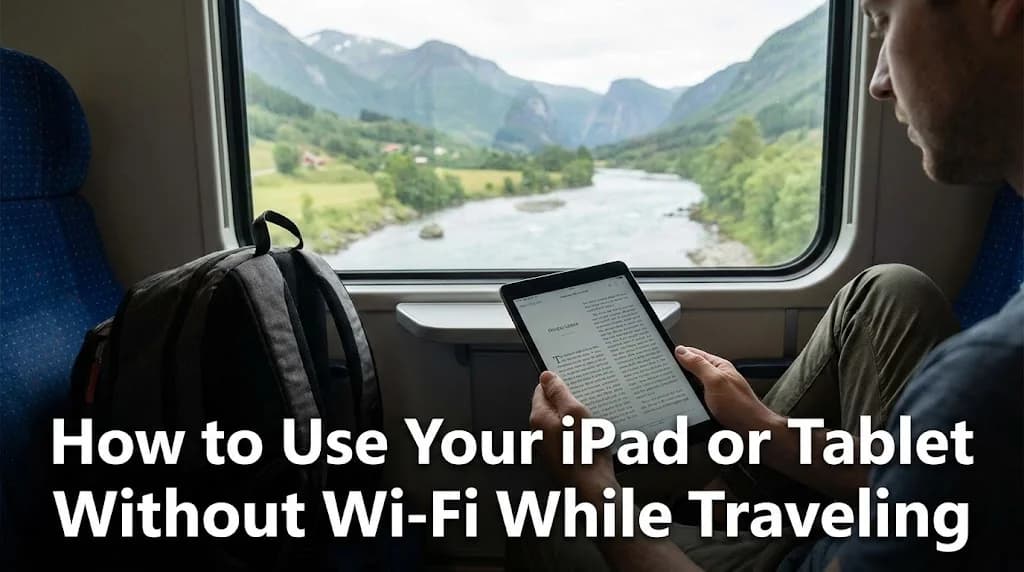
Picture this: you've just landed at Charles de Gaulle after a long flight. Your hotel confirmation and that must-try dinner reservation are buried in an email on your iPad, and the airport’s public Wi-Fi is either totally swamped or just plain refusing to connect. It’s that familiar moment of digital panic that can really throw a wrench into your travel plans.
Your tablet is an incredible tool for maps, entertainment, and research, but it's pretty useless when it's offline. This guide will show you exactly how to use your iPad or tablet without Wi-Fi, making sure you have reliable internet from the second you land. We'll get into the game-changing convenience of eSIMs, a technology built into most modern tablets. Before we jump in, take a quick peek to see if your device is one of the many eSIM compatible devices that make international travel a breeze.
- First, Does Your iPad or Tablet Even Have Cellular?
- The Modern Solution: Using an eSIM for Your iPad
- Other Ways to Get Portable Internet for Travel
- Understanding Network Coverage for Tablets Abroad
- How Much Data Do You Need for Your Tablet on a Trip?
- eSIM vs. Traditional Roaming vs. Portable Wi-Fi: A Cost Comparison for Tablets
- Pro Tips for Managing Tablet Data While Traveling
- Frequently Asked Questions
Stay Connected Across Europe with Cellesim
Get seamless, high-speed data for your tablet in 42 European countries. Instant activation, no hidden fees.
Explore Europe Plans →Trusted by 50,000+ happy customers.
First, Does Your iPad or Tablet Even Have Cellular?
Before we go any further, you need to answer a basic question: is your tablet a "Wi-Fi Only" model or a "Wi-Fi + Cellular" model? This one detail changes everything about what connectivity solutions are available to you. It's a common point of confusion, but it’s actually really simple to check.
How to Check Your Tablet's Model
There are two easy ways to find out:
- Look for a SIM Card Tray: On an iPad, the clearest sign of a cellular model is a small tray on the side of the device. You'll usually see a tiny pinhole next to it, which you'd use to eject the tray. If you spot this, your iPad has cellular capabilities. Android tablets will have a similar slot. You can also quickly verify device compatibility using the Cellesim eSIM checker online.
- Check Your Settings: On an iPad, head to Settings. If you see a "Cellular Data" or "Mobile Data" option in the main menu (it's usually right below Wi-Fi and Bluetooth), your device is ready for cellular. If that option isn't there at all, you have a Wi-Fi-only model. For Android tablets, this option is typically under "Network & Internet" or "Connections."
If you find you have a Wi-Fi-only model, don't sweat it. You can't add internal cellular capability, but plenty of options we'll discuss later, like tethering and portable hotspots, are specifically for your situation. If you have a cellular model, a whole world of truly connected travel opens up, especially with eSIM technology. This is super important for trips where constant connectivity is key, like planning an extensive eSIM for an Australia & New Zealand road trip where you might be driving between remote spots.
The Modern Solution: Using an eSIM for Your iPad
For travelers with a cellular-enabled iPad or tablet, an eSIM is hands-down the most elegant and efficient way to get online abroad. It does away with all the headaches of old-school travel connectivity and gets you online in minutes.
What is an eSIM and Why is it Perfect for Tablets?
An eSIM (embedded SIM) is a digital SIM card built right into your device. Instead of physically swapping a tiny piece of plastic, you simply download a digital data plan onto your tablet. Think of it more like software than hardware. That's why it's the ideal travel data plan solution for a sleek device like an iPad. To learn more about how it works, you can check out resources from the GSMA, the global association for mobile operators, which standardizes eSIM technology.
The benefits for travelers are huge:
- Instant Activation: You can buy and install your data plan from your couch before you even leave home. When you land, you just turn it on. No more scrambling to find a SIM card kiosk at the airport, which often means higher prices and inconvenience.
- No Physical Hassle: You won't need to hunt for a paperclip to eject your home SIM tray, and there's no risk of losing your primary SIM card while you're away. This is especially good for tablets, which often have less sturdy SIM trays compared to phones.
- Global Flexibility: You can store multiple eSIM profiles on your device. That means you could have a plan for Spain, one for Japan, and a regional plan for Southeast Asia all ready to go, and switch between them as you travel. Cellesim offers plans covering over 200 countries, giving you incredible global reach.
- Cost-Effective: eSIM plans are often much cheaper than paying for international data roaming from your home carrier, which can lead to truly shocking bills. Saving money is a big reason why many travelers are switching to eSIMs.
How to Activate an eSIM on your iPad for Travel
Getting started is surprisingly simple. The process usually involves three main steps, and our interactive setup guide can walk you through every detail.
- Purchase a Plan: Choose a data plan for your destination from a provider like Cellesim. You'll get a QR code or manual activation details via email almost instantly. Cellesim offers a wide range of plans for different data needs and trip lengths.
- Install the eSIM: On your iPad, go to Settings > Cellular Data > Add eSIM. You can then scan the QR code with your iPad's camera. Your tablet will walk you through a few quick steps to label your new plan (like "Europe Travel Data"). For a more detailed walkthrough, check out our step-by-step installation guide.
- Activate Upon Arrival: Once you land at your destination, simply go back into your Cellular Data settings, pick your travel eSIM, and turn on "Data Roaming" for that specific line. You'll be connected to the local network in moments. Remember to turn off data roaming for your primary physical SIM if you want to avoid charges from your home carrier.
Choosing the Right Travel Data Plan
Not all data plans are created equal. To pick the perfect one, keep these things in mind:
- Destination(s): Are you visiting just one country or bouncing between several? Regional eSIMs (like for Europe or Asia) are incredibly convenient and save money for multi-country trips, letting you use one plan across many borders.
- Data Amount: Be honest about your usage. Are you just checking emails and using maps, or will you be streaming videos and joining Zoom calls? If you're not sure, it helps to figure out exactly how much data you need so you don't run out halfway through your trip. Think about activities like video calls, social media, and navigation when you're estimating.
- Duration: Make sure the plan's validity period matches how long you'll be staying. Most plans last from 7 to 30 days, but Cellesim also has longer options for extended trips or digital nomads.
Other Ways to Get Portable Internet for Travel
While an eSIM is the best choice for cellular tablets, it's not your only option. These methods work for both cellular and Wi-Fi-only models, so they're important to understand.
Using Your Phone's Hotspot (Tethering)
Tethering lets you share your phone's cellular connection with your tablet. You essentially turn your smartphone into a personal Wi-Fi hotspot.
- Pros: It's convenient because you're using a device you already have. No extra hardware needed. This is a quick fix if your phone already has a robust and affordable international data plan.
- Cons: This drains your phone's battery significantly. More importantly, if you're using your home SIM card abroad, you could be tethering with expensive roaming data. This is how travelers end up with thousand-dollar phone bills. It's vital to understand your carrier's policies and really focus on avoiding huge international data roaming bills. Tethering can also be slower or less reliable than a direct connection if your phone's signal is weak.
Portable Wi-Fi Hotspots (MiFi Devices)
A MiFi is a pocket-sized device that holds its own SIM card and broadcasts a private Wi-Fi network that your tablet and other devices can connect to.
- Pros: You can connect multiple devices at once (laptop, phone, tablet) and it has its own dedicated battery, saving your phone's power. It creates a secure, private network, which is often more reliable than public Wi-Fi.
- Cons: It's another gadget to buy, carry, and keep charged. You also still need to buy a data plan or SIM card for the hotspot itself, which adds a layer of complexity. The upfront cost of the device, plus daily rental or data plan fees, can sometimes outweigh the benefits, especially for shorter trips.
Local Physical SIM Cards
The traditional method means buying a physical SIM card from a local carrier when you arrive. This option is only for Wi-Fi + Cellular tablet models.
- Pros: Can sometimes be very cheap for lots of data, especially in parts of Asia. You get a local phone number, which can be useful for bookings or local contacts.
- Cons: It's a hassle. You have to find a store, deal with potential language barriers, and handle registration requirements (some countries require passport registration). Plus, you have to physically swap the SIM in your cellular tablet, risking misplacing your home SIM. This method is often less flexible for multi-country trips compared to a regional eSIM. For a deeper comparison, check out our guide on prepaid SIM card vs. eSIM for travelers.
Understanding Network Coverage for Tablets Abroad
Making sure your tablet has reliable internet while traveling means more than just picking a data solution. You also need to think about the quality and availability of the network itself. A Cellesim eSIM connects you to the best local networks, offering strong coverage in your destination.
What to Expect from Mobile Networks
- 4G/LTE: This is the most common standard globally and provides excellent speeds for most tablet activities, like streaming, browsing, and video calls. You can expect widespread 4G coverage in urban and populated areas in most countries.
- 5G: In many developed countries and major cities, 5G networks are growing fast. When available, 5G offers significantly faster speeds and lower latency, improving your tablet experience, especially for big downloads or high-quality video conferencing. Cellesim works with top local providers to make sure you get access to these advanced networks where they're available.
- Rural vs. Urban Coverage: Just like at home, mobile network coverage can be spotty in remote or mountainous regions. If your travel plans include a lot of off-grid exploration, downloading offline maps and content becomes even more critical. Always check general coverage maps for your specific destinations if you think you'll be in less-traveled areas. For an idea of how Cellesim ensures solid connectivity, you can review how our network works.
Understanding these points helps manage expectations and lets you plan your digital activities more effectively during your trip. Knowing you have a reliable network connection brings peace of mind, whether you're navigating busy city streets or exploring peaceful landscapes.

How Much Data Do You Need for Your Tablet on a Trip?
Estimating your data needs for a tablet can be tricky, as everyone uses their devices differently. However, optimizing your data consumption is crucial to avoid unexpected top-ups or running out of connectivity at a key moment. Our Smart Data Calculator can give you a personalized estimate, but here's a general guide:
Typical Tablet Data Consumption Estimates
- Light User (2-5 GB per week): You mostly use your tablet for checking emails, browsing news sites, occasional social media, and light navigation with downloaded maps. You stream very little video or music.
- Moderate User (5-10 GB per week): Your usage includes regular social media, frequent browsing, some online shopping, occasional video streaming (standard definition), and a few video calls (e.g., WhatsApp, FaceTime). This is good for general tourism and staying in touch.
- Heavy User / Digital Nomad (15-30+ GB per week): You rely heavily on your tablet for work, extensive video streaming (HD), frequent video conferencing, large file downloads, or using your tablet as your main device for most online activities. If you're using your tablet to tether other devices, your data consumption will be much higher.
Remember, these are just estimates. Things like video streaming quality (SD vs. HD), how often apps update, and background app activity can all impact your actual data usage. For example, if you're on a long business trip and expect many video calls, pick a higher data package. Similarly, for family travel where multiple devices might share a hotspot, a larger plan is a smart choice. For a quick reference, check out our blog post on how much data is needed for a 2-week trip in Europe.
Browse Cellesim eSIM Plans →
eSIM vs. Traditional Roaming vs. Portable Wi-Fi: A Cost Comparison for Tablets
When you're planning for tablet connectivity abroad, understanding the costs of each option is critical. Here's a comparison to help you make a smart decision:
| Connectivity Method | Pros for Tablets | Cons for Tablets | Estimated Cost (per day/GB) |
|---|---|---|---|
| Cellesim eSIM | Instant setup, no physical SIM, multiple plans, local speeds in 200+ countries. | Requires Wi-Fi + Cellular tablet. | From $0.50/GB or $4.50/day (plan dependent) |
| Carrier Roaming | No new hardware, uses existing phone plan (if tethering). | Extremely expensive, throttled speeds, high risk of bill shock. | $10-$15/day for limited data (e.g., 2GB). |
| Portable Wi-Fi Hotspot | Connect multiple devices, dedicated battery. | Extra device to carry, buy/rent, charge; separate data plan needed. | $8-$20/day (rental + data) + device cost. |
| Local Physical SIM | Can be cheap for large data in some regions, local number. | Hassle of finding store, installation, language barriers, passport registration. | $2-$10/GB (varies widely by country/carrier). |
This comparison clearly shows why Cellesim eSIMs often offer the most balanced solution for travelers. They give you the convenience of instant, flexible connectivity at a much lower cost than traditional roaming, without the extra complexity and hardware of a portable Wi-Fi device or local physical SIMs. Using a roaming savings calculator can further highlight how much money you could save by choosing an eSIM for your tablet.
Pro Tips for Managing Tablet Data While Traveling
Once you're connected, you want that data to last. Nothing's worse than running out of your data allowance days before you fly home. Here are some pro tips to stay efficient:
- Download Offline Maps: Before you leave your hotel's Wi-Fi, use Google Maps or Apple Maps to download the entire city map to your device. This way, GPS will work for navigation without using a single megabyte of your cellular data. Many travel apps also offer offline capabilities, which can be invaluable.
- Pre-load Your Entertainment: Download movies from Netflix, playlists from Spotify, and podcasts before you head out for the day. Streaming is one of the biggest data consumers. Even short video clips on social media can quickly eat up your allowance.
- Disable Background Hogs: Go to Settings > General > Background App Refresh and turn it off, or at least disable it for data-hungry apps like Instagram and Facebook. Also, turn off automatic app updates over cellular. This stops apps from using data without you even knowing.
- Monitor Your Usage: Your iPad's Cellular Data settings menu shows you exactly how much data you've used and which apps are the biggest culprits. Check it every day or two to stay on track. This is especially helpful on longer trips, for instance, if you're using an eSIM for the United States for a multi-week cross-country journey, where consistent monitoring helps prevent unexpected data depletion. Many apps also have data-saving modes in their own settings.
- Utilize Wi-Fi When Available: While the goal is to use your tablet without Wi-Fi, smartly connecting to secure hotel or cafe Wi-Fi for big downloads or updates can extend the life of your eSIM data plan. Always be careful about public Wi-Fi security, however.
Frequently Asked Questions
Can I use an eSIM on my Wi-Fi Only iPad?
No, Wi-Fi Only iPads don't have the necessary cellular hardware to support an eSIM. eSIMs need a cellular-enabled tablet (a Wi-Fi + Cellular model). However, you can still use methods like tethering from a cellular phone or a portable Wi-Fi hotspot to get internet on your Wi-Fi Only device.
How do I know if my iPad is cellular-enabled?
You can check by looking for a physical SIM card tray on the side of your iPad. Alternatively, go to Settings on your iPad. If you see a 'Cellular Data' or 'Mobile Data' option in the main menu, your device supports cellular connectivity and therefore eSIMs.
Is using an eSIM cheaper than international roaming for my tablet?
In most cases, yes. International roaming charges from your home carrier are often very expensive, sometimes costing $10-$15 per day for limited data. Cellesim eSIM plans offer significantly more affordable data rates, especially for regional or multi-country travel, providing a cost-effective alternative.
How much data do I need for my iPad on a one-week trip?
Data needs vary, but for light use like maps, email, and occasional browsing, 3-5 GB for a week is often enough. If you plan to stream video, make frequent video calls, or use your tablet for work, consider 10 GB or more. Cellesim offers a Smart Data Calculator to help estimate your specific needs.
Can I keep my home SIM active while using an eSIM on my tablet?
Yes, if your cellular tablet supports dual SIM (physical SIM + eSIM), you can keep your home physical SIM active for calls and texts while using the eSIM for mobile data abroad. This lets you receive important calls or messages on your primary number without expensive roaming data charges.
What are the advantages of using Cellesim for tablet connectivity?
Cellesim offers instant digital delivery, meaning no more physical SIM cards. You get access to local network speeds in over 200 countries, clear pricing without hidden roaming fees, and the flexibility to switch between multiple plans. This ensures reliable and affordable internet access for your tablet from the moment you land.
Travel Smarter, Stay Connected
Never struggle with unreliable Wi-Fi again. Get instant, high-speed data for your tablet wherever you go.
Find Your Perfect eSIM PlanJoin 50,000+ travelers enjoying seamless connectivity with Cellesim.
Relying only on spotty public Wi-Fi is a travel strategy of the past. It's unreliable, often insecure, and really limits your ability to be spontaneous. Knowing how to use your iPad without Wi-Fi gives you the freedom to look up a restaurant review on the spot, book a last-minute train ticket, or navigate a confusing city with total confidence. For those with a cellular-enabled tablet, the choice is clear: an eSIM for your iPad offers an unbeatable mix of convenience, control, and cost-effectiveness.
You can set it up before you even leave, activate it the second you land, and enjoy smooth, high-speed data without the fear of roaming charges. Before your next trip, explore a Cellesim travel data plan and see how simple it is to keep your iPad connected, wherever your adventure takes you.