








I Have Only One Phone, How Do I Scan the QR Code? (eSIM Installation Guide)
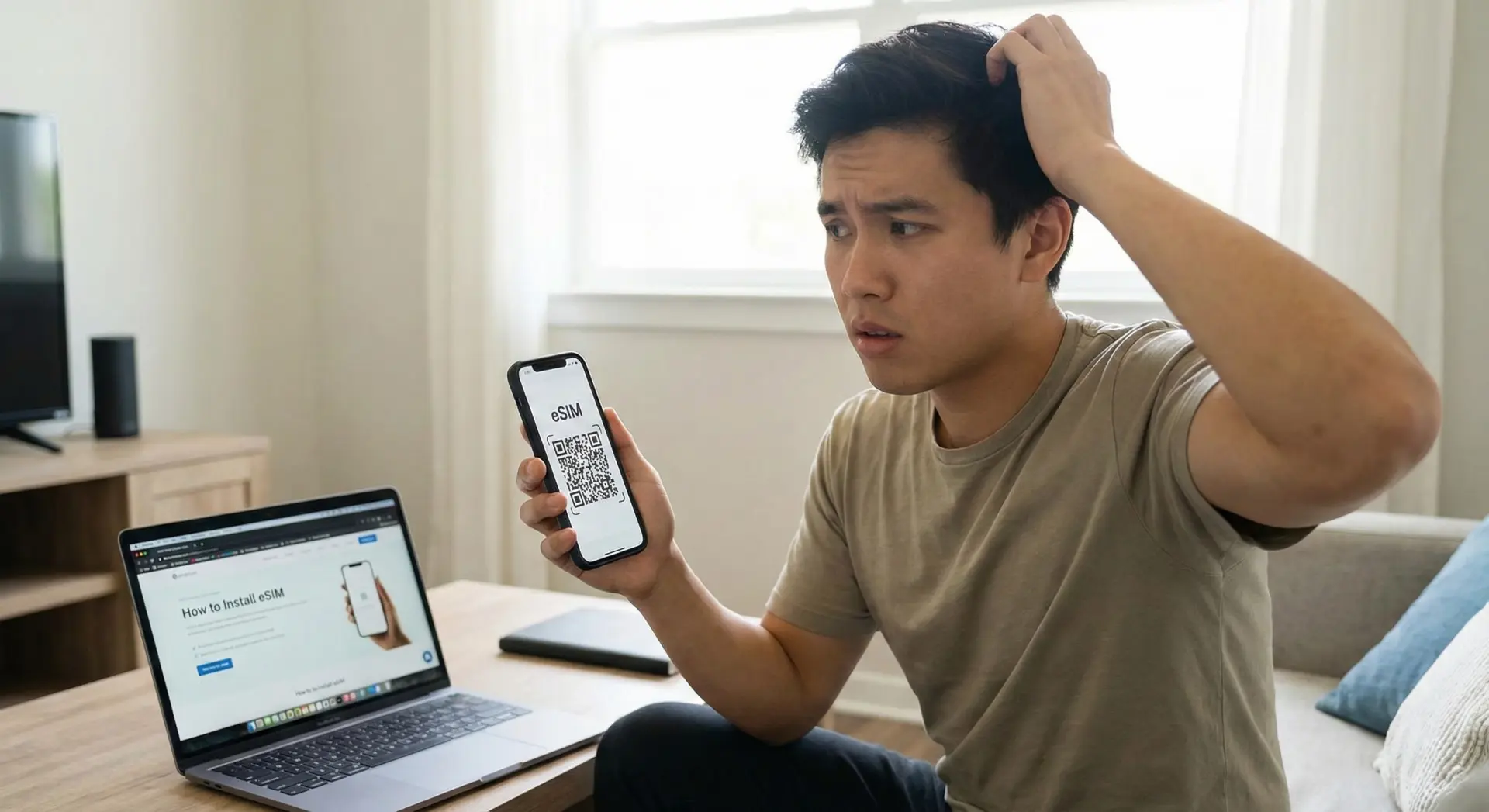
You’ve purchased an eSIM for your upcoming trip, and the QR code has arrived in your email. But there’s a catch: The QR code is on your phone screen, but your camera is on the back! You can’t take a picture of your own screen, right?
Emma Wright, eSIM Setup Specialist & Education Lead
(Updated: 16 February 2026)
22 min read
You have purchased a Cellesim Global eSIM plan for your upcoming trip, and the QR code has arrived in your email. However, a common challenge arises: the QR code is displayed on your phone screen, but your device's camera is on the back. This creates what we call the "Single Device Paradox" – the apparent impossibility of scanning a code that is already on the screen you are using.
You are not alone in facing this situation. Fortunately, the solution is much simpler than it seems. You do not need a second phone, a computer screen, or any complex workaround. This guide provides step-by-step methods to install your eSIM using just one device, ensuring you can connect instantly and seamlessly for your travels.
Quick Navigation
The Single Device Paradox: Installing Your eSIM with Just One Phone
The Single Device Paradox: Installing Your eSIM with Just One Phone | Cellesim eSIM
The Single Device Paradox: Installing Your eSIM with Just One Phone
The core challenge when setting up an eSIM is often the activation process. Many providers send a QR code via email, which traditionally requires scanning with your phone's camera. This becomes problematic when the QR code itself is displayed on the device you intend to install it on. You cannot simultaneously view and scan the same screen.
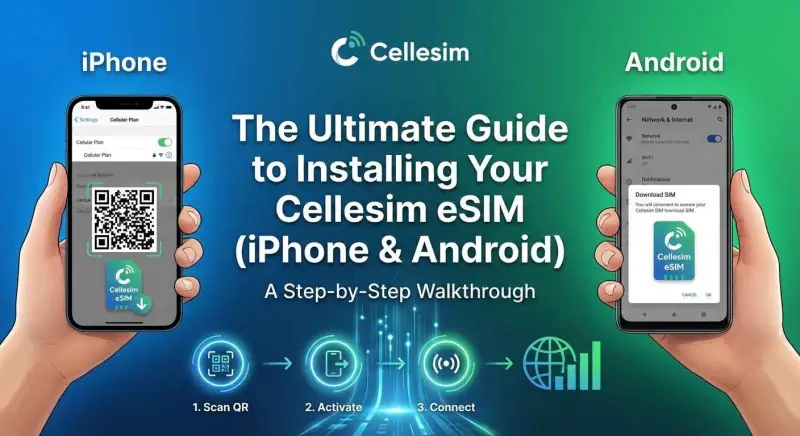
However, modern smartphone operating systems have evolved to address this exact scenario. Whether you use an iPhone or an Android device, there are direct and straightforward methods to complete your eSIM installation without needing a secondary screen or a printed QR code. Cellesim ensures that the process is designed for your convenience, allowing you to activate your plan in seconds.
Key Info: eSIMs simplify international travel by eliminating physical SIM card swaps. Installation on a single device is a common user concern, now easily solved with built-in phone features.
For iPhone users running iOS 17.4 or later, Apple has introduced a highly intuitive feature that streamlines eSIM activation. This method eliminates the need for screenshots or navigating through settings menus, making it the quickest option available.
Step-by-Step Activation for iPhone:
Locate the QR Code: Open the email from Cellesim or navigate to the relevant page on cellesim.com where your eSIM QR code is displayed.
Long Press: Tap and hold your finger directly on the QR code image. This action triggers a context menu specific to QR codes.
Select "Add eSIM": In the pop-up menu, you will see an option clearly labelled "Add eSIM". Tap this option.
Automatic Setup: Your iPhone will automatically launch the eSIM setup wizard, pre-filling the necessary details from the QR code. Follow the on-screen prompts to complete the installation.
Pro Tip: Ensure your iPhone's operating system is up to date to access this "Long Press" feature. Go to Settings > General > Software Update to check for the latest iOS version.
Method 2: The "Screenshot & Gallery Scan" Technique for All Devices
This method is widely compatible with most modern smartphones, including Android devices (Samsung, Google Pixel, Xiaomi, etc.) and iPhones running older iOS versions. It leverages your phone's ability to scan QR codes from images stored in its gallery rather than directly through the camera lens.
Step-by-Step Activation via Screenshot:
Capture the QR Code: Take a screenshot of the page displaying your Cellesim eSIM QR code. Ensure the QR code is clearly visible in the screenshot.
Access eSIM Settings:
iPhone (older iOS): Go to Settings > Mobile Data > Add eSIM.
Samsung: Settings > Connections > SIM Manager > Add eSIM.
Google Pixel: Settings > Network & Internet > SIMs > Add SIM.
Other Android: Settings > Mobile Network > eSIM or SIM Management > Add eSIM.
Initiate QR Code Scan: Choose the option to "Scan QR code from service provider" or "Set up an eSIM". Your phone's camera interface will open.
Upload from Gallery: Instead of trying to scan with the camera, look for a small "Gallery" or "Image" icon, typically located in a corner of the camera interface. Tap this icon.
Select Screenshot: Navigate to your phone's photo gallery and select the screenshot you took in Step 1. Your phone will then read the QR code directly from the image, automatically proceeding with the eSIM installation.
Modern smartphone operating systems are designed to make eSIM installation accessible, even when you only have one device available. The screenshot method is a testament to this user-centric design.
Method 3: Manual Installation for Ultimate Control | Cellesim eSIM
Method 3: Manual Installation for Ultimate Control
While QR code scanning is convenient, Cellesim also provides a manual installation option. This method is particularly useful if you encounter any issues with the QR code scan, or if you simply prefer to enter the details directly. Your Cellesim activation email includes all the necessary information for manual setup.
Step-by-Step Manual Installation:
Locate Manual Details: Open your Cellesim eSIM activation email. You will find an "SM-DP+ Address" or "Manual Activation Code" alongside the QR code. This is a long string of text.
Access eSIM Settings: Navigate to your phone's eSIM settings menu (as described in Method 2, Step 2).
Choose Manual Entry: Select the option that says "Enter Details Manually" or "Use Activation Code".
Input Details: Carefully type or paste the SM-DP+ Address into the provided field. Double-check for any typos, as accuracy is crucial for successful activation.
Follow Prompts: Your phone will guide you through the remaining steps, which typically involve confirming the network and activating the eSIM.
Pro Tip: Copy-pasting the manual activation code directly from the email is always more reliable than typing it out, reducing the chance of errors.
Pre-Installation Checklist: Ensuring a Smooth eSIM Setup
Before you begin any eSIM installation method, a brief checklist can prevent common issues and ensure a seamless experience. Preparing your device properly helps avoid activation delays and connectivity problems.
Before you start, verify these points:
eSIM Compatible Device: Confirm your phone supports eSIM technology. Most recent flagship smartphones do, but it is always wise to check our eSIM compatible devices list or use the Cellesim eSIM Checker.
Strong Wi-Fi Connection: An active and stable internet connection is essential for downloading the eSIM profile. Ensure you are connected to Wi-Fi before attempting installation.
Unlocked Phone: Your device must be unlocked by your carrier to use an eSIM from a different provider like Cellesim. Contact your current carrier if you are unsure about your phone's lock status.
Email Access: Make sure you can access the email containing your Cellesim eSIM QR code and manual details on the device you plan to use.
Sufficient Battery: Ensure your phone has at least 50% battery life to prevent interruption during the installation process.
Key Info: Device compatibility and an unlocked phone are fundamental requirements for eSIM functionality. Always confirm these before purchase.
Activating Your eSIM: Getting Connected After Installation
Once you have successfully installed your eSIM profile using one of the methods above, there are a few final steps to ensure your device uses the Cellesim network for data. These post-installation settings are crucial for seamless connectivity.
Post-Installation Steps:
Label Your eSIM: Your phone will likely prompt you to label your new eSIM (e.g., "Travel eSIM," "Italy Data"). This helps distinguish it from your primary physical SIM (if you have one).
Set as Primary for Data: Go to your phone's mobile data settings. You will need to select the Cellesim eSIM as your preferred line for mobile data. Your primary SIM can remain active for calls and SMS.
Enable Data Roaming: For the Cellesim eSIM to work abroad, ensure that "Data Roaming" is enabled for the eSIM line. This setting does not incur additional charges with Cellesim as it is part of your purchased plan.
APN Settings (If Needed): In most cases, Cellesim eSIMs automatically configure APN settings. However, if you experience connectivity issues, check your Cellesim activation email for specific APN details and enter them manually in your phone's settings.
Restart Your Device: A quick restart can often help your phone register the new eSIM profile and connect to the local network more effectively.
By following these steps, your Cellesim eSIM should activate and connect to a local network within minutes, providing you with high-speed mobile data for your journey. You can monitor your data usage and manage your plan through your Cellesim account dashboard.
eSIM technology offers unparalleled flexibility, allowing users to switch carriers and plans digitally. Understanding the activation process empowers travelers to make the most of this innovation.
Troubleshooting Common eSIM Setup Issues | Cellesim eSIM
Troubleshooting Common eSIM Setup Issues
While eSIM installation is generally straightforward, occasional issues can arise. Knowing how to troubleshoot them can save you time and ensure uninterrupted connectivity. Here are some common problems and their solutions:
1. "No Service" or Unable to Connect:
Check Data Roaming: Ensure data roaming is enabled for your Cellesim eSIM line in your phone settings.
APN Settings: Verify APN settings. These are usually automatic, but sometimes require manual entry. Refer to your Cellesim activation email for details.
Network Selection: Try manually selecting a network operator. Go to Mobile Data > Network Selection and toggle off "Automatic" to choose from available networks.
Restart Device: A simple restart can resolve many temporary network registration issues.
2. QR Code Not Scanning:
Screen Brightness: Increase your phone's screen brightness before taking a screenshot or long-pressing the QR code.
Clear Image: Ensure the QR code is not blurry or partially obscured in the screenshot. Retake if necessary.
Try Manual Entry: If repeated attempts fail, use the manual installation method with the provided SM-DP+ Address.
3. eSIM Profile Not Appearing After Installation:
Check Settings: Double-check your phone's SIM/eSIM manager to confirm the profile was added.
Re-attempt Installation: If it's truly missing, try the installation process again, ensuring you complete all steps.
Contact Support: If all else fails, reach out to Cellesim support at [email protected]. Provide your order number and a description of the issue.
Key Info: Most eSIM issues stem from incorrect settings (data roaming, APN) or initial installation hiccups. Patiently reviewing settings usually resolves the problem.
Yes, absolutely. Modern smartphones and operating systems offer several ways to install an eSIM using just one device. You can typically use a "long press" feature on iPhones (iOS 17.4+), take a screenshot for gallery scanning on Android and older iOS devices, or opt for manual installation using the details provided by Cellesim.
What if my phone doesn't have the "long press" feature for QR codes?
If your iPhone is on an older iOS version or you are using an Android device, you should use the "Screenshot & Gallery Scan" method. This involves taking a screenshot of the QR code and then selecting that image from your gallery within your phone's eSIM settings to complete the installation.
Do I need a Wi-Fi connection to install my Cellesim eSIM?
Yes, a stable Wi-Fi connection is required to download and activate your eSIM profile. Once installed, the eSIM will use the local mobile network for data, but the initial setup needs an internet connection.
Can I keep my existing phone number while using a Cellesim eSIM for data?
Yes, you can. eSIMs allow you to have multiple profiles on your phone. You can set your Cellesim eSIM as the primary line for mobile data while keeping your original physical SIM (or another eSIM) active for calls and SMS with your existing number.
What should I do if my eSIM installation fails?
First, check for common issues like disabled data roaming, incorrect APN settings (though Cellesim usually auto-configures this), or a weak internet connection. If troubleshooting doesn't work, ensure you've enabled the Cellesim eSIM for data and performed a device restart. For persistent issues, contact Cellesim support at [email protected] with your order details.
When is the best time to purchase and activate my Cellesim eSIM?
It is recommended to purchase your Cellesim eSIM a few days before your trip. You can install it at home while you have a reliable Wi-Fi connection. Most Cellesim plans activate only upon connecting to a supported network in your destination country, allowing you to install it early without losing validity. For more information, you can refer to our blog post: The Traveler's Dilemma: When to Buy Your eSIM Before You Fly or After You Land.
eSIM Setup Specialist & Education Lead - Cellesim UK Help Center
Based in the academic city of Oxford, Emma Wright is the Education Lead for Cellesim. Emma specializes in demystifying technology. She writes easy-to-follow, step-by-step guides on how to install and activate eSIMs on iPhones, Samsungs, and Pix...
Understand data roaming in 2026 and how to avoid high fees. Learn about eSIMs as the smart alternative for Cellesim travelers. Stay connected affordab...
Find the top eSIM provider for your 2026 travel. Explore Cellesim's global coverage, seamless activation, and competitive plans. Stay connected effort...
Don't let technology ruin your trip. Learn exactly how to install and activate your Cellesim eSIM on iPhone and Android. A complete guide to avoiding...
We use cookies to keep Cellesim reliable and secure, improve user experience, provide social media features, and analyze how our website is used. Learn more.
Guest Checkout
--•-
-
Enter your details to continue with guest checkout. No account needed!