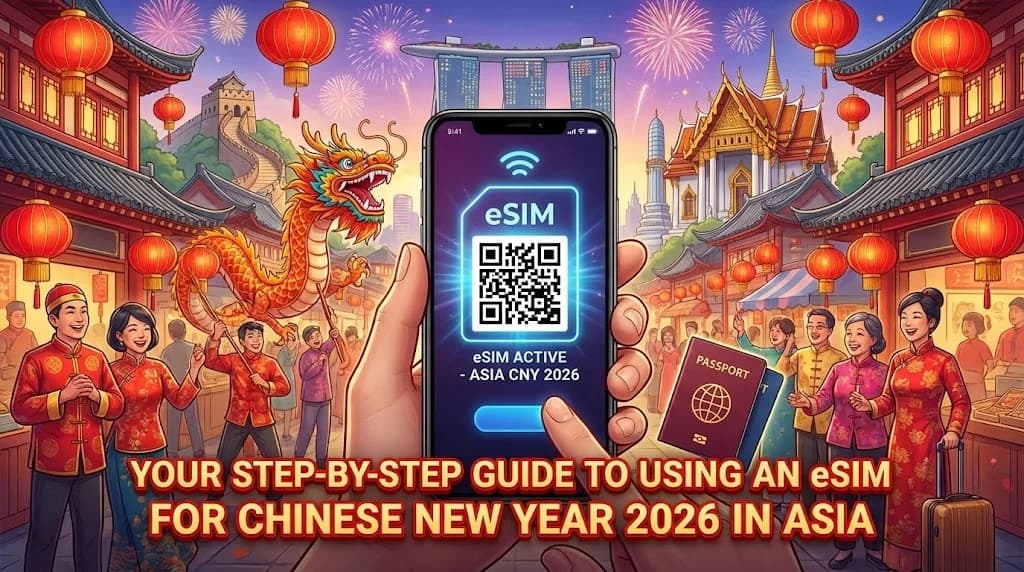
As Chinese New Year approaches in 2026, millions of travelers will embark on journeys across Asia to celebrate the Lunar New Year. This vibrant period, filled with family reunions, festive traditions, and often extensive travel, demands seamless connectivity. Managing data roaming, finding local SIM cards, or dealing with unreliable public Wi-Fi can add unnecessary stress to your holiday. An eSIM offers a modern, efficient solution, ensuring you stay connected from the moment you land.
- Preparing for Chinese New Year 2026 Travel in Asia with eSIMs
- Why Cellesim eSIMs are Ideal for Lunar New Year Celebrations
- Choosing the Right Cellesim Plan for Your Asia Adventure
- A Step-by-Step Guide to Activating Your Cellesim eSIM
- Navigating Connectivity During Peak Chinese New Year Travel
- Maximizing Your eSIM Experience Across Asia
- eSIM vs. Traditional Options: A Cost Comparison for CNY Travel
- Frequently Asked Questions
Connect Seamlessly During Chinese New Year 2026
Get instant, reliable data for your Asia travels. Join 50,000+ happy customers in 200+ countries with Cellesim.
Get Your Asia eSIM NowPreparing for Chinese New Year 2026 Travel in Asia with eSIMs
Chinese New Year, also known as Lunar New Year or Spring Festival, is a monumental celebration across Asia, marked by extensive travel. Family members journey great distances to reunite, leading to bustling airports, train stations, and often congested networks. Preparing your connectivity in advance is crucial to avoid delays and stay in touch.
An eSIM, or embedded SIM, is a digital SIM profile that allows you to activate a cellular plan without needing a physical SIM card. This technology is built directly into many modern smartphones, offering unparalleled convenience for international travelers. For your Chinese New Year trip to Asia, an eSIM means you can purchase and activate a data plan online, often before you even depart, bypassing the queues and potential language barriers at local SIM card kiosks upon arrival.
Before you go, ensure your device is eSIM compatible. Most newer smartphone models from Apple, Samsung, Google, and other manufacturers support eSIM technology. Checking this beforehand will save you time and hassle. You can use our eSIM checker tool to verify your device's compatibility.
Why Cellesim eSIMs are Ideal for Lunar New Year Celebrations
The unique demands of Chinese New Year travel, high traffic, crowded areas, and a need for constant communication, make an eSIM an exceptionally practical choice. Here’s why Cellesim stands out for your Lunar New Year adventure:
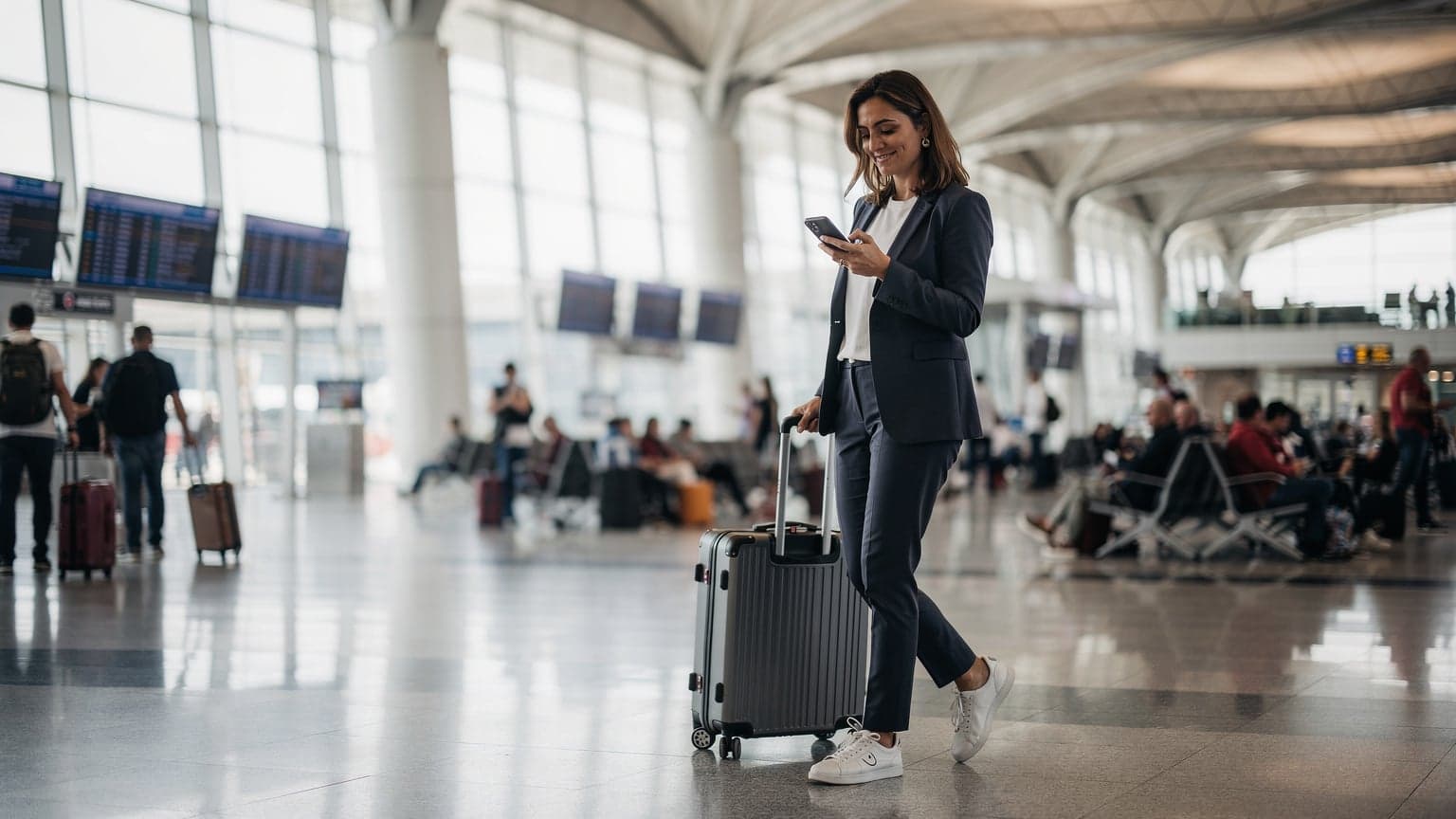
- Instant Activation: Unlike traditional SIM cards that require physical insertion, Cellesim eSIMs can be purchased and activated within minutes. You receive a QR code via email, which you then scan to install the profile. This means you can land in a bustling Asian airport and have data connectivity almost immediately, avoiding long lines at SIM card vendors, which might be even longer during the festive season.
- Retain Your Primary Number: With an eSIM, your physical SIM slot remains free, allowing you to keep your home number active for calls and texts while using the eSIM for data. This is particularly useful for two-factor authentication or staying in touch with contacts who only have your primary number. Learn more about keeping your WhatsApp number while traveling.
- Flexible Data Plans: Cellesim offers a range of data plans tailored to various travel needs, from short trips to extended stays. You can choose a regional plan covering multiple Asian countries, ideal for those who plan to visit several destinations during their CNY celebrations, or a country-specific plan for Indonesia or Taiwan, for example.
- Cost-Effective: International roaming charges can quickly become exorbitant. Cellesim eSIMs provide transparent, competitive pricing, often significantly cheaper than your home provider's roaming rates. You pay for the data you need, without hidden fees. Use our roaming savings calculator to see how much you can save.
- Environmental Benefits: Choosing an eSIM contributes to reducing plastic waste associated with physical SIM cards. It is a small but impactful step towards more sustainable travel.
Choosing the Right Cellesim Plan for Your Asia Adventure
Selecting the optimal eSIM plan is essential for a smooth Chinese New Year journey across Asia. Consider these factors:
- Destinations: If your itinerary includes multiple countries, such as visiting family in Singapore and then holidaying in Thailand, a regional eSIM plan is ideal. Cellesim offers an eSIM Global Plan that covers a vast number of countries, ensuring continuous connectivity as you cross borders. If you are staying in a single country, a specific country eSIM offers focused coverage and often better rates for that location.
- Data Usage: How much data do you anticipate using? During a festive period like Chinese New Year, you might be sharing more photos and videos, video calling family, or relying on navigation apps.
Pro Tip: Estimate your data needs with our Smart Data Calculator. A typical traveler might use 1-3 GB per week for light browsing, messaging, and occasional map use, while heavy users might need 5 GB or more.
- Duration of Stay: Cellesim plans vary in validity periods. Match the plan duration to your travel dates for Chinese New Year. Ensure your plan covers your entire stay, including potential extensions.
Always review the plan details carefully, including coverage, data allowance, and validity, before making your purchase. This preparation ensures you have reliable internet access throughout your Lunar New Year celebrations.
A Step-by-Step Guide to Activating Your Cellesim eSIM
Activating your Cellesim eSIM is a straightforward process, designed for travelers' convenience. Follow these steps to ensure you are connected before or upon arrival in Asia for Chinese New Year 2026.
- Purchase Your eSIM Plan: Visit the Cellesim website and select the Asia regional plan or a specific country plan that best suits your travel needs. Complete the purchase securely online.
- Receive Your QR Code: After purchase, Cellesim will send you an email containing your eSIM QR code and detailed installation instructions. Check your spam folder if you do not see it immediately.
- Install Your eSIM Profile:
- On iPhone: Go to Settings > Cellular/Mobile Data > Add eSIM. Choose "Use QR Code" and scan the code provided in your email. Follow the on-screen prompts.
- On Android: Navigate to Settings > Network & Internet > SIMs > Add More or Download a SIM. Select "Use a QR code" and scan the image.
- Activate Your eSIM: Once installed, you will need to enable your new eSIM line and select it for mobile data. Ensure data roaming is turned ON for your Cellesim eSIM line (this is usually necessary for travel eSIMs). Your primary line can be kept active for calls/SMS but should be set to not use data if you want to avoid roaming charges.
- Test Your Connection: Before you leave or as soon as you arrive, perform a quick test by opening a browser or an app that requires internet access. This confirms your eSIM is working correctly.
It is generally recommended to activate your eSIM before you travel, ideally in an area with a stable Wi-Fi connection. This ensures everything is set up and ready to go as soon as you land in Asia, allowing you to focus on the Chinese New Year festivities.
Explore All Cellesim eSIM Plans
Navigating Connectivity During Peak Chinese New Year Travel
The Chinese New Year period is one of the busiest travel times globally, impacting everything from transport to mobile network performance. While Cellesim partners with top local carriers to provide strong connectivity, understanding how to manage your data during peak times can enhance your experience.
Network Congestion: Expect increased usage on cellular networks, especially in major cities, popular tourist attractions, and during large gatherings like parades or temple visits. This can occasionally lead to slower speeds or temporary drops in service, similar to any physical SIM card in high-density areas. To mitigate this:
- Download Offline Maps: Use apps like Google Maps to download maps of your destinations in advance. This ensures navigation even if your data connection is weak.
- Prioritize Essential Apps: Limit background data usage for non-critical apps. Focus your data on communication, navigation, and emergency services.
- Use Wi-Fi When Available: Take advantage of hotel, cafe, or airport Wi-Fi for heavy data tasks like uploading large photos or streaming videos.
International Calls and Messaging: While your eSIM primarily provides data, you can still make international calls and send messages using VoIP apps like WhatsApp, FaceTime, or Skype, leveraging your data connection. Keeping your home SIM active for calls and SMS (without data roaming) provides a fallback for receiving important texts like bank alerts.
For official information on travel during Chinese New Year, consider checking resources like the official tourism websites of your destination countries in Asia, which often provide updates on local events and infrastructure. Always ensure your device's operating system is up to date, as software updates often include network performance enhancements.
Maximizing Your eSIM Experience Across Asia
To make the most of your Cellesim eSIM during your Chinese New Year travels in Asia, consider these advanced tips:
- Tethering and Hotspot: Most Cellesim eSIMs support tethering, allowing you to share your data connection with other devices like laptops or tablets. This is incredibly useful for remote work or keeping travel companions connected. Refer to our guide on eSIM tethering for detailed instructions.
- Monitoring Data Usage: Keep an eye on your data consumption through your phone's settings or by logging into your Cellesim account. This helps you avoid running out of data unexpectedly, especially important during a busy festival. If you do run low, it's easy to top up your plan online.
- Dual SIM Functionality: Modern phones with eSIM capabilities often support Dual SIM Dual Standby (DSDS), meaning both your physical SIM and eSIM can be active simultaneously. You can assign different functions to each, for instance, using your physical SIM for calls and SMS, and your Cellesim eSIM for all data needs.
- Security Best Practices: While using public Wi-Fi can be tempting, especially during peak travel, always prioritise your eSIM data for sensitive transactions. Public networks can be less secure. For added protection, consider using a Virtual Private Network (VPN) on any network.
"Staying connected is non-negotiable when traveling during peak times like Chinese New Year. An eSIM simplifies the process, letting you focus on the festivities instead of searching for Wi-Fi."
By leveraging these features, your Cellesim eSIM becomes a powerful tool for seamless and secure communication throughout your Chinese New Year celebrations across Asia.
eSIM vs. Traditional Options: A Cost Comparison for CNY Travel
Understanding the financial implications of your connectivity choice is vital for Chinese New Year travel. Let's compare Cellesim eSIMs with traditional options:
| Option | Price (7 days, 5GB) | Speed/Reliability | Setup Difficulty | Flexibility |
|---|---|---|---|---|
| Cellesim eSIM | From $7.50 | Full 4G/5G, reliable | Instant online | Easy top-up, multi-country |
| International Roaming | $70 - $100+ | Varies, often throttled | Automatic (home network) | Limited control, high cost |
| Local Physical SIM | $10 - $25 | Full 4G/5G, reliable | Airport/store visit, queue | Country-specific, new number |
As the table illustrates, Cellesim eSIMs offer a compelling balance of cost-effectiveness, convenience, and performance. During a high-traffic period like Chinese New Year, avoiding the queues for local SIMs and the exorbitant costs of roaming makes an eSIM the clear winner for many travelers. For more detailed comparisons, read our guide on airport SIM cards vs. eSIMs.
Ready for Seamless Chinese New Year Connectivity?
Join 50,000+ happy travelers using Cellesim in 200+ countries. Get connected in minutes.
Start Your Connected JourneyTrusted by travelers worldwide. 24/7 Support: [email protected]
Frequently Asked Questions
What is an eSIM and how does it work for travel during Chinese New Year?
An eSIM is a digital SIM card embedded directly into your phone. For travel, you purchase a data plan online, receive a QR code, and scan it to install the profile. Your phone then connects to local networks in Asia, providing internet access without needing a physical SIM. This is ideal for Chinese New Year as it avoids queues and offers instant connectivity.
Is my phone compatible with an eSIM for my Asia trip?
Most newer smartphone models from Apple (iPhone XR and later), Samsung (Galaxy S20 and later), Google (Pixel 3 and later), and other brands support eSIMs. It is important to verify your device's compatibility before purchasing a plan. You can check your phone's settings or use Cellesim's eSIM checker.
Can I use an eSIM in multiple Asian countries during my Chinese New Year travel?
Yes, Cellesim offers regional eSIM plans that cover multiple countries across Asia. This is perfect if your Chinese New Year itinerary involves visiting several destinations, such as Singapore, Malaysia, and Thailand. Simply choose a plan that includes all your planned countries.
How do I top up my Cellesim eSIM if I run out of data during the festival?
If you find yourself needing more data, topping up your Cellesim eSIM is straightforward. You can purchase additional data packages directly from your Cellesim account online. The new data will be added to your existing eSIM profile, ensuring continuous connectivity.
Will my home phone number still work with a Cellesim eSIM active?
Yes, one of the key advantages of using an eSIM is that you can keep your primary physical SIM card active. This means you can still receive calls and texts to your home number while using your Cellesim eSIM for all your data needs, helping you avoid expensive roaming charges for internet use.
When is the best time to purchase and activate my Cellesim eSIM for Chinese New Year travel?
It is highly recommended to purchase your Cellesim eSIM plan a few days before your departure and activate it while you still have a stable internet connection at home. This proactive approach ensures that your connectivity is ready to go the moment you land in Asia, allowing for a stress-free start to your Chinese New Year celebrations.